






Deploying CData Sync in a Kubernetes Environment
CData Sync provides automated, continuous replication of your enterprise data to any data store.
Containerization technology enables you to create applications rapidly and securely and to deploy your application containers to any infrastructure. However, manually installing and managing each container in your system can be time-consuming, error prone, and resource intensive. To avoid these issues, you need a tool that automates the processes for deployment, scaling, and managing your containerized applications.
Kubernetes, a popular open-source platform built on fifteen years of container-management experience at Google, solves those issues by automating and managing all processes that are involved in deployment and scaling of containerized applications. By deploying CData Sync in a Kubernetes environment, you can take advantage of Kubernetes’ orchestration functionality, including high availability (no downtime), scalability of loads, and backup-and-restore capabilities.
This article provides step-by-step instructions for deploying Sync in the Kubernetes environment, and it lists the tools that you need for that process.
Requirements
The following tools are required in order to deploy Sync in Kubernetes:
- Docker Desktop
- Windows System for Linux (WSL) 2
- Ubuntu (available from the Microsoft Store)
- kubectl command-line tool
- Azure Kubernetes Services (AKS)
- Microsoft Azure Command-Line Interface (CLI) - Windows
- Microsoft Azure Command-Line Interface (CLI) - Linux
- Docker on Ubuntu
Deploying CData Sync in a Kubernetes Environment
The basic steps for deploying Sync in Kubernetes are as follows:
- Gather resources and build a Docker image.
- Build a Docker container.
- Push Docker Image
- Create PVC and PV
- Deploy Sync in Kubernetes
Each of these main steps are broken into multiple steps in the following sections:
Step 1: Gather Resources and Build a Docker Image
-
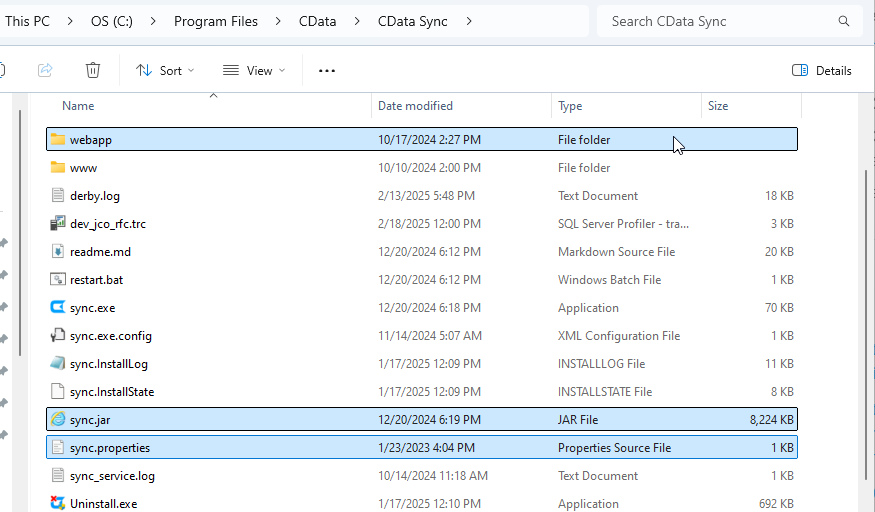
Create a new folder locally. Include the following items in this folder:
- sync.jar file
- sync.properties file
- webapp folder (which contains the sync.war file)
-
Create a file named Dockerfile in the same folder that you created in Step 1. Include the following content in that file:
FROM mcr.microsoft.com/openjdk/jdk:11-ubuntu # copy required files and fix permissions RUN mkdir -p /opt/sync/webapp WORKDIR /opt/sync/ COPY sync.jar sync.jar COPY webapp/sync.war webapp/sync.war COPY sync.properties /opt/sync/ RUN addgroup --system --gid 20000 cdatasync \ && adduser --system --uid 20000 --gid 20000 cdatasync \ && mkdir -p /var/opt/sync \ && chown -R cdatasync:cdatasync /var/opt/sync \ && chown -R cdatasync:cdatasync /opt/sync # change user and set environment USER cdatasync ENV APP_DIRECTORY=/var/opt/sync EXPOSE 8181 # run the app CMD ["java","-jar","sync.jar"] -
Create a database server to use as the application database (ApplicationDatabase).
-
Create a database (for example, a PostgreSQL database) in Azure:
az postgres server create
    --resource-group ResourceGroup
    --name ServerName
The output from this command are your credentials. You can also access your credentials from within your Azure portal in your web browser. -
Add the credentials to the cdata.app.db configuration that is in the sync.properties file, as shown below. (The sync.properties file resides in InstallationDirectory.)
cdata.app.db=jdbc:cdata:mysql:Server=ServerName;Database=DatabaseName;User=UserName;Password=Password;UseSSL=True;UseConnectionPooling=True;
-
Create a database (for example, a PostgreSQL database) in Azure:
-
Create an Azure volume for ApplicationDirectory.
-
Create the account:
az storage account create
    --name AccountName
    --resource-group ResourceGroup
    --kind FileStorage
    --sku Premium_LRS
Note: For better performance, the Premium storage type is recommended for locally redundant storage. -
Create a file share on the storage account:
az storage share-rm create
    --resource-group ResourceGroup
    --storage-account AccountName
    --name ShareName
    --quota 100
-
Create the account:
Step 2: Build a Docker Container
- Navigate in the terminal (if you are not already there) to the local folder that you created earlier which contains the sync.war and the other resources.
-
Build the Docker container image by running the following command. This image is named “sync”.
docker build . -t sync
-
Once the container image has been built, test to ensure that Sync will start when the container image is run. To run the container image, issue the following command.
docker run -p 8181:8181 -d sync
- Confirm the app is running by visiting http://localhost:8181. Once you confirmed the app can run locally, you can stop the container.
Step 3: Push Docker Image
-
Create Kubernetes services on Azure
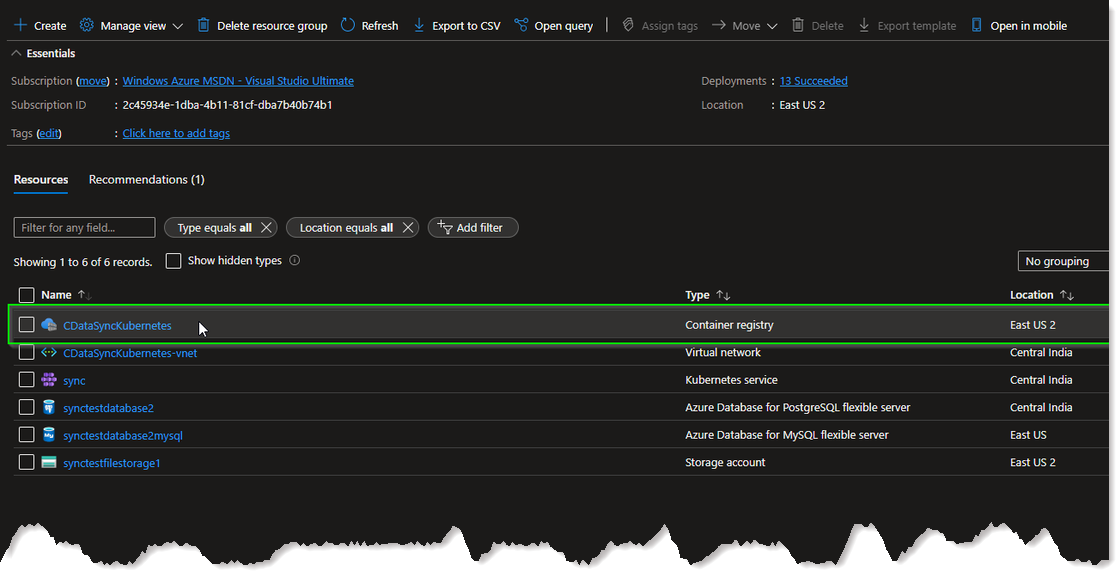
- Make sure to create a container registry inside your Azure Kubernetes Service as you will need it in later steps.
-
Login to your Azure account from the command line. Depending on which version (Windows/Linux) of Azure CLI you have installed, you will need to login from the appropriate terminal. To login, issue this command:
az login
-
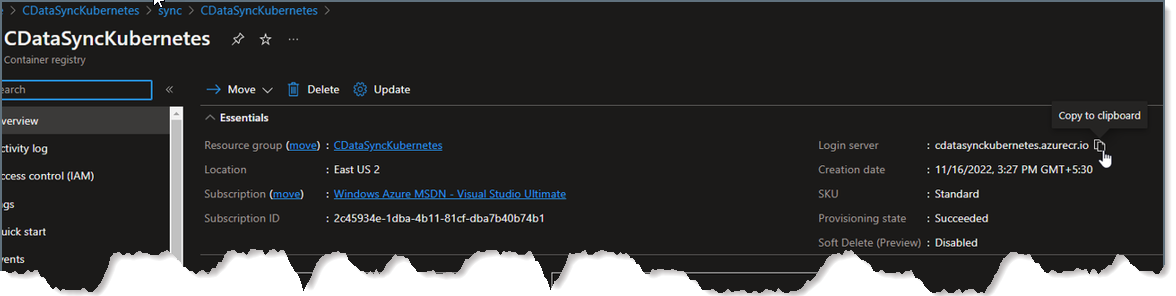
Navigate to your resource group in the Azure Kubernetes Service and locate the container registry. You need this registry to retrieve the login server.
-
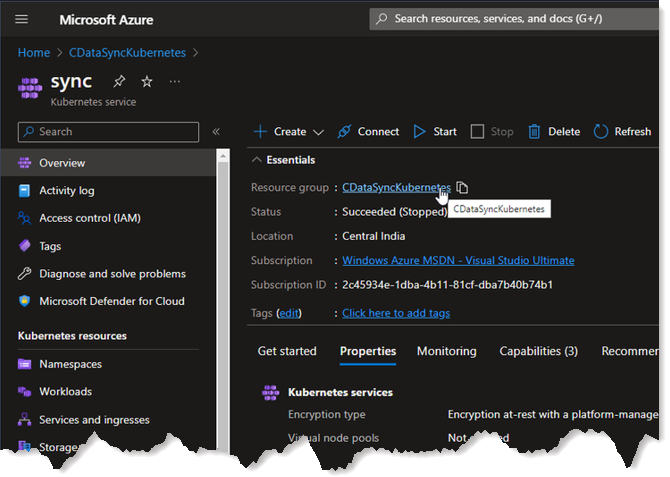
In your Azure Kubernetes Service, navigate to your resource group.
-
Locate the container registry that is inside the resource group.
-
The login server is available inside the container registry, as shown below:
-
In your Azure Kubernetes Service, navigate to your resource group.
-
Login to the container registry by using your username, password, and login server. If you do not know your username and password, you can view them within the Settings → Access Keys tab within your container registry.
az acr login --name LoginServerName --username YourUserName --password YourPassword -
Add a tag (optional) and push your local docker image into the container registry by running these two commands:
docker tag LocalImageName LoginServerName/name:value
docker push LoginServerName/name:value
- You will then be able to see your repository and image within your Azure Container Registry. You can check by navigating to your container registry → Services → Repositories
Step 4: Create PVC and PV
To use the storage account and file share that you created earlier, you must create a definition for this resource within Kubernetes so that it knows what it is and how to use it. This is made up of two parts: Persistent Volume and a Persistent Volume Claim.
A persistent volume (PV) represents a piece of storage that has been provisioned for use with Kubernetes pods. A persistent volume claim (PVC) uses the storage class object to dynamically provision an Azure file share.
Azure provides a guide for how to do this, which you can read and follow at Create and use a volume with Azure Files in Azure Kubernetes Service (AKS). The main steps are outlined below:
-
Navigate to your Kubernetes Service in Azure and click Connect. Then, Azure displays the commands that must be run in order to connect to the cluster. You can validate that you are connected by running the command below:
kubectl get nodes
-
Create a Kubernetes Secret:
-
Create a STORAGE_KEY environment variable by using the following command, replacing nodeResourceGroupName and myAKSStorageAccount with your values. This variable will be used in the next step.
STORAGE_KEY=$(az storage account keys list --resource-group nodeResourceGroupName --account-name myAKSStorageAccount --query "[0].value" -o tsv)
-
Create the secret using the kubectl create secret command, replacing nodeResourceGroupName and myAKSStorageAccount with your values. The name of this secret is “azure-secret” and this name will need to be referenced in subsequent steps.
kubectl create secret generic azure-secret --from-literal=azurestorageaccountname=myAKSStorageAccount --from-literal=azurestorageaccountkey=$STORAGE_KEY
-
Create a STORAGE_KEY environment variable by using the following command, replacing nodeResourceGroupName and myAKSStorageAccount with your values. This variable will be used in the next step.
-
Create a PV:
-
Create a file called sync-pv.yaml and include the following contents. Under csi, update resourceGroup, volumeHandle, and shareName with your values:
apiVersion: v1 kind: PersistentVolume metadata: annotations: pv.kubernetes.io/provisioned-by: file.csi.azure.com name: azurefile spec: capacity: storage: 5Gi accessModes: - ReadWriteMany persistentVolumeReclaimPolicy: Retain storageClassName: azurefile-csi csi: driver: file.csi.azure.com volumeHandle: "{resource-group-name}#{account-name}#{file-share-name}" # make sure this volumeid is unique for every identical share in the cluster volumeAttributes: resourceGroup: my-resource-group # optional, only set this when storage account is not in the same resource group as node shareName: my-share-name nodeStageSecretRef: name: azure-secret namespace: default mountOptions: - dir_mode=0777 - file_mode=0777 - uid=20000 - gid=20000Create - mfsymlinks - cache=strict - nosharesock -
Create the PV in your AKS environment by running the command below:
kubectl create -f sync-pv.yaml
-
Create a file called sync-pv.yaml and include the following contents. Under csi, update resourceGroup, volumeHandle, and shareName with your values:
-
Create a PVC:
-
Create a new file named sync-pvc.yaml and copy the following contents. Note, the default azurefile-csi storage class is utilized. Additionally, the volumeName value must match the name of the PV you created in the previous step:
apiVersion: v1 kind: PersistentVolumeClaim metadata: name: azurefile spec: accessModes: - ReadWriteMany storageClassName: azurefile-csi volumeName: azurefile resources: requests: storage: 100Gi -
Create the PVC in your AKS environment using the command below:
kubectl apply -f my-pvc.yaml
-
Create a new file named sync-pvc.yaml and copy the following contents. Note, the default azurefile-csi storage class is utilized. Additionally, the volumeName value must match the name of the PV you created in the previous step:
Step 5: Deploy Sync in Kubernetes
With the PV and PVC created, it is time to create the Sync deployment within the AKS environment. Follow the below steps.
-
Ensure you are connected to your AKS environment. Validate that you are connected by running the code below:
kubectl get nodes
-
Create a Kubernetes Docker Secret. This secret is similar to the one created earlier but this one is responsible for providing credentials to be able to pull the docker image from the container registry. This is outlined in more detail within the Kubernetes documentation here. To create the secret, run the following command, substituting the appropriate uppercase values and replacing name with the name you want for the secret. Email is not required:
kubectl create secret docker-registry name \ --docker-server=DOCKER_REGISTRY_SERVER \ --docker-username=DOCKER_USER \ --docker-password=DOCKER_PASSWORD \ --docker-email=DOCKER_EMAIL -
Create a Deployment YAML file for Sync. Create a file sync.yaml and use the below content but ensure that the values for image, the name value for imagePullSecrets and claimName match the values of the resources which you have created.
apiVersion: apps/v1 kind: Deployment metadata: name: sync spec: replicas: 1 selector: matchLabels: app: sync template: metadata: labels: app: sync spec: securityContext: runAsUser: 20000 runAsGroup: 20000 fsGroup: 20000 containers: - name: sync image: cdatadocstest.azurecr.io/sync:latest imagePullPolicy: Always ports: - containerPort: 8181 volumeMounts: - mountPath: /cdata/data name: azure readOnly: false imagePullSecrets: - name: docker-secret volumes: - name: azure persistentVolumeClaim: claimName: azurefile -
Push your deployment to AKS by issuing the command below:
kubectl apply -f sync.yaml
-
Ensure your deployment is running by running the command below. If configured correctly, you should see the Sync deployment running and available:
kubectl get deployments
-
Expose Sync publicly by running the command below:
kubectl expose deployment sync --type=LoadBalancer --port=8181
-
Verify a public IP has been assigned to the Sync deployment by running the command below and note the EXTERNAL-IP for the Sync service:
kubectl get all
-
Verify a public IP has been assigned to the Sync deployment by running the command below and note the EXTERNAL-IP for the Sync service:
- You can now access the app by using http://EXTERNAL-IP:8181
Free Trial & More Information
Now that you have seen how to deploy Sync in the Kubernetes environment, visit our CData Sync page to read more information about CData Sync and download a free trial. Start consolidating your enterprise data to a cloud data warehouse today! As always, our world-class Support Team is ready to answer any questions you may have.