






【徹底解説】Google Apps Script とAPI のデータを連携する方法 | コード付き

Google Apps Script を使えばGoogle スプレッドシート、Google ドキュメントといったGoogle のサービス内でカスタム機能を作成できます。CData Connect AI を使えば、API を含むCData がサポートする100以上のすべてのデータソースのSQL Server インターフェースを利用できます。SQL Server プロトコルはGoogle Apps Script のJDBC サービスでネイティブにサポートされているので、Connect AI を活用すればご利用のGoogle サービスからAPI のリアルタイムデータにアクセスできます。
この記事では、Connect AI でAPI に接続する方法を説明し、Google スプレッドシートでAPI のデータを扱うためのサンプルスクリプトを提供します。
この記事のスクリプトは指定したテーブルからのみデータを読み込みますが、スクリプトを拡張して更新機能を追加することもできます。
Connect AI からAPI への接続
CData Connect AI では、直感的なクリック操作ベースのインターフェースを使ってデータソースに接続できます。
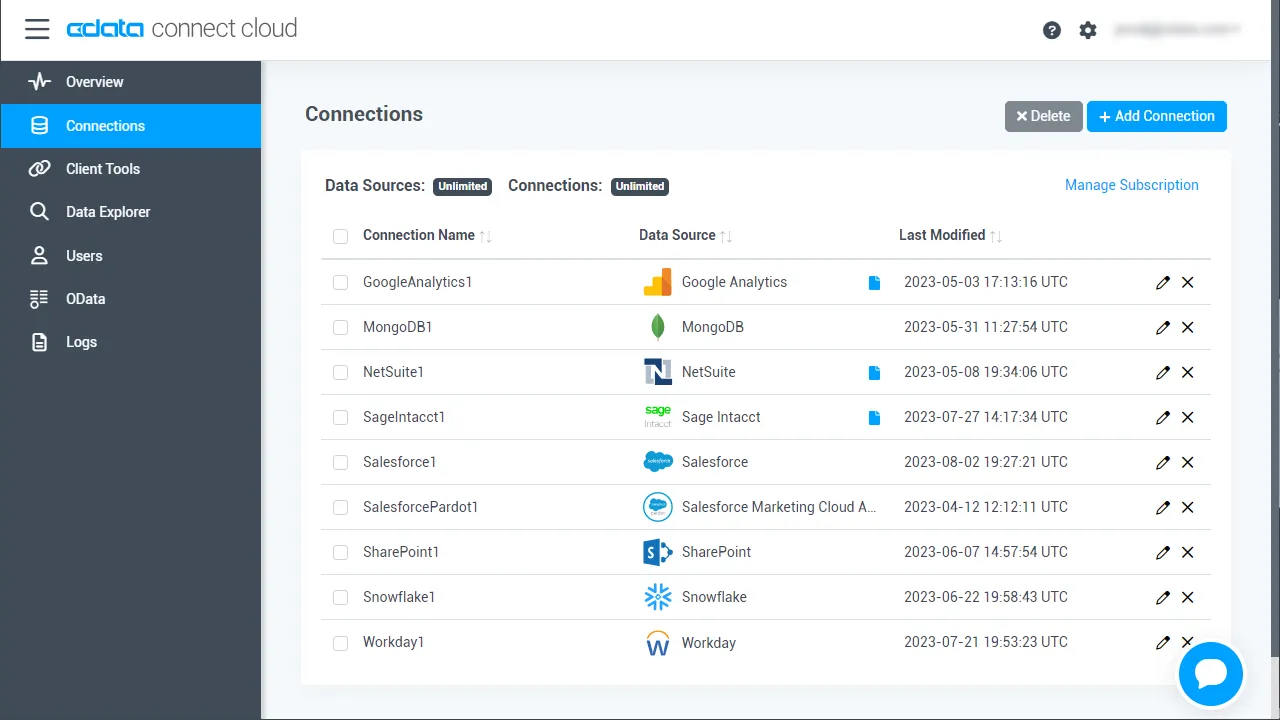
- Connect AI にログインし、 Add Connection をクリックします。
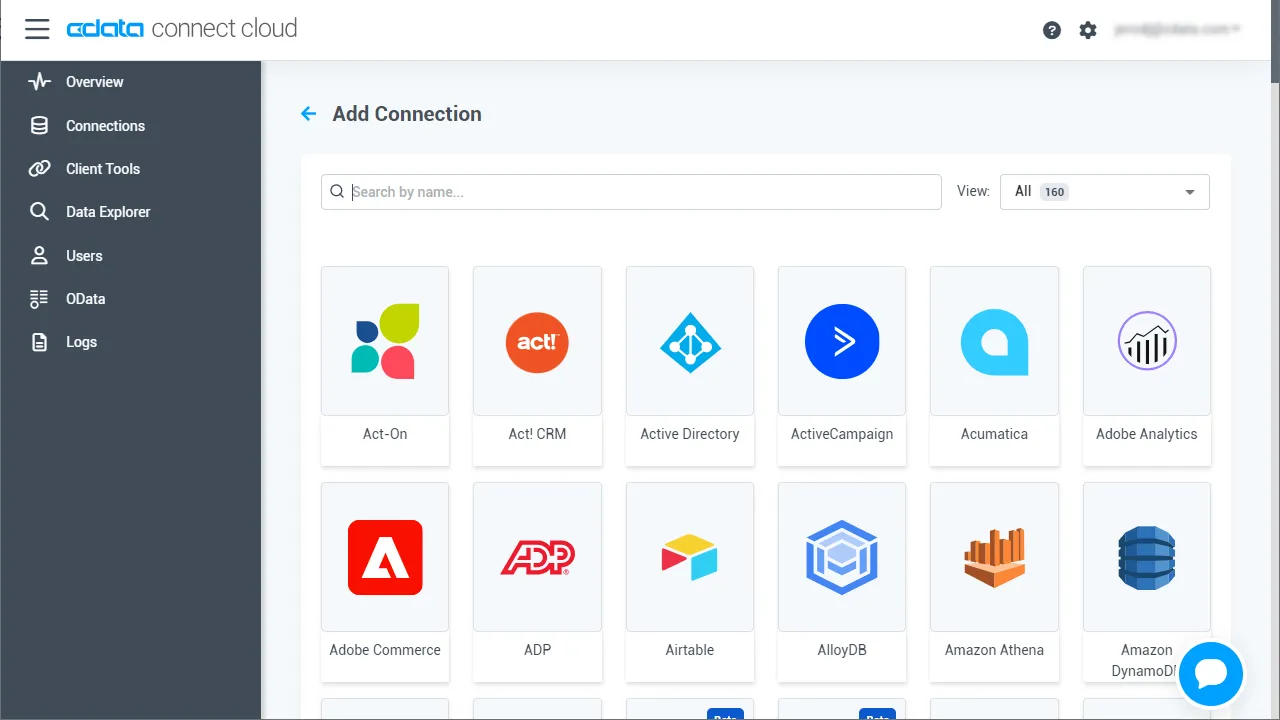
- Add Connection パネルから「API」を選択します。
-
必要な認証プロパティを入力し、API に接続します。
To connect to your API, configure the following properties on the Global Settings page:
- In Authentication, select the Type and fill in the required properties
- In Headers, add the required HTTP headers for your API
- In Pagination, select the Type and fill in the required properties
After the configuring the global settings, navigate to the Tables to add tables. For each table you wish to add:
- Click "+ Add"
- Set the Name for the table
- Set Request URL to the API endpoint you wish to work with
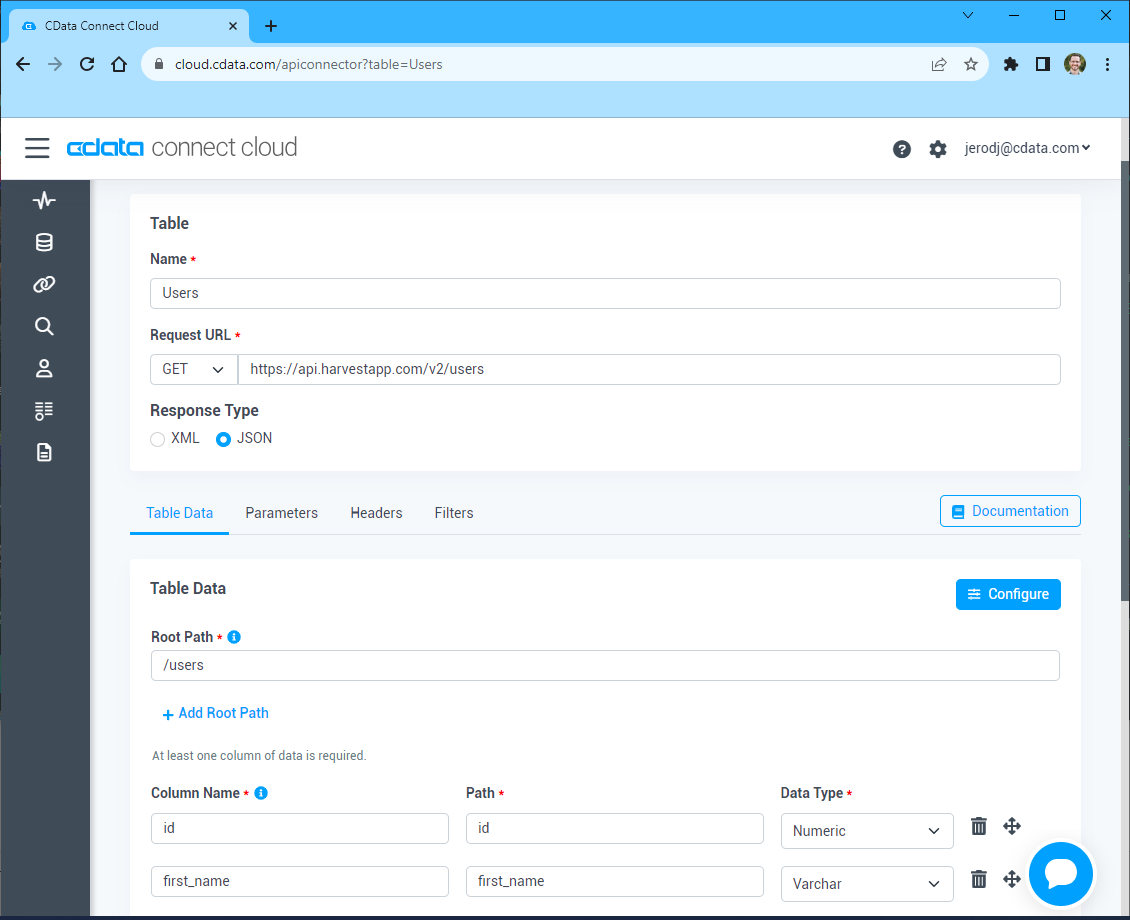
- (Optional) In Parameters, add the required URL Parameters for your API endpoint
- (Optional) In Headers, add the required HTTP headers for the API endpoint
- In Table Data click " Configure"
- Review the response from the API and click "Next"
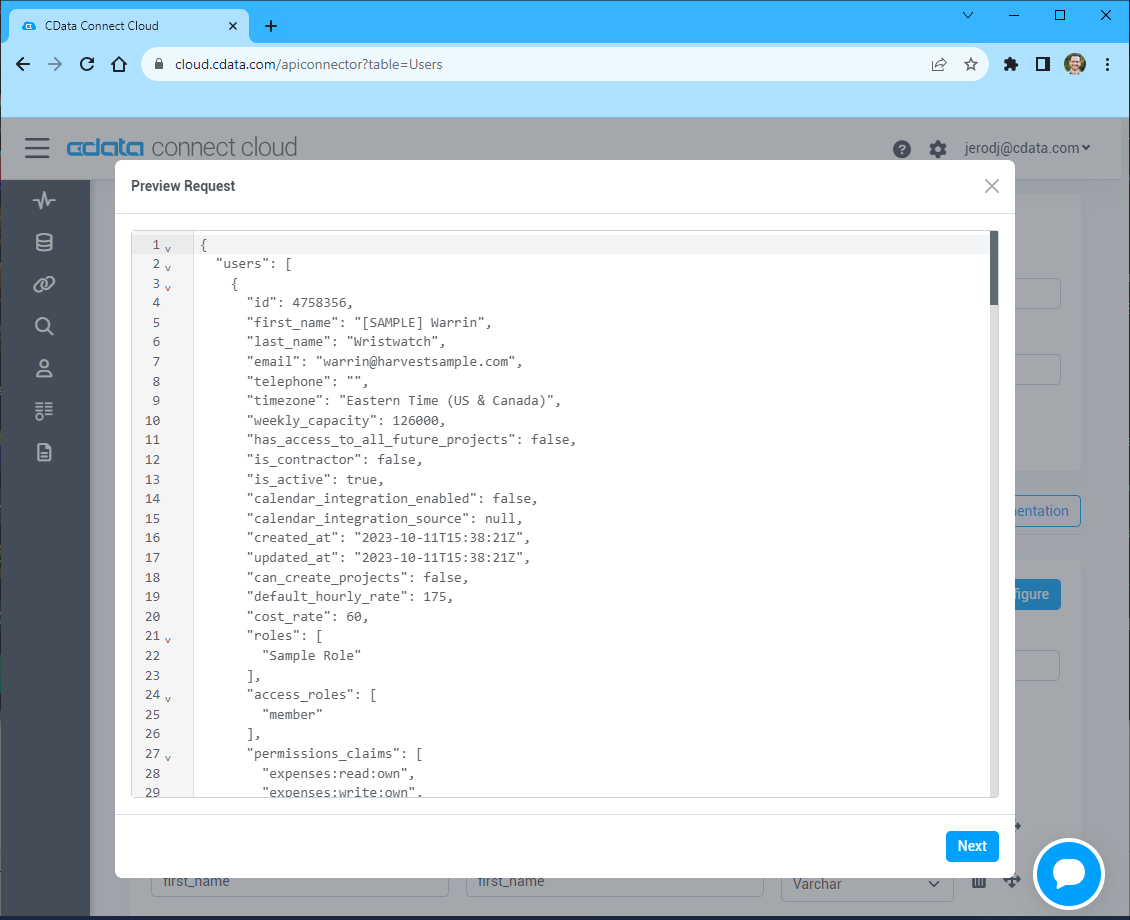
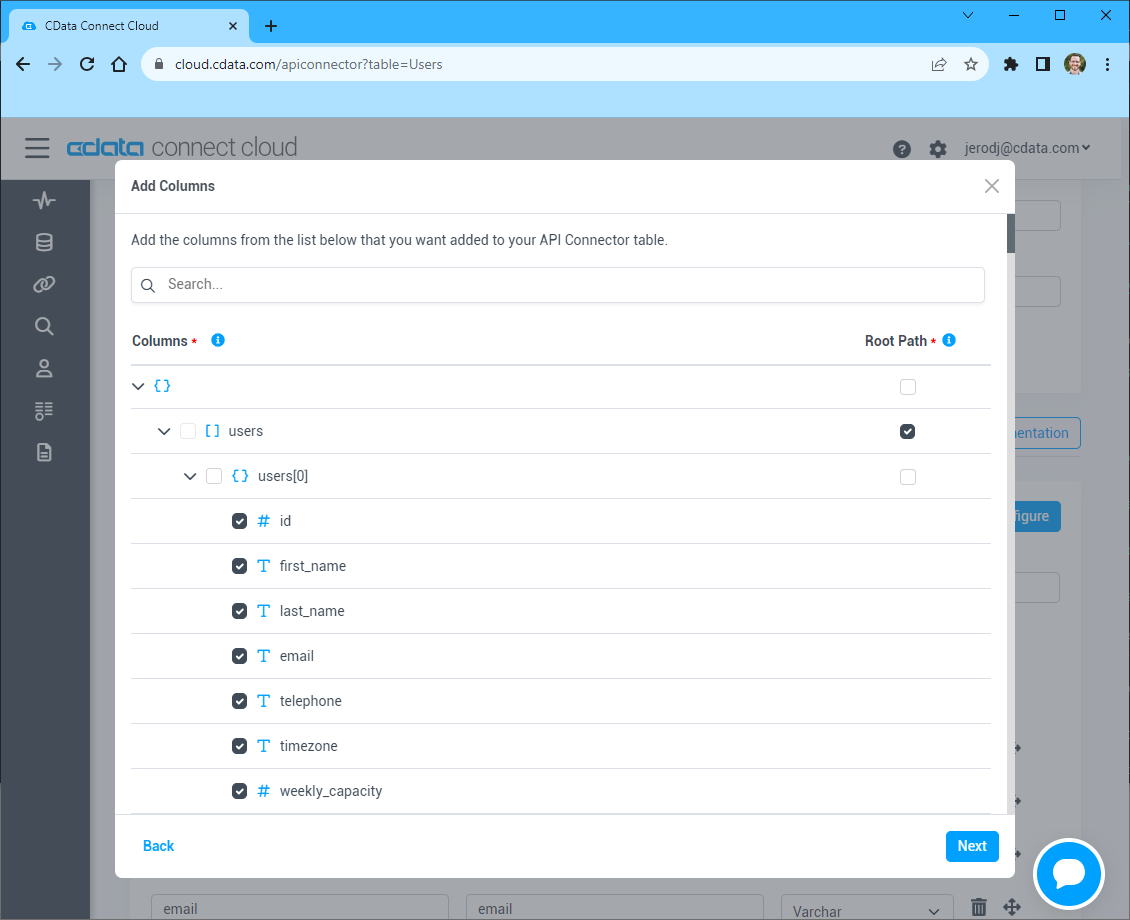
- Select which element to use as the Repeated Elements and which elements to use as Columns and click "Next"
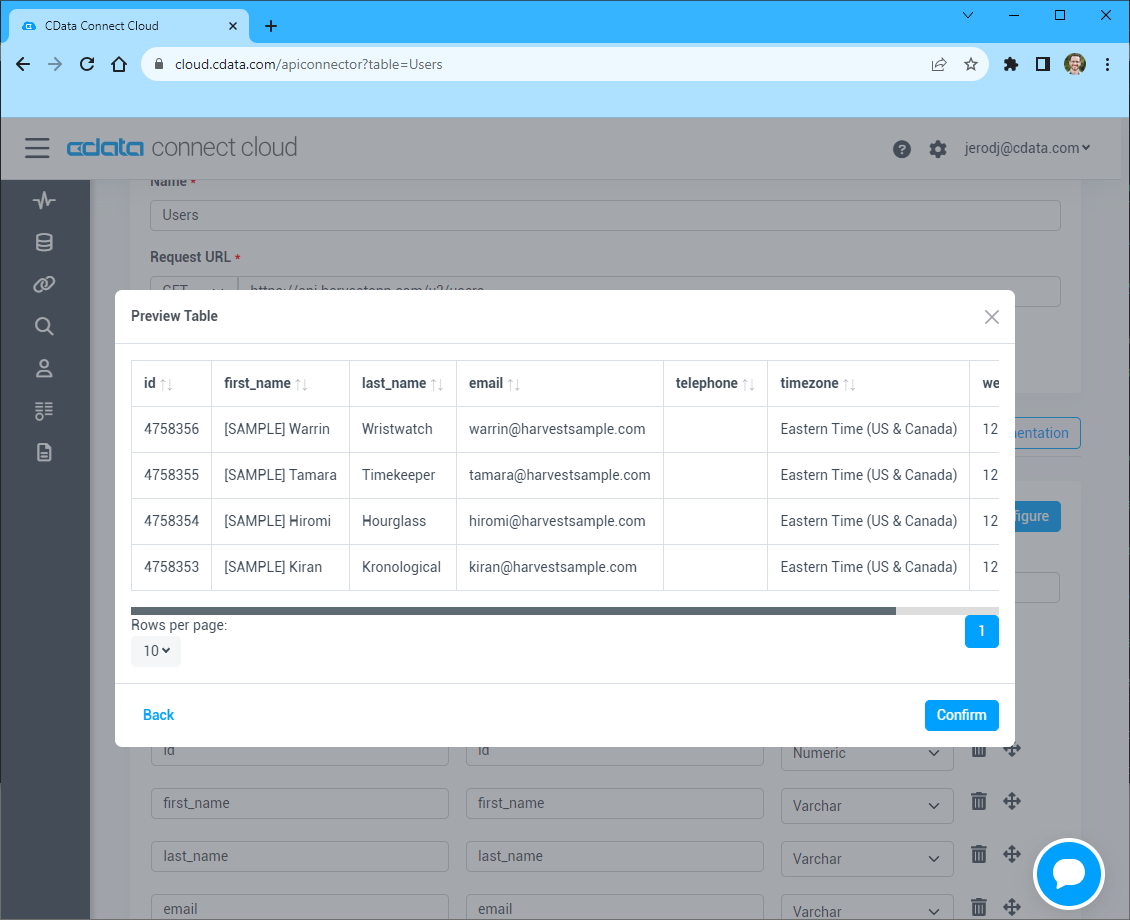
- Preview the tabular model of the API response and click "Confirm"
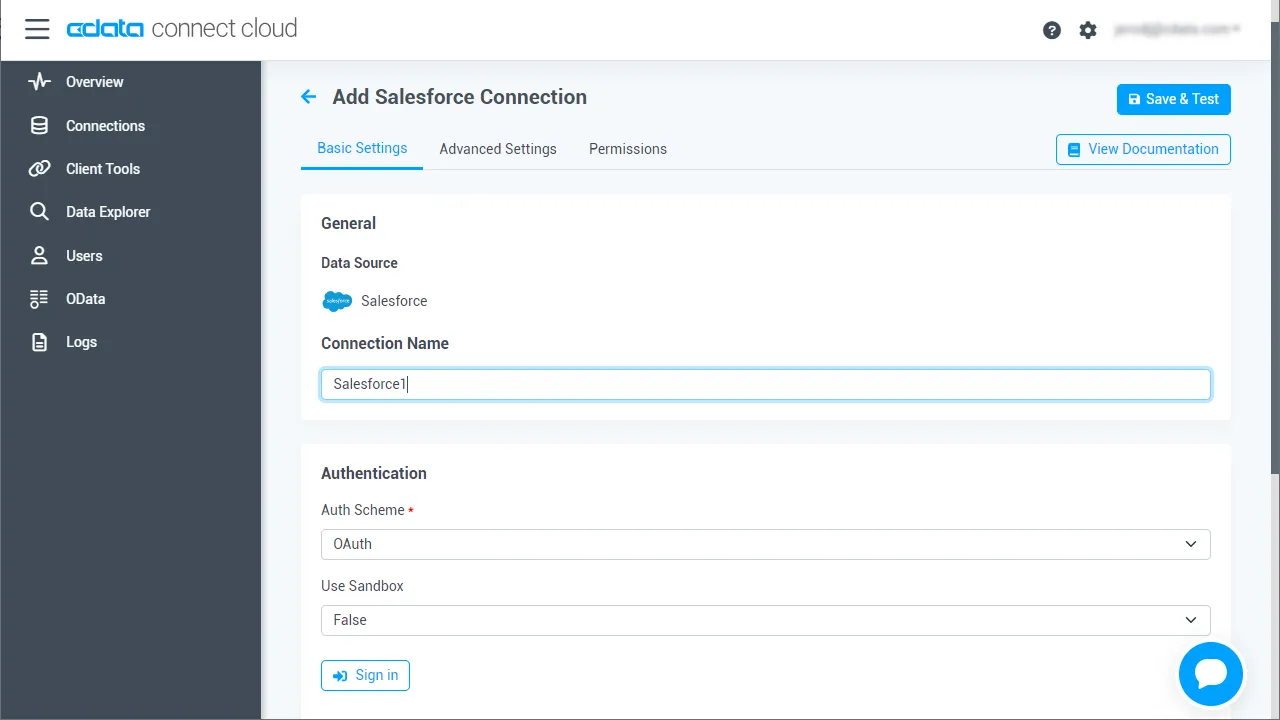
- Create & Test をクリックします。
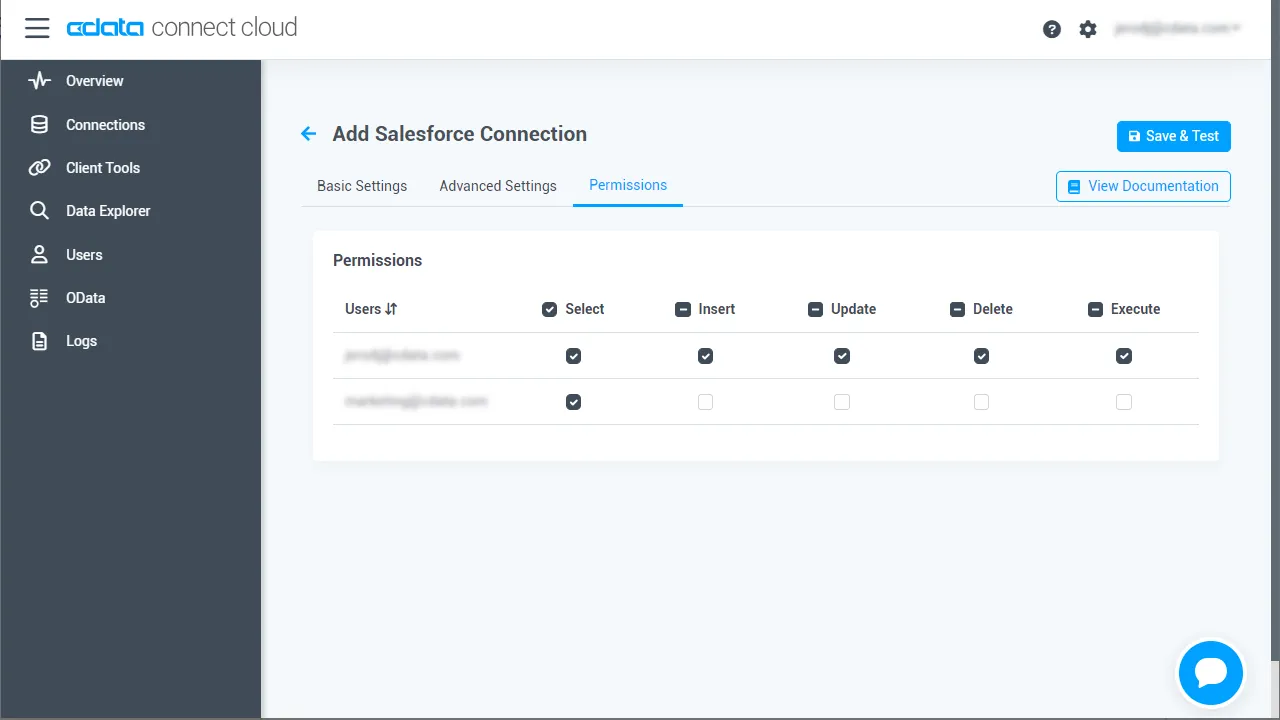
- 「Add API Connection」ページの「Permissions」タブに移動し、ユーザーベースのアクセス許可を更新します。
パーソナルアクセストークンの追加
OAuth 認証をサポートしていないサービス、アプリケーション、プラットフォーム、またはフレームワークから接続する場合は、認証に使用するパーソナルアクセストークン(PAT)を作成できます。きめ細かなアクセス管理を行うために、サービスごとに個別のPAT を作成するのがベストプラクティスです。
- Connect AI アプリの右上にあるユーザー名をクリックし、「Settings」をクリックします。
- 「Settings」ページで「Access Token」セクションにスクロールし、 Create PAT をクリックします。
- PAT の名前を入力して Create をクリックします。
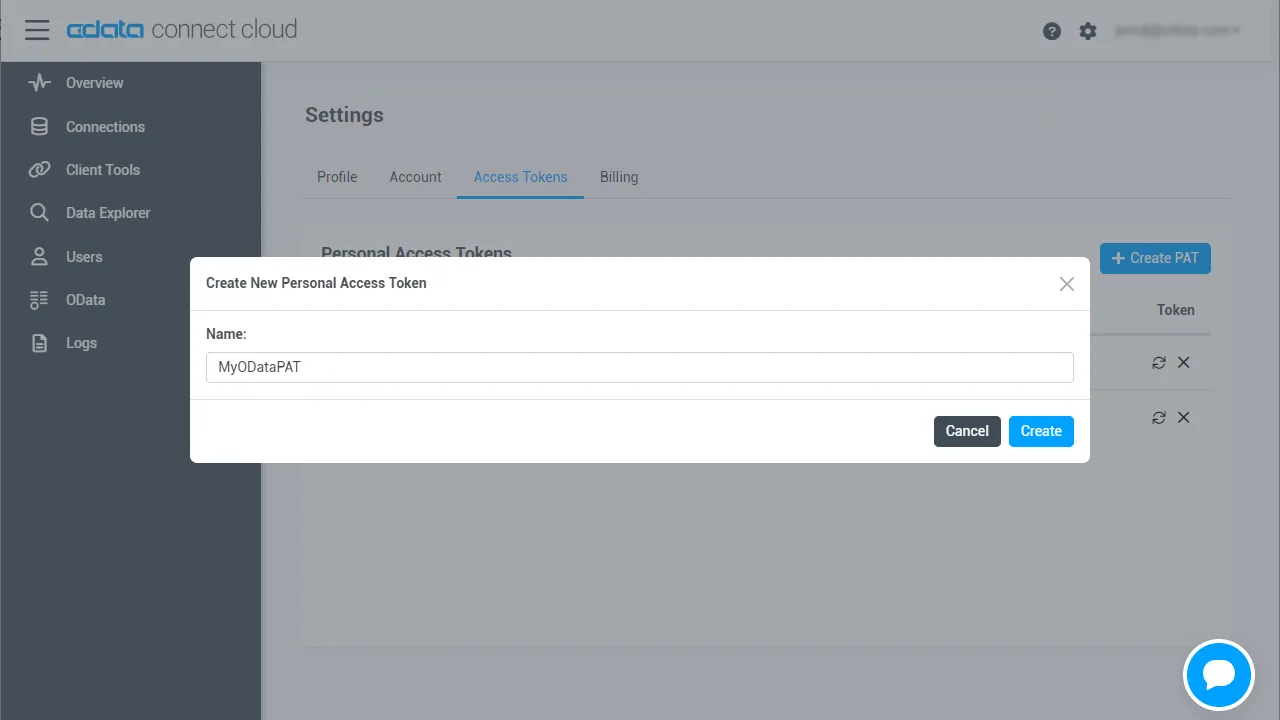
- パーソナルアクセストークンは作成時にしか表示されないため、必ずコピーして安全に保存してください。
コネクションの設定が完了したら、Google Apps Script からAPI のデータへの接続準備ができました。
Apps Script からAPI のデータに接続
ここまでで、Connect AI でのAPI のコネクション設定は完了していると思います。ここからは、Google Apps Script からConnect AI に接続して、Google スプレッドシートでAPI のデータを扱います。
このセクションでは、スプレッドシートからAPI のデータを取得する、スクリプトを呼び出すメニューオプション付きのスクリプトを作成していきます。本記事用に、各部分にコメントをつけたサンプルスクリプトを作成しました。サンプルスクリプトは、記事の最後に記載しています。
1.空のスクリプトを作成
Google スプレッドシート用のスクリプトを作るには、Google スプレッドシートのメニューから拡張機能 Apps Script をクリックします。
2.クラス変数の宣言
スクリプトで作成した関数で利用するためのクラス変数をいくつか作成します。
//replace the variables in this block with real values as needed
var address = 'tds.cdata.com:14333';
var user = 'CONNECT_USER'; // [email protected]
var userPwd = 'CONNECT_USER_PAT';
var db = 'API1';

var dbUrl = 'jdbc:sqlserver://' + address + ';databaseName=' + db;
3.メニューオプションを追加
この関数はGoogle スプレッドシートに、作成した関数を呼び出すためのメニューオプションを追加します。
function onOpen() {
  var spreadsheet = SpreadsheetApp.getActive();
  var menuItems = [
    {name:'Export data to a sheet', functionName: 'connectToAPIData'}
  ];
  spreadsheet.addMenu('API のデータ', menuItems);
}

4.ヘルパー関数を作成
スプレッドシートの最初の空行を見つけるために、この関数を使用します。
/*
 * Finds the first empty row in a spreadsheet by scanning an array of columns
 * @return The row number of the first empty row.
 */
function getFirstEmptyRowByColumnArray(spreadSheet, column) {
  var column = spreadSheet.getRange(column + ":" + column);
  var values = column.getValues(); // get all data in one call
  var ct = 0;
  while ( values[ct] && values[ct][0] != "" ) {
    ct++;
  }
  return (ct+1);
}
5.API のデータをスプレッドシートに書き込む関数を作成
以下の関数はGoogle Apps Script のJDBC 機能を使ってConnect AI に接続し、API のデータを書き込み、データをSELECT してスプレッドシートにデータを読み込みます。スクリプトを実行すると、2つの入力ボックスが表示されます。
最初のボックスはユーザーに、データを保持するためのシート名を入力するよう求めます。スプレッドシートが存在しなければ、関数側で作成します。
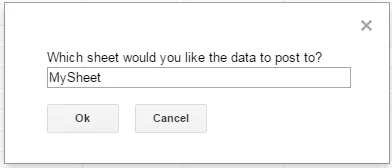
2つ目のボックスはユーザーに、読み込むAPI テーブル名を入力するよう求めます。無効なテーブルを選択すると、エラーメッセージが表示され関数は終了します。
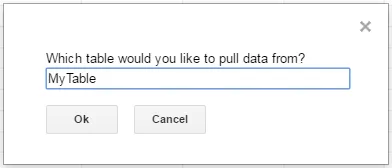
関数はメニューオプションとして使用するよう設計されていますが、スプレッドシートの式として使用するよう拡張することもできます。
/*
 * Reads data from a specified API 'table' and writes it to the specified sheet.
 *    (If the specified sheet does not exist, it is created.)
 */
function connectToAPIData() {
  var thisWorkbook = SpreadsheetApp.getActive();

  //select a sheet and create it if it does not exist
  var selectedSheet = Browser.inputBox('Which sheet would you like the data to post to?',Browser.Buttons.OK_CANCEL);
  if (selectedSheet == 'cancel')
    return;

  if (thisWorkbook.getSheetByName(selectedSheet) == null)
    thisWorkbook.insertSheet(selectedSheet);
  var resultSheet = thisWorkbook.getSheetByName(selectedSheet);
  var rowNum = 2;

  //select a API 'table'
  var table = Browser.inputBox('Which table would you like to pull data from?',Browser.Buttons.OK_CANCEL);
  if (table == 'cancel')
    return;

  var name = Jdbc.getConnection(dbUrl, {
    user: user,
    password: userPwd
	}
  );

  //confirm that var table is a valid table/view
  var dbMetaData = name.getMetaData();
  var tableSet = dbMetaData.getTables(null, null, table, null);
  var validTable = false;
  while (tableSet.next()) {
    var tempTable = tableSet.getString(3);
    if (table.toUpperCase() == tempTable.toUpperCase()){
      table = tempTable;
      validTable = true;
      break;
    }
  }
  tableSet.close();
  if (!validTable) {
    Browser.msgBox("Invalid table name: " + table, Browser.Buttons.OK);
    return;
  }

  var stmt = name.createStatement();

  var results = stmt.executeQuery('SELECT * FROM ' + table);
  var rsmd = results.getMetaData();
  var numCols = rsmd.getColumnCount();

  //if the sheet is empty, populate the first row with the headers
  var firstEmptyRow = getFirstEmptyRowByColumnArray(resultSheet, "A");
  if (firstEmptyRow == 1) {
    //collect column names
    var headers = new Array(new Array(numCols));
    for (var col = 0; col < numCols; col++){
      headers[0][col] = rsmd.getColumnName(col+1);
    }
    resultSheet.getRange(1, 1, headers.length, headers[0].length).setValues(headers);
  } else {
    rowNum = firstEmptyRow;
  }

  //write rows ofAPI のデータto the sheet
  var values = new Array(new Array(numCols));
  while (results.next()) {
    for (var col = 0; col < numCols; col++) {
      values[0][col] = results.getString(col + 1);
    }
    resultSheet.getRange(rowNum, 1, 1, numCols).setValues(values);
    rowNum++;
  }

  results.close();
  stmt.close();
}
関数の処理が完了すると、スプレッドシートにAPI のデータが読み込まれ、Google スプレッドシートの表計算、グラフ作成機能をどこでも自在に活用できます。
完全なGoogle Apps Script
//replace the variables in this block with real values as needed
var address = 'tds.cdata.com:14333';
var user = 'CONNECT_USER'; // [email protected]
var userPwd = 'CONNECT_USER_PAT';
var db = 'API1';

var dbUrl = 'jdbc:sqlserver://' + address + ';databaseName=' + db;

function onOpen() {
  var spreadsheet = SpreadsheetApp.getActive();
  var menuItems = [
    {name:'Write table data to a sheet', functionName: 'connectToAPIData'}
  ];
  spreadsheet.addMenu('API のデータ', menuItems);
}

/*
 * Finds the first empty row in a spreadsheet by scanning an array of columns
 * @return The row number of the first empty row.
 */
function getFirstEmptyRowByColumnArray(spreadSheet, column) {
  var column = spreadSheet.getRange(column + ":" + column);
  var values = column.getValues(); // get all data in one call
  var ct = 0;
  while ( values[ct] && values[ct][0] != "" ) {
    ct++;
  }
  return (ct+1);
}

/*
 * Reads data from a specified 'table' and writes it to the specified sheet.
 *    (If the specified sheet does not exist, it is created.)
 */
function connectToAPIData() {
  var thisWorkbook = SpreadsheetApp.getActive();

  //select a sheet and create it if it does not exist
  var selectedSheet = Browser.inputBox('Which sheet would you like the data to post to?',Browser.Buttons.OK_CANCEL);
  if (selectedSheet == 'cancel')
    return;

  if (thisWorkbook.getSheetByName(selectedSheet) == null)
    thisWorkbook.insertSheet(selectedSheet);
  var resultSheet = thisWorkbook.getSheetByName(selectedSheet);
  var rowNum = 2;

  //select a API 'table'
  var table = Browser.inputBox('Which table would you like to pull data from?',Browser.Buttons.OK_CANCEL);
  if (table == 'cancel')
    return;

  var name = Jdbc.getConnection(dbUrl, {
    user: user,
    password: userPwd
	}
  );

  //confirm that var table is a valid table/view
  var dbMetaData = name.getMetaData();
  var tableSet = dbMetaData.getTables(null, null, table, null);
  var validTable = false;
  while (tableSet.next()) {
    var tempTable = tableSet.getString(3);
    if (table.toUpperCase() == tempTable.toUpperCase()){
      table = tempTable;
      validTable = true;
      break;
    }
  }
  tableSet.close();
  if (!validTable) {
    Browser.msgBox("Invalid table name: " + table, Browser.Buttons.OK);
    return;
  }

  var stmt = name.createStatement();

  var results = stmt.executeQuery('SELECT * FROM ' + table);
  var rsmd = results.getMetaData();
  var numCols = rsmd.getColumnCount();

  //if the sheet is empty, populate the first row with the headers
  var firstEmptyRow = getFirstEmptyRowByColumnArray(resultSheet, "A");
  if (firstEmptyRow == 1) {
    //collect column names
    var headers = new Array(new Array(numCols));
    for (var col = 0; col < numCols; col++){
      headers[0][col] = rsmd.getColumnName(col+1);
    }
    resultSheet.getRange(1, 1, headers.length, headers[0].length).setValues(headers);
  } else {
    rowNum = firstEmptyRow;
  }

  //write rows ofAPI のデータto the sheet
  var values = new Array(new Array(numCols));
  while (results.next()) {
    for (var col = 0; col < numCols; col++) {
      values[0][col] = results.getString(col + 1);
    }
    resultSheet.getRange(rowNum, 1, 1, numCols).setValues(values);
    rowNum++;
  }

  results.close();
  stmt.close();
}