






datapine で API に接続したビジュアライゼーションを構築

datapine は、ブラウザベースのビジネスインテリジェンスプラットフォームです。CData Connect AI と組み合わせることで、datapine のビジュアライゼーションやダッシュボードから直接API のデータにアクセスできます。この記事では、CData Connect AI で your API に接続し、datapine でシンプルな your API 連携ビジュアライゼーションを構築する方法を説明します。
CData Connect AI は、your API 向けの純粋な SQL Server インターフェースを提供し、ネイティブにサポートされたデータベースにデータをレプリケーションすることなく your API のデータをクエリできます。最適化されたデータ処理を標準で備えており、サポートされているすべての SQL 操作(フィルター、JOIN など)を your API に直接プッシュし、サーバーサイド処理を活用して要求されたAPI のデータを迅速に返します。
datapine 用の your API 接続を設定
datapine から your API への接続は、CData Connect AI によって実現されます。datapine からAPI のデータを扱うには、まず your API 接続を作成・設定します。
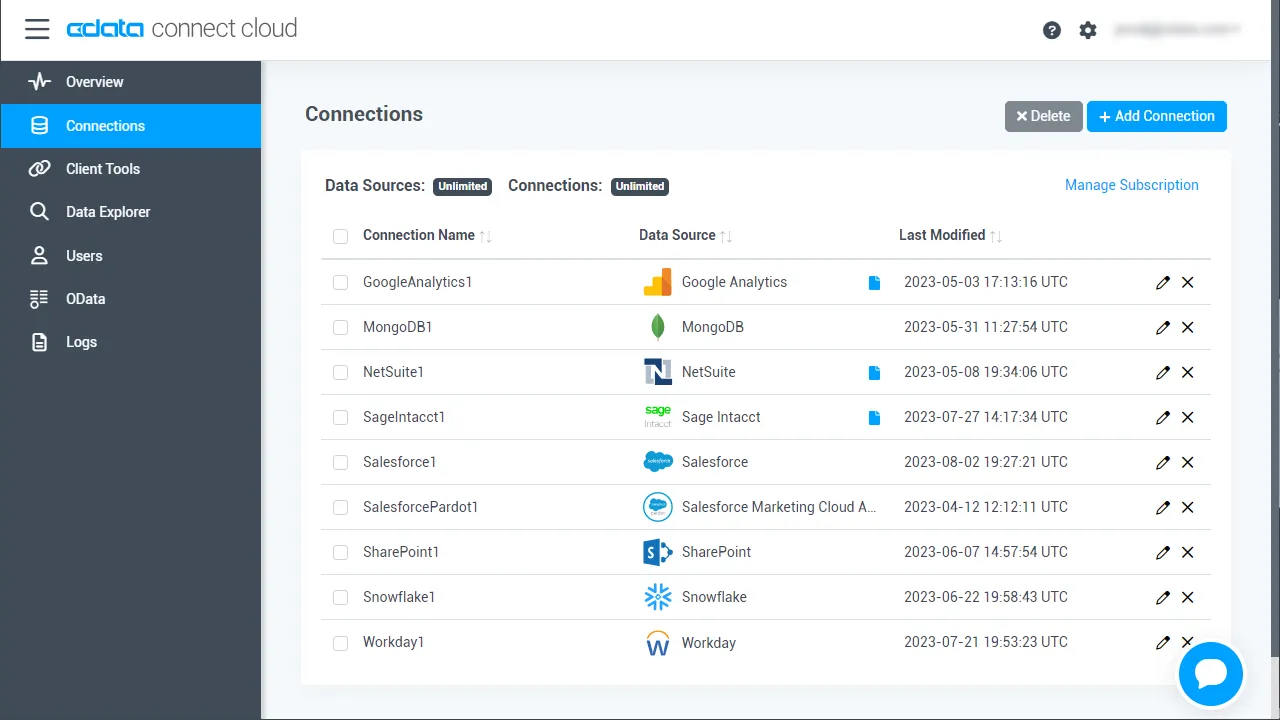
- Connect AI にログインし、Sources をクリック、次に Add Connection をクリック
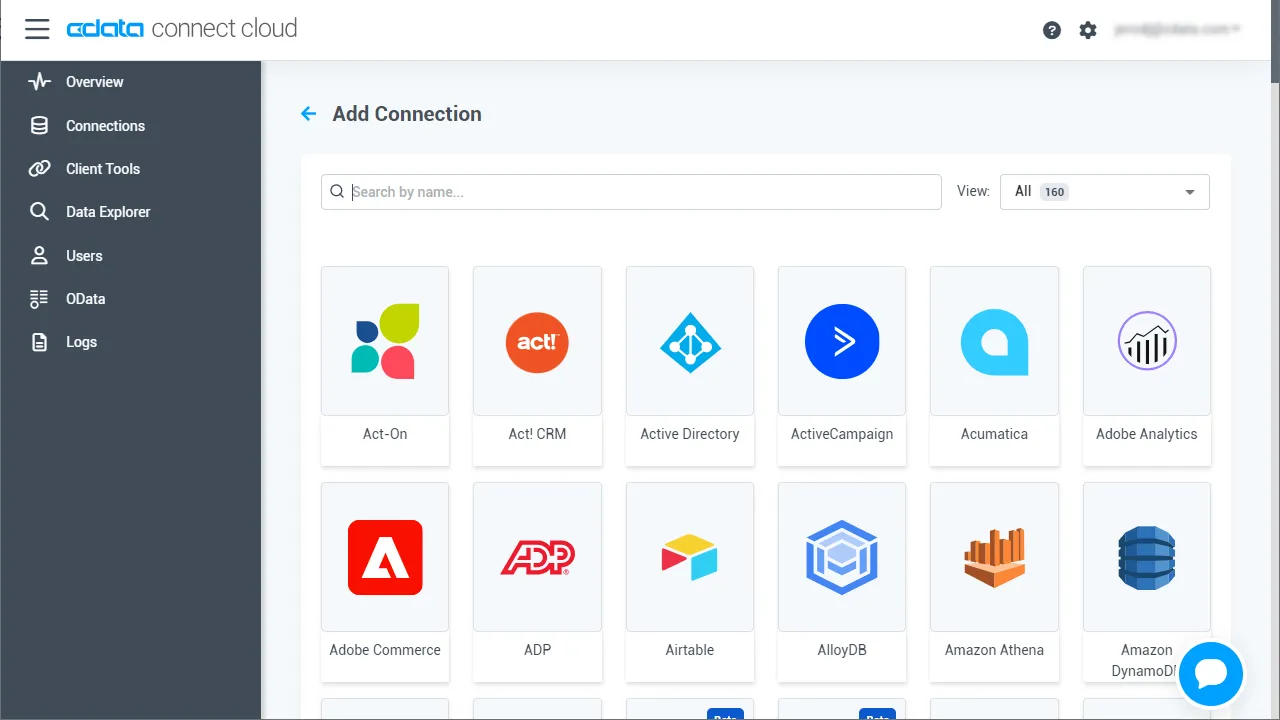
- Add Connection パネルから「API」を選択
-
your API に接続するために必要な認証プロパティを入力します。
To connect to your API, configure the following properties on the Global Settings page:
- In Authentication, select the Type and fill in the required properties
- In Headers, add the required HTTP headers for your API
- In Pagination, select the Type and fill in the required properties
After the configuring the global settings, navigate to the Tables to add tables. For each table you wish to add:
- Click "+ Add"
- Set the Name for the table
- Set Request URL to the API endpoint you wish to work with
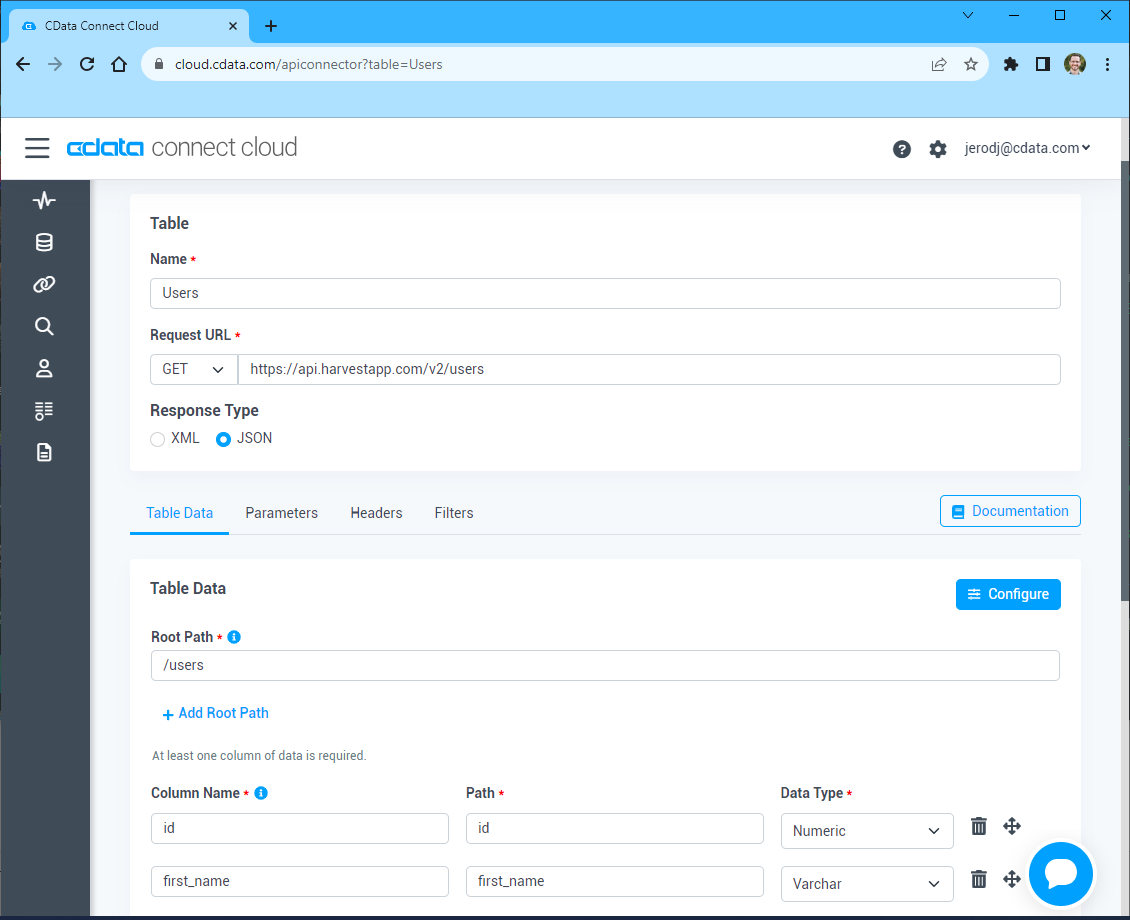
- (Optional) In Parameters, add the required URL Parameters for your API endpoint
- (Optional) In Headers, add the required HTTP headers for the API endpoint
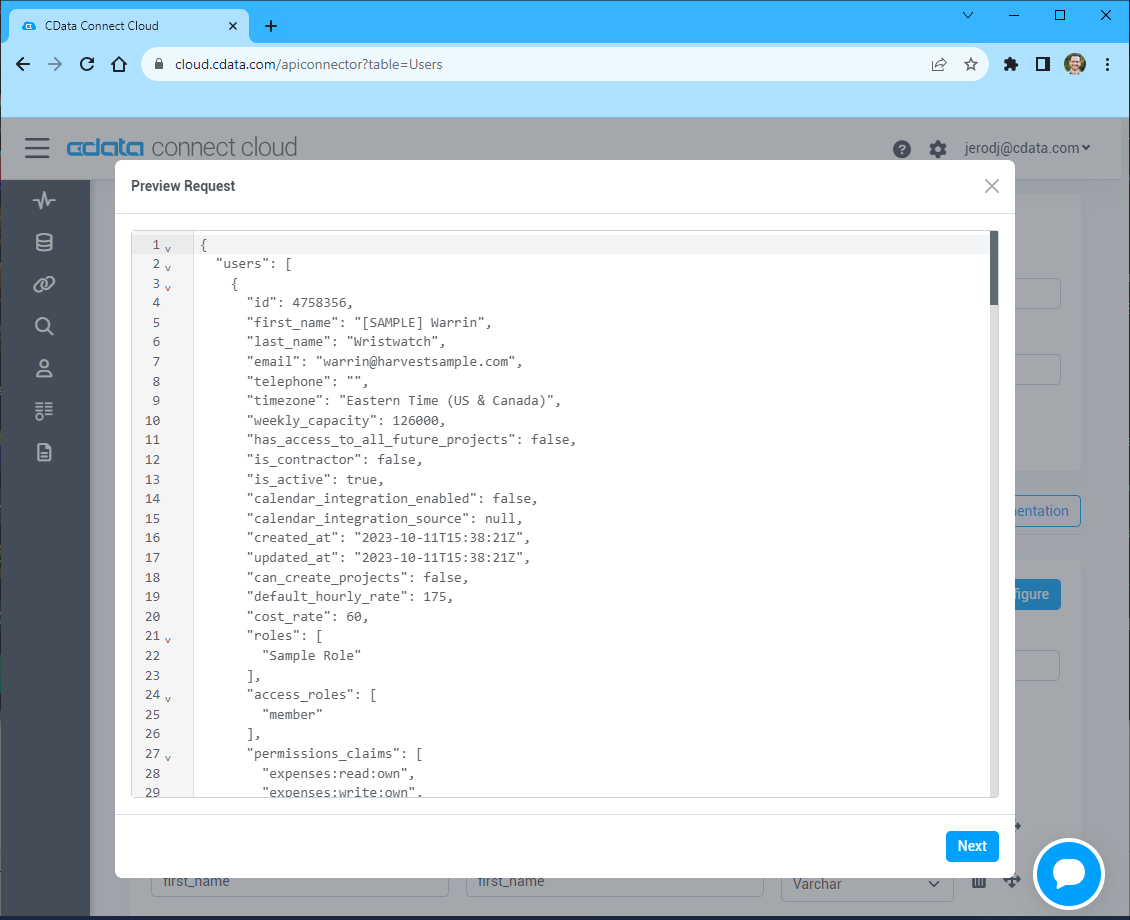
- In Table Data click " Configure"
- Review the response from the API and click "Next"
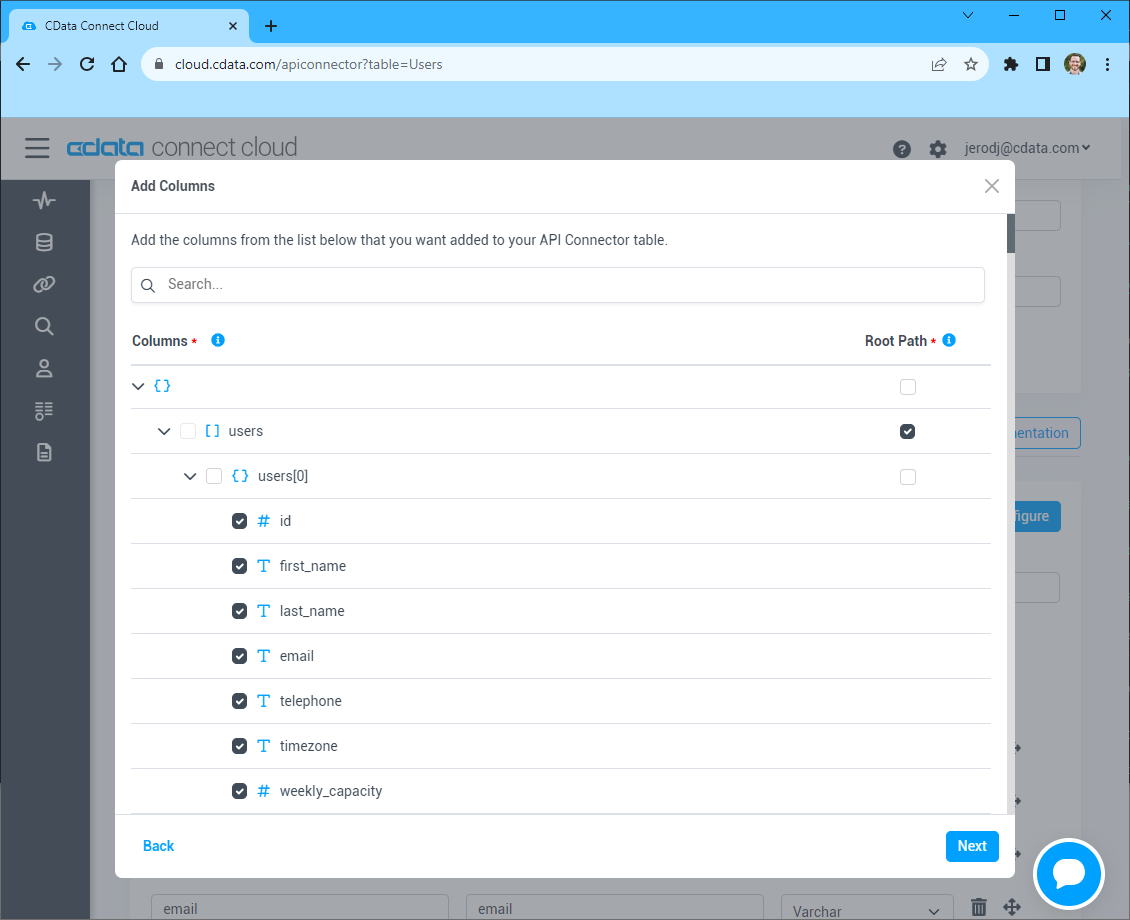
- Select which element to use as the Repeated Elements and which elements to use as Columns and click "Next"
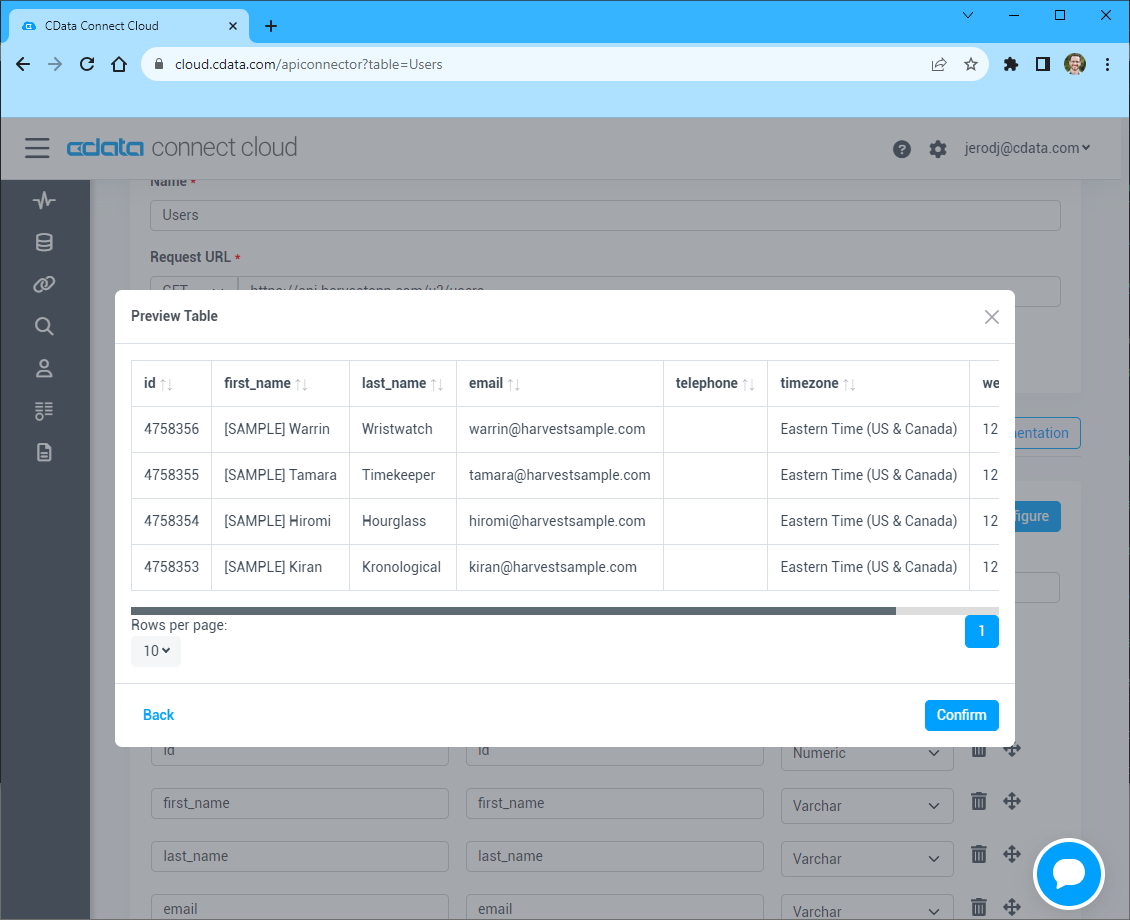
- Preview the tabular model of the API response and click "Confirm"
- Save & Test をクリック
-
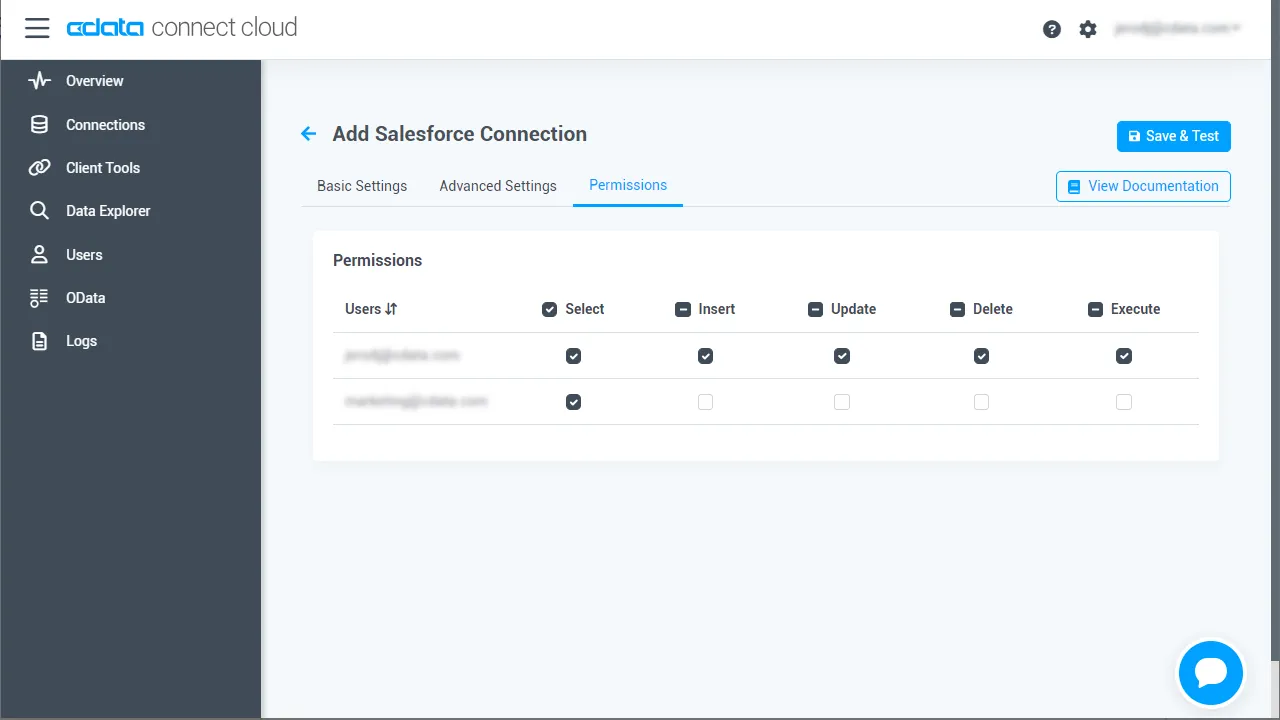
Add your API Connection ページで Permissions タブに移動し、ユーザーベースの権限を更新します。
Personal Access Token を追加
REST API、OData API、または仮想 SQL Server 経由で Connect AI に接続する場合、Personal Access Token(PAT)が Connect AI への接続認証に使用されます。アクセスの粒度を維持するため、サービスごとに個別の PAT を作成することをお勧めします。
- Connect AI アプリの右上にある歯車アイコン()をクリックして Settings ページを開きます。
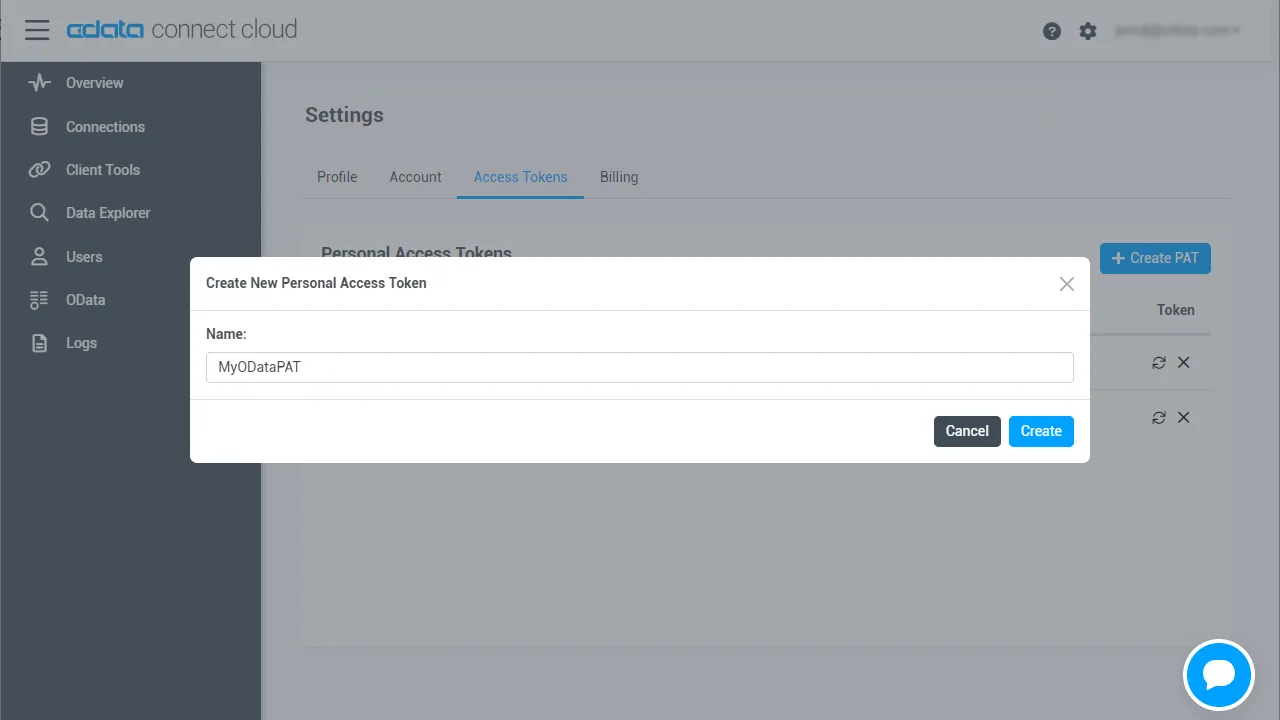
- Settings ページで Access Tokens セクションに移動し、 Create PAT をクリック。
-
PAT に名前を付けて Create をクリック。
- Personal Access Token は作成時にのみ表示されるので、必ずコピーして安全な場所に保存してください。
接続の設定と PAT の生成が完了したら、datapine からAPI のデータに接続する準備が整いました。
datapine から your API に接続
Connect AI で your API への接続を設定したら、datapine から your API に接続する準備が整いました。
- datapine にログイン
- Connect をクリックして「Connect」ページに移動
- データソースとして MS SQL Server を選択
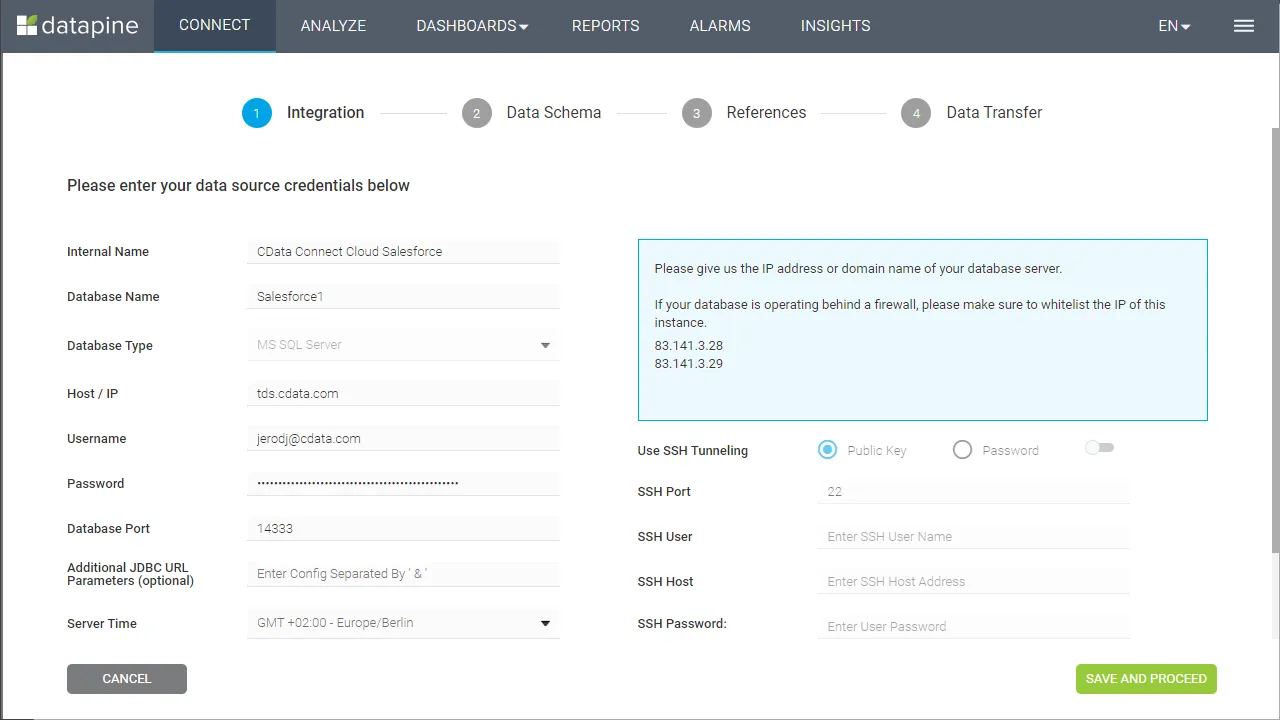
- Integration ステップで接続プロパティを入力し、「Save and Proceed」をクリック
- Internal Name を設定
- Database Name を先ほど設定した接続名に設定(例:API1)
- Host / IP を「tds.cdata.com」に設定
- Username を Connect AI のユーザー名に設定(例:[email protected])
- Password を対応する PAT に設定
- Database Port を「14333」に設定
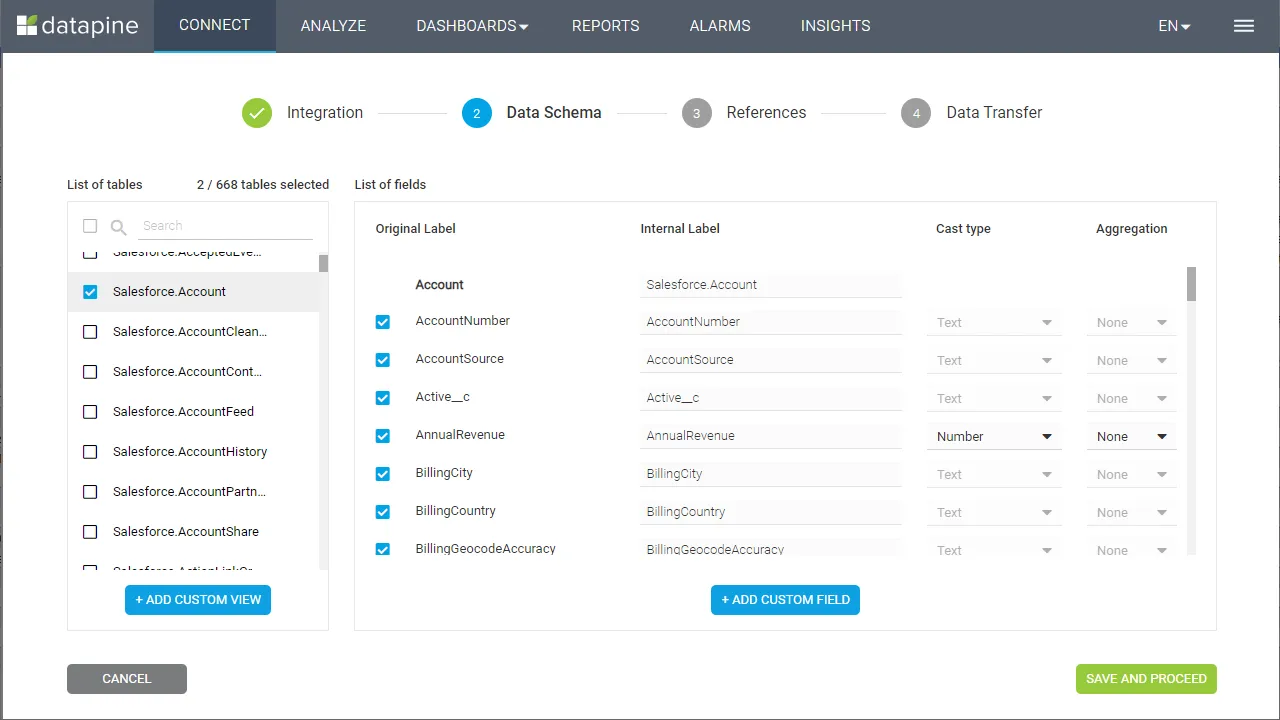
- Data Schema ステップで、ビジュアライズするテーブルとフィールドを選択し、「Save and Proceed」をクリック
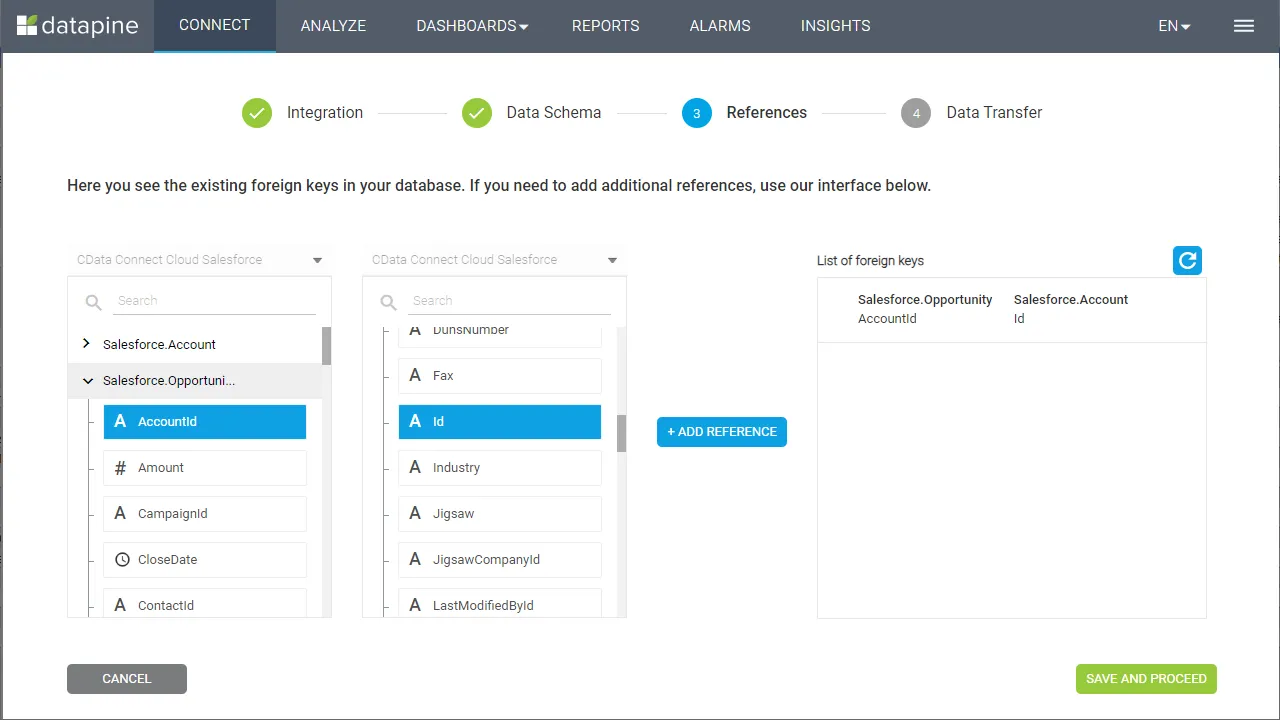
- References ステップで、選択したテーブル間のリレーションシップを定義し、「Save and Proceed」をクリック
- Data Transfer ステップで「Go to Analyzer」をクリック
datapine で API のデータ をビジュアライズ
CData Connect AI に接続したら、datapine でAPI のデータをビジュアライズする準備が整いました。ビジュアライズしたいディメンションとメジャーを選択するだけです!
datapine から your API に接続できたので、どこにいてもリアルタイムのAPI のデータをビジュアライズ・分析できるようになりました。datapine から 300 以上の SaaS、ビッグデータ、NoSQL ソースへのリアルタイムデータアクセスを実現するには、CData Connect AI をお試しください!