






Google スプレッドシートからAPI のリアルタイムデータに接続

Google スプレッドシートは、Web ベースのブラウザ上で動作する表計算アプリです。CData Connect AI と組み合わせることで、Google スプレッドシートからAPI のデータに即座にアクセスし、分析、共有、表計算などの用途に使用できます。この記事では、Connect AI でAPI に接続し、Google スプレッドシートでAPI のデータにアクセスする方法を説明します。
Connect AI からAPI への接続
CData Connect AI では、直感的なクリック操作ベースのインターフェースを使ってデータソースに接続できます。
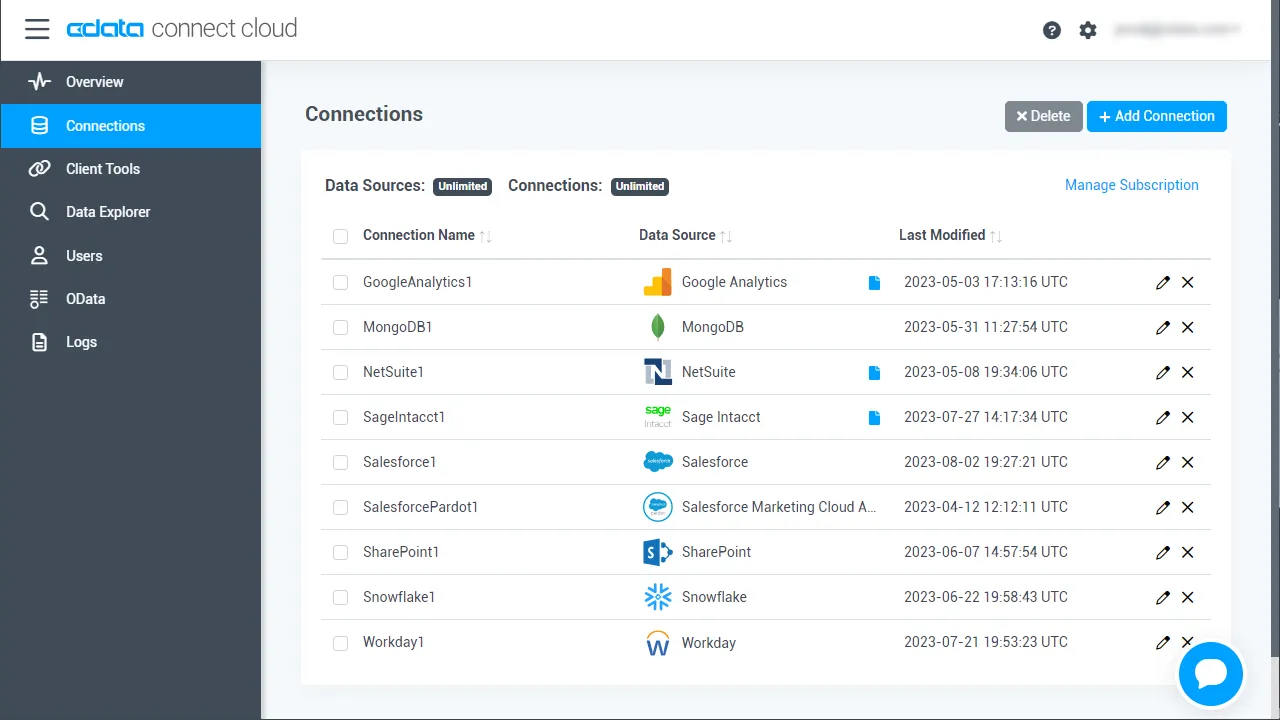
- Connect AI にログインし、 Add Connection をクリックします。
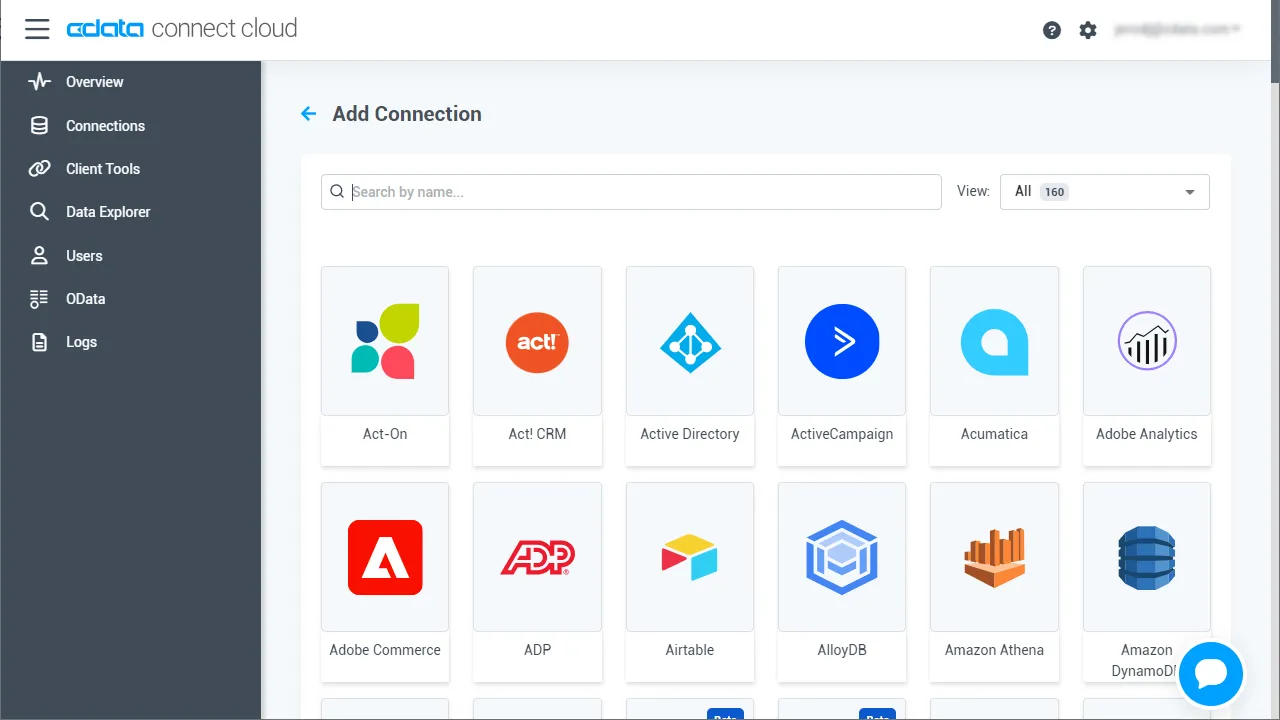
- 「Add Connection」パネルから「API」を選択します。
-
必要な認証プロパティを入力し、API に接続します。
To connect to your API, configure the following properties on the Global Settings page:
- In Authentication, select the Type and fill in the required properties
- In Headers, add the required HTTP headers for your API
- In Pagination, select the Type and fill in the required properties
After the configuring the global settings, navigate to the Tables to add tables. For each table you wish to add:
- Click "+ Add"
- Set the Name for the table
- Set Request URL to the API endpoint you wish to work with
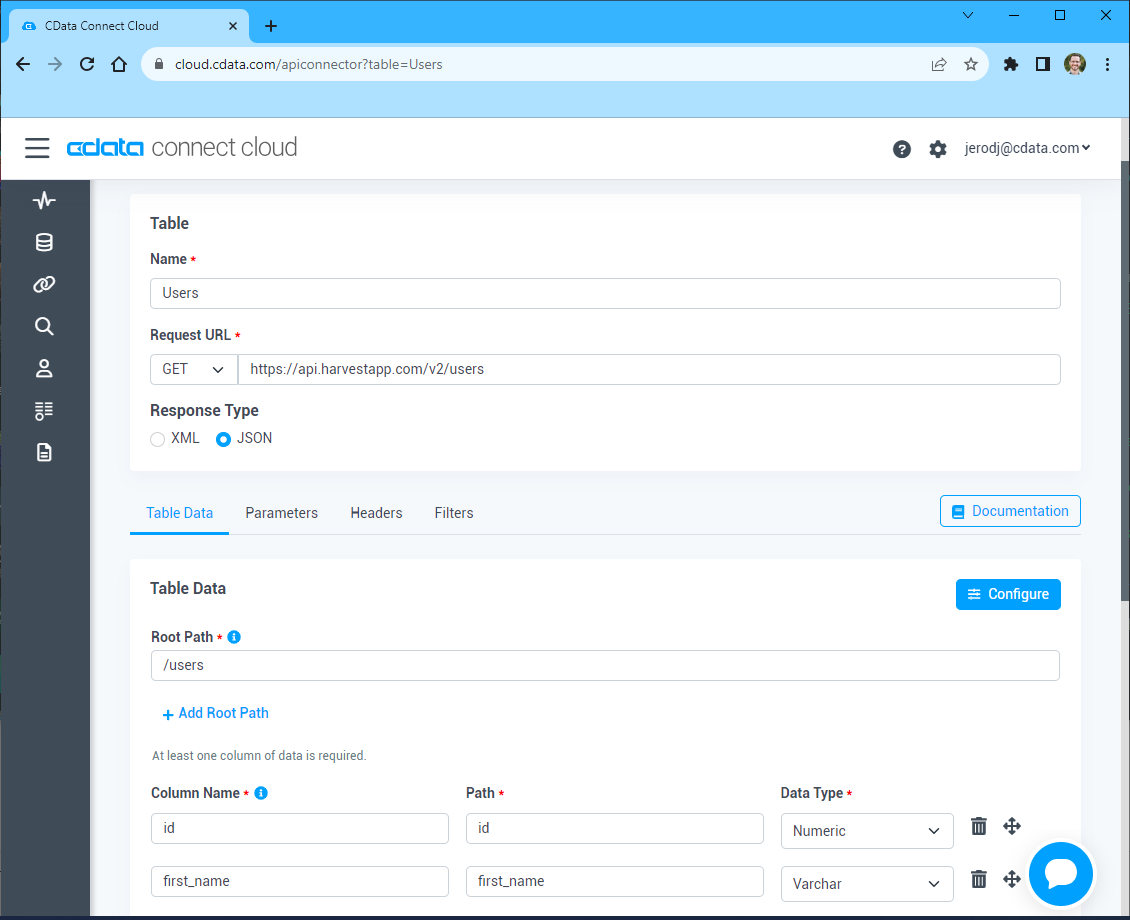
- (Optional) In Parameters, add the required URL Parameters for your API endpoint
- (Optional) In Headers, add the required HTTP headers for the API endpoint
- In Table Data click " Configure"
- Review the response from the API and click "Next"
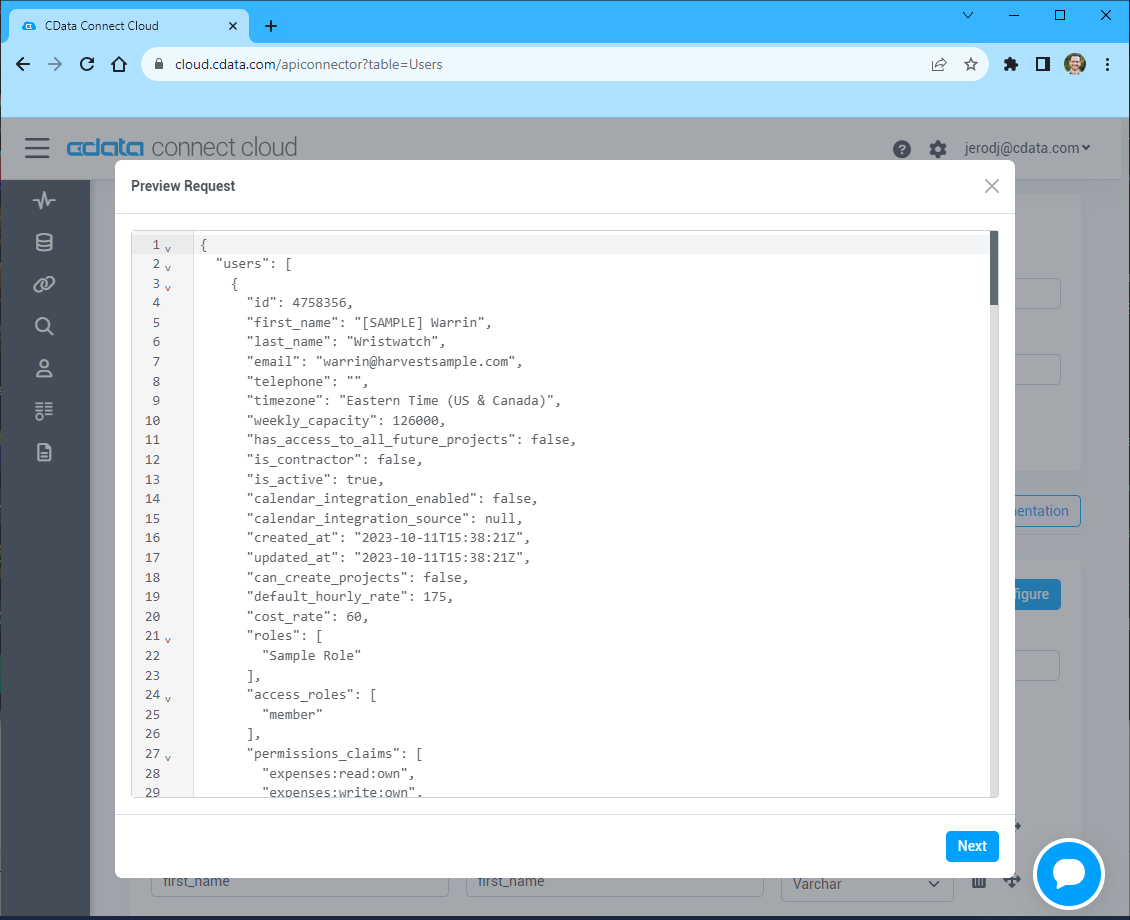
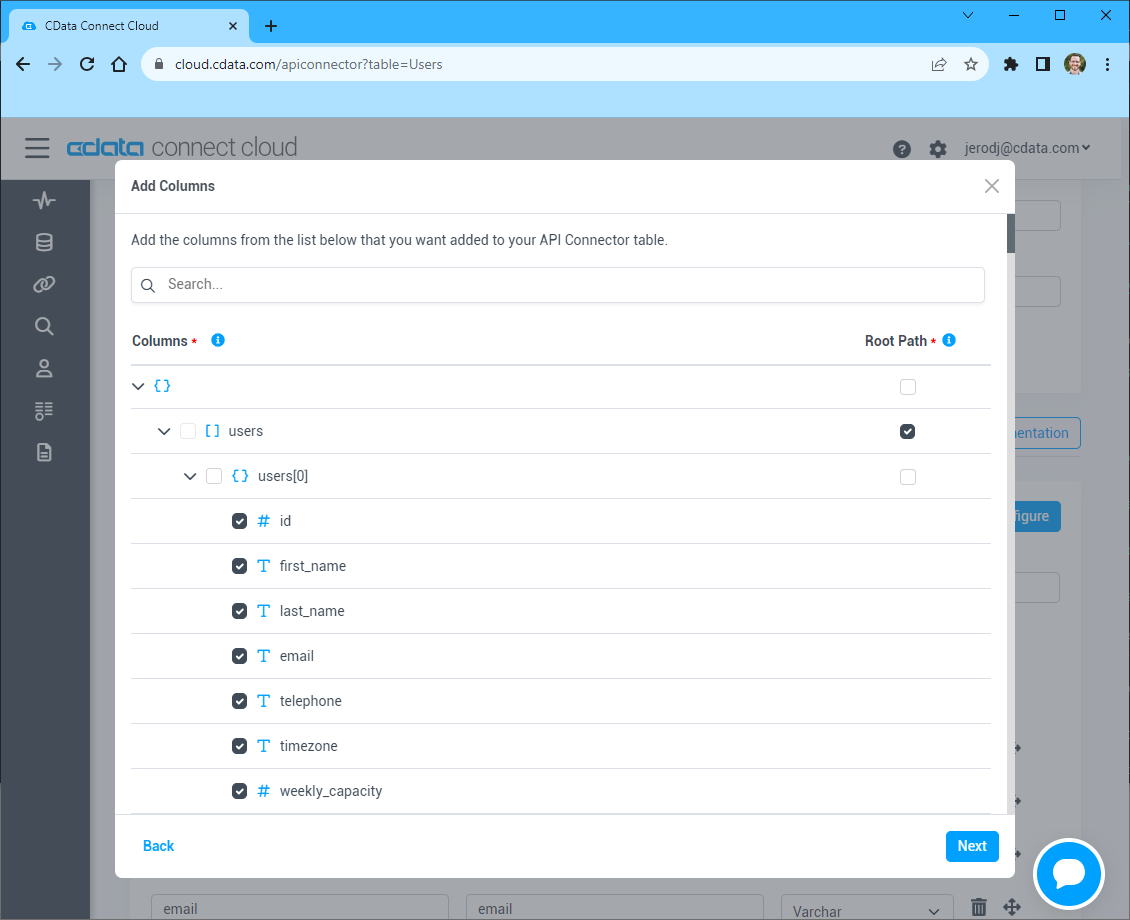
- Select which element to use as the Repeated Elements and which elements to use as Columns and click "Next"
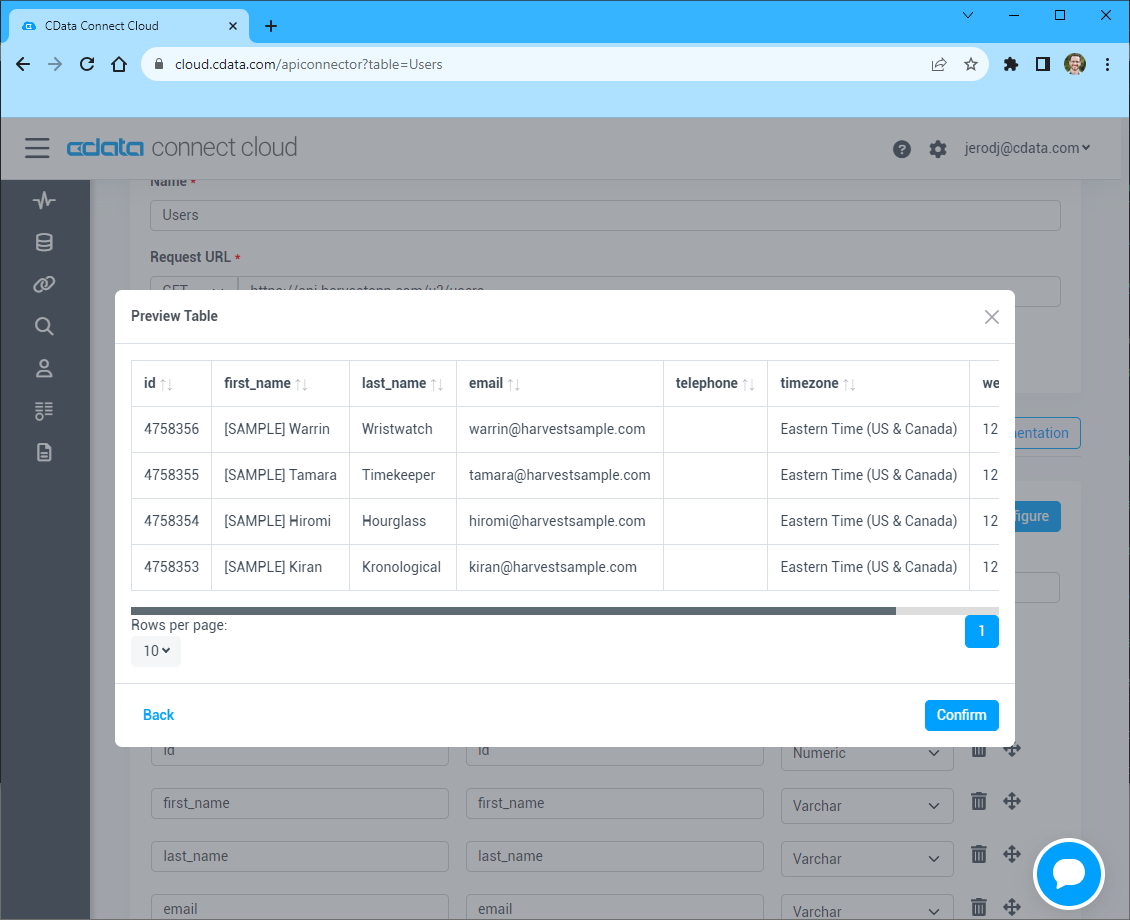
- Preview the tabular model of the API response and click "Confirm"
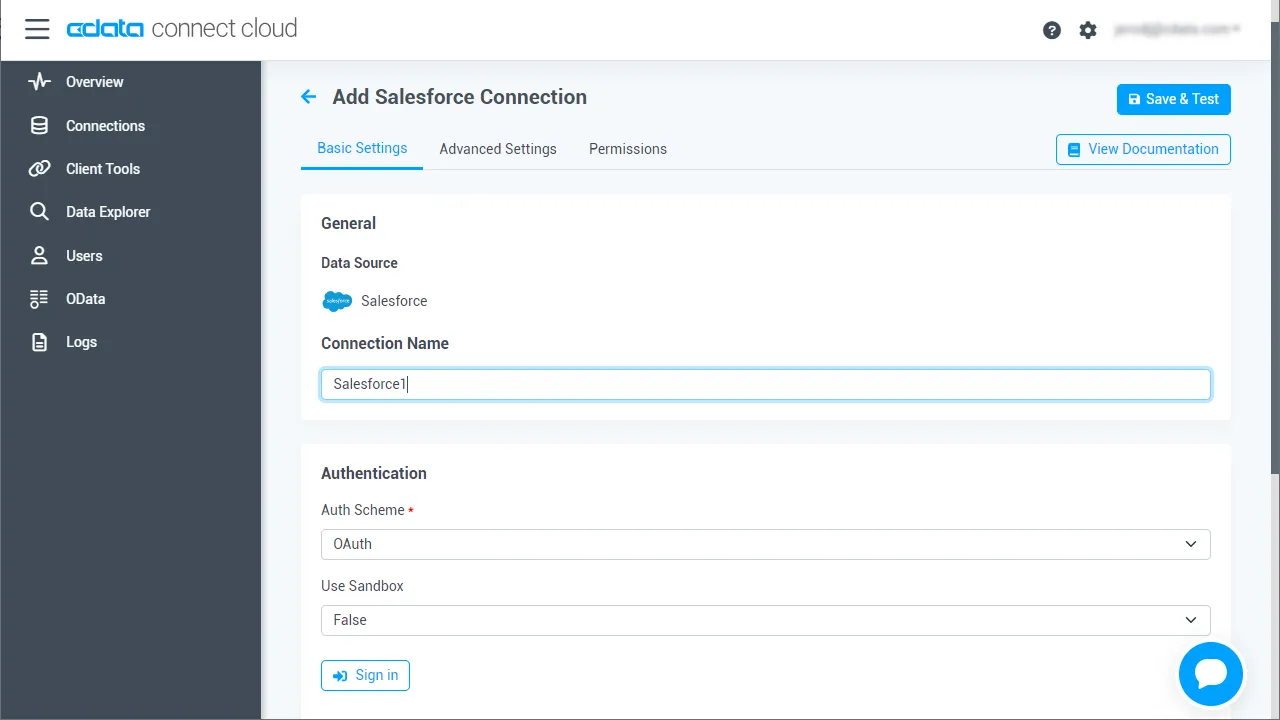
- Create & Test をクリックします。
- 「Add API Connection」ページの「Permissions」タブに移動し、ユーザーベースのアクセス許可を更新します。
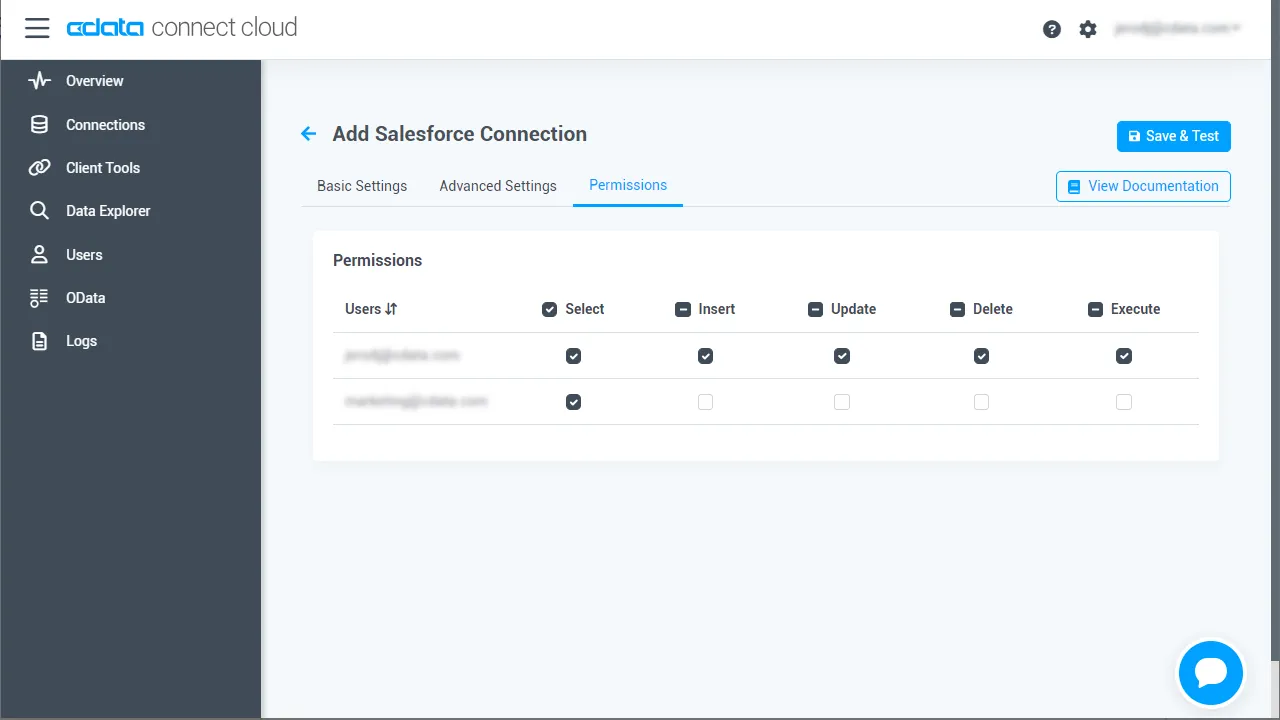
コネクションの設定が完了したら、Google スプレッドシートからAPI のデータへの接続準備ができました。
API のリアルタイムデータにGoogle スプレッドシートからアクセス
以下のステップでは、Google スプレッドシートからCData Connect AI に接続して新しいAPI のデータソースを作成する方法を説明します。
- Google スプレッドシートにログインして、新しいシートを作成、または既存のシートを開きます。
- 「拡張機能」をクリックして「アドオン」 -> 「アドオンを取得」と進みます(すでにアドオンをインストールしている場合は、ステップ5に進んでください)。
- CData Connect AI アドオンを検索してインストールします。

- アドオンにアクセスを許可します。

- Google スプレッドシートに戻って、「拡張機能」をクリックしてCData Connect AI アドオンを開きます。
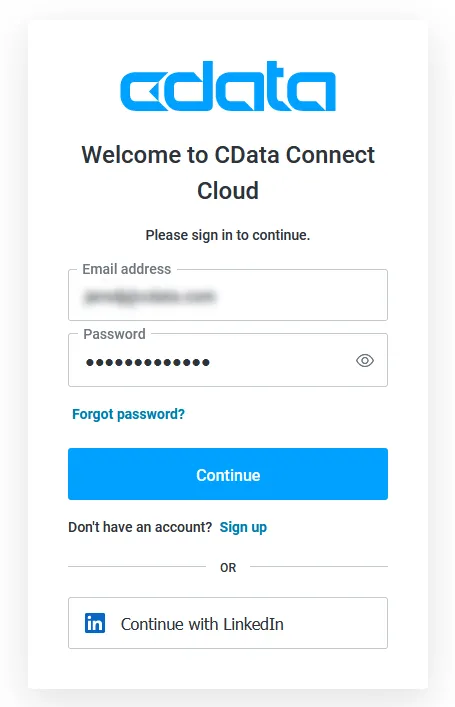
- アドオンのパネルで、「Authorize」をクリックしてご利用のCData Connect AI インスタンスを認証します。

- Google スプレッドシートのCData Connect AI パネルで「IMPORT」をクリックします。

- コネクション(例:API1)、テーブル(例:posts)、カラムを選択してインポートします。

- オプションでFilters(フィルタ)、Sorting(ソート)、Limit(取得数制限)の設定を追加することもできます。

- 「Execute」をクリックしてデータをインポートします。
クラウドアプリケーションからAPI のデータへのライブアクセス
以上で、Google スプレッドシートワークブックからAPI のリアルタイムデータへのクラウド接続が実現します。データをさらに追加して表計算、集計、共有などの用途に使用できます。

クラウドアプリケーションから直接100を超えるSaaS 、ビッグデータ、NoSQL データソースへのリアルタイムデータアクセスを実現するには、CData Connect AI の14日間無償トライアルをぜひお試しください。