






CData Connect AI を使用してMicrosoft Power Pivot で API のデータにアクセス

この記事では、CData Connect AI を使用してAPI のデータをOData サービスとして公開し、Microsoft Excel のPower Pivot ビジネスインテリジェンスツールでデータを利用する方法を説明します。以下の手順に従って、Power Pivot でAPI のデータを取得および編集します。
Power Pivot から your API に接続
Power Pivot からAPI のデータを操作するには、Connect AI から your API に接続し、接続へのユーザーアクセスを付与し、API のデータ 用のワークスペースを作成する必要があります。
Connect AI から your API に接続
CData Connect AI は、シンプルなポイント&クリック操作でデータソースに接続できるインターフェースを提供しています。
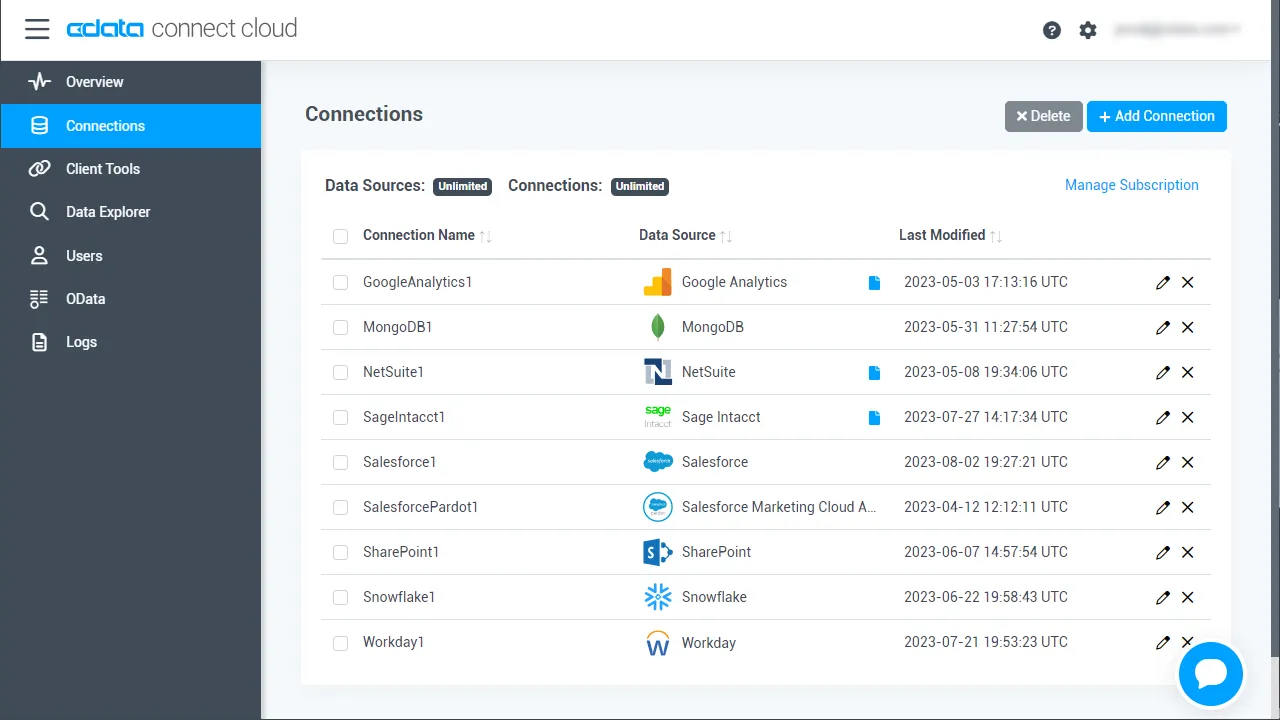
- Connect AI にログインして「Sources」をクリックし、 Add Connection をクリックします
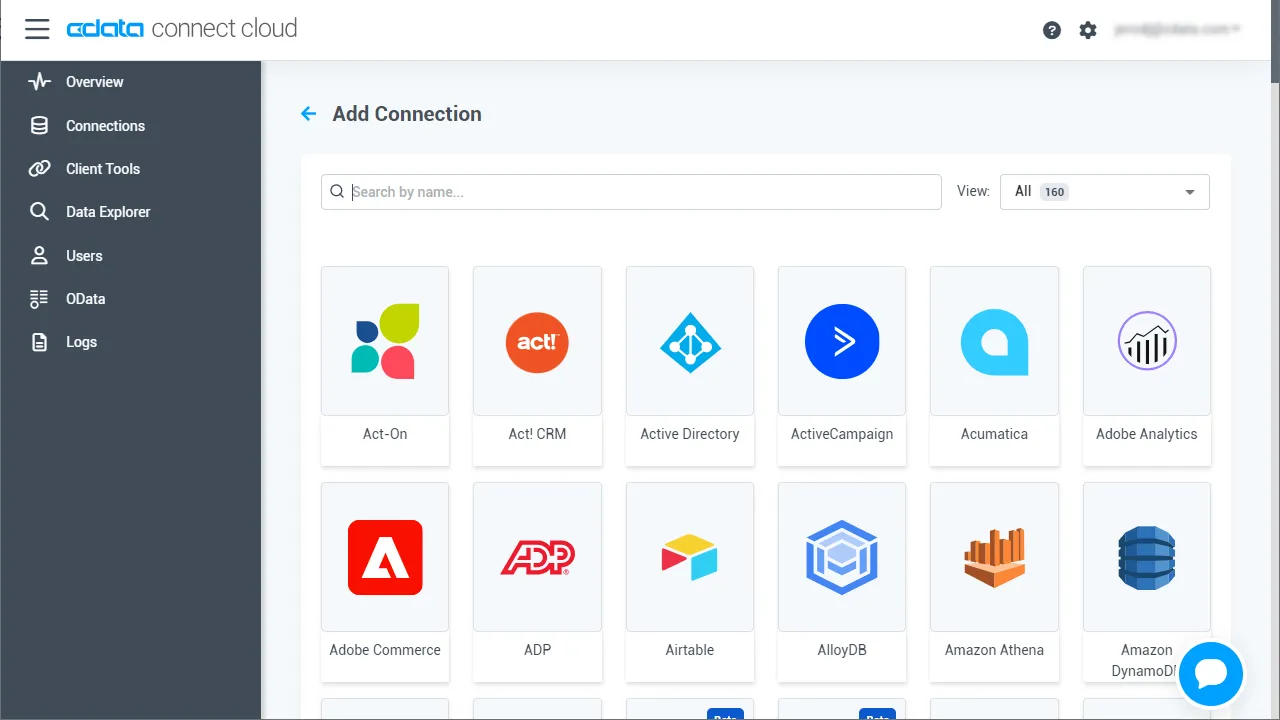
- Add Connection パネルから「API」を選択します
-
your API への接続に必要な認証プロパティを入力します。
To connect to your API, configure the following properties on the Global Settings page:
- In Authentication, select the Type and fill in the required properties
- In Headers, add the required HTTP headers for your API
- In Pagination, select the Type and fill in the required properties
After the configuring the global settings, navigate to the Tables to add tables. For each table you wish to add:
- Click "+ Add"
- Set the Name for the table
- Set Request URL to the API endpoint you wish to work with
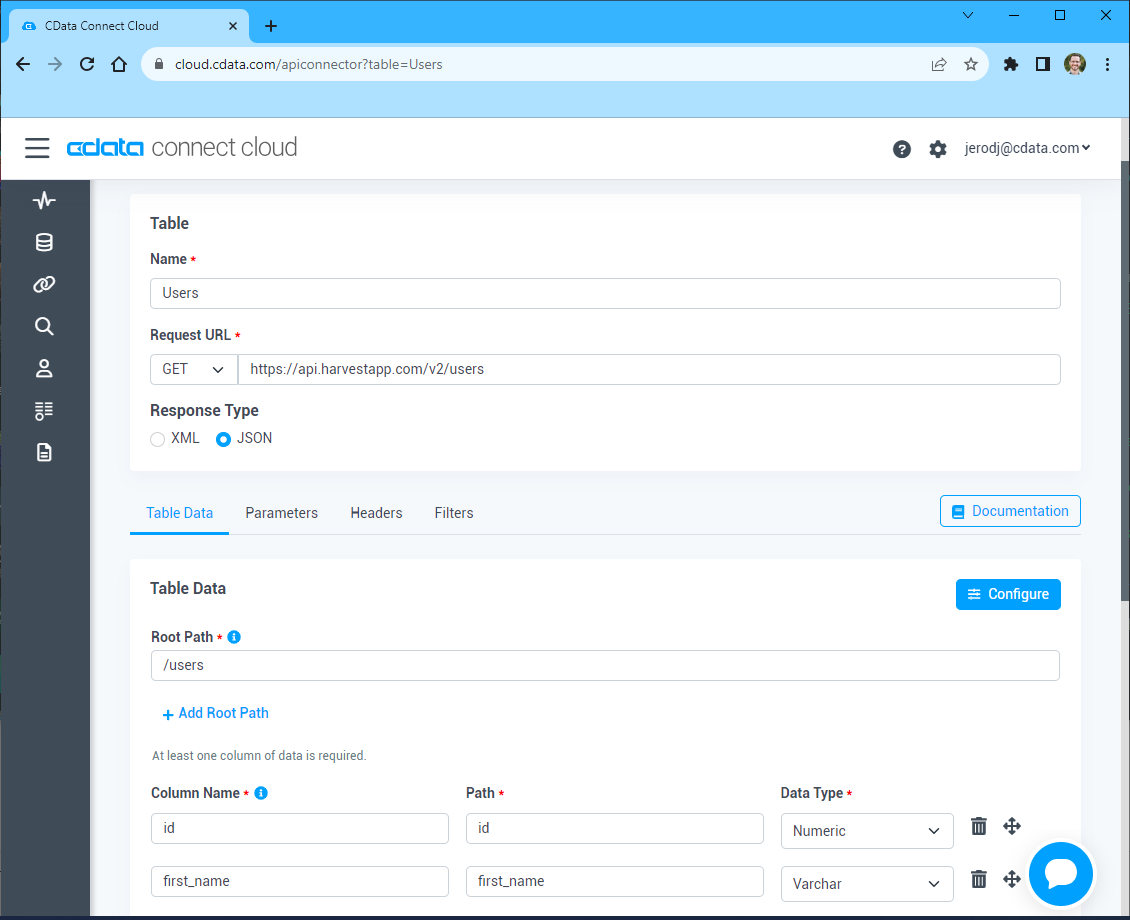
- (Optional) In Parameters, add the required URL Parameters for your API endpoint
- (Optional) In Headers, add the required HTTP headers for the API endpoint
- In Table Data click " Configure"
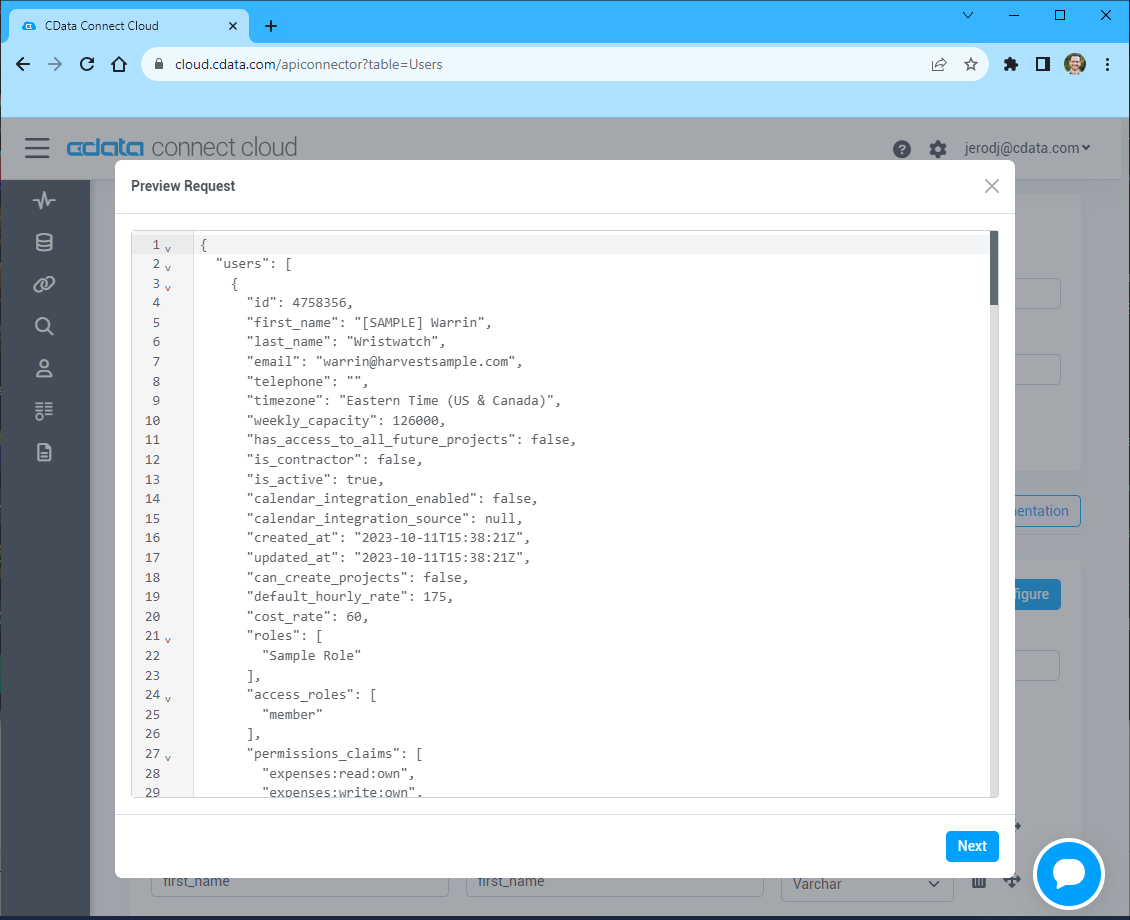
- Review the response from the API and click "Next"
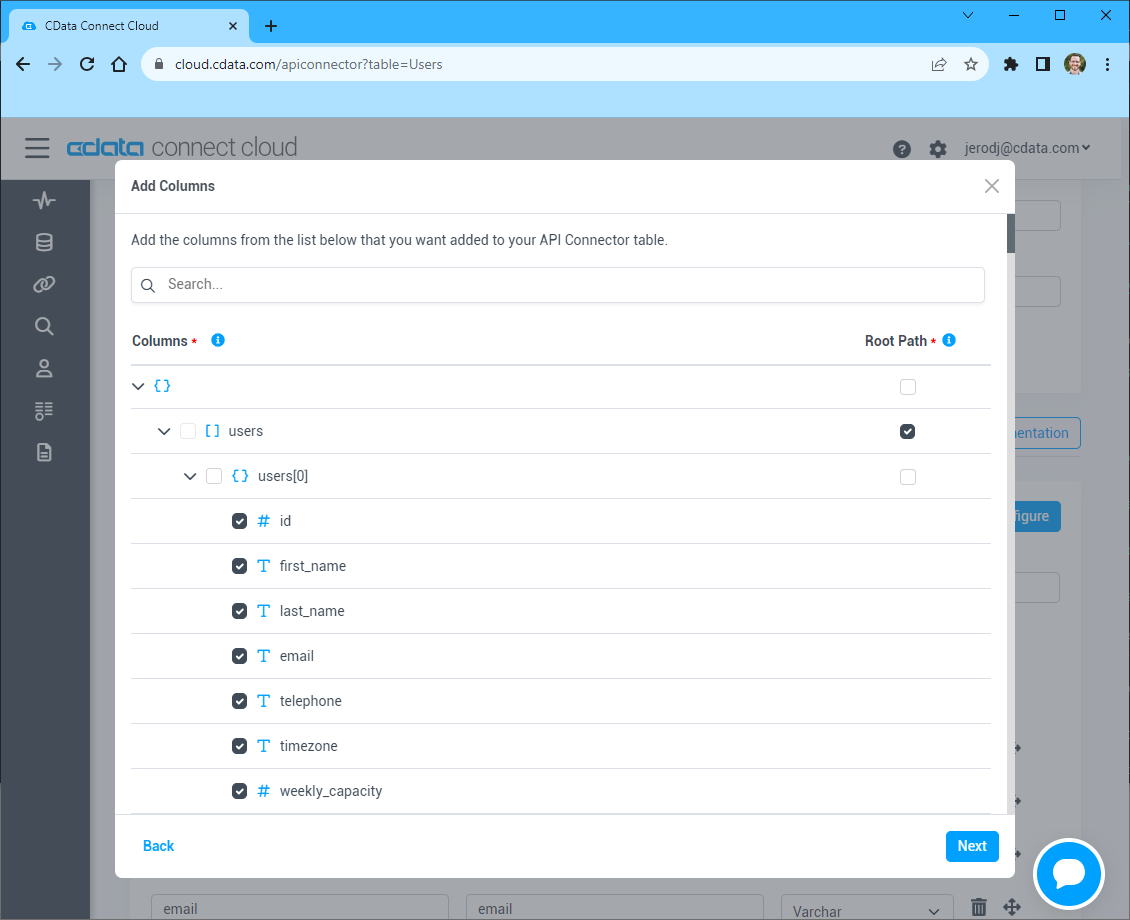
- Select which element to use as the Repeated Elements and which elements to use as Columns and click "Next"
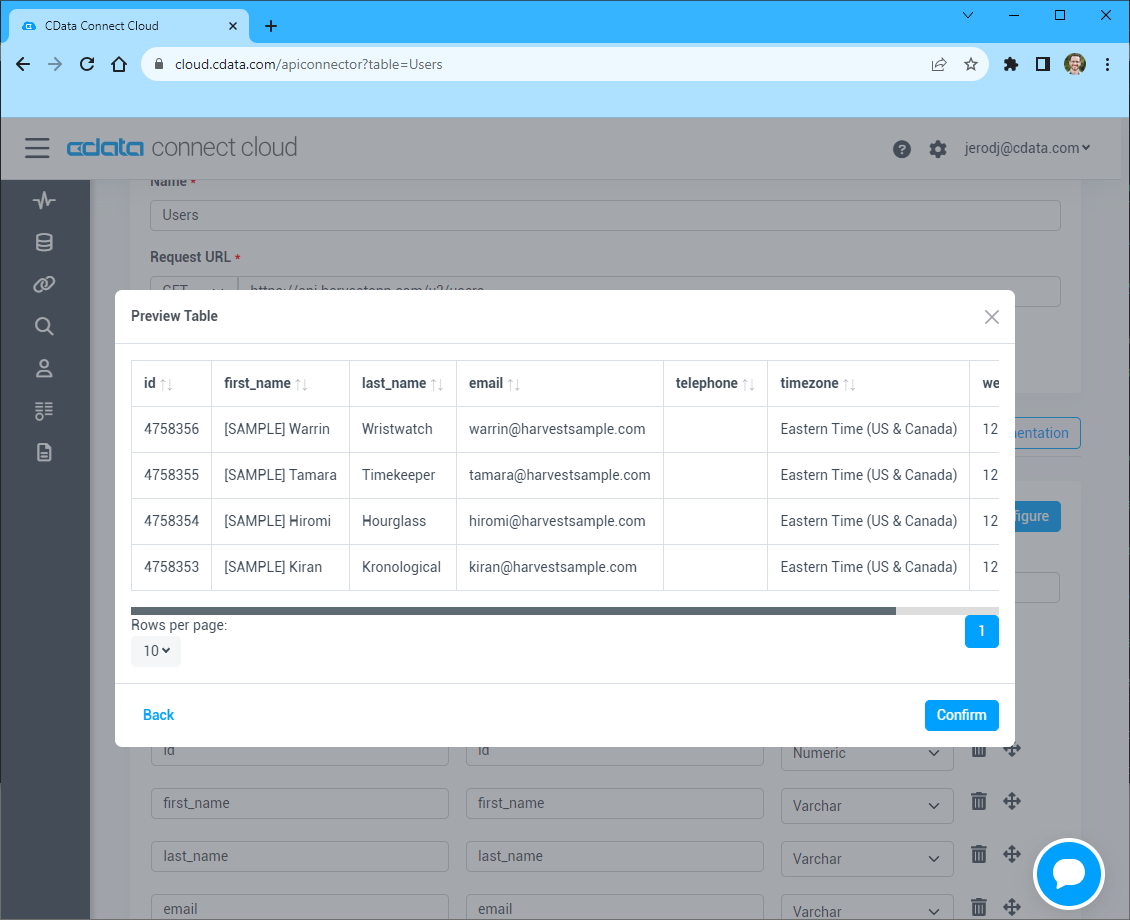
- Preview the tabular model of the API response and click "Confirm"
- Save & Test をクリックします
-
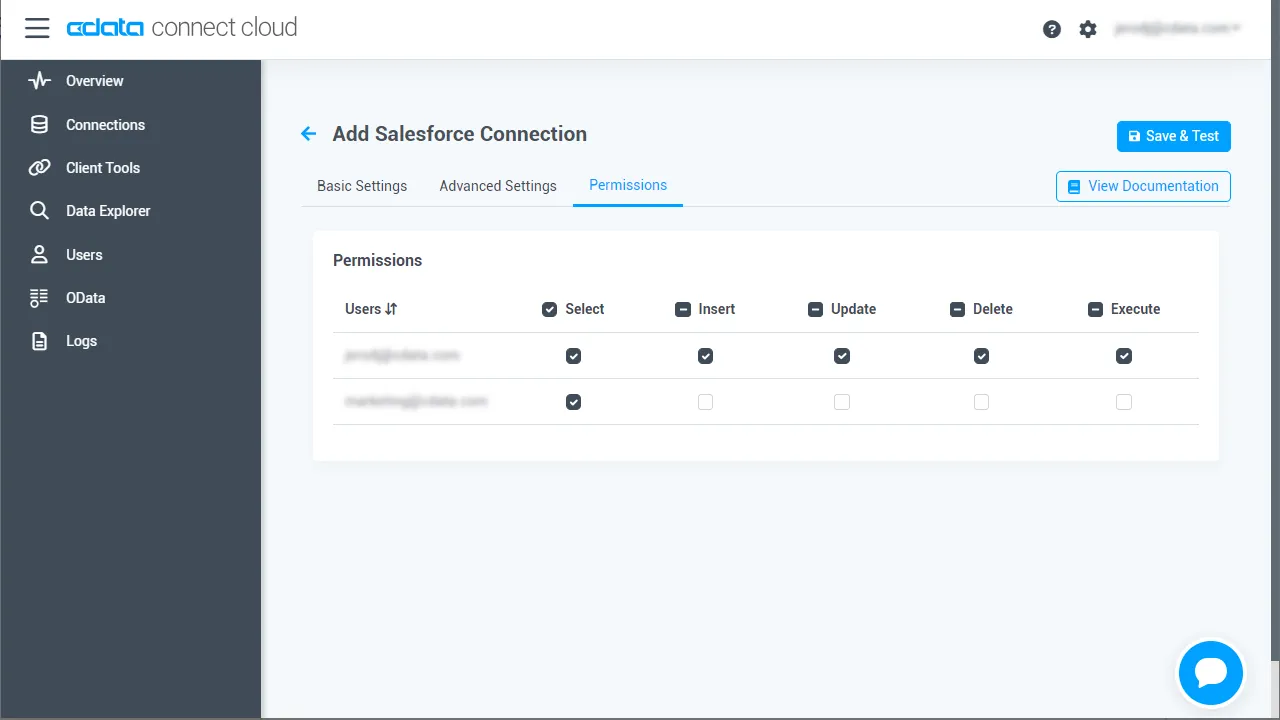
Add your API Connection ページの「Permissions」タブに移動し、ユーザーベースの権限を更新します。
Personal Access Token の追加
REST API、OData API、またはVirtual SQL Server 経由でConnect AI に接続する場合、Personal Access Token(PAT)を使用してConnect AI への接続を認証します。アクセス管理の粒度を維持するために、サービスごとに個別のPAT を作成することをお勧めします。
- Connect AI アプリの右上にある歯車アイコン()をクリックして設定ページを開きます。
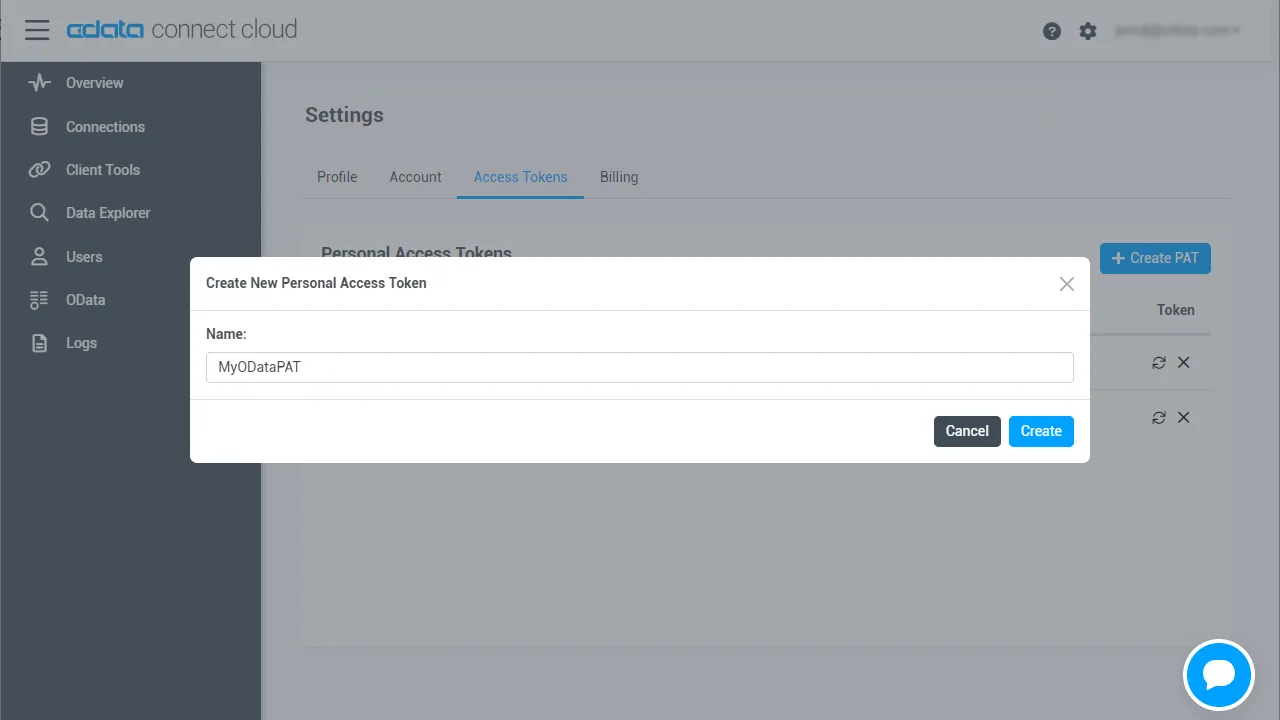
- Settings ページで「Access Tokens」セクションに移動し、 Create PAT をクリックします。
-
PAT に名前を付けて「Create」をクリックします。
- Personal Access Token は作成時にのみ表示されるため、必ずコピーして安全な場所に保存してください。
Power Pivot 用に your API エンドポイントを設定
your API への接続後、対象テーブル用のワークスペースを作成します。
-
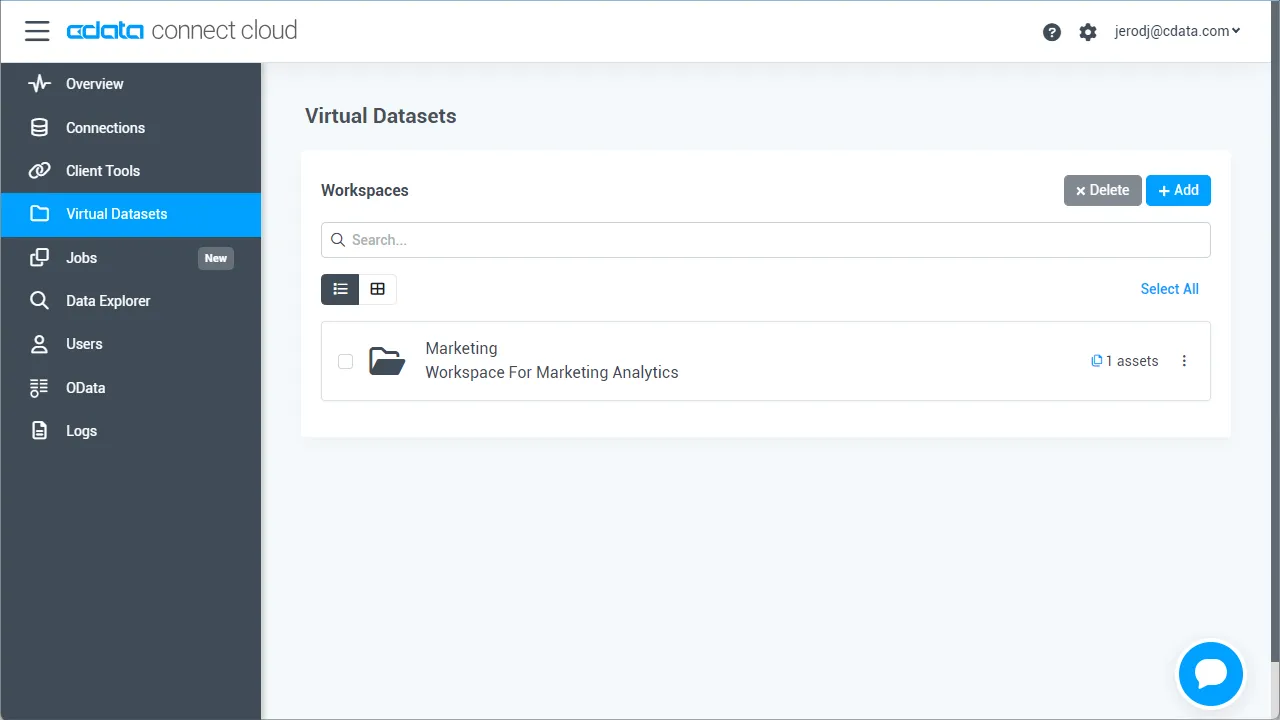
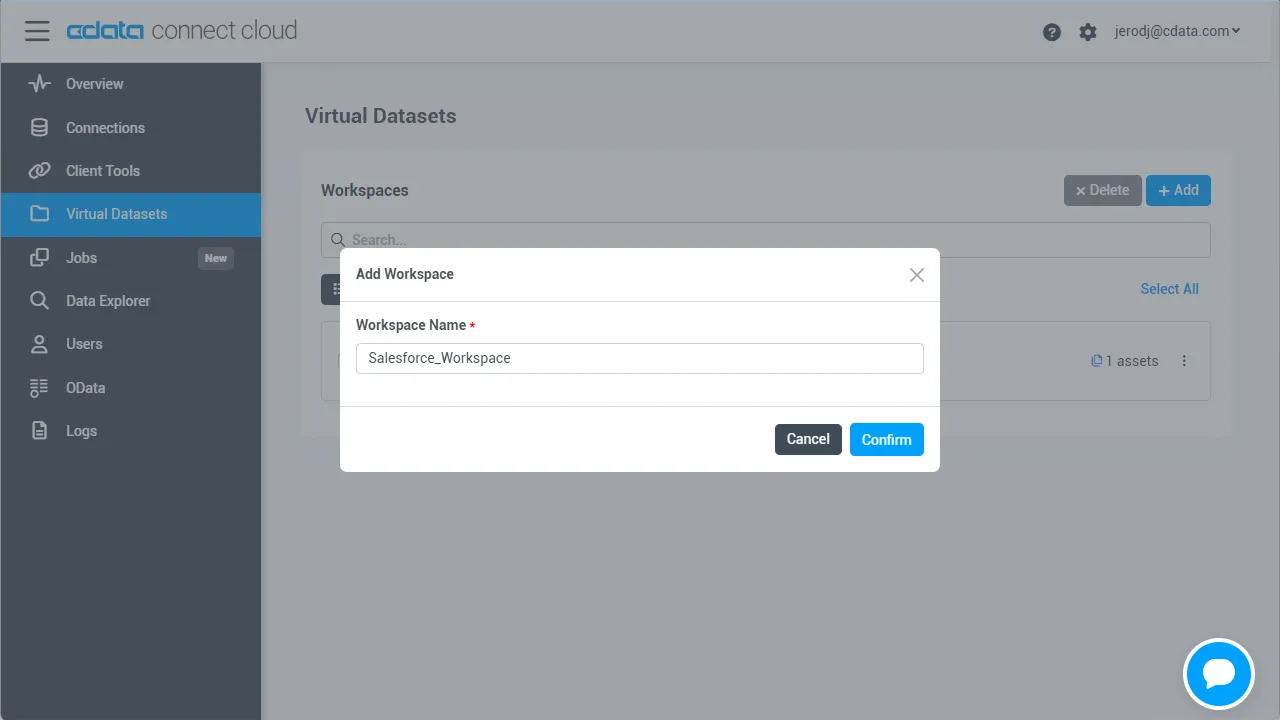
「Workspaces」ページに移動し、 Add をクリックして新しいワークスペースを作成します(または既存のワークスペースを選択します)。
- Add をクリックしてワークスペースに新しいアセットを追加します。
-
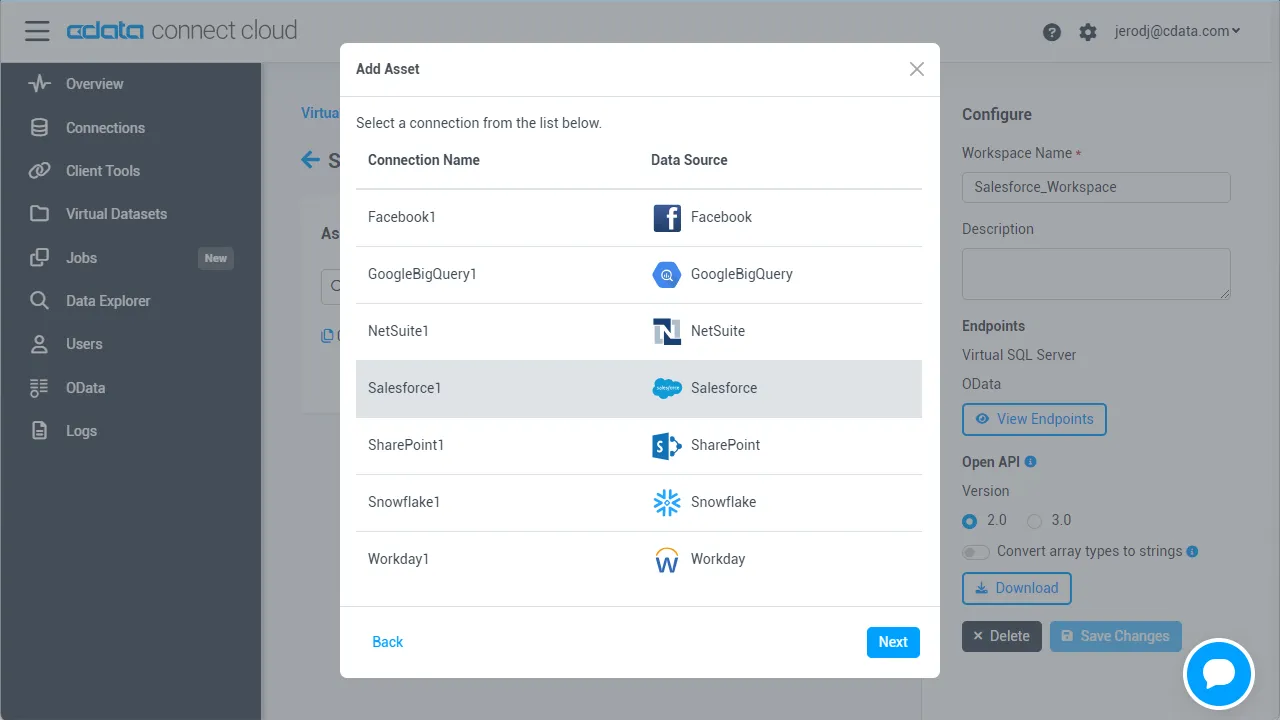
your API 接続(例:API1)を選択し、「Next」をクリックします。
-
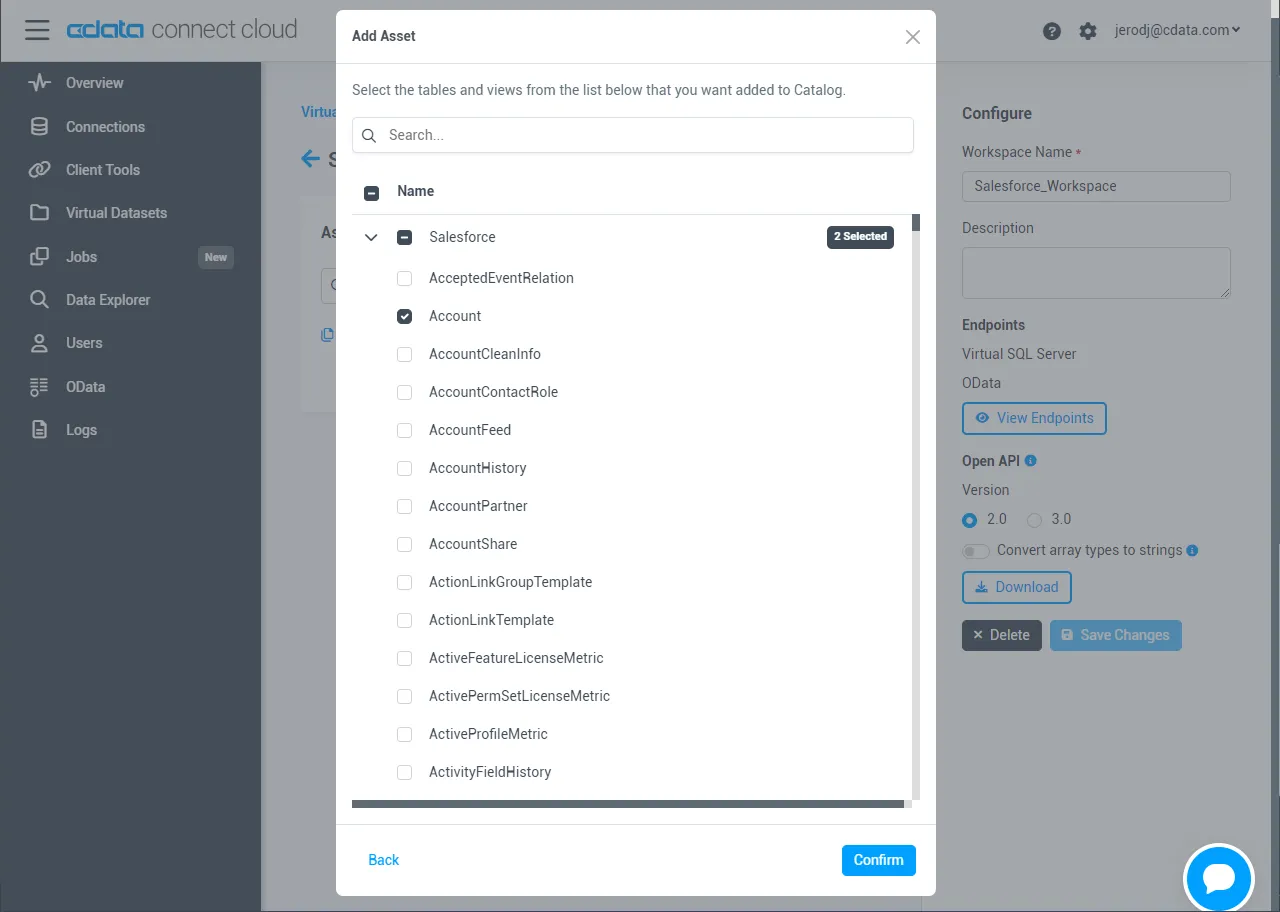
操作したいテーブルを選択し、「Confirm」をクリックします。
- ワークスペースのOData サービスURL をメモしておきます。例:https://cloud.cdata.com/api/odata/{workspace_name}
接続、PAT、ワークスペースの設定が完了したら、Power Pivot からAPI のデータに接続する準備が整いました。
Power Pivot に API テーブルをインポート
以下の手順に従って、オンデマンドで更新できるテーブルをインポートします:
-
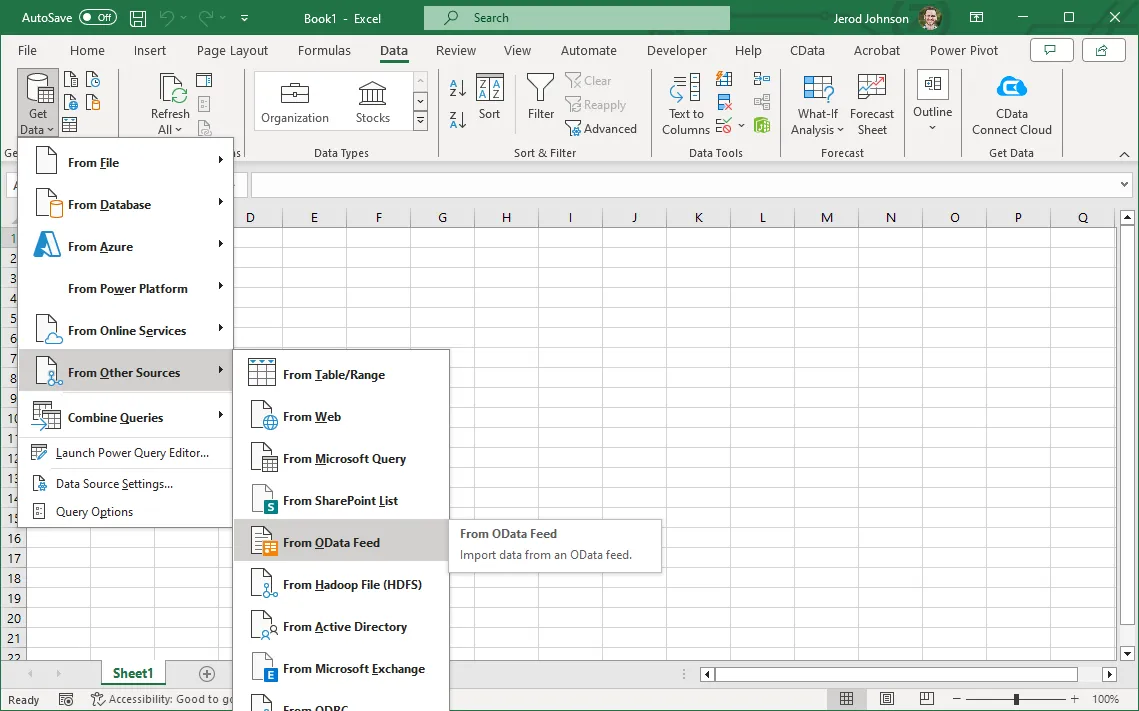
Excel で「データ」→「データの取得」→「その他のソースから」→「OData フィードから」をクリックします
-
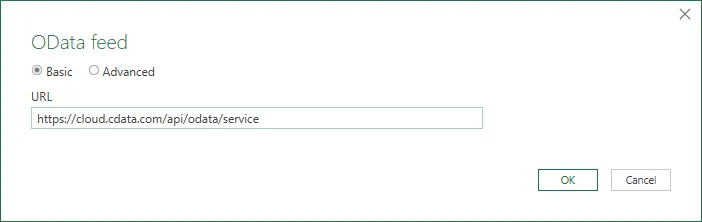
OData フィードのURL を入力します(例:https://cloud.cdata.com/api/odata/{workspace_name})
-
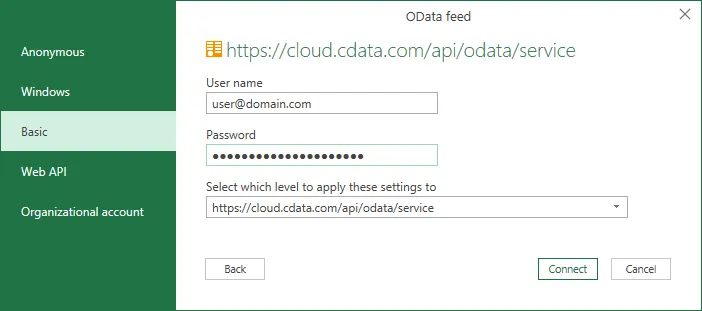
次の画面で「基本」を選択し、ユーザー名とパスワードを設定します。パスワードにはPAT を使用します。
-
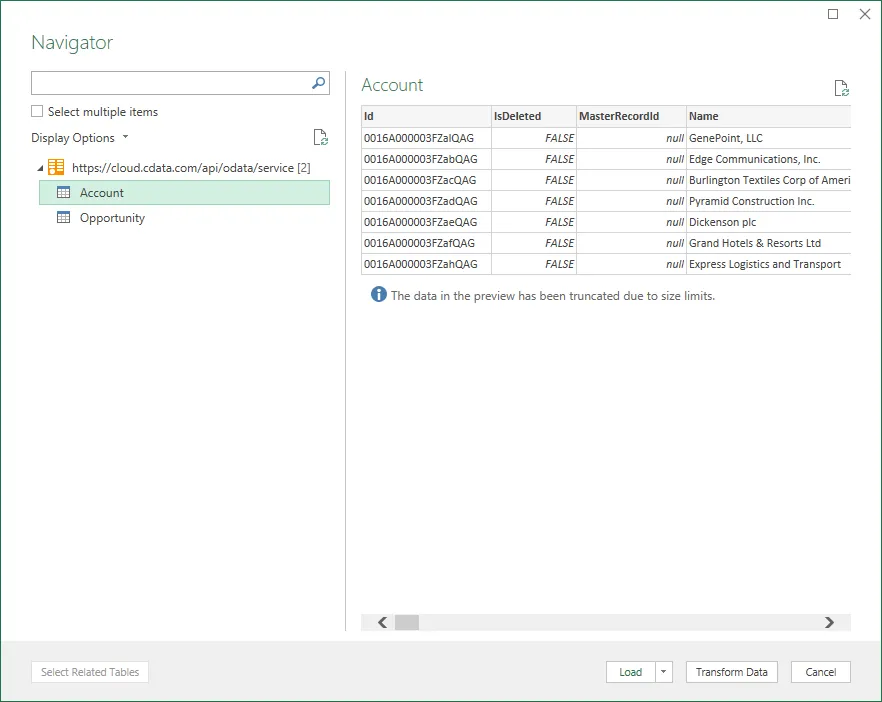
Excel にインポートするテーブルを選択します
-
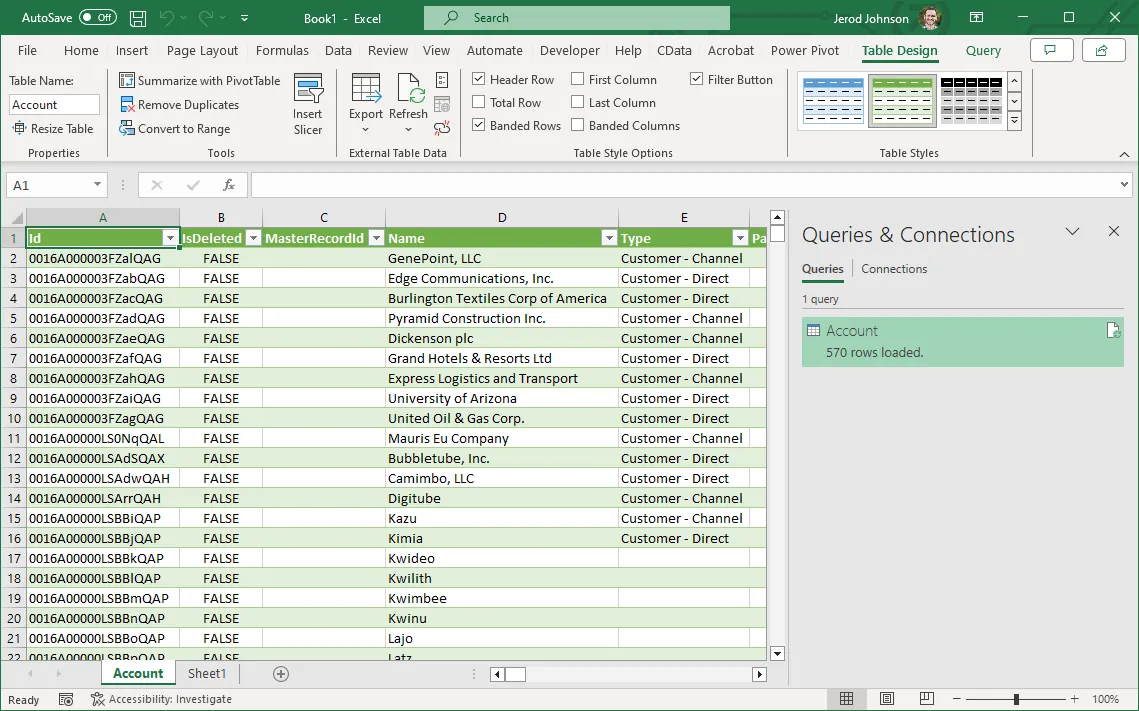
テーブルを選択して「読み込み」をクリックすると、Excel スプレッドシートにデータが表示されます
-
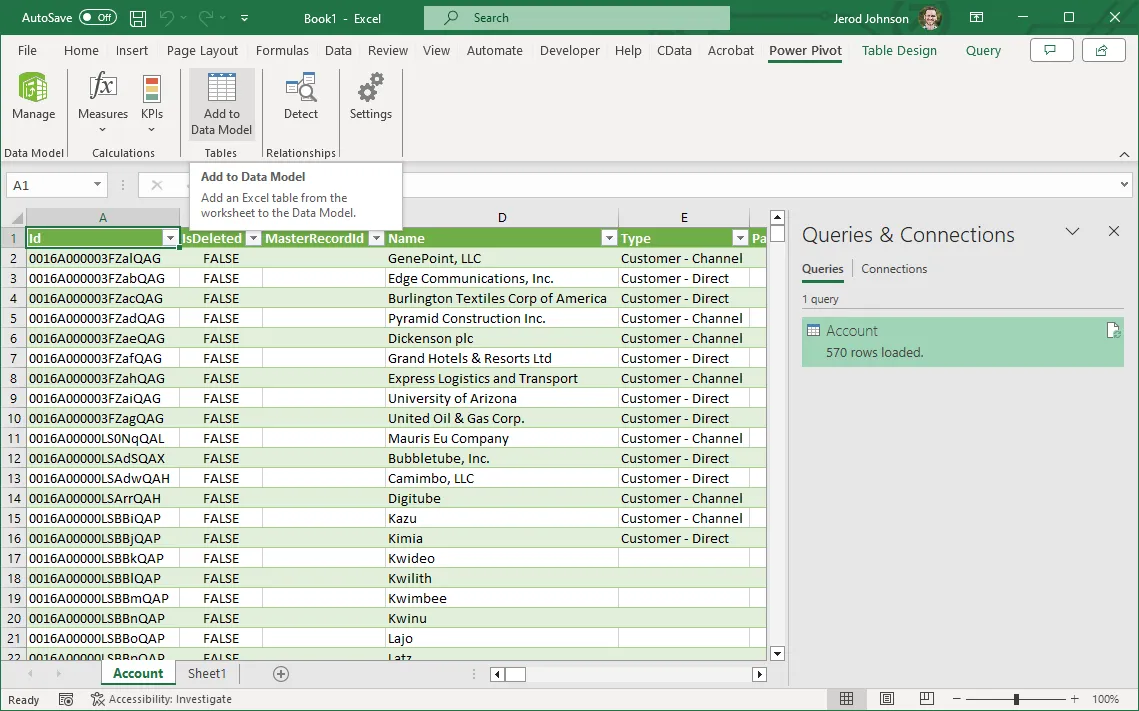
次に、リボンの「Power Pivot」タブをクリックし、「データモデルに追加」を選択します。
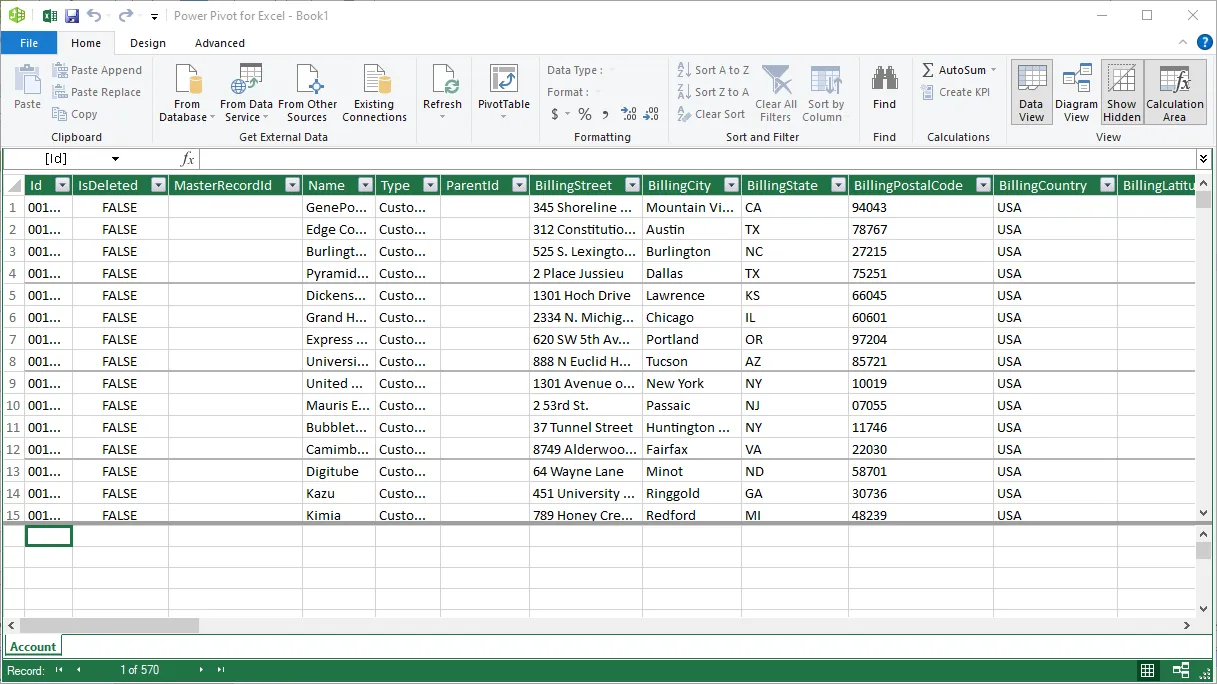
 これで、Power Pivot でAPI のデータを操作できるようになりました。
無償トライアルと詳細情報
Power Pivot から API のデータ(またはその他のサポートされているデータソースのデータ)に接続することに興味がある場合は、CData Connect AI の無償トライアルに今すぐ登録してください!Connect AI の詳細およびサポートされているその他のデータソースについては、CData Connect AI ページをご覧ください。