






OData を介してTIBCO Spotfire でAPI のデータをビジュアライズ

OData は、クラウドベース、モバイル、およびその他のオンラインアプリケーション間のリアルタイム通信を可能にする主要なプロトコルです。CData API Server は、API のADO.NET Provider for API と組み合わせると、API のデータ(またはその他の250+ のADO.NET Providers データ)をTIBCO Spotfire などのOData コンシューマに提供します。この記事では、API Server とSpotfire のOData の組み込みサポートを使用して、API のデータにリアルタイムでアクセスする方法を説明します。
API Server の設定
以下のリンクからAPI Server の無償トライアルをスタートしたら、セキュアなAPI OData サービスを作成していきましょう。
API への接続
TIBCO Spotfire からAPI のデータを操作するには、まずyour API への接続を作成・設定します。
- API Server にログインして、「Connections」をクリック、さらに「接続を追加」をクリックします。
- 「接続を追加」をクリックして、データソースがAPI Server に事前にインストールされている場合は、一覧から「API」を選択します。
- 事前にインストールされていない場合は、コネクタを追加していきます。コネクタ追加の手順は以下の記事にまとめてありますので、ご確認ください。
CData コネクタの追加方法はこちら >> - それでは、API への接続設定を行っていきましょう!
-
To connect to your API, configure the following properties on the Global Settings page:
- In Authentication, select the Type and fill in the required properties
- In Headers, add the required HTTP headers for your API
- In Pagination, select the Type and fill in the required properties
After the configuring the global settings, navigate to the Tables to add tables. For each table you wish to add:
- Click "+ Add"
- Set the Name for the table
- Set Request URL to the API endpoint you wish to work with
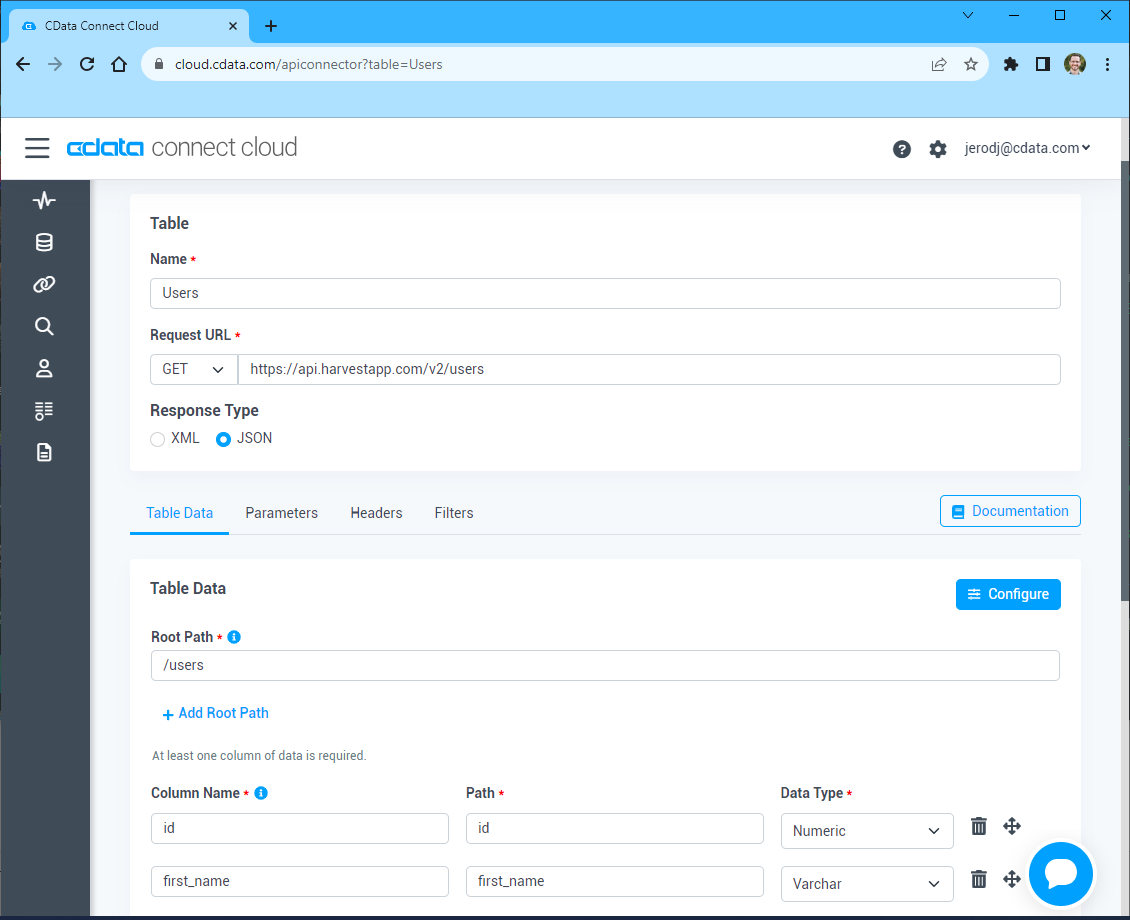
- (Optional) In Parameters, add the required URL Parameters for your API endpoint
- (Optional) In Headers, add the required HTTP headers for the API endpoint
- In Table Data click " Configure"
- Review the response from the API and click "Next"
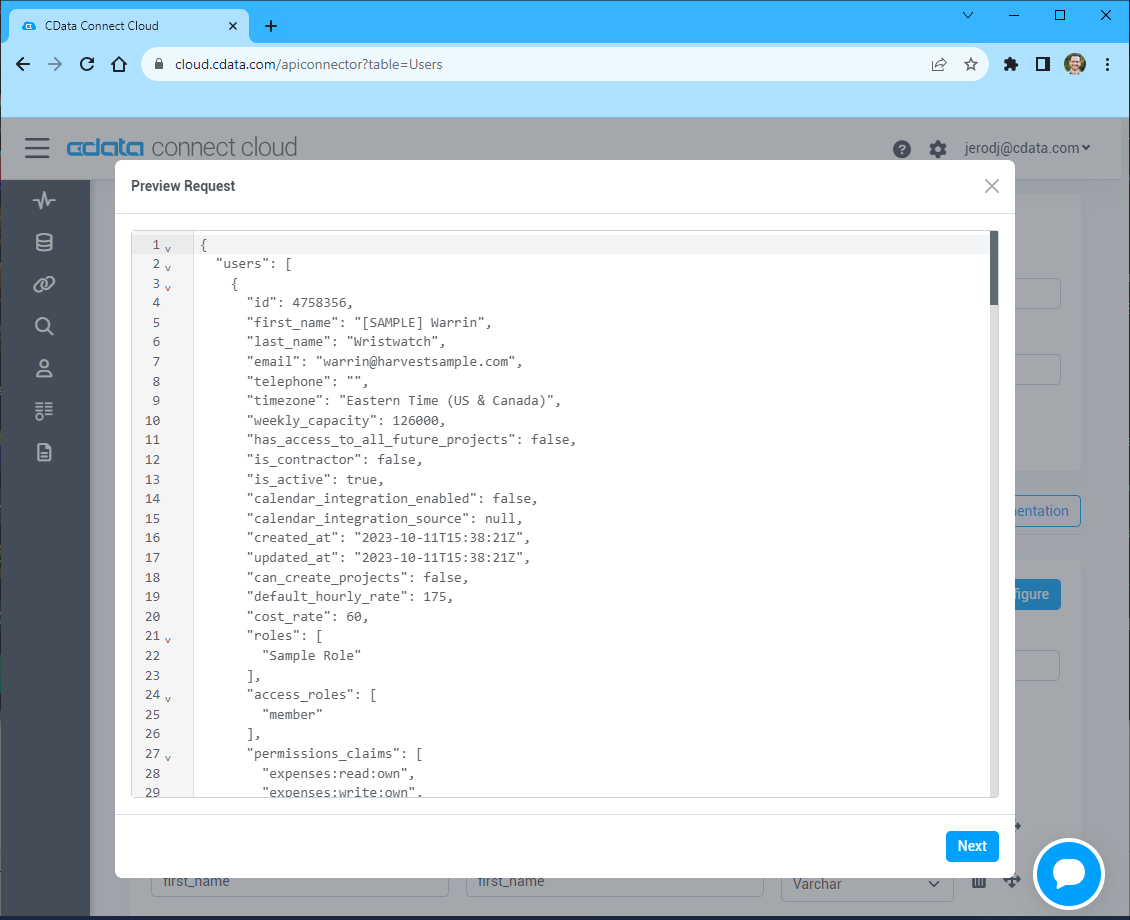
- Select which element to use as the Repeated Elements and which elements to use as Columns and click "Next"
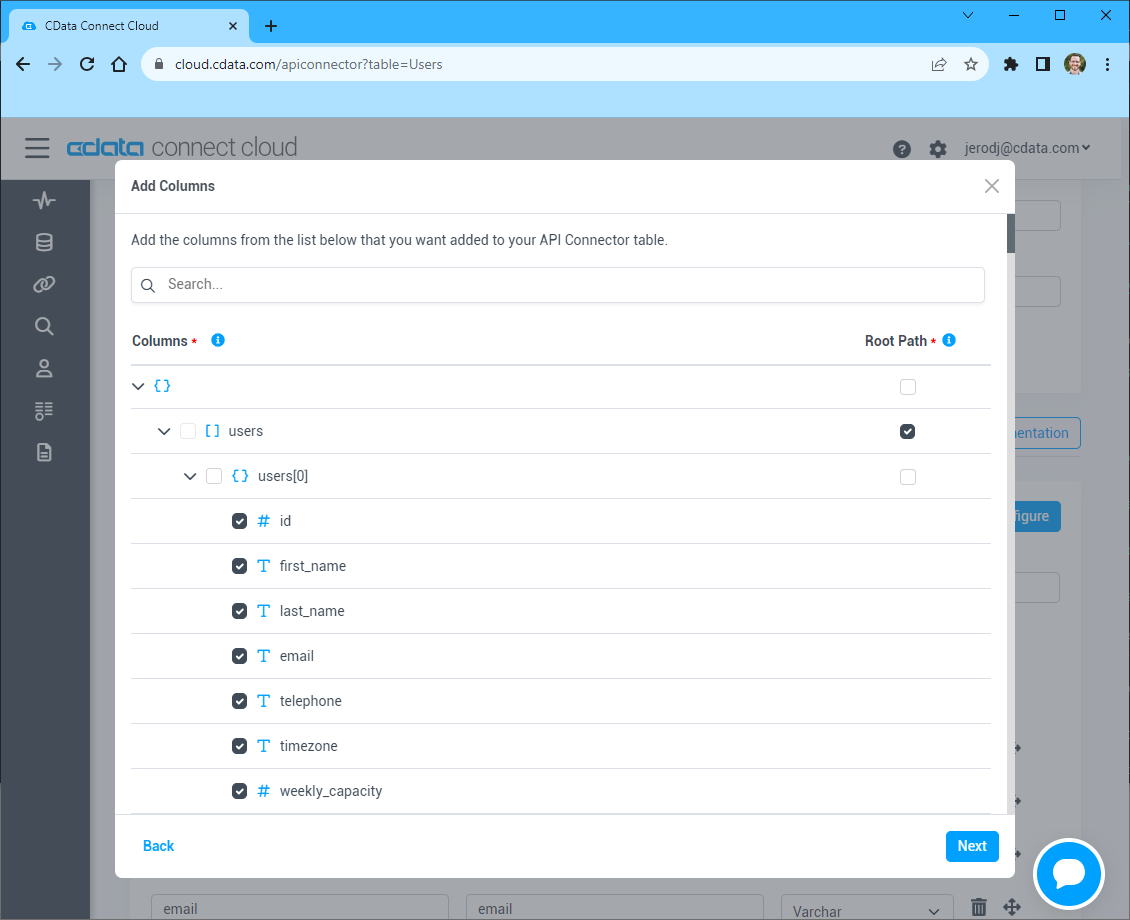
- Preview the tabular model of the API response and click "Confirm"
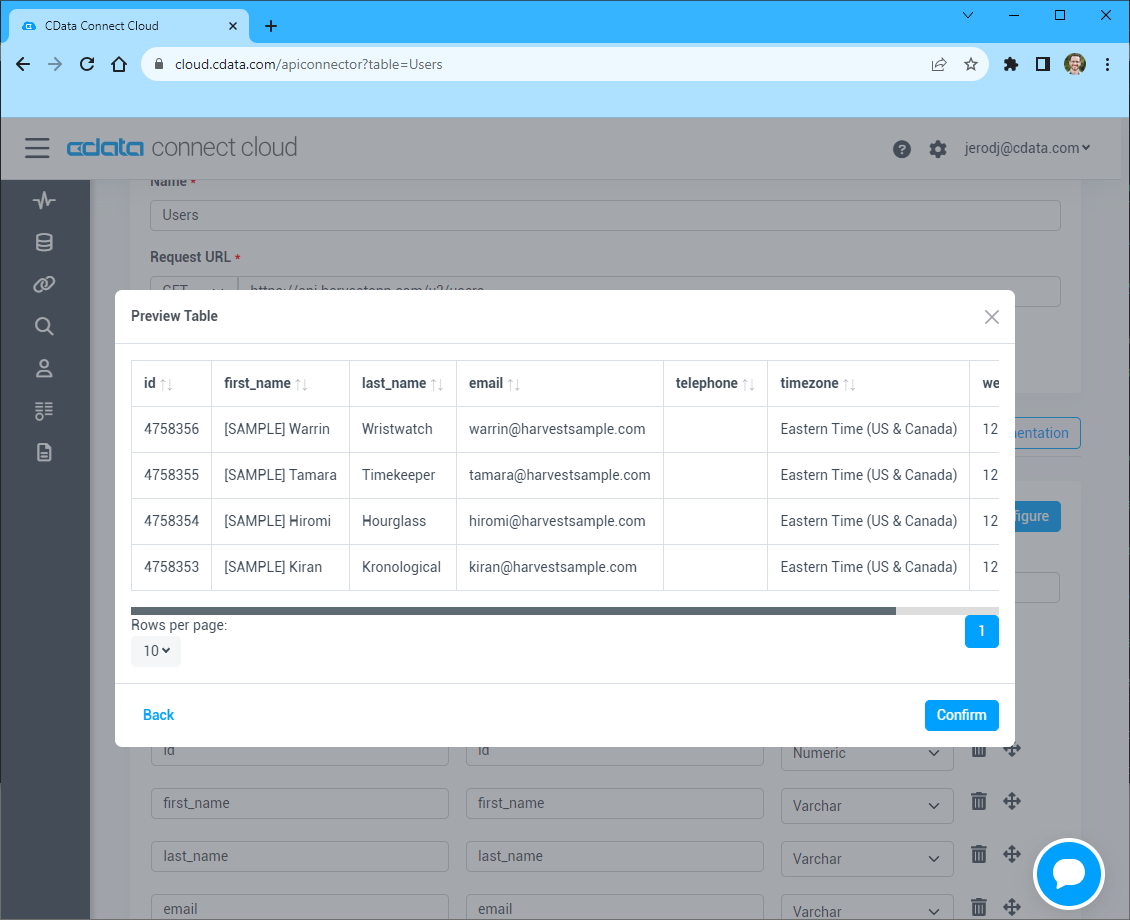
- 接続情報の入力が完了したら、「保存およびテスト」をクリックします。
To connect to your API, configure the following properties on the Global Settings page:
- In Authentication, select the Type and fill in the required properties
- In Headers, add the required HTTP headers for your API
- In Pagination, select the Type and fill in the required properties
After the configuring the global settings, navigate to the Tables to add tables. For each table you wish to add:
- Click "+ Add"
- Set the Name for the table
- Set Request URL to the API endpoint you wish to work with
- (Optional) In Parameters, add the required URL Parameters for your API endpoint
- (Optional) In Headers, add the required HTTP headers for the API endpoint
- In Table Data click " Configure"
- Review the response from the API and click "Next"
- Select which element to use as the Repeated Elements and which elements to use as Columns and click "Next"
- Preview the tabular model of the API response and click "Confirm"
API Server のユーザー設定
次に、API Server 経由でAPI にアクセスするユーザーを作成します。「Users」ページでユーザーを追加・設定できます。やってみましょう。
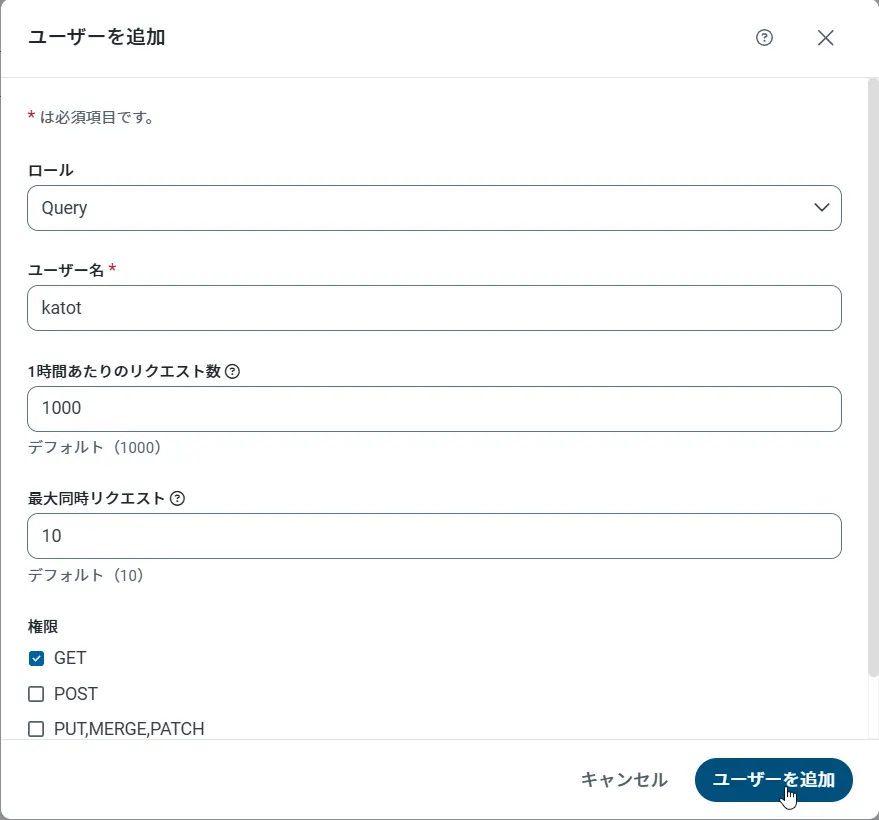
- 「Users」ページで ユーザーを追加をクリックすると、「ユーザーを追加」ポップアップが開きます。
-
次に、「ロール」、「ユーザー名」、「権限」プロパティを設定し、「ユーザーを追加」をクリックします。
-
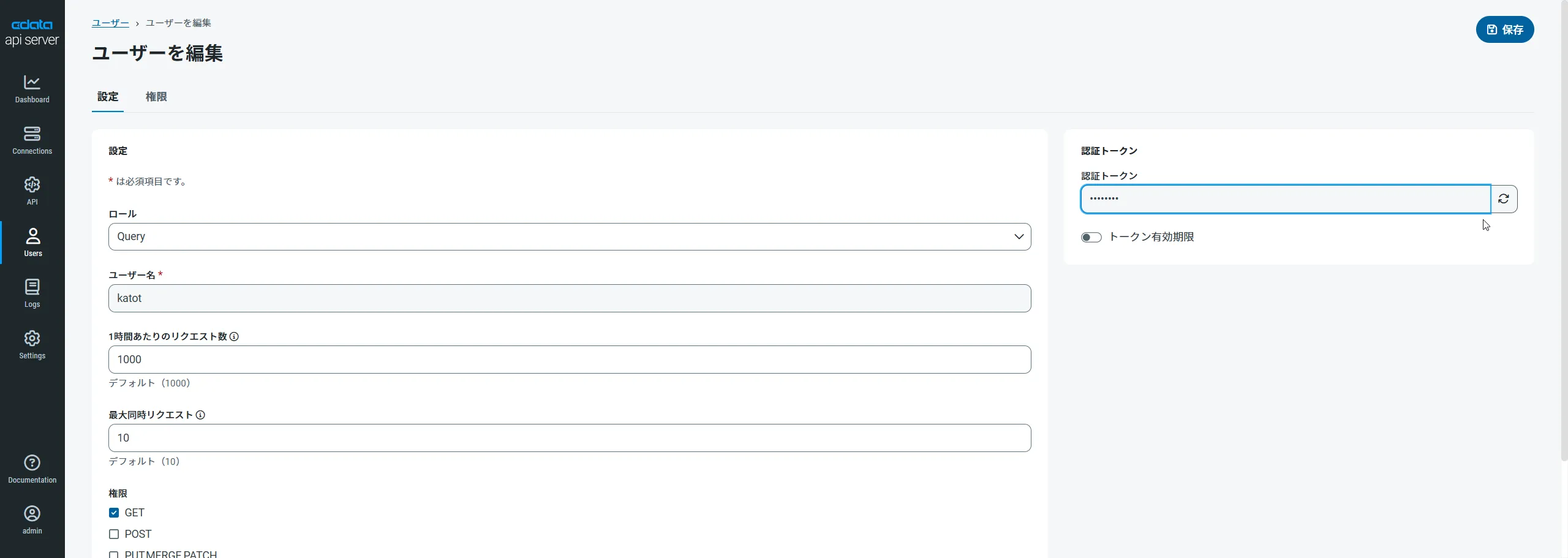
その後、ユーザーの認証トークンが生成されます。各ユーザーの認証トークンとその他の情報は「Users」ページで確認できます。
API 用のAPI エンドポイントの作成
ユーザーを作成したら、API のデータ用のAPI エンドポイントを作成していきます。
-
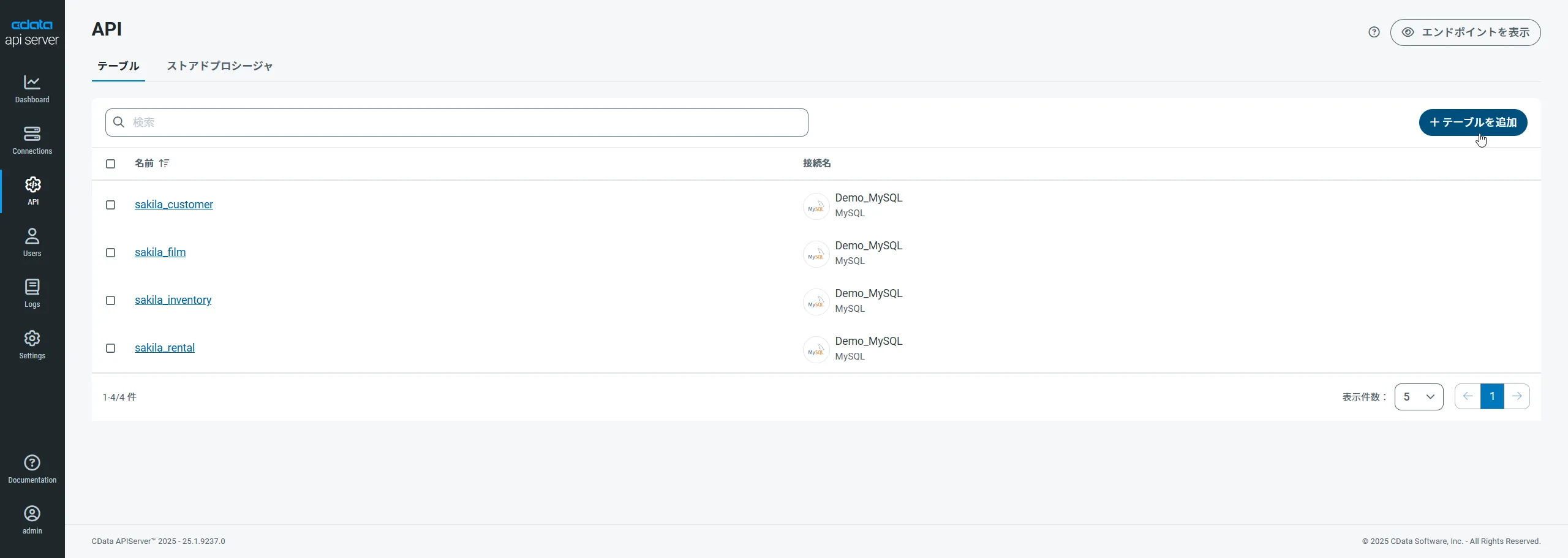
まず、「API」ページに移動し、
「 テーブルを追加」をクリックします。
-
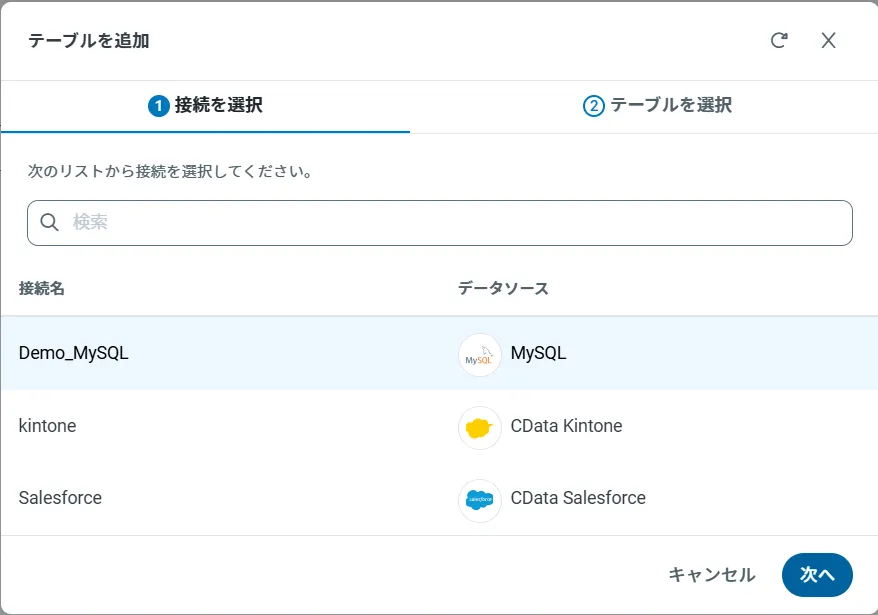
アクセスしたい接続を選択し、次へをクリックします。
-
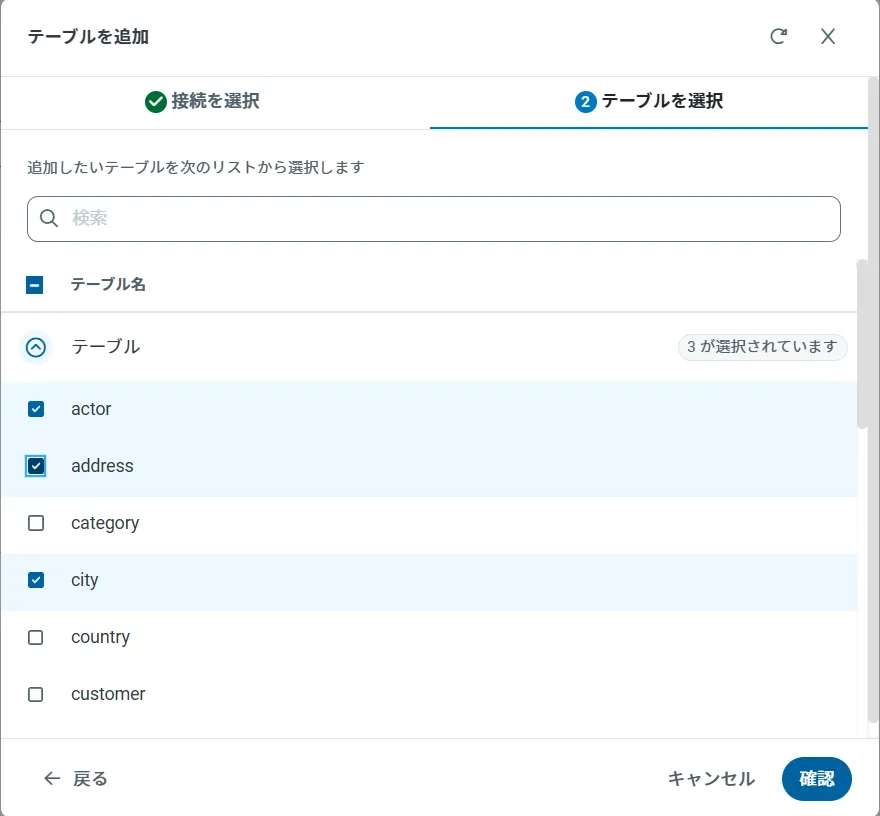
接続を選択した状態で、各テーブルを選択して確認をクリックすることでエンドポイントを作成します。
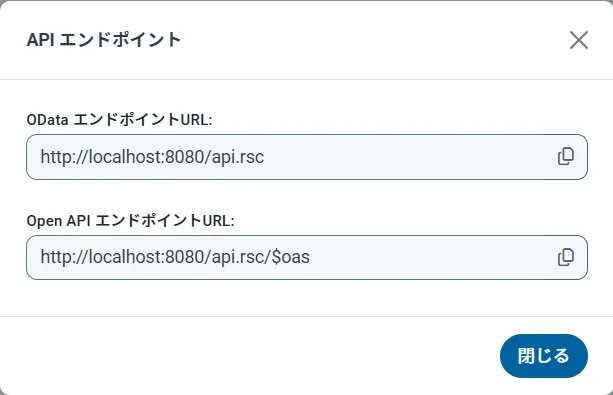
OData のエンドポイントを取得
以上でAPI への接続を設定してユーザーを作成し、API Server でAPI データのAPI を追加しました。これで、OData 形式のAPI データをREST API で利用できます。API Server の「API」ページから、API のエンドポイントを表示およびコピーできます。
外部API のデータでデータビジュアライゼーションを作成する
- Spotfire を開き、「Add Data Tables」->「OData」をクリックします。
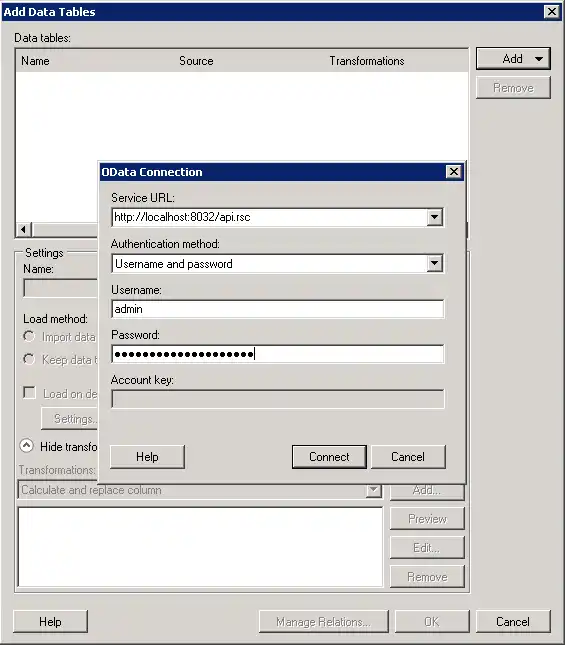
- 「OData Connection」ダイアログで、以下の情報を入力します。
- Service URL:API Server のOData エンドポイントを入力します。例:
http://localhost:8032/api.rsc
- Authentication Method:Username とPassword を選択します。
- Username:API Server ユーザーのユーザー名を入力します。管理コンソールの「Security」タブでAPI ユーザーを作成できます。
- Password:API Server でユーザーの認証トークンを入力します。
- Service URL:API Server のOData エンドポイントを入力します。例:
- ダッシュボードに追加するテーブルとカラムを選択します。この例ではposts を使います。
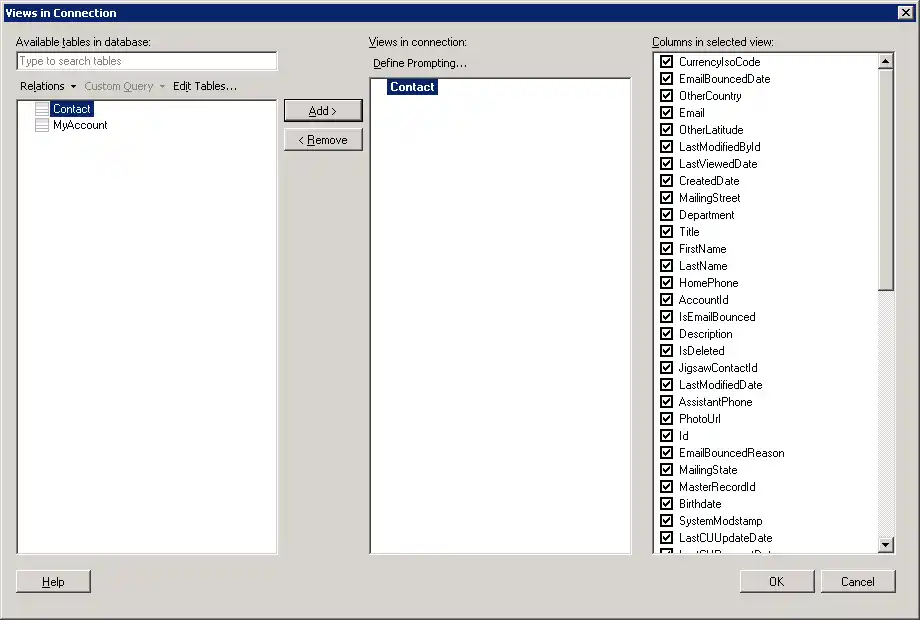
- リアルタイムデータを使いたい場合は、「Keep Data Table External」オプションをクリックします。このオプションは、データの変更をリアルタイムでダッシュボードに反映します。
データをメモリにロードしてローカルで処理したい場合は、「Import Data Table」オプションをクリックします。このオプションは、オフラインでの使用、またはネットワーク接続が遅くダッシュボードとのやり取りが遅延する場合に適しています。
- テーブルを追加すると「Recommended Visualizations」ウィザードが表示されます。テーブルを選択すると、Spotfire はカラムのデータ型を使ってnumber、time、category カラムを検出します。この例ではNumbers セクションでbody を、Categories セクションでtitle を使用しています。
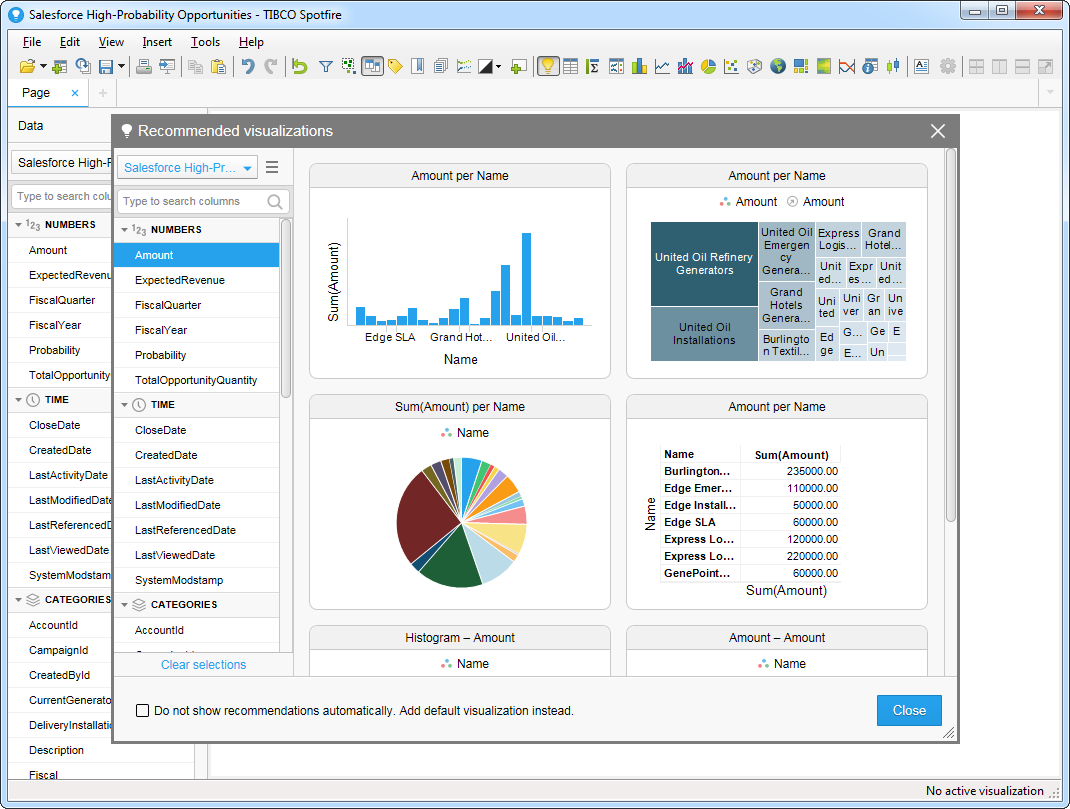
[Recommended Visualizations]ウィザードでいくつかビジュアライズを作成したら、ダッシュボードにその他の修正を加えることができ、例えばフィルタを適用できます。「Filter」ボタンをクリックすると、各クエリで使用可能なフィルタが「Filters」ペインに表示されます。