






【ノーコード】Unqork でAPI のデータを連携利用する方法を徹底解説

Unqork(www.unqork.com/)は誰でも簡単に作れるクラウドベースのノーコードアプリ開発プラットフォームです。フォーム画面とワークフロー画面を活用して、業務プロセスをノーコードで作成できるのが特徴です。Unqork では、外部サービスをデータソースに使用することが可能です。
本記事では、API のデータをUnqork でテーブルとしてインポートする方法を説明します。
API Server の設定
以下のリンクからAPI Server の無償トライアルをスタートしたら、セキュアなAPI OData サービスを作成していきましょう。
API への接続
Unqork からAPI のデータを操作するには、まずyour API への接続を作成・設定します。
- API Server にログインして、「Connections」をクリック、さらに「接続を追加」をクリックします。
- 「接続を追加」をクリックして、データソースがAPI Server に事前にインストールされている場合は、一覧から「API」を選択します。
- 事前にインストールされていない場合は、コネクタを追加していきます。コネクタ追加の手順は以下の記事にまとめてありますので、ご確認ください。
CData コネクタの追加方法はこちら >> - それでは、API への接続設定を行っていきましょう!
-
To connect to your API, configure the following properties on the Global Settings page:
- In Authentication, select the Type and fill in the required properties
- In Headers, add the required HTTP headers for your API
- In Pagination, select the Type and fill in the required properties
After the configuring the global settings, navigate to the Tables to add tables. For each table you wish to add:
- Click "+ Add"
- Set the Name for the table
- Set Request URL to the API endpoint you wish to work with
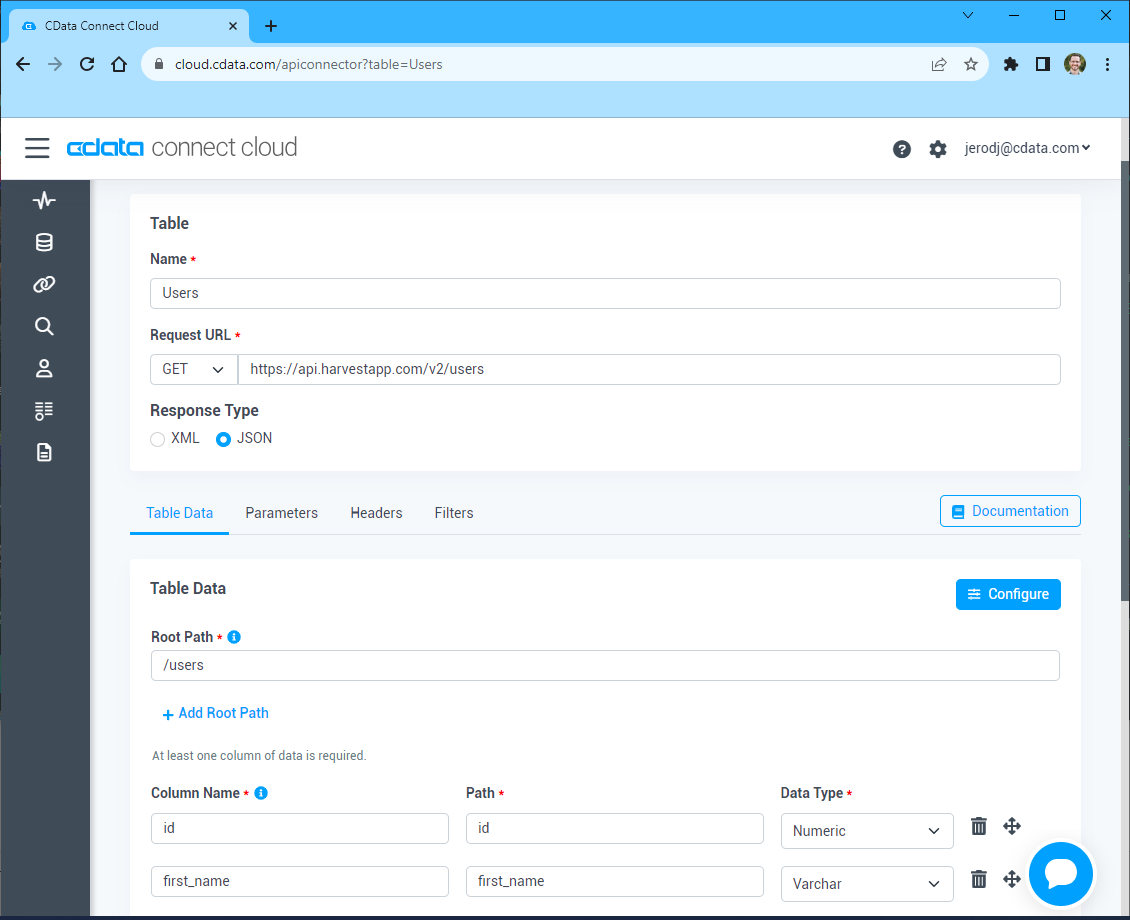
- (Optional) In Parameters, add the required URL Parameters for your API endpoint
- (Optional) In Headers, add the required HTTP headers for the API endpoint
- In Table Data click " Configure"
- Review the response from the API and click "Next"
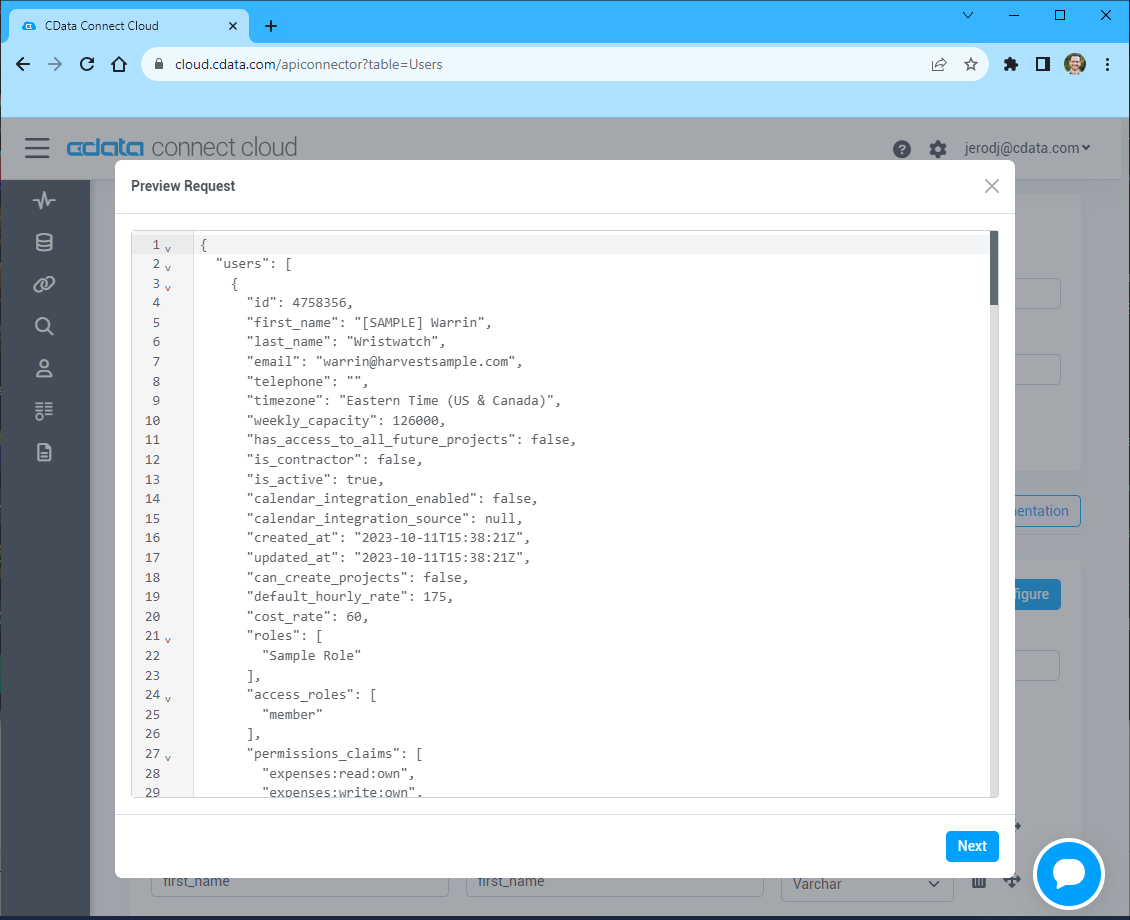
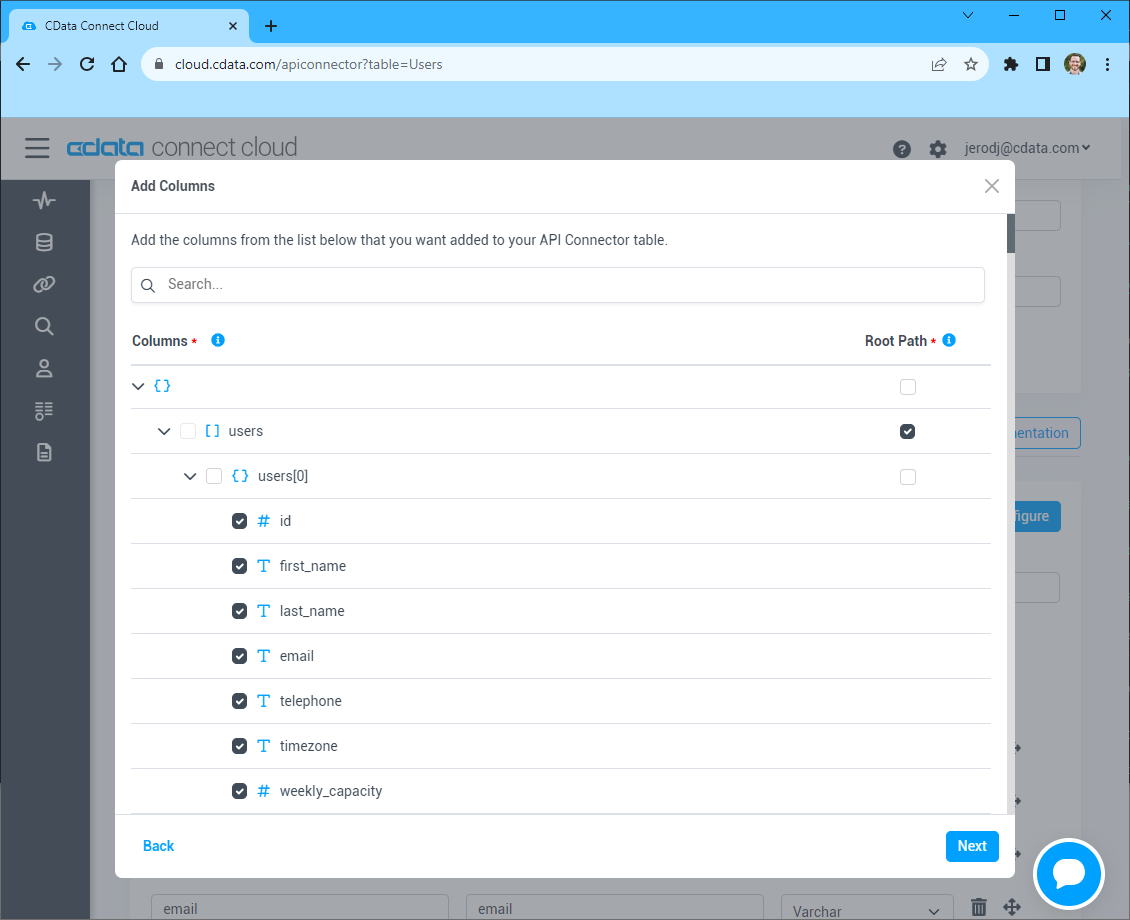
- Select which element to use as the Repeated Elements and which elements to use as Columns and click "Next"
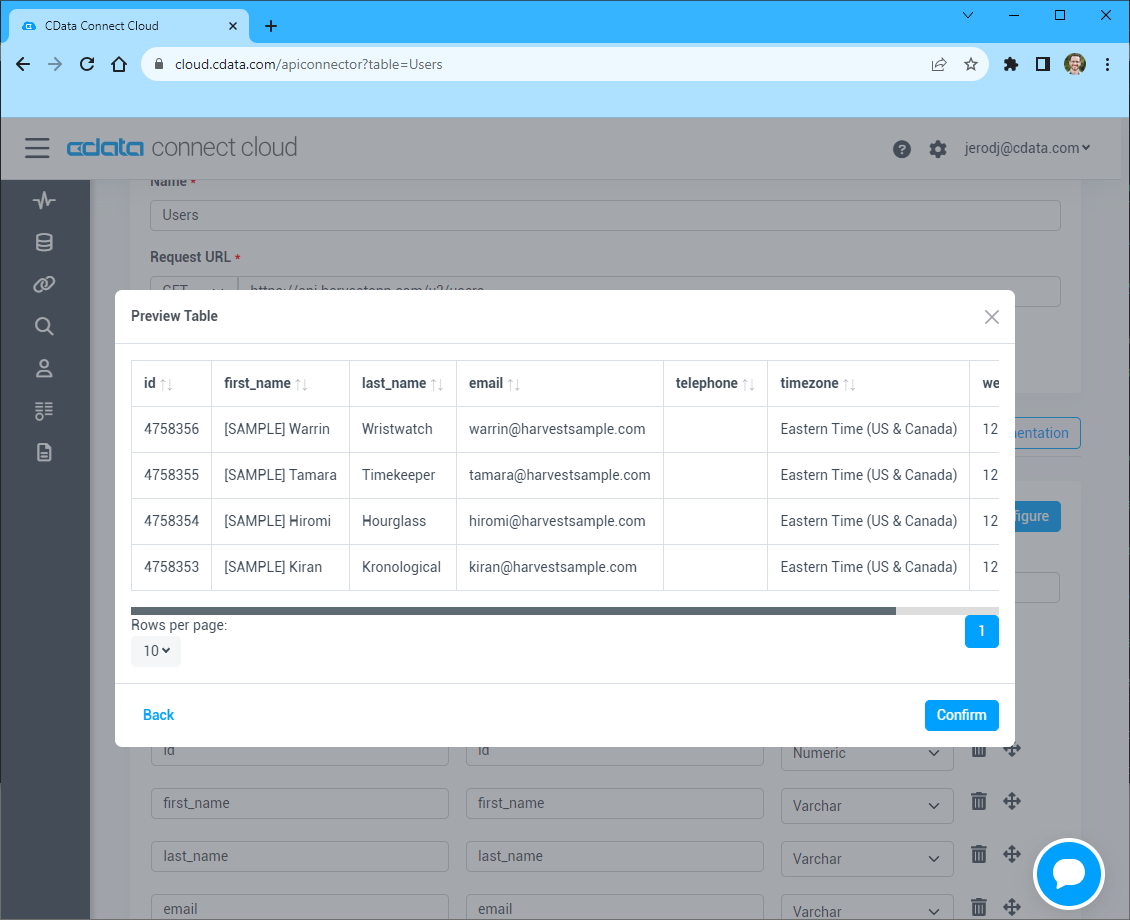
- Preview the tabular model of the API response and click "Confirm"
- 接続情報の入力が完了したら、「保存およびテスト」をクリックします。
To connect to your API, configure the following properties on the Global Settings page:
- In Authentication, select the Type and fill in the required properties
- In Headers, add the required HTTP headers for your API
- In Pagination, select the Type and fill in the required properties
After the configuring the global settings, navigate to the Tables to add tables. For each table you wish to add:
- Click "+ Add"
- Set the Name for the table
- Set Request URL to the API endpoint you wish to work with
- (Optional) In Parameters, add the required URL Parameters for your API endpoint
- (Optional) In Headers, add the required HTTP headers for the API endpoint
- In Table Data click " Configure"
- Review the response from the API and click "Next"
- Select which element to use as the Repeated Elements and which elements to use as Columns and click "Next"
- Preview the tabular model of the API response and click "Confirm"
API Server のユーザー設定
次に、API Server 経由でAPI にアクセスするユーザーを作成します。「Users」ページでユーザーを追加・設定できます。やってみましょう。
- 「Users」ページで ユーザーを追加をクリックすると、「ユーザーを追加」ポップアップが開きます。
-
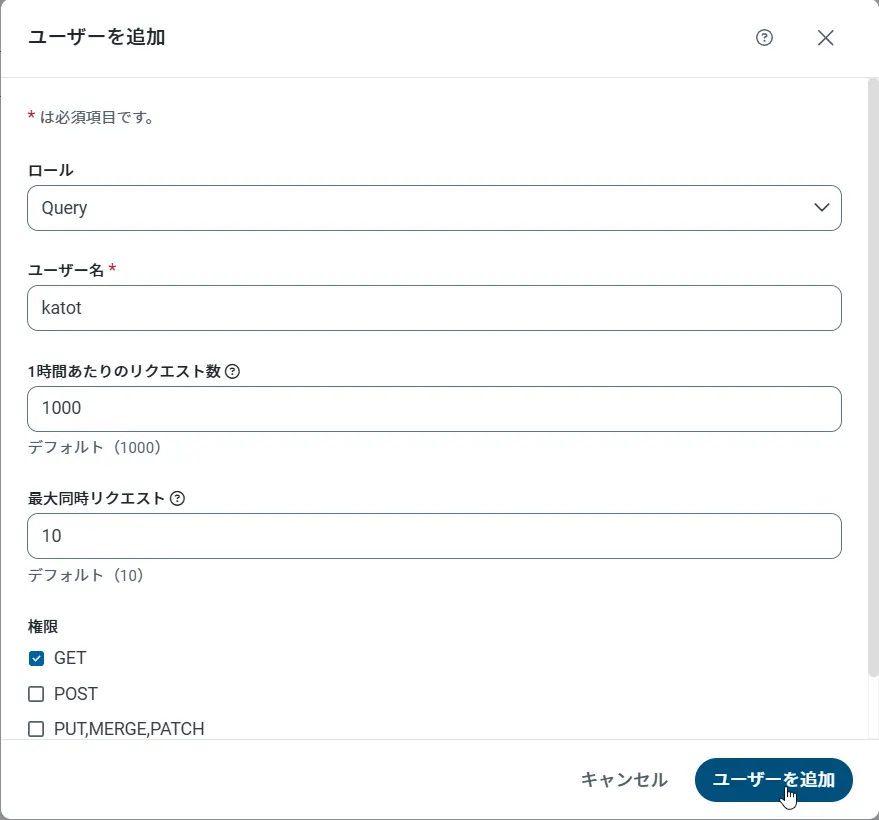
次に、「ロール」、「ユーザー名」、「権限」プロパティを設定し、「ユーザーを追加」をクリックします。
-
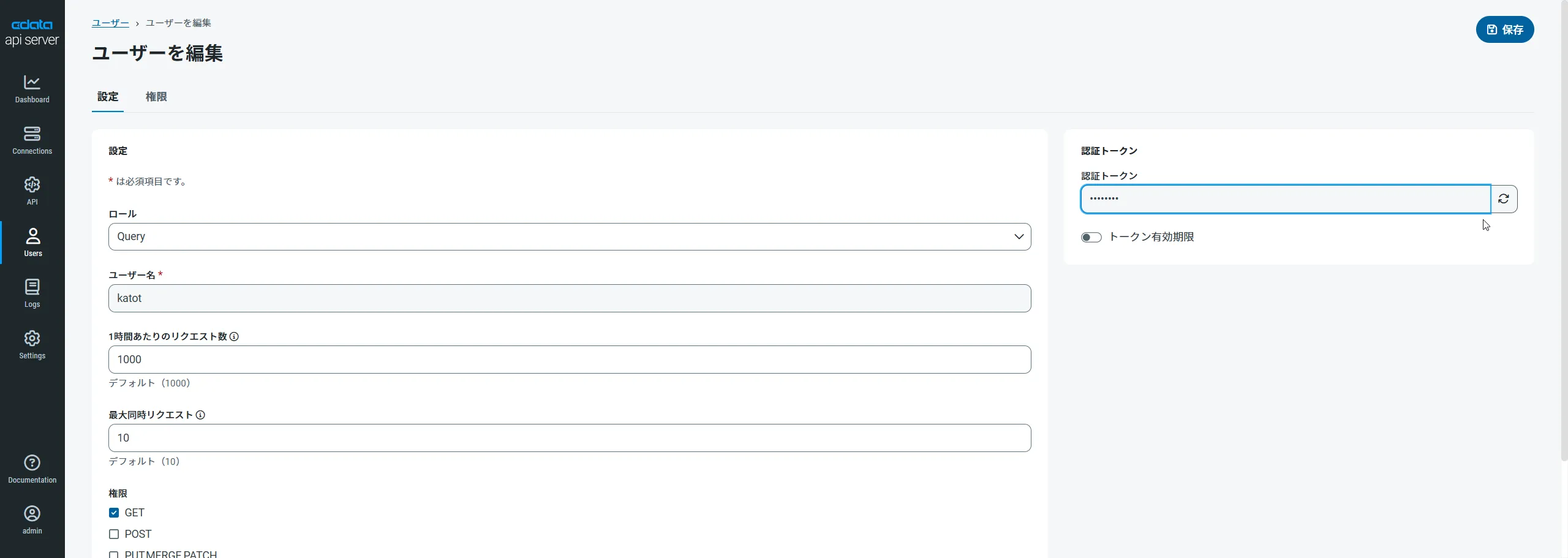
その後、ユーザーの認証トークンが生成されます。各ユーザーの認証トークンとその他の情報は「Users」ページで確認できます。
API 用のAPI エンドポイントの作成
ユーザーを作成したら、API のデータ用のAPI エンドポイントを作成していきます。
-
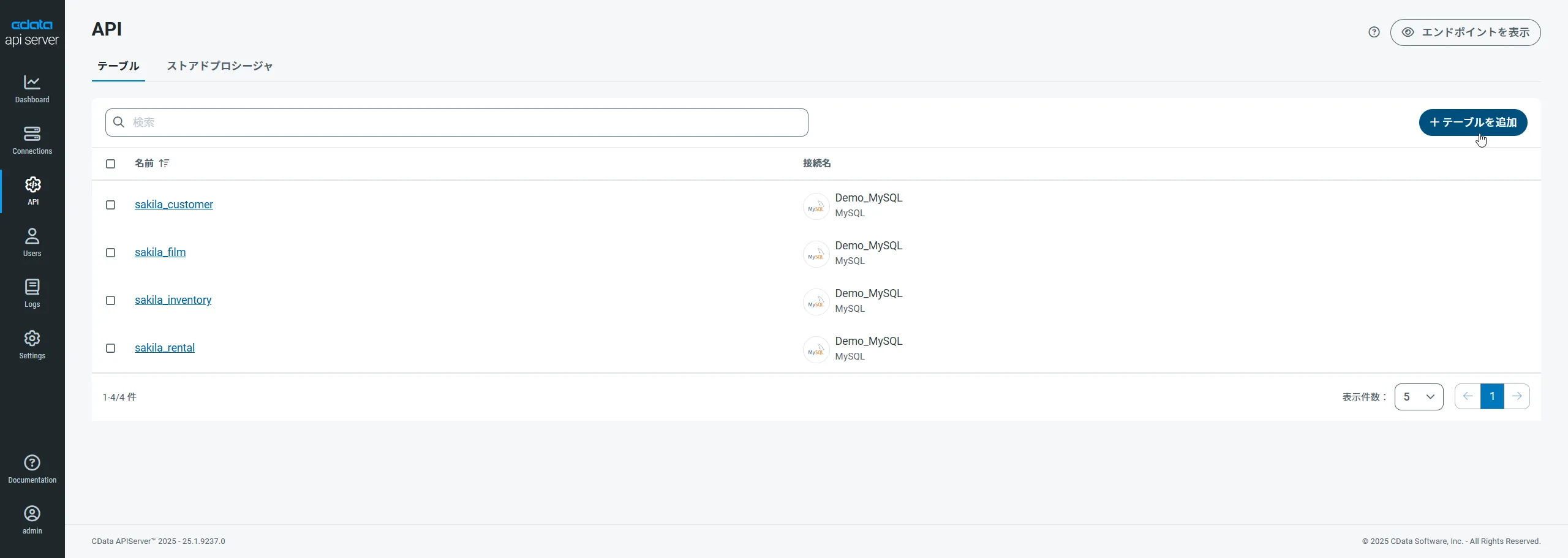
まず、「API」ページに移動し、
「 テーブルを追加」をクリックします。
-
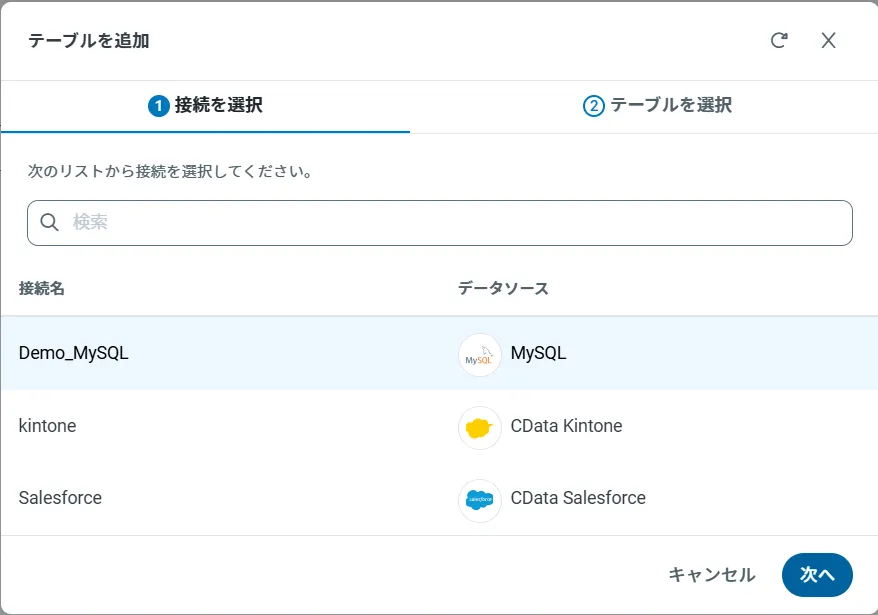
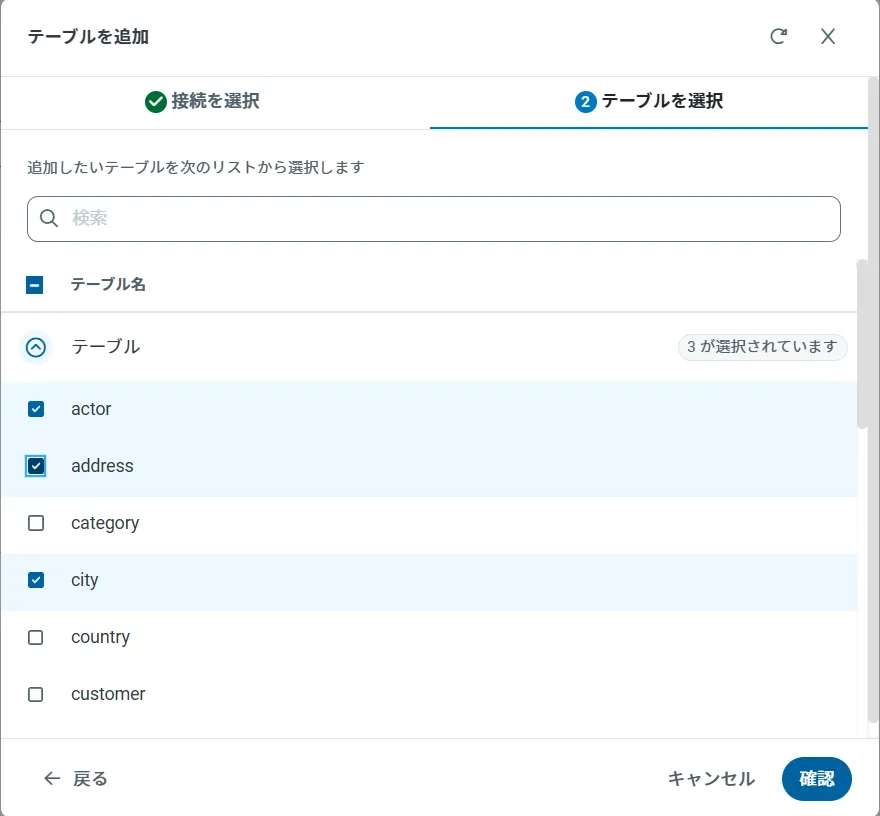
アクセスしたい接続を選択し、次へをクリックします。
-
接続を選択した状態で、各テーブルを選択して確認をクリックすることでエンドポイントを作成します。
OData のエンドポイントを取得
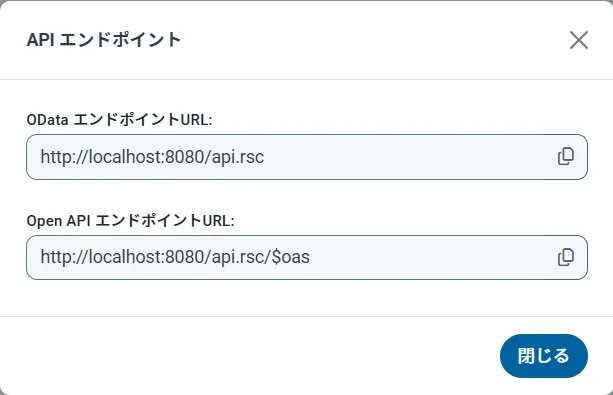
以上でAPI への接続を設定してユーザーを作成し、API Server でAPI データのAPI を追加しました。これで、OData 形式のAPI データをREST API で利用できます。API Server の「API」ページから、API のエンドポイントを表示およびコピーできます。
Unqork でAPI のデータに連携して一覧画面を作成
Unqork でAPI のデータを作成する構成
Unqork でAPI に連携する一覧表示画面をModule として作成します。Unqork の一覧画面で使用するコンポーネントは次のようになります:
- Initializzer:画面表示時にPluginを実行します。
- Plugin:API Server からデータを取得し、Hidden Componentに格納します。
- HiddenPluginから取得したデータを格納します:
- ViewGrid:Hidden Componentに格納されたデータを元に、一覧画面を表示します。
API のデータのServices Administration への登録
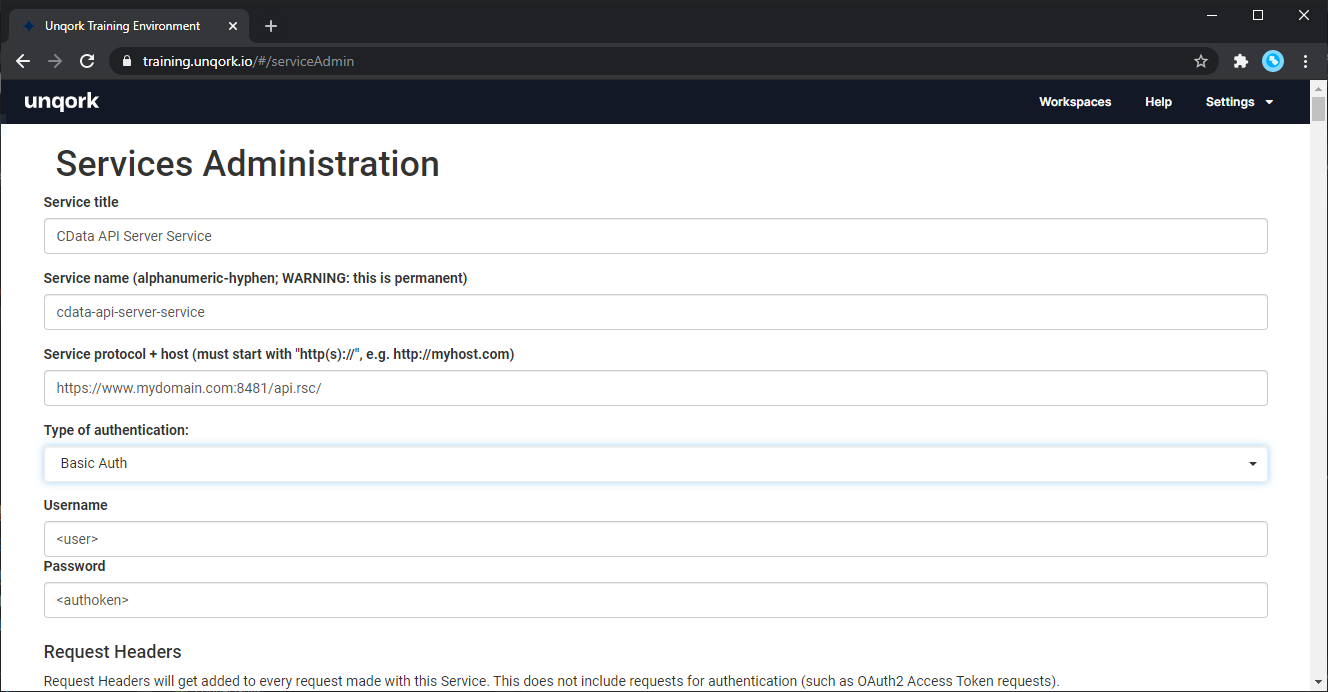
- 事前準備として Unqork の Plug-in から API Server に対して接続ができるようにサービス情報を登録します。右上の「Settings」から「Administration」をクリックし、「Integration」の「Services Administration」を選択します。
- Services Administration 画面で、以下の項目を設定してAPI Server 経由でAPI に接続します。
- Service Title:例)CData API Server。任意のサービスタイトルを指定します。
- Service name:例)cdataapiserver。任意のサービス名を指定します。
- Service protocol + host:例)http://XXX.ap-northeast-1.compute.amazonaws.com:8153/api.rsc/。API Serverのサービスディレクトリエンドポイントを指定します。
- Type of authentications:Basic AuthBasic Authを選択します。
- Username:例)admin。API Serverで作成したAPIアクセスユーザーのIDを指定します
- Password:例)token。API Serverで作成したAPIアクセスユーザーの認証 Tokenを指定します。
Workspace の作成
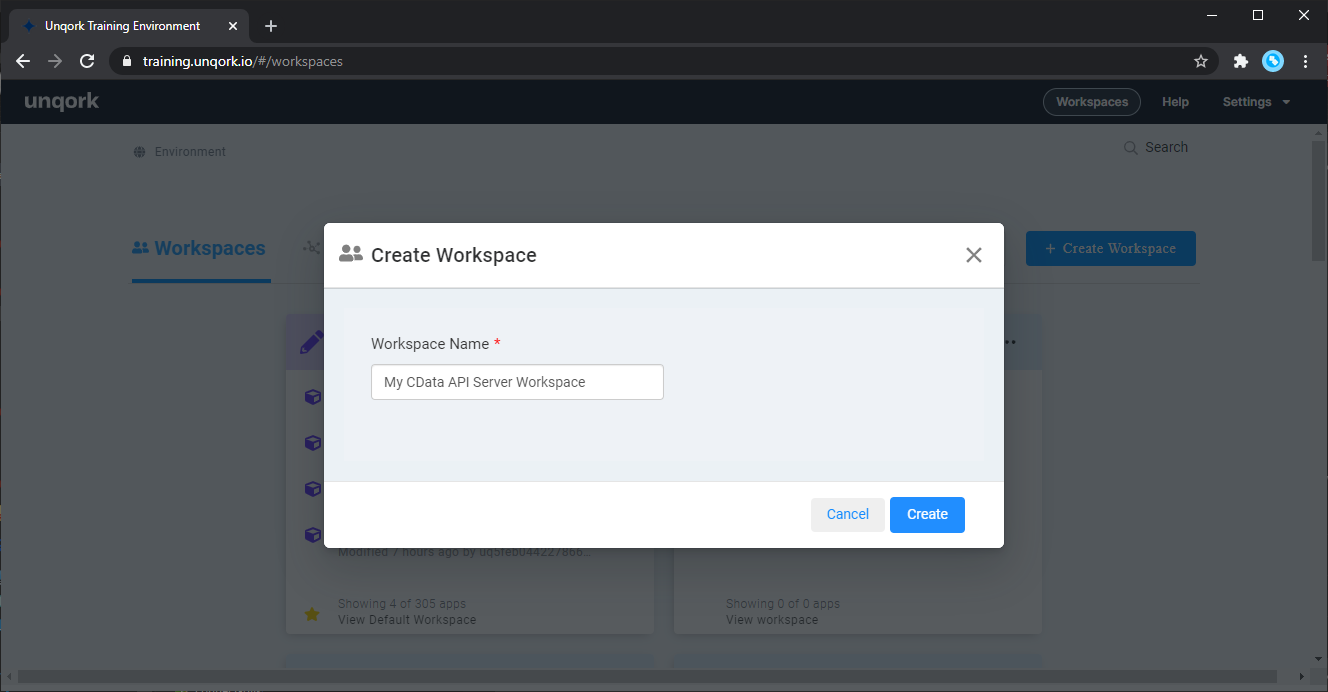
次に、今回のModule を作成するためのWorkspace を作成します。「+Create Workspace」をクリックし、任意の名前でWorkspace を作成します。
一覧画面用のModule の作成
それでは一覧画面を作っていきましょう。
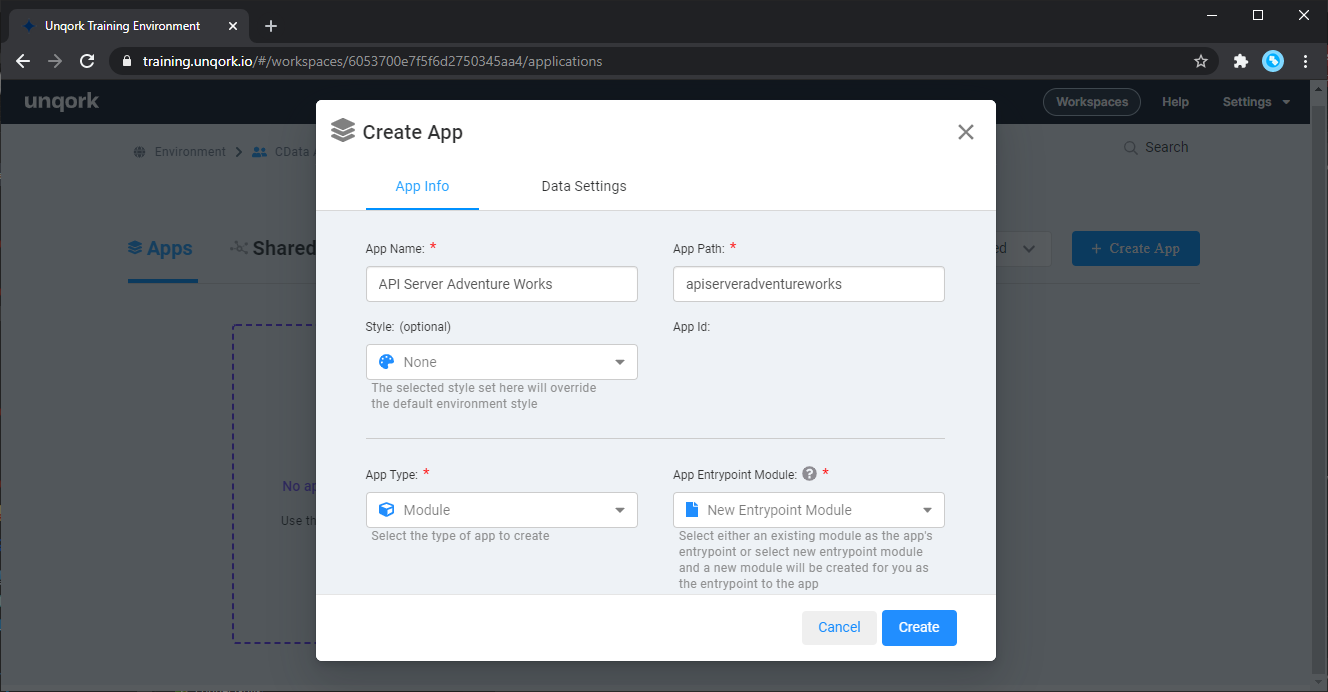
- 「+Create App」をクリックし、任意の「App Name」と「App Path」を入力します。前述の通り、今回はModule で作成するので「App Type」は「Module」を指定して、Create をクリックします。
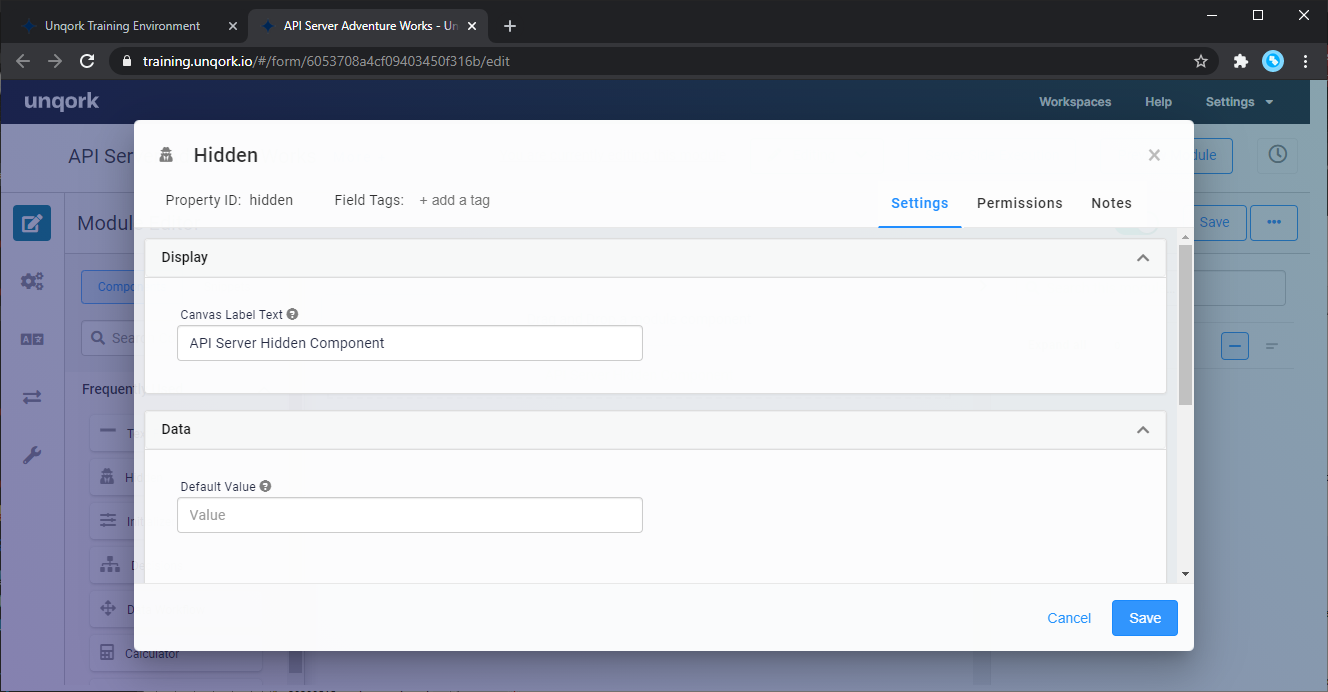
- 一覧画面では、まずAPI から取得したデータを格納するために「Hidden」Component を配置します。検証時にはデータを正常に取得できているか確認するために、Text Field で作成するのも良いでしょう。任意の「Property ID」と「Canvas Label Text」を指定して保存します。
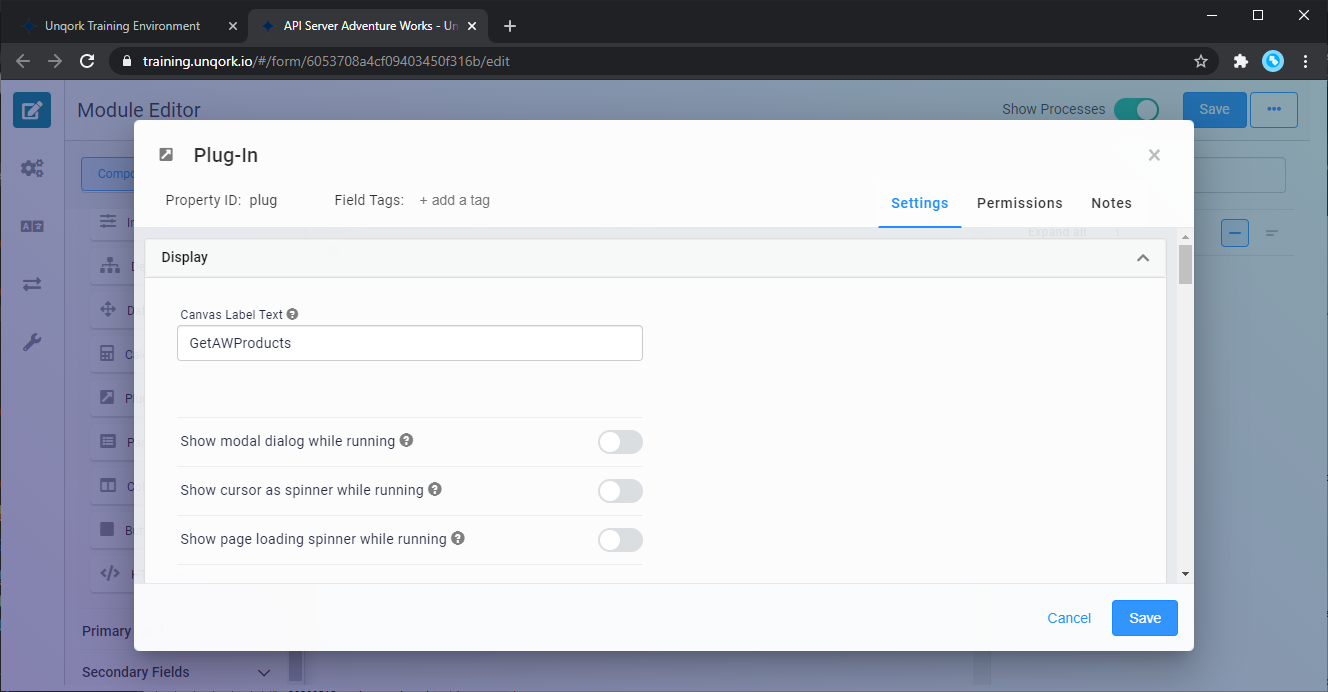
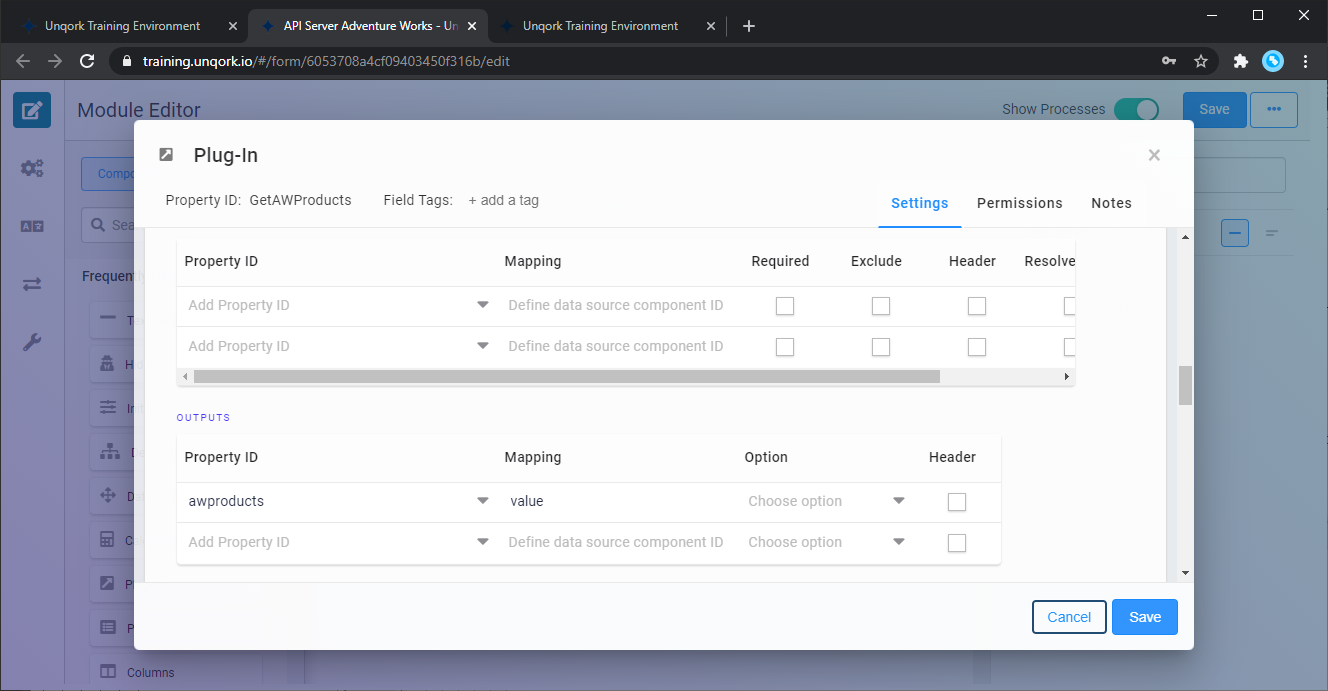
- データ格納用のComponent を作成した後、API Server にリクエストを行うための 「Plug-in」Component を配置します。任意の「Property ID」と「Canvas Label Text」を指定します。今回は「GetCustomers」としました。
- Plug-in では取得したデータを格納するためのマッピングを行います。Property ID には、事前に作成したHidden Component の名前を入力し、「Mapping」には value を指定します。
- あとは「Data」タブにてAPI Server へのリクエスト内容を設定します。「External」を選択し、事前にServices Administration で登録した、API Server の Service を選択します。
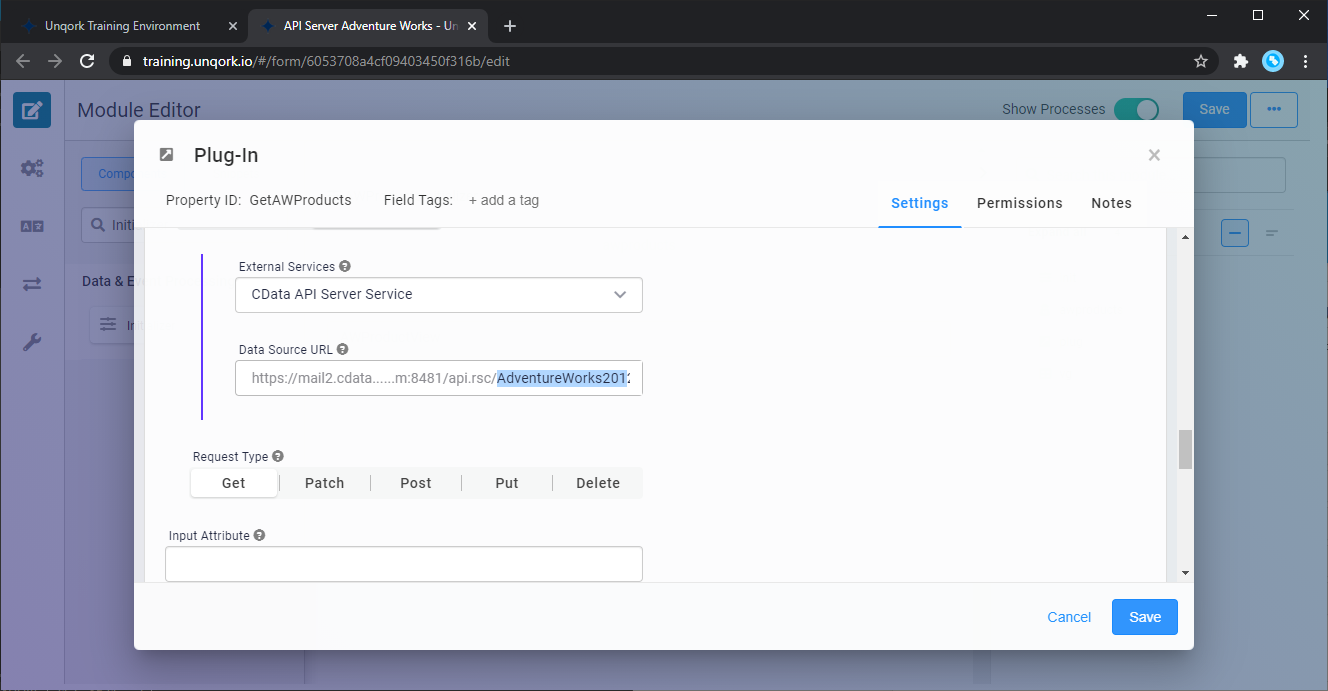
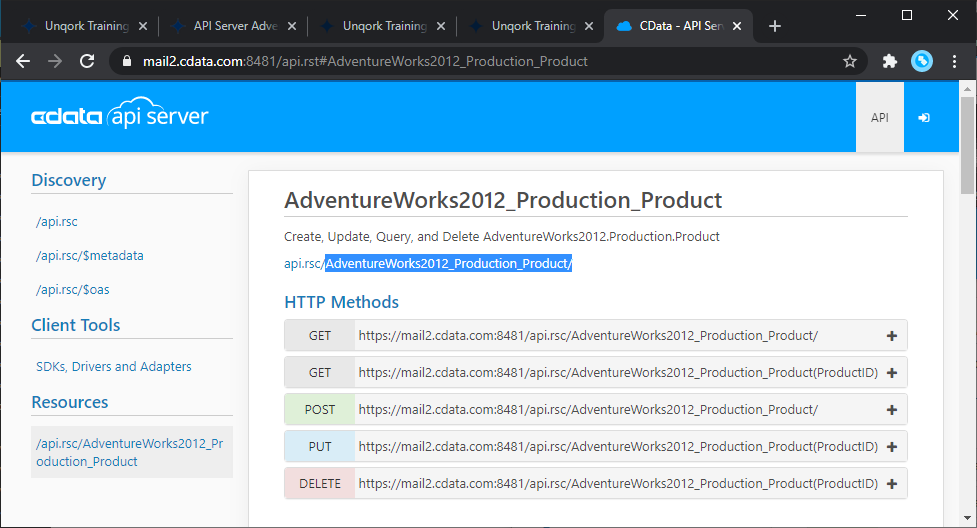
- その後、エンドポイントがData Source URL に表示されるので、取得したい対象のリソースURL を指定します(リソースURL はAPI Server の以下の画面から確認できます)。合わせてRequest Type で「Get」を指定して保存します。
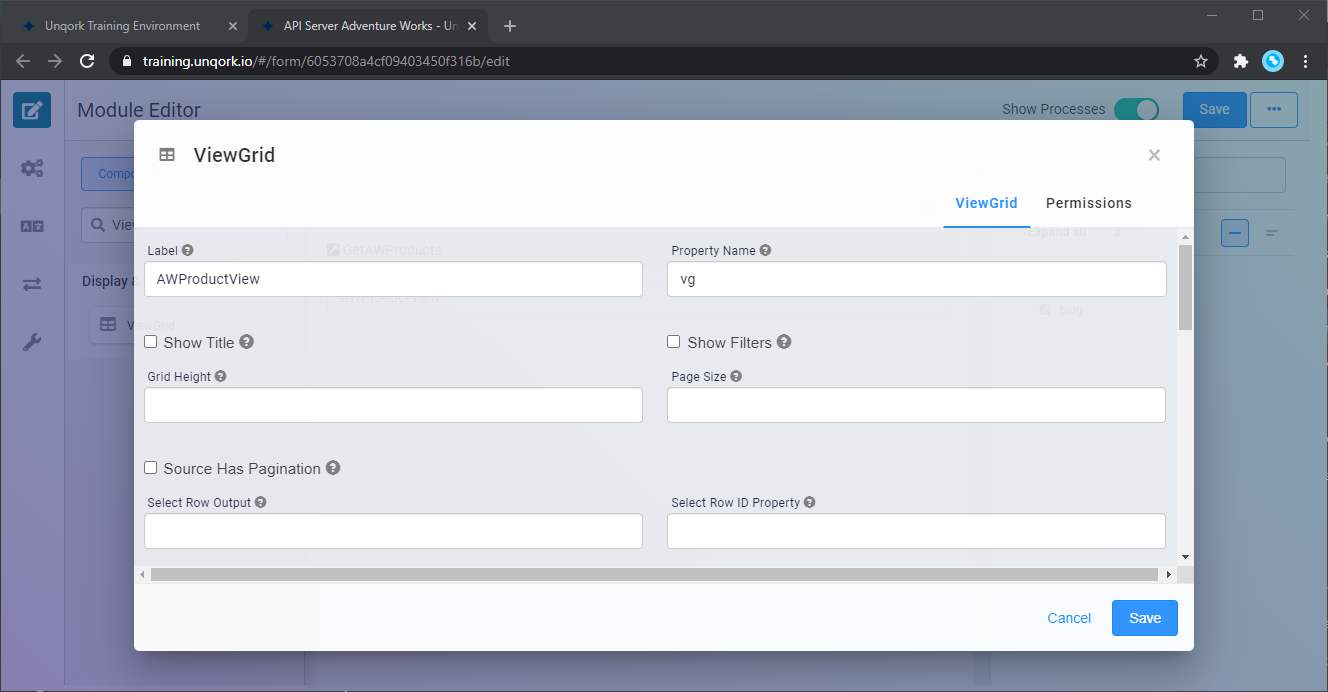
- 次に、一覧画面のUI となる「View Grid」を配置しましょう。任意の「Label」と「Property Name」を指定します。今回は「CustomerView」としました。
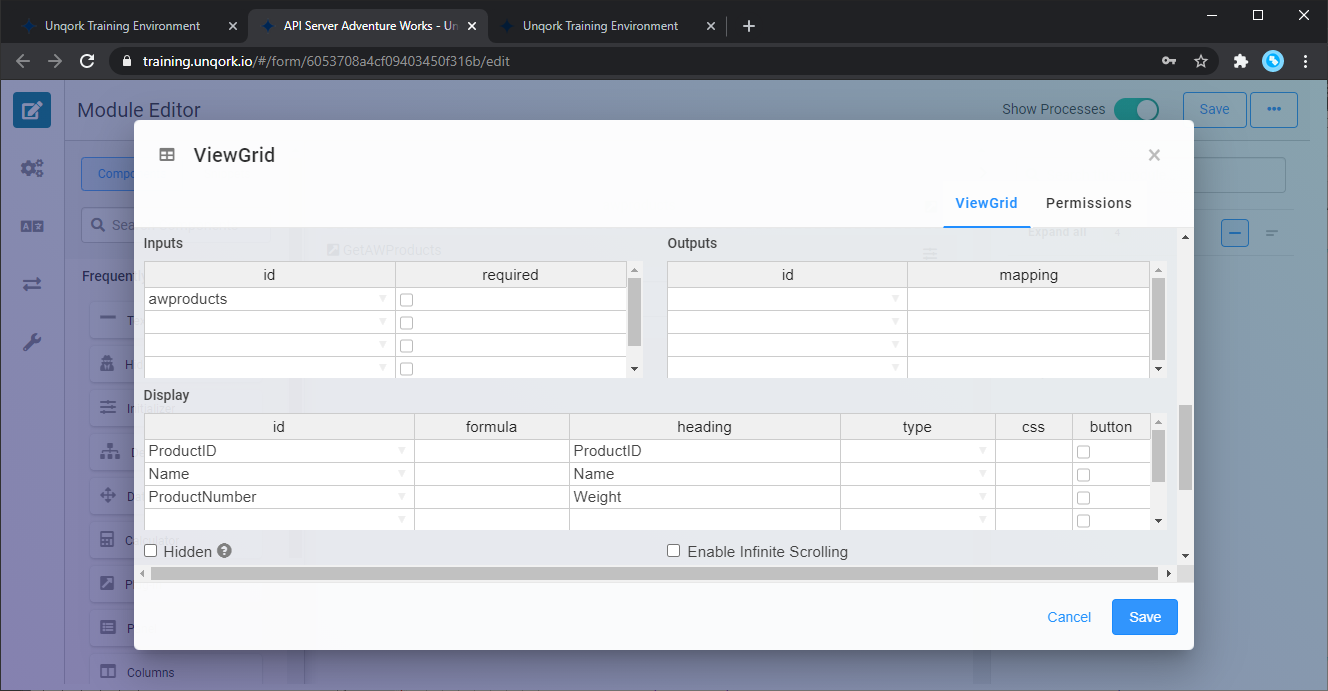
- View Grid では、まずデータ元となる Component との紐付けを「Inputs」にて行います。Plug-in 経由で取得したデータはHidden Component に格納されているので、その Component をここで指定します。その後表示するカラムをDisplay で定義します。「ID」「NAME」「EMAIL」をそれぞれ「id」と「heading」に指定して、保存します。
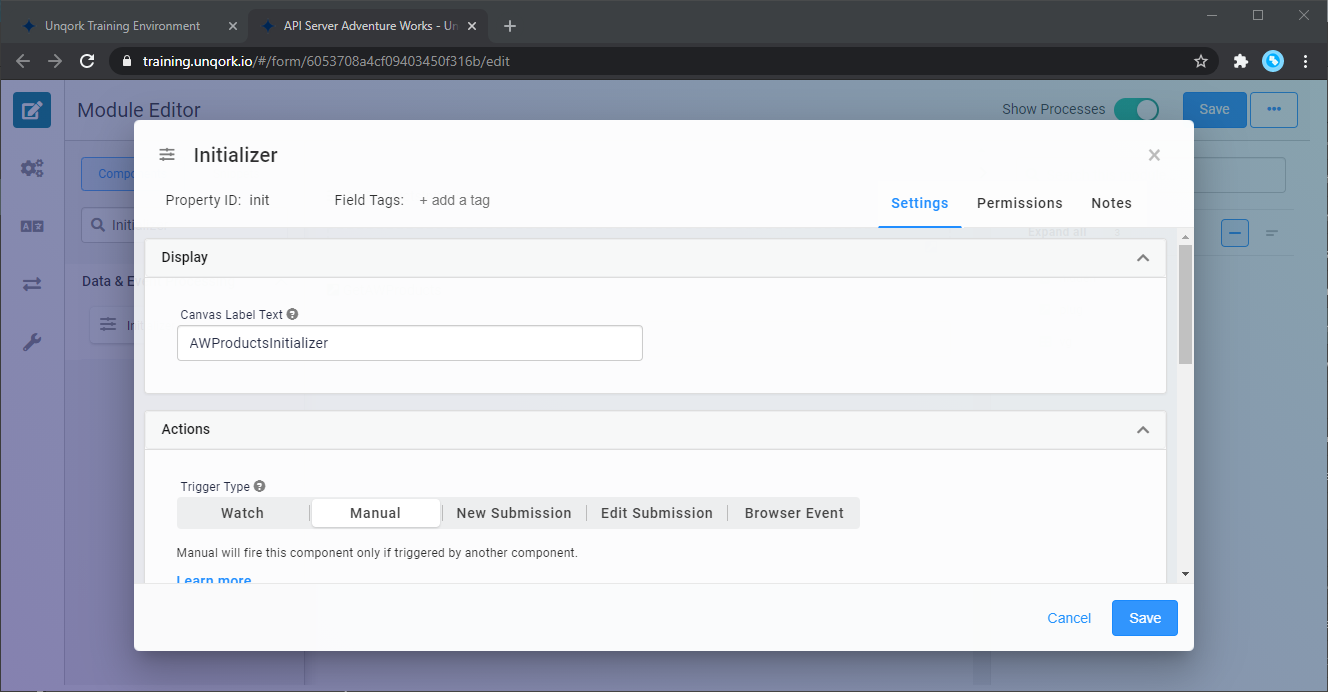
- 最後に画面を表示した時に、Plug-in が呼ばれるように「Initializer」Componentを配置します。まず任意の「Canvas Label Text」を指定します。
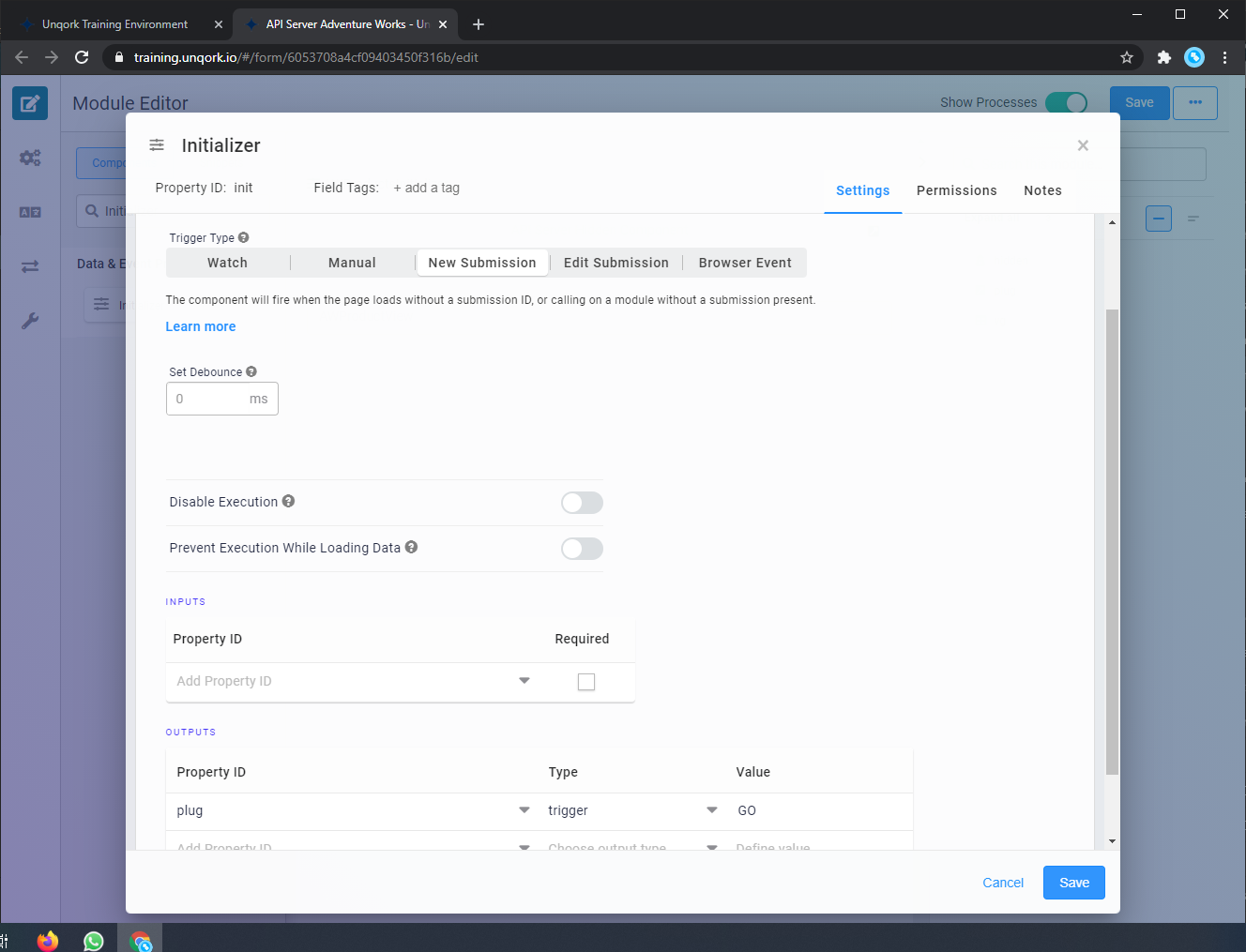
- 「Trigger Type」では、画面表示時の実行を行う「New Submission」を指定、「OUTPUTS」にて、実行するPlug-in を指定します。Property IDでは、「GetCustomers」を指定し、Type では「trigger」、Value には「GO」を指定します。
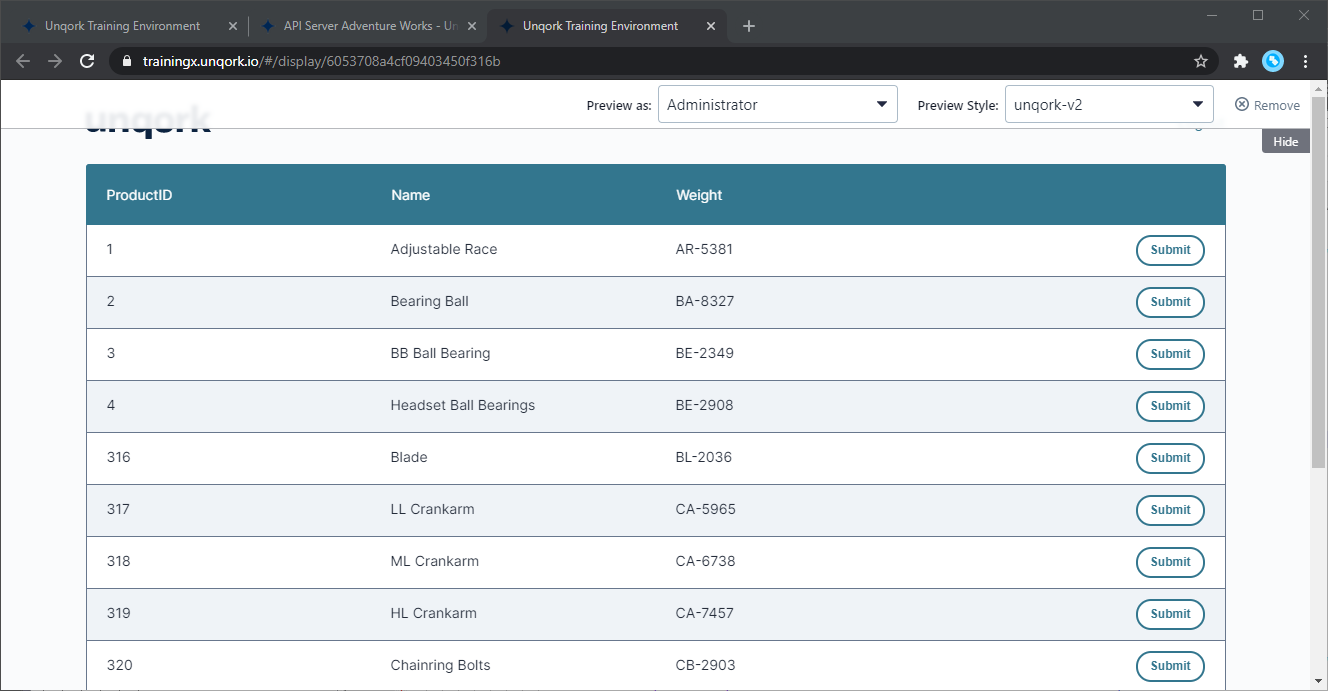
- Module を保存して「Preview Module」で動作確認をしてみましょう。以下のように一覧画面が表示されれば完了です。これでAPI のデータをUnqork のワークフローでテーブルデータとして扱うことが可能になります。
まとめと30日の無償評価版のご案内
このように API 内のデータをUnqork で利用することができるようになります。CData API Server は、30日の無償評価版があります。是非、お試しいただき、Unqork からのデータ参照を体感ください。