






Connect Spreadsheets で Excel for the Web(Excel 365/Online)からリアルタイムのAPI のデータにアクセス

Connect AI の手順をお探しですか?
Connect AI アカウントには Connect Spreadsheets が含まれているため、以下の手順を使用できます。Connect Spreadsheets プラットフォームを参照する際に若干の違いが見られる場合がありますが、基本的な原則は同じです。
Microsoft Excel for the web は、Microsoft Excel のクラウドネイティブ版です。CData の Connect Spreadsheets と組み合わせることで、Excel 内から直接API のデータにアクセスでき、データ分析、コラボレーション、計算などが可能になります。この記事では、Connect Spreadsheets で your API に接続し、オンラインの Excel スプレッドシートでリアルタイムのAPI のデータにアクセスおよび更新する方法を説明します。
Connect Spreadsheets は、すべてのリアルタイムデータを Microsoft Excel や Google Sheets に取り込む最も簡単な方法です。ファイルのダウンロード、整形、アップロードを繰り返す必要はもうありません。データに接続し、表示したいデータセットを選択して、スプレッドシートにインポートするだけです。
このセットアップには、Connect Spreadsheets インスタンスと Excel 用 Connect Spreadsheets アドインが必要です。開始するには、Connect Spreadsheets の無料トライアルにサインアップし、無料の Connect Spreadsheets Excel アドインをインストールしてください。
Excel 用のyour API 接続を設定
Excel からyour API への接続は、Connect Spreadsheets を通じて可能になります。Excel からAPI のデータを操作するには、まず your API 接続を作成して設定します。
- Connect Spreadsheets にログインし、Connections をクリックして Add Connection をクリックします

- Add Connection パネルから「API」を選択します

-
your API に接続するために必要な認証プロパティを入力します。
To connect to your API, configure the following properties on the Global Settings page:
- In Authentication, select the Type and fill in the required properties
- In Headers, add the required HTTP headers for your API
- In Pagination, select the Type and fill in the required properties
After the configuring the global settings, navigate to the Tables to add tables. For each table you wish to add:
- Click "+ Add"
- Set the Name for the table
- Set Request URL to the API endpoint you wish to work with
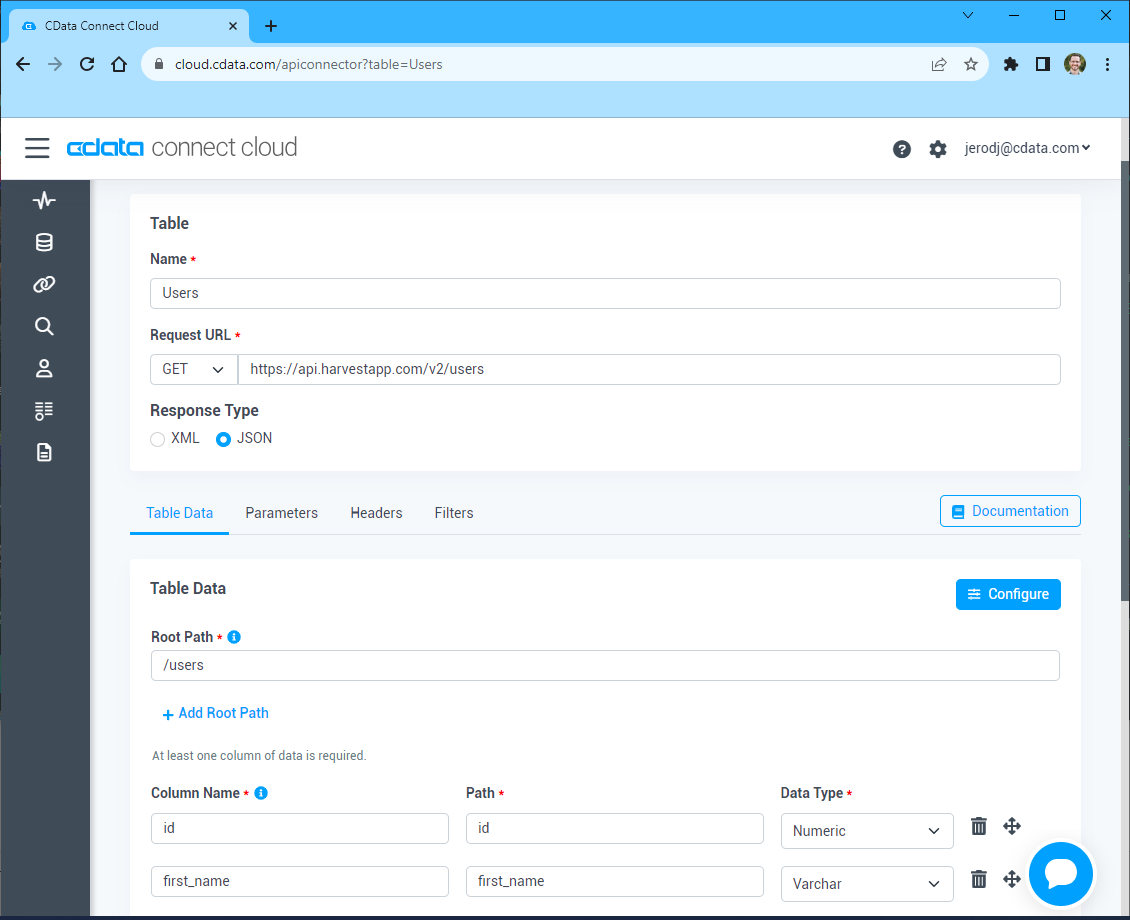
- (Optional) In Parameters, add the required URL Parameters for your API endpoint
- (Optional) In Headers, add the required HTTP headers for the API endpoint
- In Table Data click " Configure"
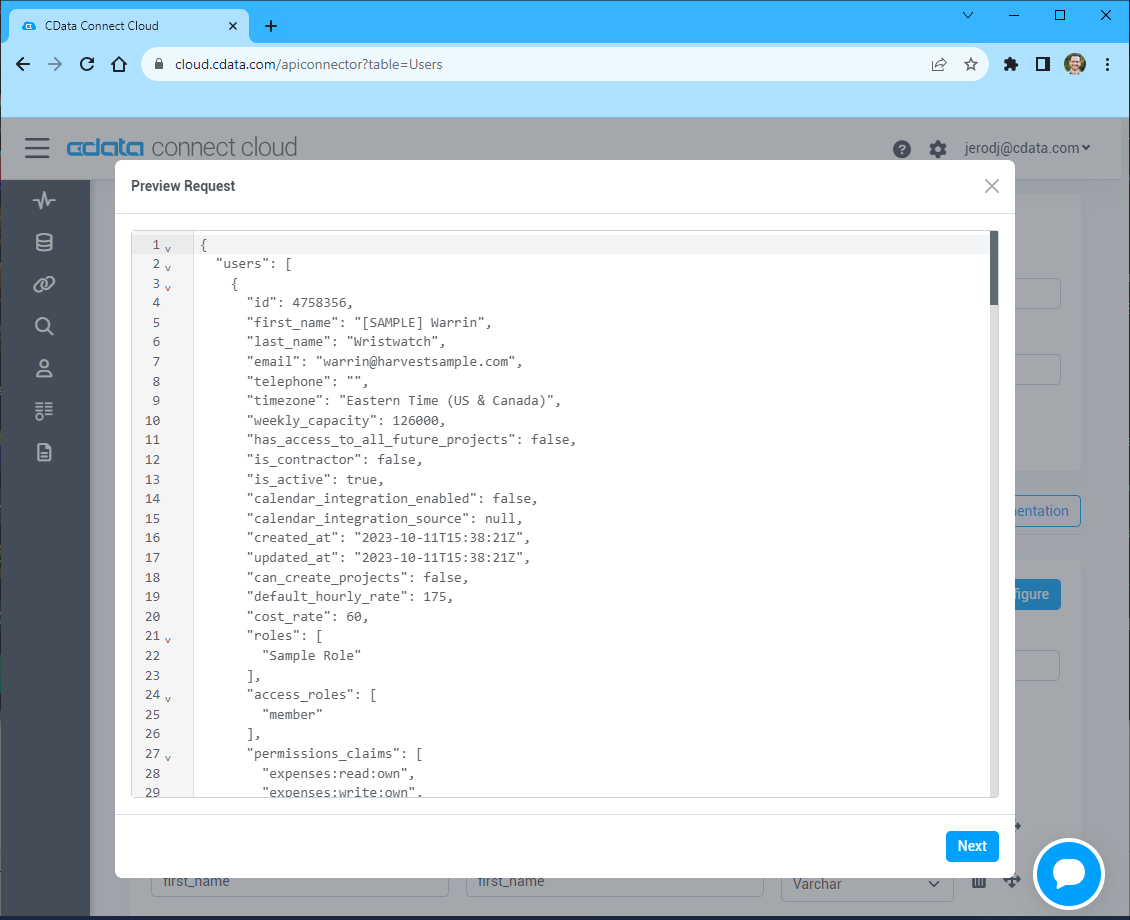
- Review the response from the API and click "Next"
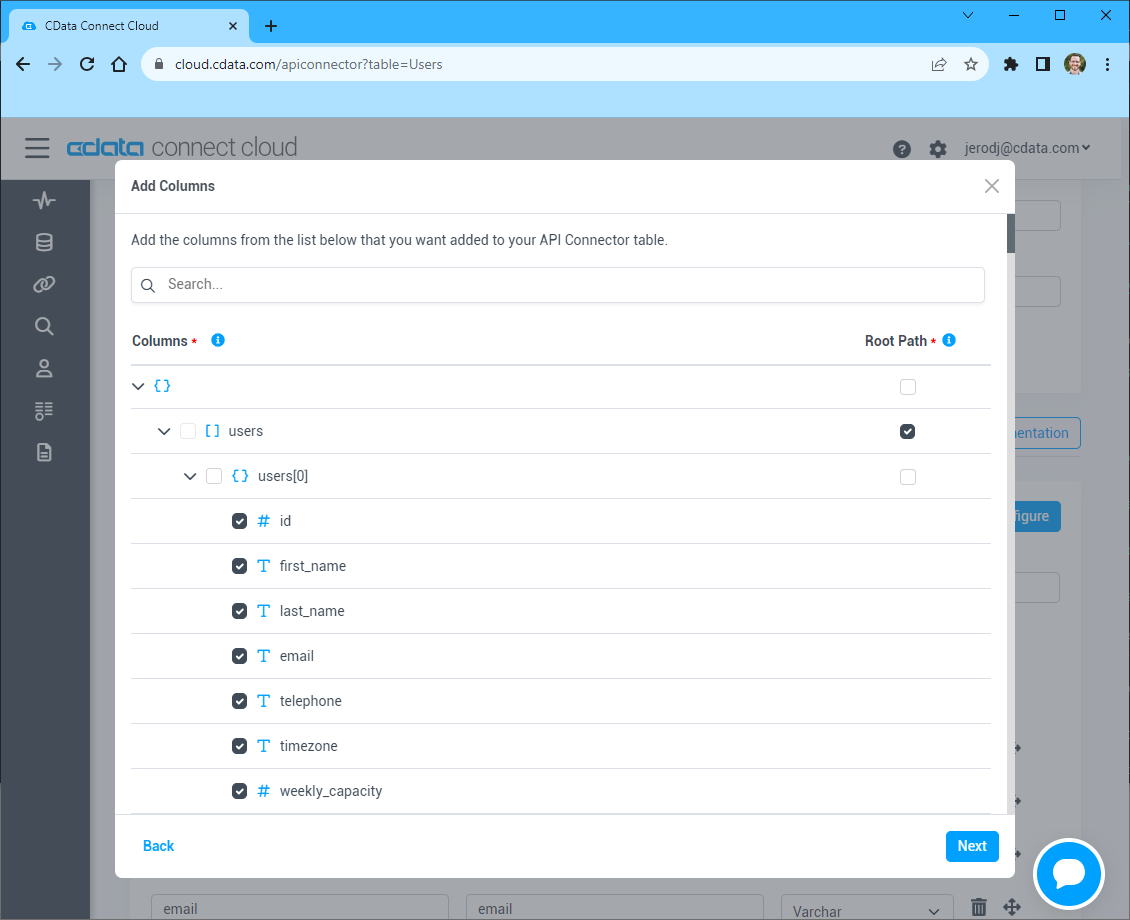
- Select which element to use as the Repeated Elements and which elements to use as Columns and click "Next"
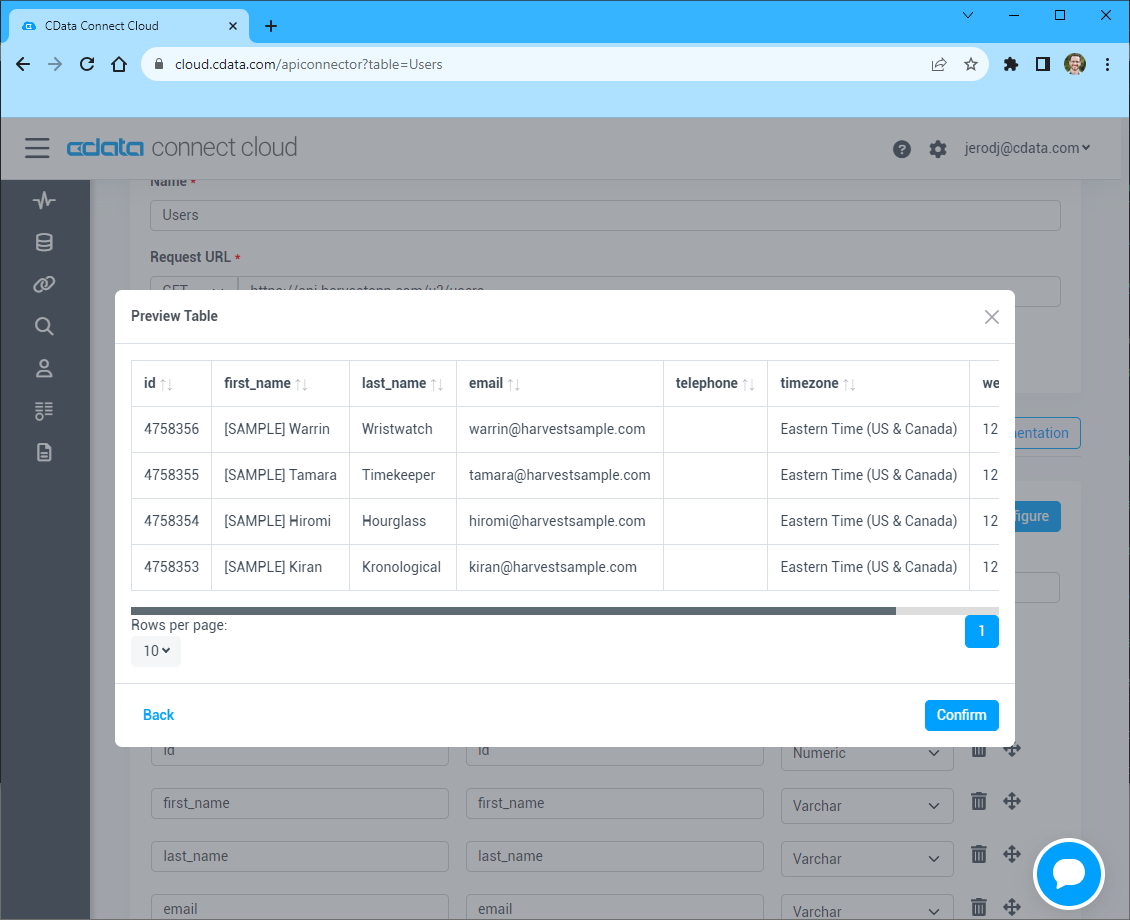
- Preview the tabular model of the API response and click "Confirm"
- Create & Test をクリックします
接続の設定が完了したら、Excel for the web からAPI のデータに接続する準備が整いました。
Excel for the web でリアルタイムのAPI のデータにアクセス
以下の手順では、Excel から Connect Spreadsheets に接続してリアルタイムのAPI のデータにアクセスする方法を説明します。
- Excel にログインし、新しいシートを作成します(または既存のシートを開きます)。
- Insert をクリックし、Office Add-ins をクリックします。(アドインをすでにインストールしている場合は、ステップ 4 に進んでください。)
- Connect Spreadsheets を検索し、「Get it now」をクリックしてアドインをインストールします。

- Excel に戻り、Data リボンを開いて Connect Spreadsheets の「Get Data」ボタンをクリックします。

- アドインパネルで、「Log in」をクリックして Connect Spreadsheets アカウントにサインインし、認証します

- Excel の Connect Spreadsheets パネルで、Import をクリックします

- Connection(例:API1)、Table(例:posts)、インポートする Columns を選択します
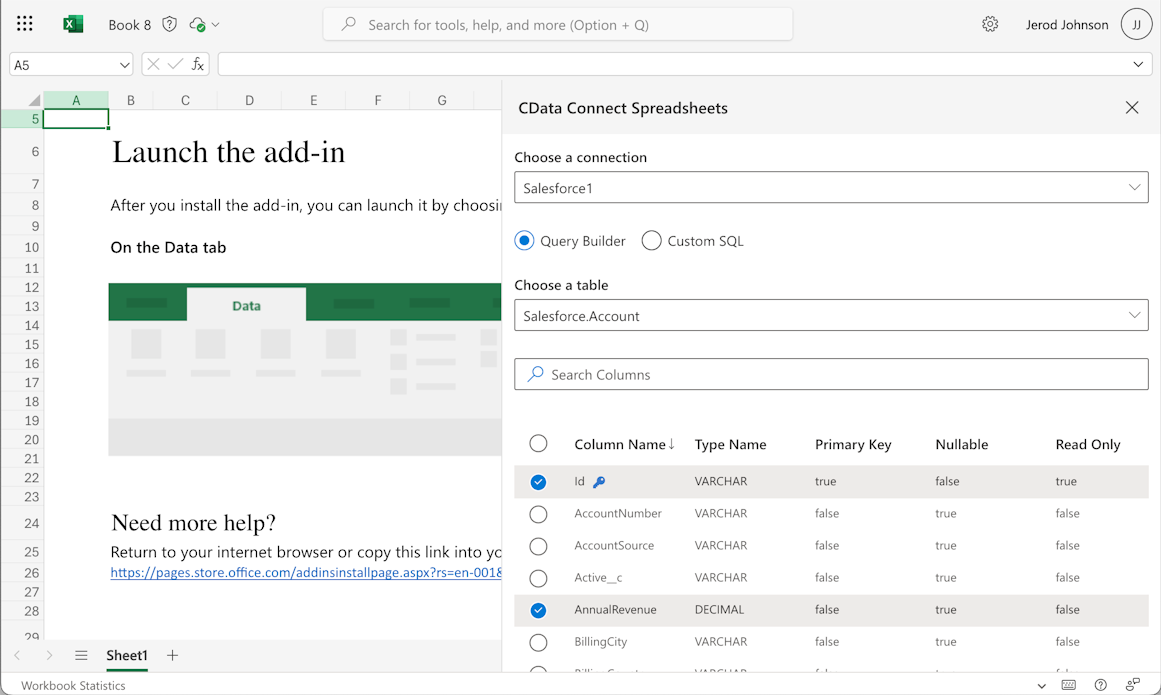
- 必要に応じて Filters、Sorting、Limit を追加します
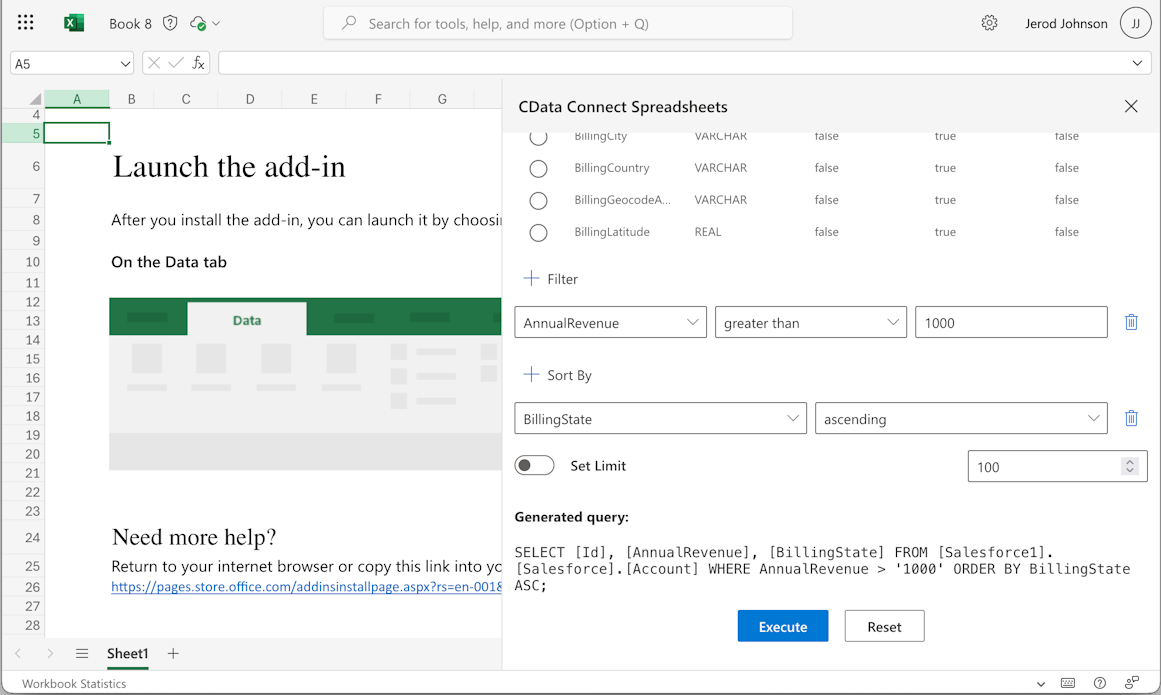
- Execute をクリックしてデータをインポートします

Excel からAPI のデータを更新
Excel でAPI のデータを表示するだけでなく、Connect Spreadsheets ではAPI のデータの更新や削除も可能です。まず、(上記の手順で)データをインポートします。
- your API にプッシュする変更でセルを更新します
- Connect Spreadsheets アドインパネルで、Update を選択します
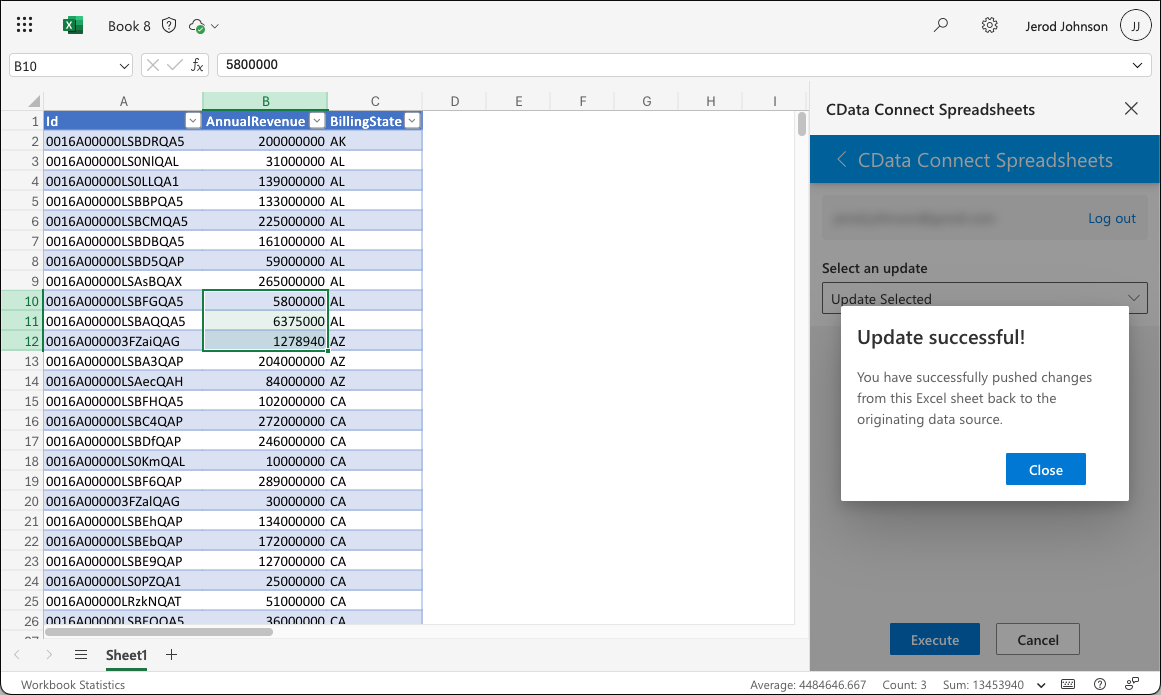
- 必要に応じて、更新するセルをハイライトし、更新オプション(「Update All」または「Update Selected」)を選択します

- Execute をクリックして your API に更新をプッシュします
更新が完了すると通知が表示されます
スプレッドシートからAPI のデータへのリアルタイムアクセス
これで、Excel ブックからリアルタイムのAPI のデータへのダイレクトなクラウド間接続が確立されました。計算、集計、コラボレーションなどのために、ブックにさらにデータを追加できます。

Connect Spreadsheets をお試しください。300 以上の SaaS、ビッグデータ、NoSQL ソースへのリアルタイムデータアクセスをスプレッドシートアプリから直接実現できます。