






Connect Spreadsheets 経由で Google Sheets からAPI ののデータにリアルタイムアクセス

Connect AI をお探しですか?
Connect AI アカウントには Connect Spreadsheets が含まれているため、以下の手順をそのままご利用いただけます。Connect Spreadsheets プラットフォームの参照時に若干の違いがある場合がありますが、基本的な操作は同じです。
Google Sheets は、Google が提供するウェブベースのスプレッドシートプログラムです。CData Connect Spreadsheets と連携することで、Google Sheets から直接API のデータに簡単にアクセスでき、データ分析、コラボレーション、計算などのタスクを実行できます。この記事では、Connect Spreadsheets で your API に接続し、Google Sheets でシームレスにAPI のデータにリアルタイムアクセスする方法を詳しく説明します。
Connect Spreadsheets は、Microsoft Excel や Google Sheets にライブデータを取り込む最も簡単な方法です。ファイルのダウンロード、加工、アップロードといった作業は不要になります。データに接続し、必要なデータセットを選択して、スプレッドシートにインポートするだけです。
このセットアップには、Connect Spreadsheets アカウントと Connect Spreadsheets Google Sheets アドオンが必要です。Connect Spreadsheets の無料アカウントにサインアップし、無料の Connect Spreadsheets Google Sheets アドオンをインストールしてください。
Google Sheets 向けに your API 接続を設定
Google Sheets から your API への接続は、Connect Spreadsheets を介して行います。Google Sheets でAPI のデータを操作するには、まず your API への接続を作成・設定します。
- Connect Spreadsheets にログインし、Connections をクリックして Add Connection をクリック

- Add Connection パネルから「API」を選択

-
your API に接続するために必要な認証プロパティを入力します。
To connect to your API, configure the following properties on the Global Settings page:
- In Authentication, select the Type and fill in the required properties
- In Headers, add the required HTTP headers for your API
- In Pagination, select the Type and fill in the required properties
After the configuring the global settings, navigate to the Tables to add tables. For each table you wish to add:
- Click "+ Add"
- Set the Name for the table
- Set Request URL to the API endpoint you wish to work with
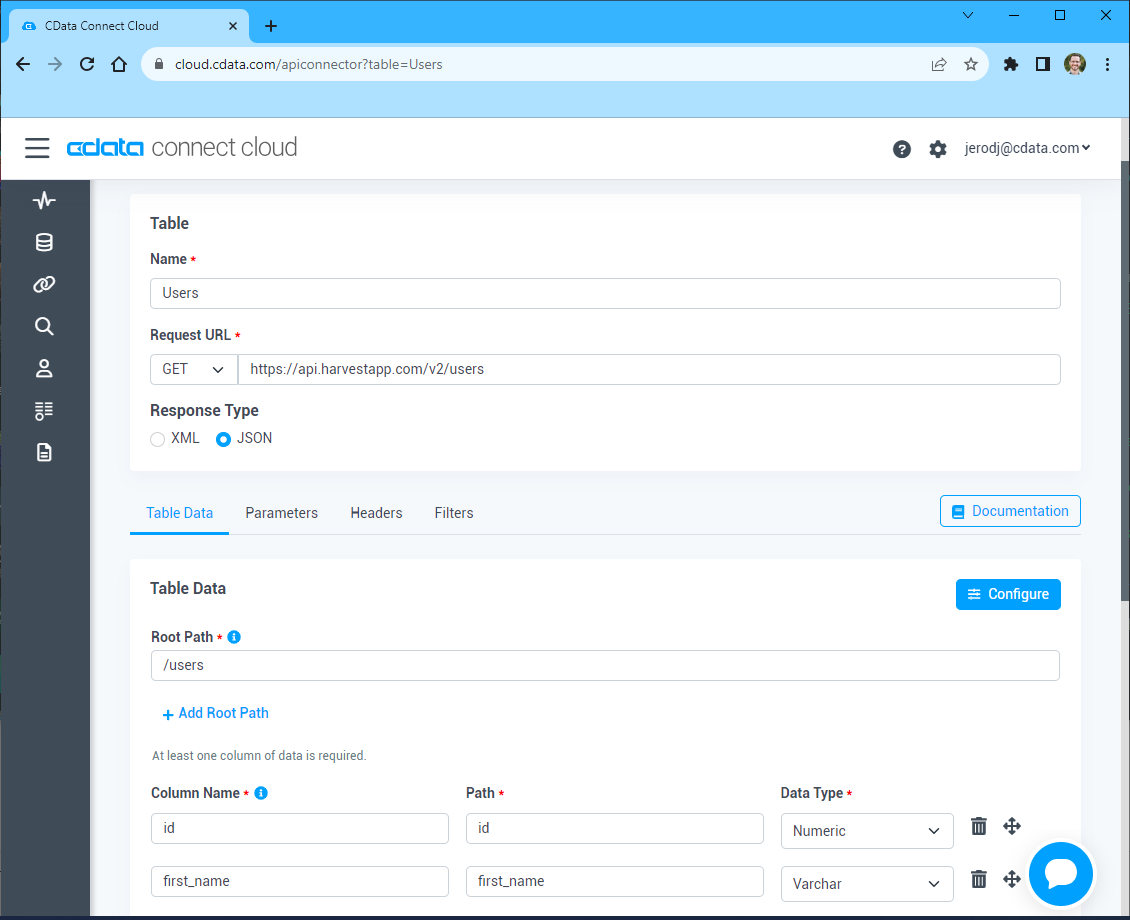
- (Optional) In Parameters, add the required URL Parameters for your API endpoint
- (Optional) In Headers, add the required HTTP headers for the API endpoint
- In Table Data click " Configure"
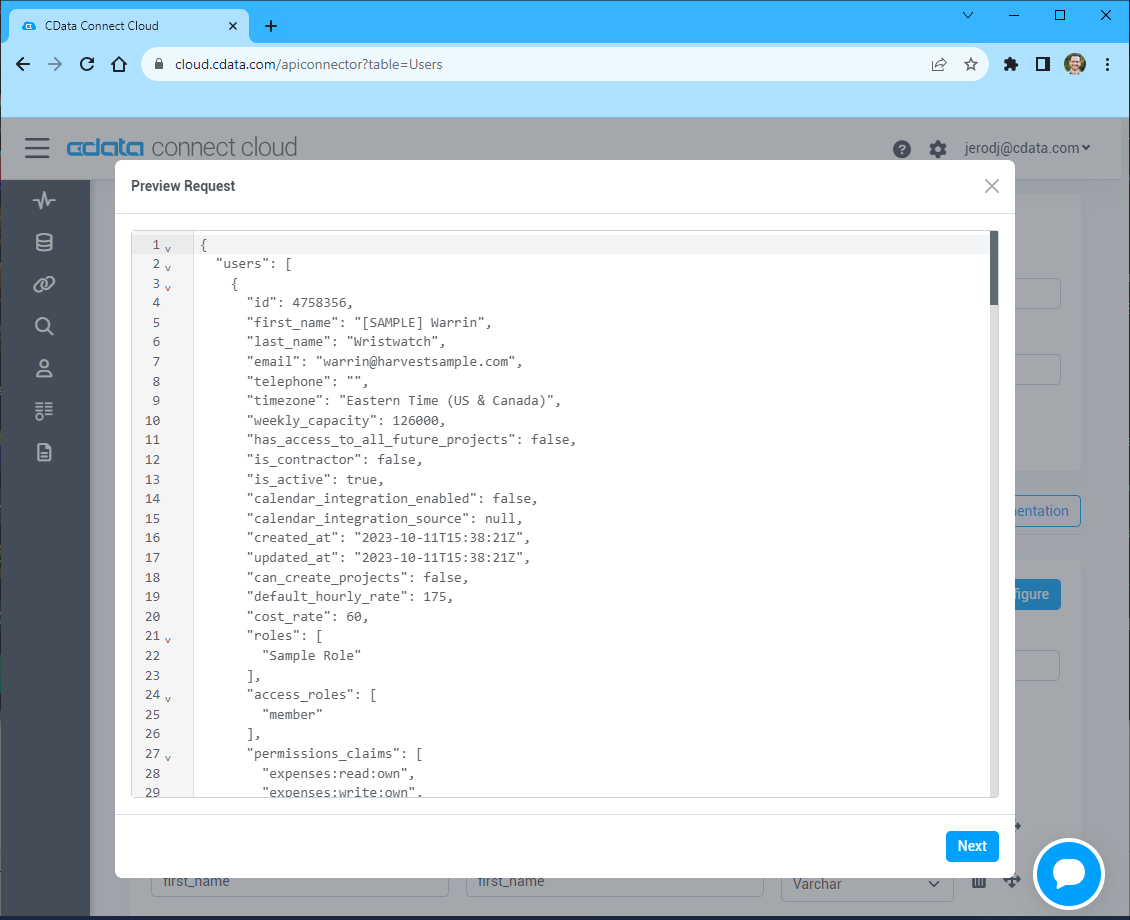
- Review the response from the API and click "Next"
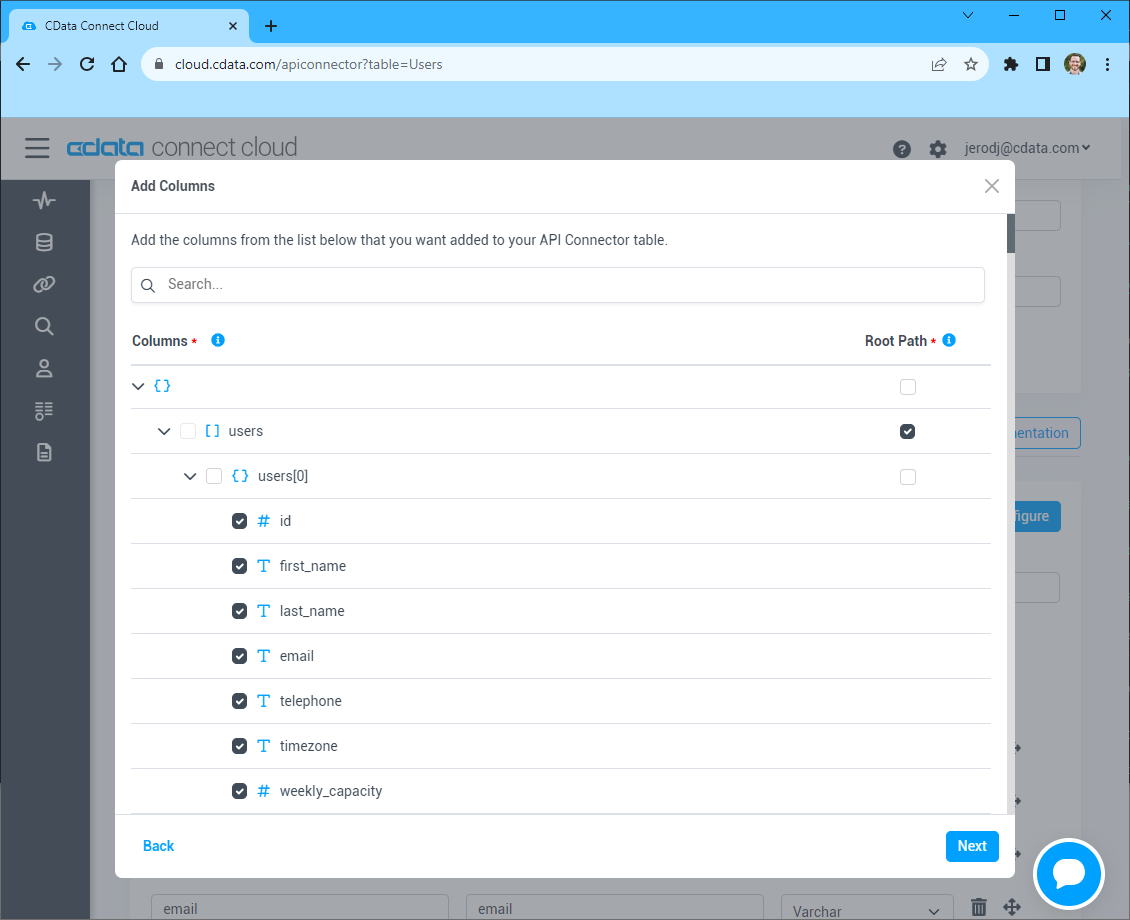
- Select which element to use as the Repeated Elements and which elements to use as Columns and click "Next"
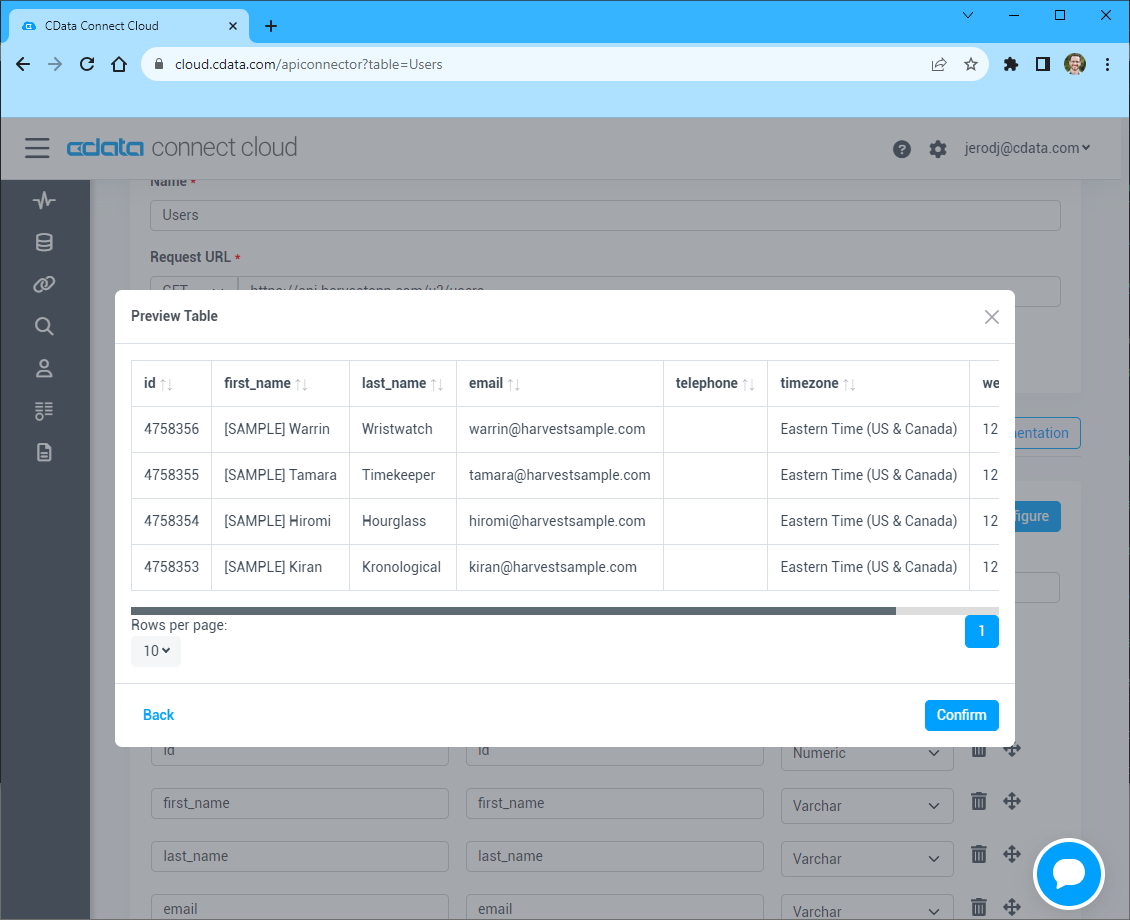
- Preview the tabular model of the API response and click "Confirm"
- Create & Test をクリック
接続の設定が完了したら、Google Sheets からAPI のデータに接続する準備が整いました。
Google Sheets から API ののデータにリアルタイムアクセス
以下の手順で、Google Sheets から Connect Spreadsheets に接続し、API のデータにリアルタイムでアクセスします。
- Google Sheets にログインし、新しいシートを作成(または既存のシートを開きます)。
- 「拡張機能」をクリックし、「アドオンを取得」をクリック(すでにアドオンをインストール済みの場合は、手順5に進んでください)。
- Connect Spreadsheets Add-On を検索し、アドオンをインストールします。

- アドオンを承認します。

- Google Sheets に戻り、「拡張機能」をクリックして Connect Spreadsheets アドオンを開きます。

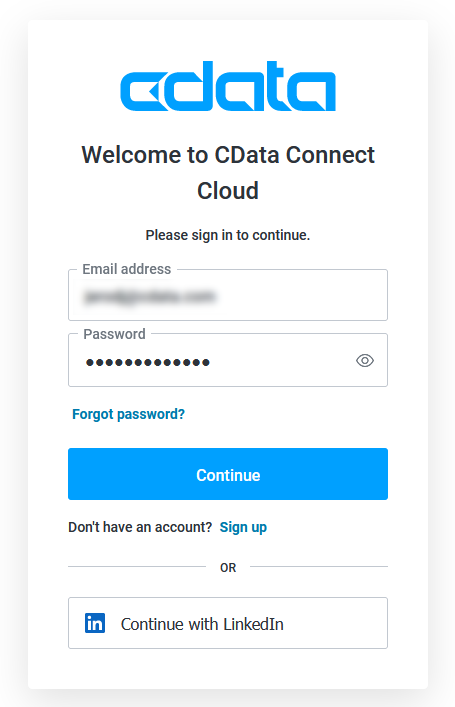
- アドオンパネルで「Log in」をクリックし、Connect Spreadsheets アカウントにサインイン・認証します。
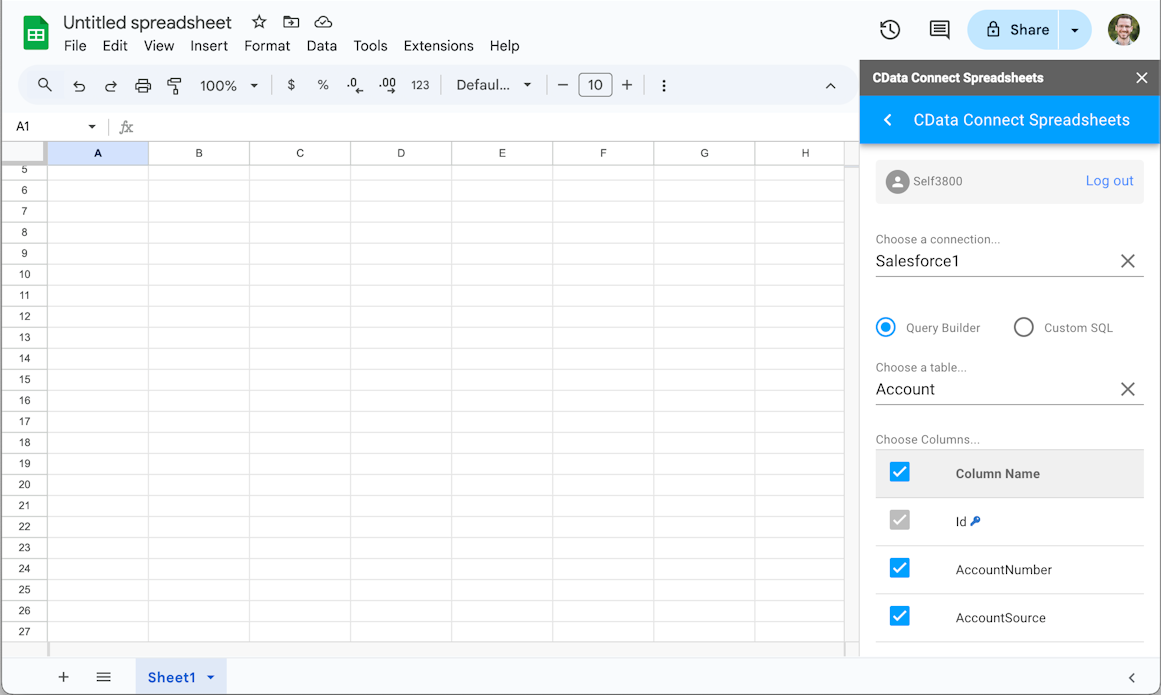
- Google Sheets の Connect Spreadsheets パネルで Import をクリック

- Connection(例:API1)、Table(例:posts)、インポートする Columns を選択
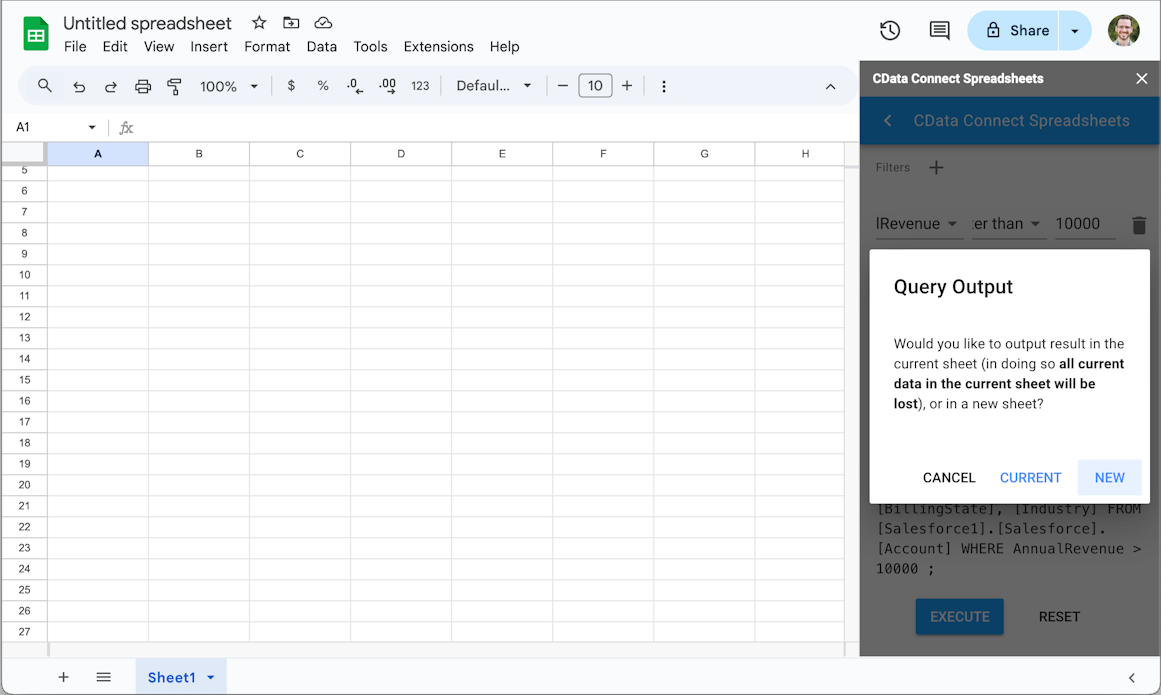
- 必要に応じて Filters、Sorting、Limit を追加

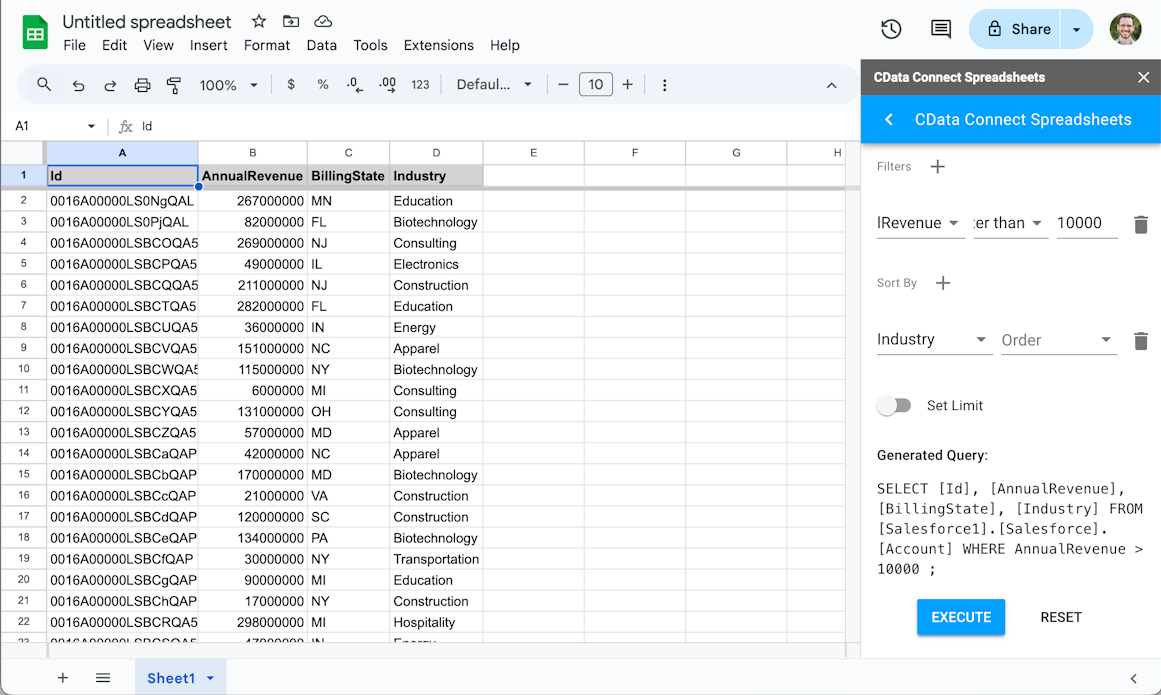
- Execute をクリックしてデータをインポートし、既存のシートを上書きするか新しいシートを作成するかを選択します。
クラウドアプリから API ののデータにリアルタイムアクセス
これで、Google Sheets ワークブックからAPI のデータへのクラウド間のダイレクト接続が確立されました。計算、集計、コラボレーションなど、さまざまな用途でワークブックにデータを追加できます。
Connect Spreadsheets を試して、クラウドアプリから直接 300 以上の SaaS、Big Data、NoSQL ソースにリアルタイムでアクセスしてみてください。