






Spring Boot からSage Intacct のデータに接続する方法

Spring Boot は、Java Web アプリケーションの開発を容易にするフレームワークです。 最小限の設定でスタンドアロンアプリケーションを作成できるのが特徴です。 CData JDBC Driver for Sage Intacct と組み合わせることで、Spring Boot からリアルタイムのSage Intacct のデータを扱えるようになります。 この記事では、CData JDBC Driver for Sage Intacct を使用してSpring Boot アプリケーションでデータソースを設定し、データを取得する方法を説明します。
ビルトインの最適化されたデータ処理機能により、CData JDBC Driver は リアルタイムのSage Intacct のデータとのやり取りにおいて比類のないパフォーマンスを発揮します。Sage Intacct に 複雑なSQL クエリを発行すると、ドライバーはフィルタや集計などのサポートされている SQL 操作を直接Sage Intacct にプッシュし、サポートされていない操作(多くの場合SQL 関数や JOIN 操作)は組み込みのSQL エンジンを利用してクライアント側で処理します。 組み込みの動的メタデータクエリにより、ネイティブのデータ型を使用して Sage Intacct のデータを操作・分析できます。
Sage Intacct データ連携について
CData は、Sage Intacct のライブデータにアクセスし、統合するための最も簡単な方法を提供します。お客様は CData の接続機能を以下の目的で使用しています:
- API の更新や変更を気にすることなく、Sage Intacct にアクセスできます。
- 追加の構成手順なしで、Sage Intacct のカスタムオブジェクトやフィールドにアクセスできます。
- Basic 認証による組み込み Web サービス認証情報を使用して、Sage Intacct にデータを書き戻すことができます。
- SQL ストアドプロシージャを使用して、ベンダーの承認・却下、エンゲージメントの挿入、カスタムオブジェクトやフィールドの作成・削除などの機能的な操作を実行できます。
ユーザーは、Tableau、Power BI、Excel などの分析ツールと Sage Intacct を統合し、当社のツールを活用して Sage Intacct データをデータベースやデータウェアハウスにレプリケートしています。
他のお客様が CData の Sage Intacct ソリューションをどのように使用しているかについては、ブログをご覧ください:Drivers in Focus: Accounting Connectivity
はじめに
Java でSpring Boot プロジェクトを作成
IDE(このチュートリアルではIntelliJ を使用)で、Maven プロジェクトを選択します:
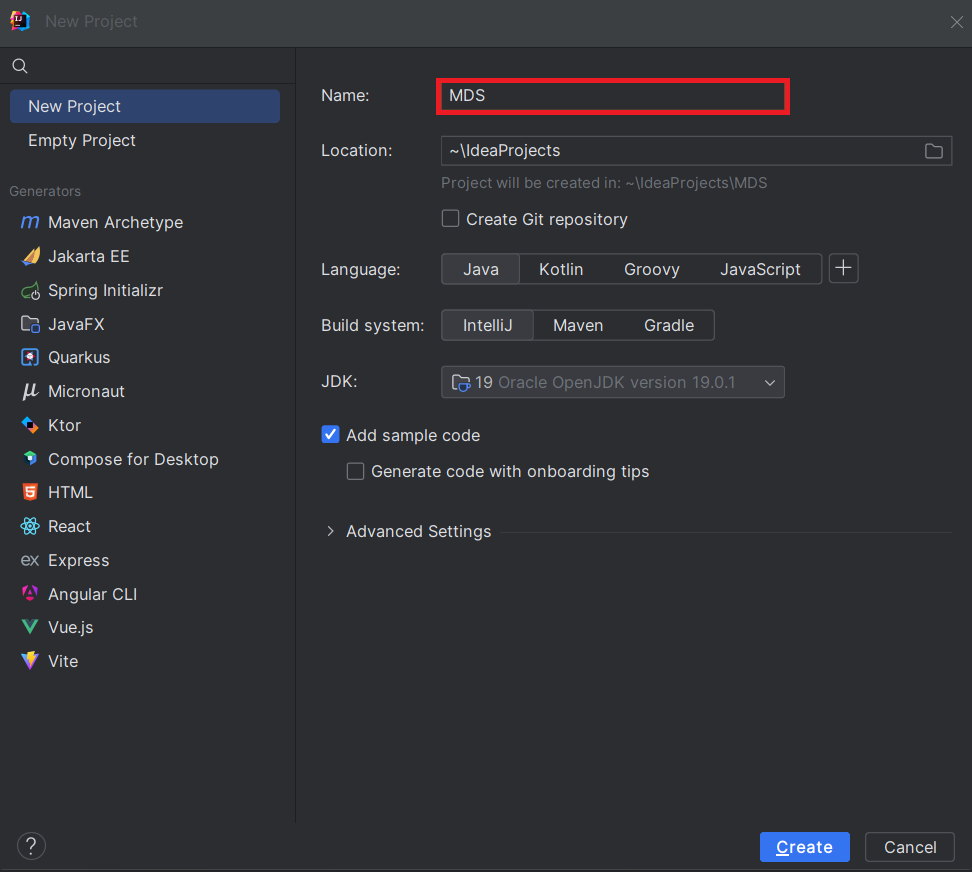 生成されたプロジェクトで、pom.xml ファイルを開き、Spring Boot に必要な依存関係を追加します:
<?xml version="1.0" encoding="UTF-8"?>
<project xmlns="http://maven.apache.org/POM/4.0.0" xmlns:xsi="http://www.w3.org/2001/XMLSchema-instance"
xsi:schemaLocation="http://maven.apache.org/POM/4.0.0 https://maven.apache.org/xsd/maven-4.0.0.xsd">
<modelVersion>4.0.0</modelVersion>
<parent>
<groupId>org.springframework.boot</groupId>
<artifactId>spring-boot-starter-parent</artifactId>
<version>2.7.2</version>
<relativePath/>
</parent>
<groupId>com.example</groupId>
<artifactId>demo</artifactId>
<version>0.0.1-SNAPSHOT</version>
<name>demo</name>
<description>Demo project for Spring Boot</description>
<properties>
<java.version>1.8</java.version>
</properties>
<build>
<plugins>
	<plugin>
		<groupId>org.springframework.boot</groupId>
		<artifactId>spring-boot-maven-plugin</artifactId>
	</plugin>

	<plugin>
		<groupId>org.apache.maven.plugins</groupId>
		<artifactId>maven-install-plugin</artifactId>
		<version>2.5.1</version>
		<executions>
			<execution>
				<id>id.install-file</id>
				<phase>clean</phase>
				<goals>
					<goal>install-file</goal>
				</goals>
				<configuration>
					<file>C:\Program Files\CData[product_name] ####\lib\cdata.jdbc.sageintacct.jar</file>
					<groupId>org.cdata.connectors</groupId>
					<artifactId>cdata-sageintacct-connector</artifactId>
					<version>23</version>
					<packaging>jar</packaging>
				</configuration>
			</execution>
		</executions>
	</plugin>
</plugins>
</build>

<dependencies>
<dependency>
	<groupId>org.springframework.boot</groupId>
	<artifactId>spring-boot-starter-web</artifactId>
</dependency>
<dependency>
	<groupId>org.springframework.boot</groupId>
	<artifactId>spring-boot-starter-jdbc</artifactId>
	<version>2.7.0</version>
</dependency>
<dependency>
	<groupId>org.cdata.connectors</groupId>
	<artifactId>cdata-sageintacct-connector</artifactId>
	<version>23</version>
</dependency>

<dependency>
	<groupId>org.springframework.boot</groupId>
	<artifactId>spring-boot-starter-test</artifactId>
	<scope>test</scope>
</dependency>
</dependencies>


<distributionManagement>
<repository>
	<uniqueVersion>false</uniqueVersion>
	<id>test</id>
	<name>My Repository</name>
	<url>scp://repo/maven2</url>
	<layout>default</layout>
</repository>
</distributionManagement>

</project>
Note: 年(####)とバージョン番号(上記のXML スクリプトに記載)は、使用しているCData JDBC Driver の現在のバージョンに合わせて調整してください。
プロジェクト構造
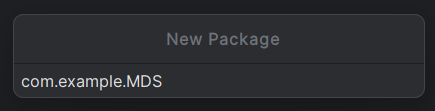
java ディレクトリに新しいパッケージを作成します。通常、パッケージ名はgroupId
(com.example)の後にartifactId(.MDS)を付けたものになります。
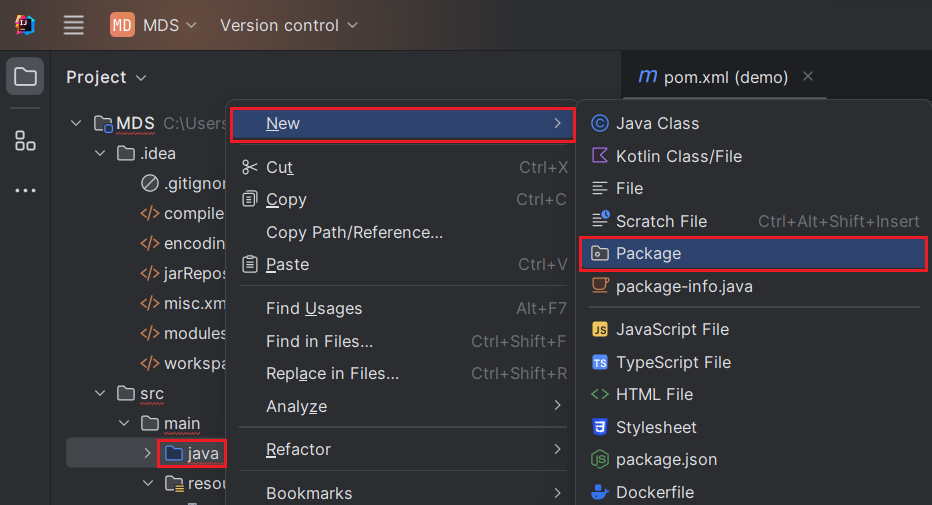
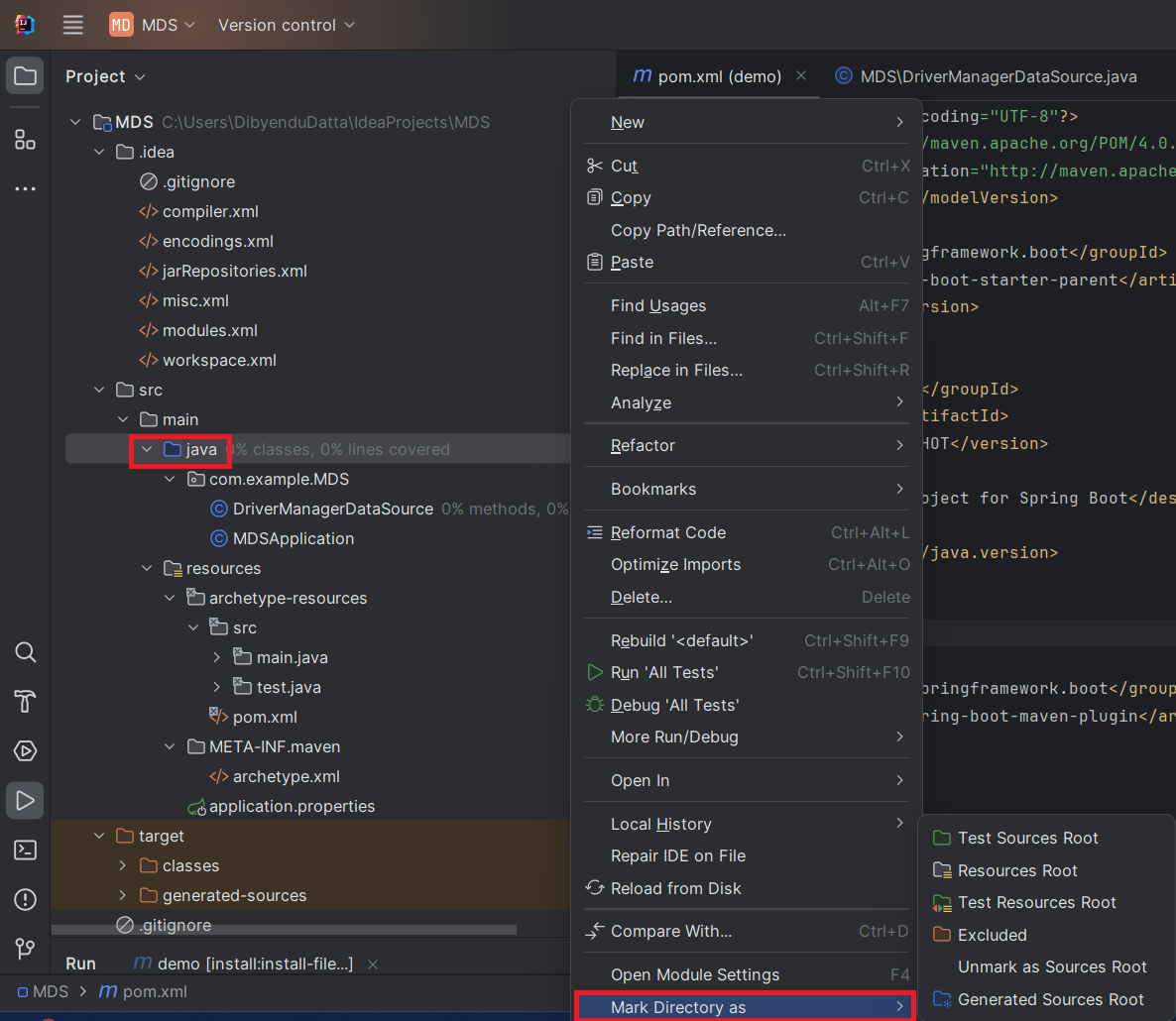
「java」ディレクトリを「Sources Root」としてマーク(青色で表示)します。これを行うには、java ディレクトリを右クリックし、「Mark Directory as」->「Sources Root」を選択します(以下を参照)。また、「resources」ディレクトリを「Resources Root」としてマークします。
データベース接続プロパティの保存
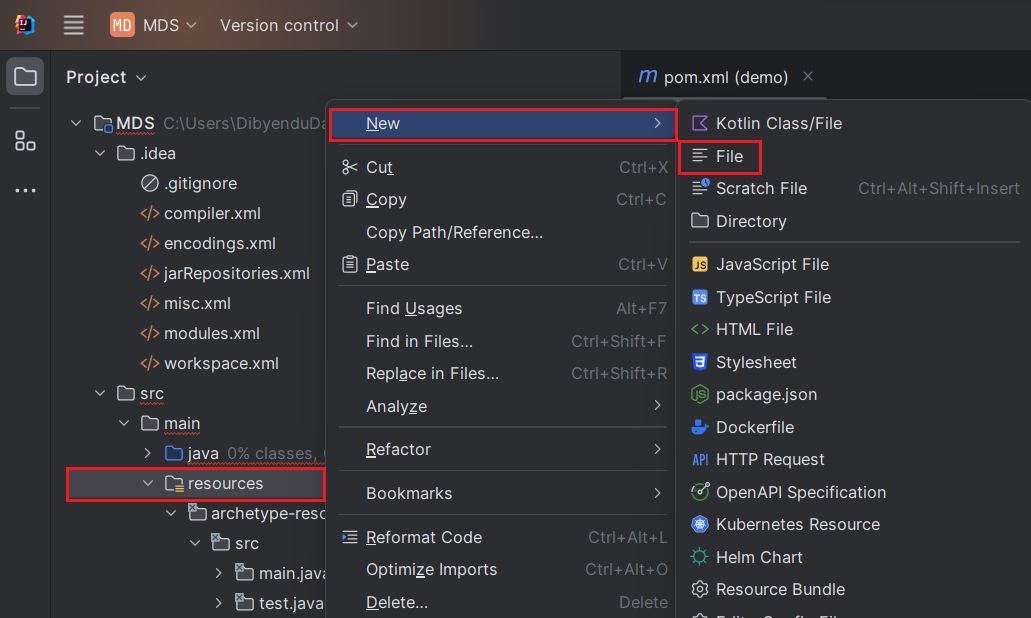
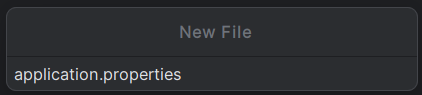
データベース接続プロパティを保存するための「application.properties」ファイルを作成します。これを行うには、「resources」フォルダを右クリックし、「New」->「File」を選択し、ファイル名を「application.properties」と入力してEnter を押します。
application.properties ファイルで、クラス名とJDBC URL を使用してSage Intacct JDBC Driver の設定プロパティを設定します:
	spring.datasource.driver=cdata.jdbc.sageintacct.SageIntacctDriver
	spring.datasource.url=jdbc:sageintacct:User=myusername;CompanyId=TestCompany;Password=mypassword;SenderId=Test;SenderPassword=abcde123;
組み込みの接続文字列デザイナー
JDBC URL の作成については、Sage Intacct JDBC Driver に組み込まれている接続文字列デザイナーを使用してください。JAR ファイルをダブルクリックするか、コマンドラインからjar ファイルを実行します。
java -jar cdata.jdbc.sageintacct.jar
Sage Intacct 接続プロパティの取得・設定方法
独自のWeb サービスクレデンシャル、埋め込みクレデンシャル(Basic 認証)、またはOkta クレデンシャルのいずれかを使用して、Sage Intacct への接続を確立できます。
Sage Intacct への認証
Sage Intacct は2種類の認証をサポートします。Basic およびOkta です。選択した認証方法に関連するプロパティを設定して、接続を構成します。
Basic 認証
Basic 認証スキームでは、埋め込みクレデンシャルを使用してデータの読み書きが可能です。オプションとして、独自のWeb サービスクレデンシャルを指定することもできます。
Basic 認証を使用して認証を行うには、以下のプロパティを設定します。
- AuthScheme:Basic。
- CompanyID:Sage Intacct にログインする際に会社を識別するために使用するID。
- User:Sage Intacct へのログインに使用するログイン名。
- Password:ログインクレデンシャル用のパスワード。
- (オプション)SenderID およびSenderPassword:Web サービスのSender ID およびパスワード(独自のWeb サービスクレデンシャルを使用している場合のみ)。
独自のWeb サービスクレデンシャルではなく、埋め込みクレデンシャルを使用する場合は、以下を実行する必要があります:
- Web サービスダッシュボードで、会社 -> 会社情報 -> セキュリティタブに移動します。
- Web サービス認証に"CData" を追加します。これは大文字・小文字が区別されます。これを行うには、会社 -> 会社情報(新しいUI では、設定 -> 会社)-> セキュリティ -> Web サービス認証 / 編集に移動します。
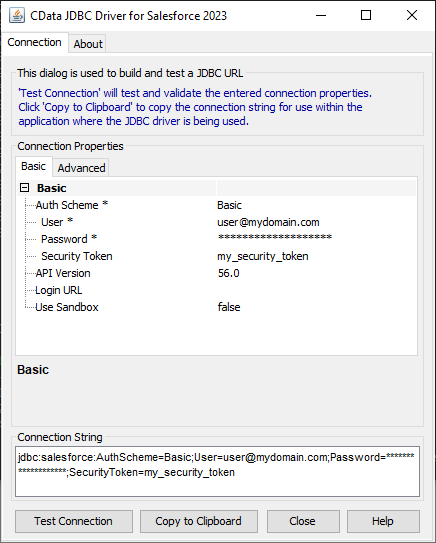
application.properties ファイルでプロパティを設定したら、次にそれらを構成します。
データソースの設定
まず、Sage Intacct データソースをプライマリデータソースとしてマークします。次に、データソースBean を作成します。
DriverManagerDataSource.java ファイルを作成し、以下のようにBean を作成します。@Bean でエラーが発生する場合、 Spring Boot が正しくロードされていない可能性があります。これを修正するには、「File」->「Invalidate Caches」でキャッシュを無効にして再起動します。 また、Maven がSpring Boot の依存関係を追加していることを確認してください。
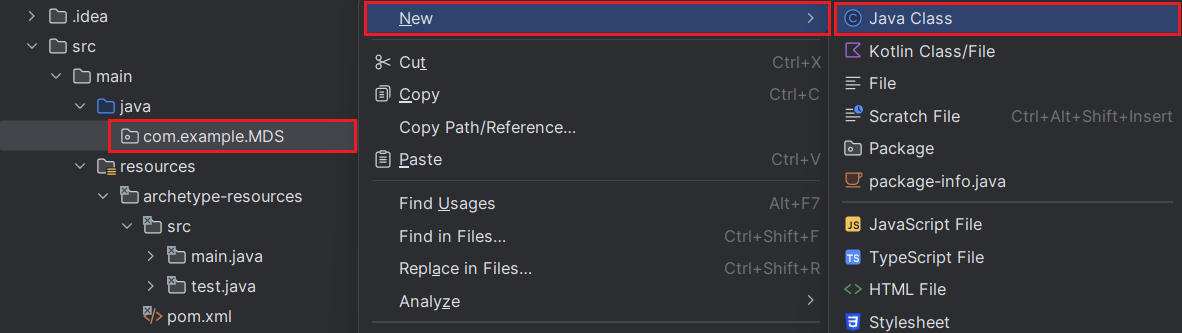
データソースBean を作成するには、DriverManagerDataSource クラスを使用します。このクラスを使用すると、
データソースのプロパティを設定できます。このJava クラスを作成するには、「com.example.MDS」パッケージを右クリックし、「New」->「Java Class」を選択します。
以下のコードは、データソースのBean 定義を示しています。各ドライバーにはBean が必要です。
import org.springframework.beans.factory.annotation.Autowired;
import org.springframework.boot.jdbc.DataSourceBuilder;
import org.springframework.context.annotation.Bean;
import org.springframework.context.annotation.Primary;
import org.springframework.core.env.Environment;
import javax.sql.DataSource;

public class DriverManagerDataSource{
	@Autowired
	private static Environment env;

	@Bean(name ="SageIntacct")
	@Primary
	public static DataSource SageIntacctDataSource()
	{

	DataSourceBuilder<?> dataSourceBuilder = DataSourceBuilder.create();
		dataSourceBuilder.driverClassName("cdata.jdbc.sageintacct.SageIntacctDriver");
		dataSourceBuilder.url("jdbc:sageintacct:User=myusername;CompanyId=TestCompany;Password=mypassword;SenderId=Test;SenderPassword=abcde123;");
		return dataSourceBuilder.build();
	}

	//@Override
	public void setEnvironment( final Environment environment) {
	env=environment;
	}
}
次に、Sage Intacct jar ファイルをDocuments フォルダに移動します(以下のコマンドのパスを参照)。jar ファイルのパスにスペースが含まれないようにするためです。次に、
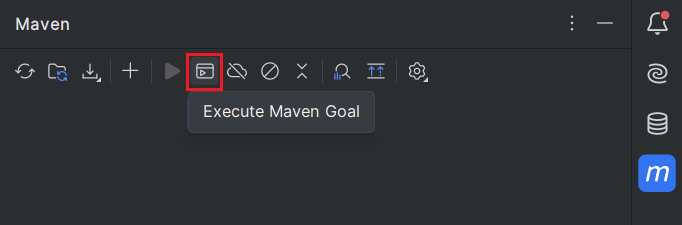
Maven アイコン(IntelliJ の右上隅)をクリックし、「Execute Maven Goal」をクリックします。以下のコマンドを実行します:
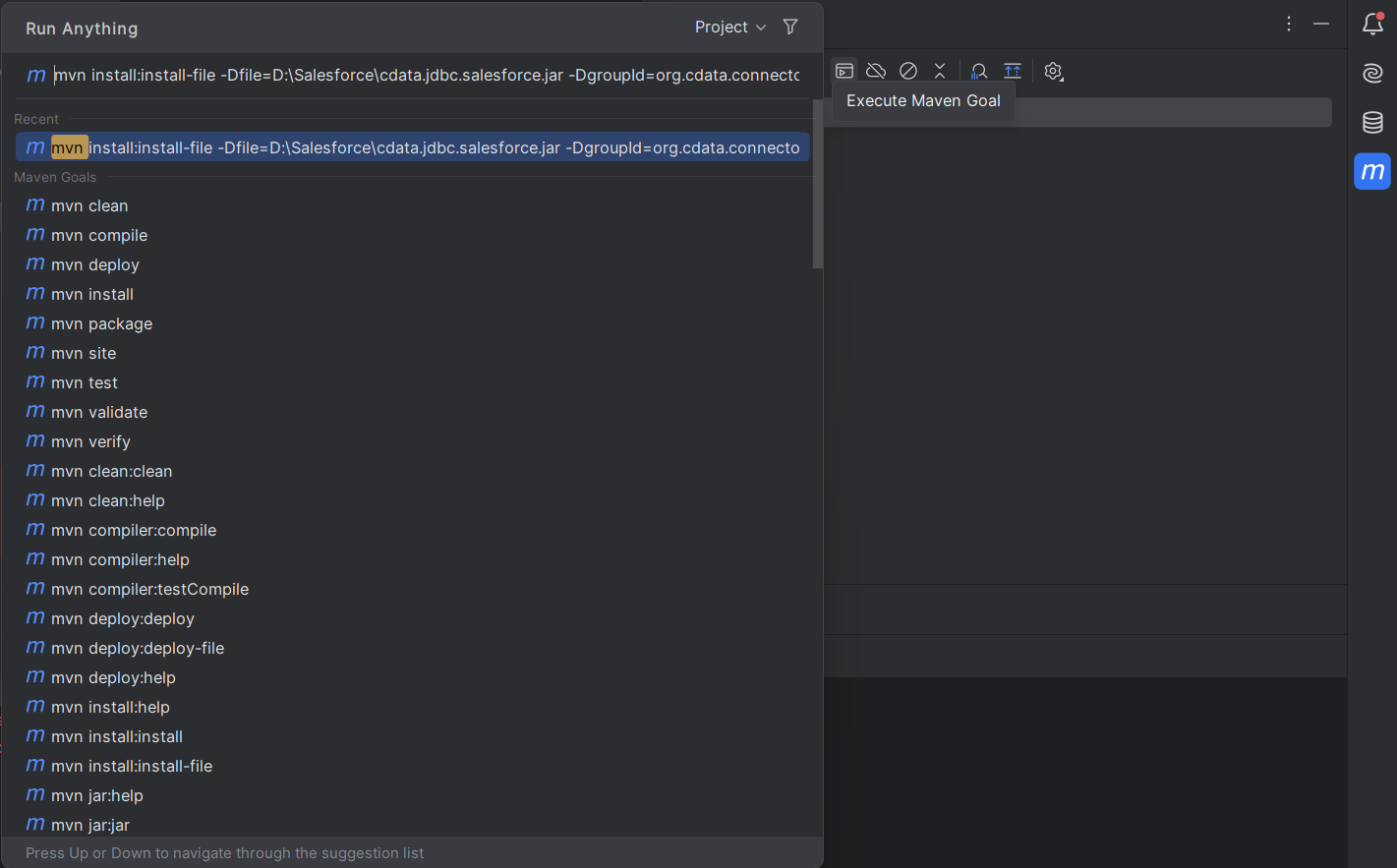
mvn install:install-file "-Dfile=C:\Program Files\CData[product_name] ####\lib\cdata.jdbc.sageintacct.jar" -DgroupId=org.cdata.connectors -DartifactId=cdata-sageintacct-connector -Dversion=23 -Dpackaging=jar
このコマンドを実行するには、以下のいずれかの手順に従ってください:
- 「-Dfile location」はCData JDBC Driver のデフォルトのインストールパスのままにできます。この場合、パスを引用符で囲んでください。また、使用しているドライバーの現在のバージョンに基づいて年と「Dversion」を変更してください。
- 記事の前半で述べたように、
jar ファイルをDocuments フォルダに移動した場合は、提供されたコマンドのパスを変更してください。この場合、Dfile location を引用符で囲まないでください。使用しているドライバーの現在のバージョンに基づいて「Dversion」を編集してください。
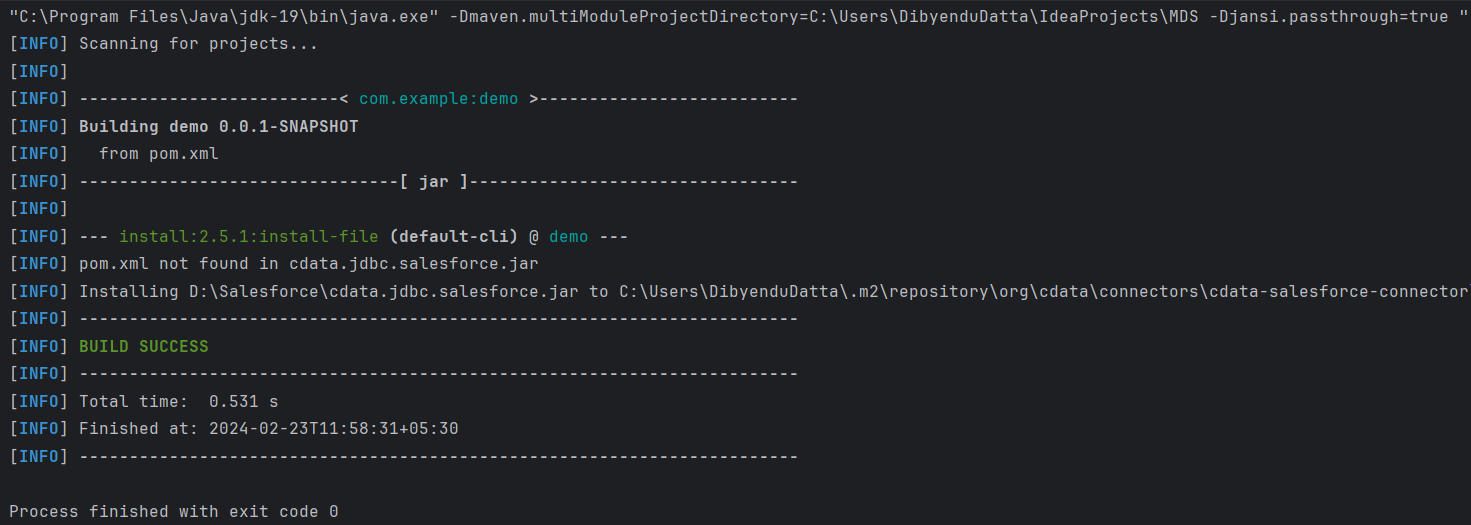
Enter を押すと、以下の出力が表示されます:
接続のテスト
最後のステップは接続のテストです。
import org.springframework.boot.SpringApplication;
import org.springframework.boot.autoconfigure.SpringBootApplication;
import org.springframework.boot.autoconfigure.jdbc.DataSourceAutoConfiguration;
import java.sql.Connection;
import java.sql.SQLException;
import static com.example.demo.DriverManagerDataSources.SageIntacctDataSource;


@SpringBootApplication(exclude = {DataSourceAutoConfiguration.class})
	public class MDSApplication {
		//remove the comment on the line below
		public static void main (){
		SpringApplication.run(DemoApplication.class, args);
		Connection conn = SageIntacctDataSource().getConnection();
		System.out.println("Catalog: "+ conn.getCatalog());
	}
}
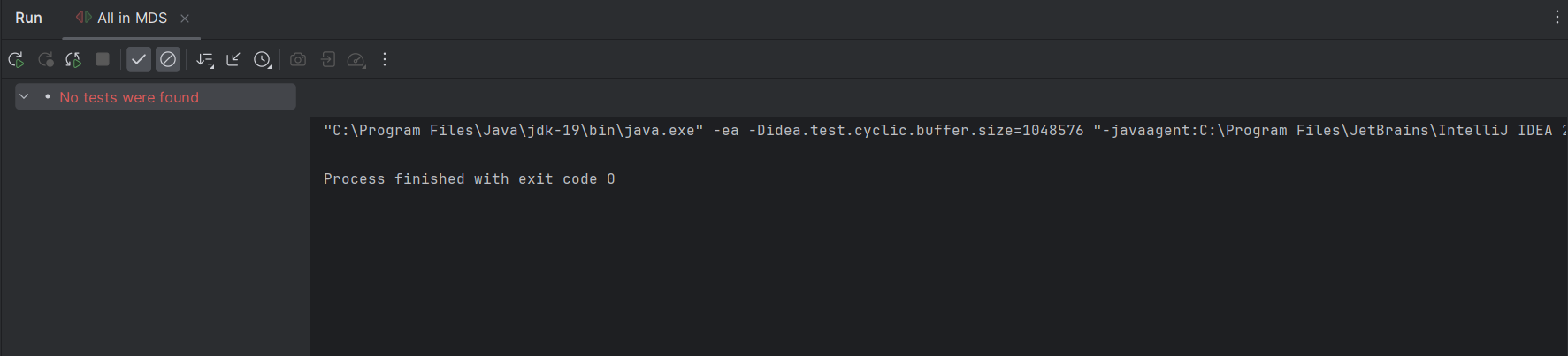
生成される出力は以下のようになります:
無償トライアルと詳細情報
CData JDBC Driver for Sage Intacct の30日間の無償トライアルをダウンロードして、Spring Boot でリアルタイムのSage Intacct データを使い始めましょう。
はじめる準備はできましたか?
Sage Intacct Driver の無料トライアルをダウンロードしてお試しください:
ダウンロード詳細:
 Sage Intacct JDBC Driver
お問い合わせ
Sage Intacct JDBC Driver
お問い合わせ
Java/J2EE アプリケーションから、Intacct データへの双方向連携を実現し、Contacts、Invoices、Transactions、Vendors などの検索、Items、Customers などの更新が可能に。