JotForm のデータをDevExpress Data Grid にデータバインドする。

JotForm 用の CData ADO.NET プロバイダーはサードパーティーコントロールで使うことのできる通常のADO.NET データベースアクセスコンポーネントを実装しています。データバインドするための通常のADO.NET プロセスに従うことで、UI コントロールから実データへの双方向アクセスを可能にします。 この記事では、CData を使ってDevExpress Windows Forms とウェブコントロールにデータバインドする方法を説明します。ここでは、最新のデータを表示するチャートにデータバインドします。
まず、Profile 接続プロパティをディスク上のJotForm プロファイルの場所に設定します(例:C:\profiles\JotForm.apip)。次に、ProfileSettings 接続プロパティをJotForm の接続文字列に設定します(以下を参照)。
JotForm API プロファイル設定
認証するには、JotForm API キーを見つけてください。API キーを取得するには、「My Account」>「API Section」>「Create a New API Key」に移動します。新しいAPI キーを作成したら、ProfileSettings 接続プロパティに設定できます。
カスタムエンタープライズAPI ドメイン
JotForm のエンタープライズ顧客には、デフォルトの「api.jotform.com」ドメインではなく、接続するためのカスタムAPI ドメインが提供されます。エンタープライズJotForm 顧客の場合は、ProfileSettings 接続プロパティ内でDomain を「your-domain.com」や「subdomain.jotform.com」などのカスタムAPI ホスト名に設定します。逆に、カスタムドメインがなく「api.jotform.com」に接続する必要がある場合は、Domain を未定義のままにしてAPIKey のみを設定します。
Windows Forms コントロール
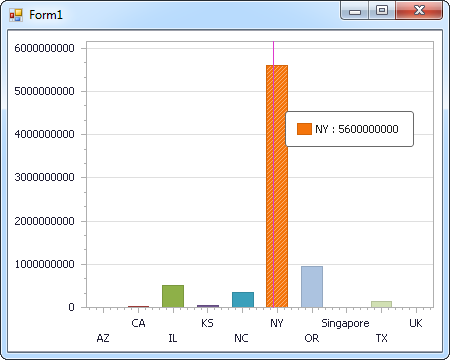
下のコードでは、JotForm でDevExpress のチャートに追加する方法を説明します。APIDataAdapter はチャートコントロールのSeries プロパティにバインドします。コントロールのDiagram プロパティはx 軸とy 軸をカラム名として定義します。
using (APIConnection connection = new APIConnection(
"Profile=C:\profiles\JotForm.apip;ProfileSettings='APIKey=my_api_key;Domain=my_custom_domain';")) {
  APIDataAdapter dataAdapter = new APIDataAdapter(
  "SELECT Id, Title FROM Forms WHERE Status = 'ENABLED'", connection);

  DataTable table = new DataTable();
  dataAdapter.Fill(table);
  DevExpress.XtraCharts.Series series = new DevExpress.XtraCharts.Series();
  chartControl1.Series.Add(series);
  DataTable table = new DataTable();
  series.ValueDataMembers.AddRange(new string[] { "Title" });
  series.ArgumentScaleType = DevExpress.XtraCharts.ScaleType.Qualitative;
  series.ArgumentDataMember = "Id";
  series.ValueScaleType = DevExpress.XtraCharts.ScaleType.Numerical;
  chartControl1.Legend.Visibility = DevExpress.Utils.DefaultBoolean.False;
  ((DevExpress.XtraCharts.SideBySideBarSeriesView)series.View).ColorEach = true;
}
Web コントロール
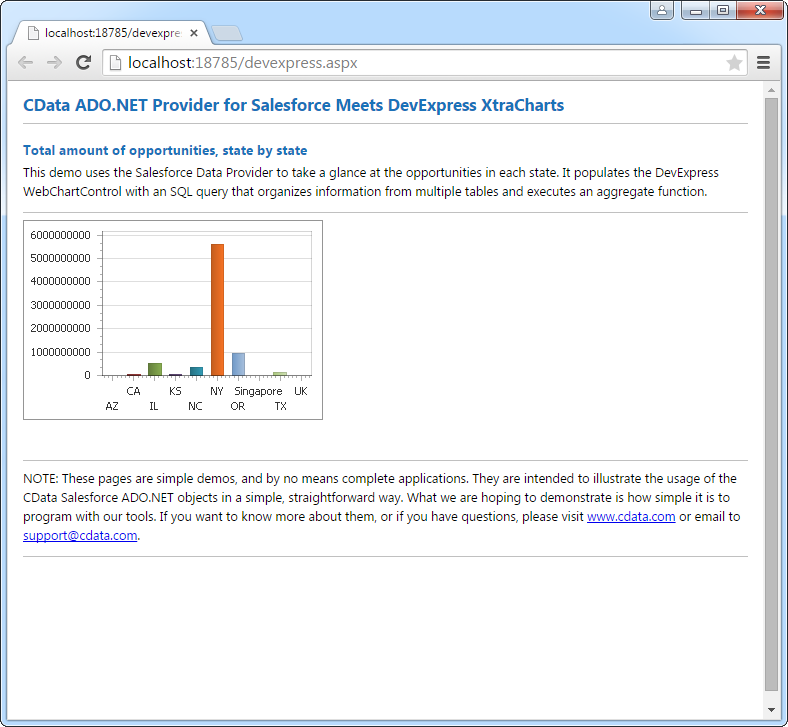
下のコードではJotForm でDevExpress Web を操作するための設定方法を説明します。APIDataAdapter はチャートのSeries プロパティにバインドします。Diagram プロパティはx 軸とy 軸をカラム名として定義します。
using DevExpress.XtraCharts;

using (APIConnection connection = new APIConnection(
"Profile=C:\profiles\JotForm.apip;ProfileSettings='APIKey=my_api_key;Domain=my_custom_domain';"))
{
  APIDataAdapter APIDataAdapter1 = new APIDataAdapter("SELECT Id, Title FROM Forms WHERE Status = 'ENABLED'", connection);
  DataTable table = new DataTable();
  APIDataAdapter1.Fill(table);
  DevExpress.XtraCharts.Series series = new Series("Series1", ViewType.Bar);
  WebChartControl1.Series.Add(series);
  DataTable table = new DataTable();
  series.ValueDataMembers.AddRange(new string[] { "Title" });
  series.ArgumentScaleType = ScaleType.Qualitative;
  series.ArgumentDataMember = "Id";
  series.ValueScaleType = ScaleType.Numerical;
  ((DevExpress.XtraCharts.SideBySideBarSeriesView)series.View).ColorEach = true;
}