






RunMyProcess DSEC を使用して DigitalSuite Studio で Printify のデータ に接続

CData JDBC Driver for Printify は JDBC 標準を実装しており、BI からIDE まで幅広いアプリケーションから Printify への接続を可能にします。この記事では、Arkobi Digital RunMyProcess の DSEC から Printify のデータ に接続し、RunMyProcess で Printify に接続する方法を説明します。
EnterpriseConnect Agent のセットアップ
RunMyProcess ドキュメントの EnterpriseConnect ページに従って、EnterpriseConnect Agent を設定します。
JDBC Adapter のセットアップ
JDBC Adapter のセクションでは、JDBC を使用して RDBMS に接続する手順が説明されています。手順に従って JDBC.config ファイルを開きます。
- CData JDBC Driver for Printify 用の JSON エントリを作成します。例:
API = { "sqlDriver" : "...", "sqlSource" : "...", "sqlDriverPath" : "..." } - "sqlDriver" フィールドに CData JDBC Driver のクラス名を設定します。例:
cdata.jdbc.api.APIDriver - "sqlSource" フィールドに Printify に接続するための JDBC URL を設定します。例:
jdbc:api:Profile=C:\profiles\Printify.apip;ProfileSettings='APIKey=your_personal_token';組み込みの接続文字列デザイナー
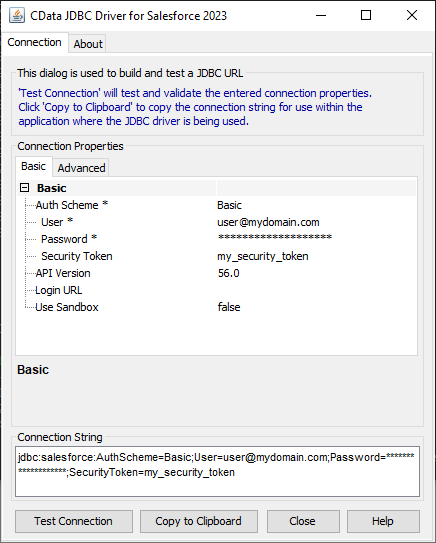
JDBC URL の作成には、Printify JDBC Driver に組み込まれている接続文字列デザイナーをご利用ください。JAR ファイルをダブルクリックするか、コマンドラインから JAR ファイルを実行します。
java -jar cdata.jdbc.api.jar
接続プロパティを入力し、接続文字列をクリップボードにコピーします。
まず、Profile 接続プロパティにPrintify プロファイルのディスク上の場所を設定します(例:C:\profiles\Profile.apip)。次に、ProfileSettings 接続プロパティにPrintify の接続文字列を設定します(以下を参照)。
Printify API プロファイル設定
Printify に認証するには、API Key を提供する必要があります。API Key を取得するには、My Profile に移動し、次にConnections に移動します。Connections セクションで、Personal Access Token(API Key)を生成し、Token Access Scopes を設定できます。Personal Access Token の有効期限は1年間です。有効期限が切れたPersonal Access Token は、同じ手順で再生成できます。ProfileSettings プロパティにPersonal Access Token をAPI Key として設定して接続します。
- "sqlDriverPath" フィールドに CData JDBC Driver JAR ファイルの名前を設定します。例:
cdata.jdbc.api.jar
JDBC.config ファイルの例
#DBAgent Configuration
API = {"sqlDriver" : "cdata.jdbc.api.APIDriver", "sqlSource" = "jdbc:api:Profile=C:\profiles\Printify.apip;ProfileSettings='APIKey=your_personal_token';","sqlDriverPath" = "cdata.jdbc.api.jar" }
JDBC ドライバー JAR ファイル(cdata.jdbc.api.jar)を unified-adapter-[version].jar と同じディレクトリに配置します。
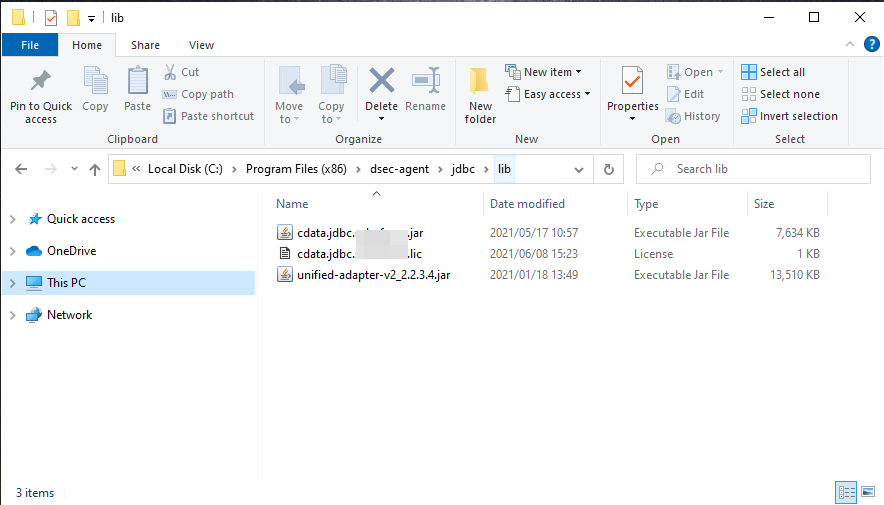
注意:CData ライセンスファイル(cdata.jdbc.api.lic)も同じディレクトリに配置してください。ライセンスは製品がインストールされているマシンの一意の識別子に基づいて生成されるため、ファイルを別のマシンに配置する場合はオフラインアクティベーションが必要になります。
DigitalSuite EnterpriseConnect Agent の起動
Windows では、Windows サービスから RunMyProcess DigitalSuite EnterpriseConnect Agent を起動します。コマンドラインでアプリケーションを起動する場合は、RunMyProcess ドキュメントの Starting the EnterpriseConnect Agent を参照してください。
JDBC Adapter の起動
runAdapter.bat から JDBC Adapter を起動します。Adapter が起動したら、エージェントアドレス(例:127.0.0.1:8080)を通じてアプリケーションにアクセスできます。以下は Windows でコマンドを実行した例です。
... > java -Djava.util.logging.config.file=./log.properties -cp lib/* org.runmyprocess.sec2.AdapterHandler :
2021-06-09 14:37:58|INFO|correlationId=|Searching for config file...
2021-06-09 14:37:58|INFO|correlationId=|Adapter Handler started with [JDBC] configuration
2021-06-09 14:37:59|INFO|correlationId=|agent address: 127.0.0.1:8080
2021-06-09 14:38:00.251:INFO::ConnectionThread: Logging initialized @1820ms to org.eclipse.jetty.util.log.StdErrLog
2021-06-09 14:38:00|INFO|correlationId=|onConnect() websocket connection between Agent and Adapter established
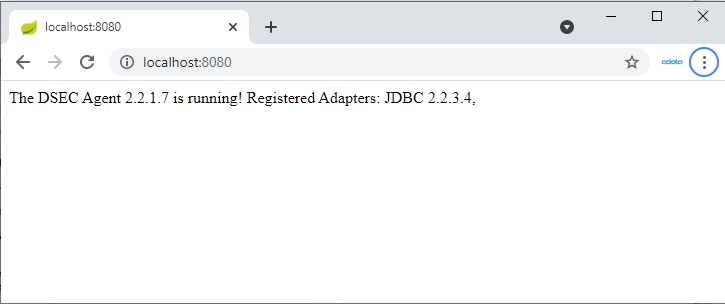
DigitalSuite EnterpriseConnect Agent と JDBC Adapter が起動したら、ブラウザで http://localhost:(指定したポート番号)/ にアクセスして、以下のページを開きます。
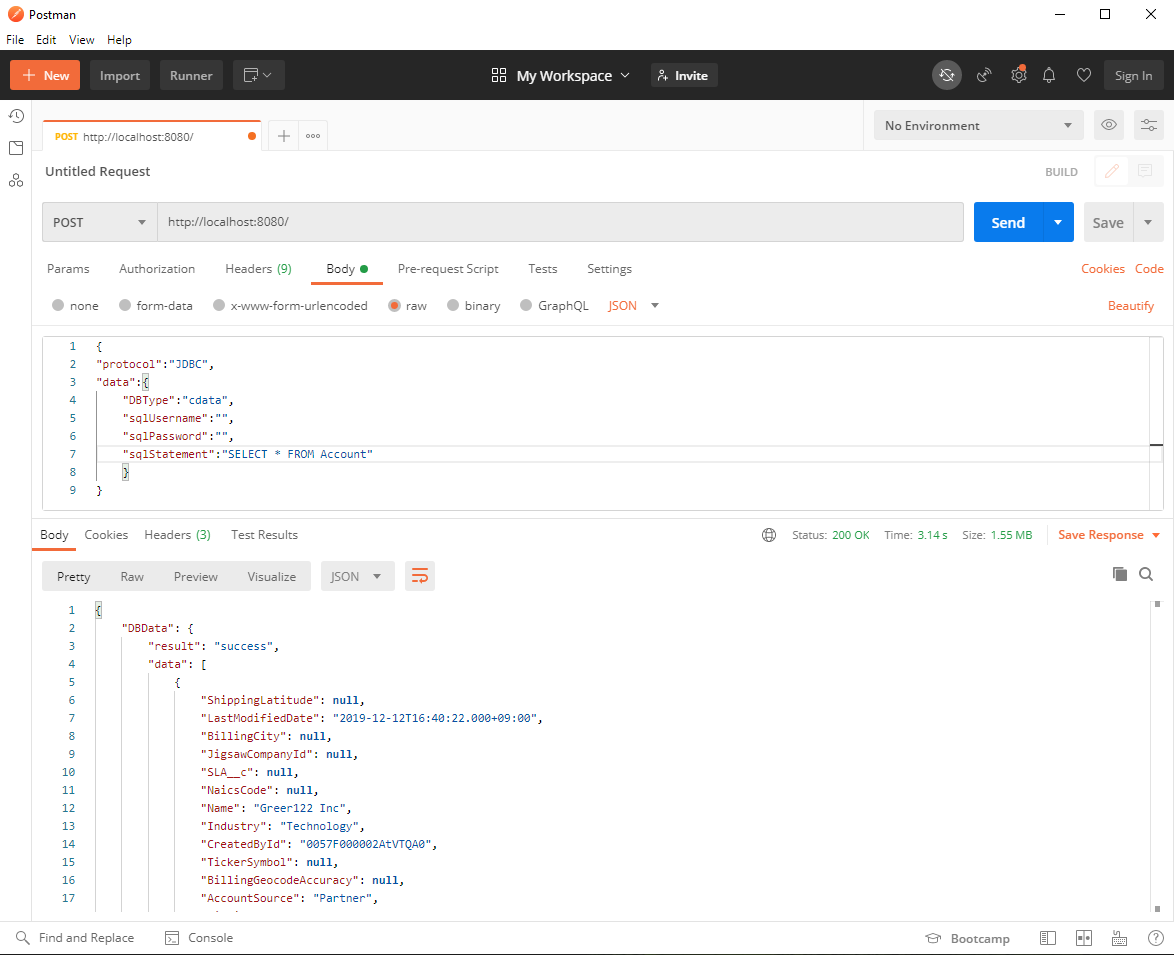
Postman や cURL などのツールを使用して JDBC Adapter の接続確認を行います。ここでは Postman を使用して HTTP POST リクエストを送信します。
RequestHeader を以下のように設定します:
Content-Type application/json
RequestBody を以下のように設定します:
{
	"protocol":"JDBC",
	"data":{
		"DBType":"API",
		"sqlUsername":"",
		"sqlPassword":"",
		"sqlStatement":"SELECT * FROM Tags"
	}
}
JDBC.config ファイルに認証情報が含まれている場合、sqlUsername と sqlPassword は空のままにできます。テーブル名が不明な場合は、SELECT * FROM sys_tables リクエストを使用してテーブルの一覧を取得できます。
ステータスが 200 で、ボディに JSON 形式の Printify のデータ データが含まれていれば、リクエストは成功です。
DigitalSuite Studio で DSEC Agent を介して Printify に接続
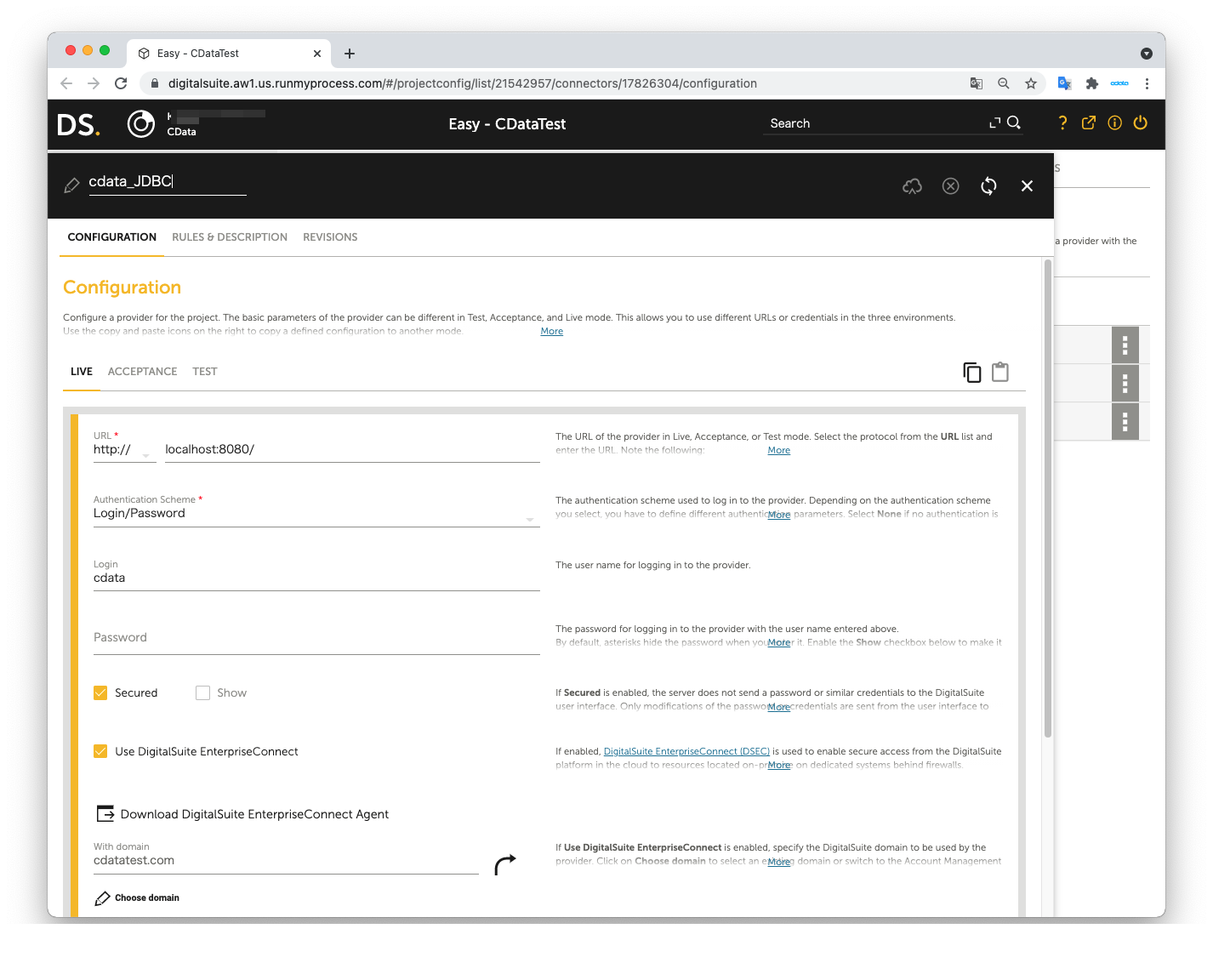
DigitalSuite Studio プロジェクトを作成し、プロジェクト内に Provider を作成します。
- URL:JDBC Agent にアクセスするための URL(例:http:localhost:8080/)
- Authentication Scheme:Login/password
- Login:application.properties ファイルの agent.user の値
- Password:application.properties ファイルの agent.password の値
- Secured:チェックを入れる
- Use DigitalSuite EnterpriseConnect:チェックを入れる
- With domain:application.properties ファイルの agent.domain の値
次に、Provider 内に Connector を作成します。
- Connector URL:空のままにする
- Architecture:REST/XML-RPC
- Method:POST
- Result format:JSON
- Accept media type:application/json
- Character set:Automatic
- Content:JDBC Adapter で使用した Request body と同じ内容
- Content type: application/json
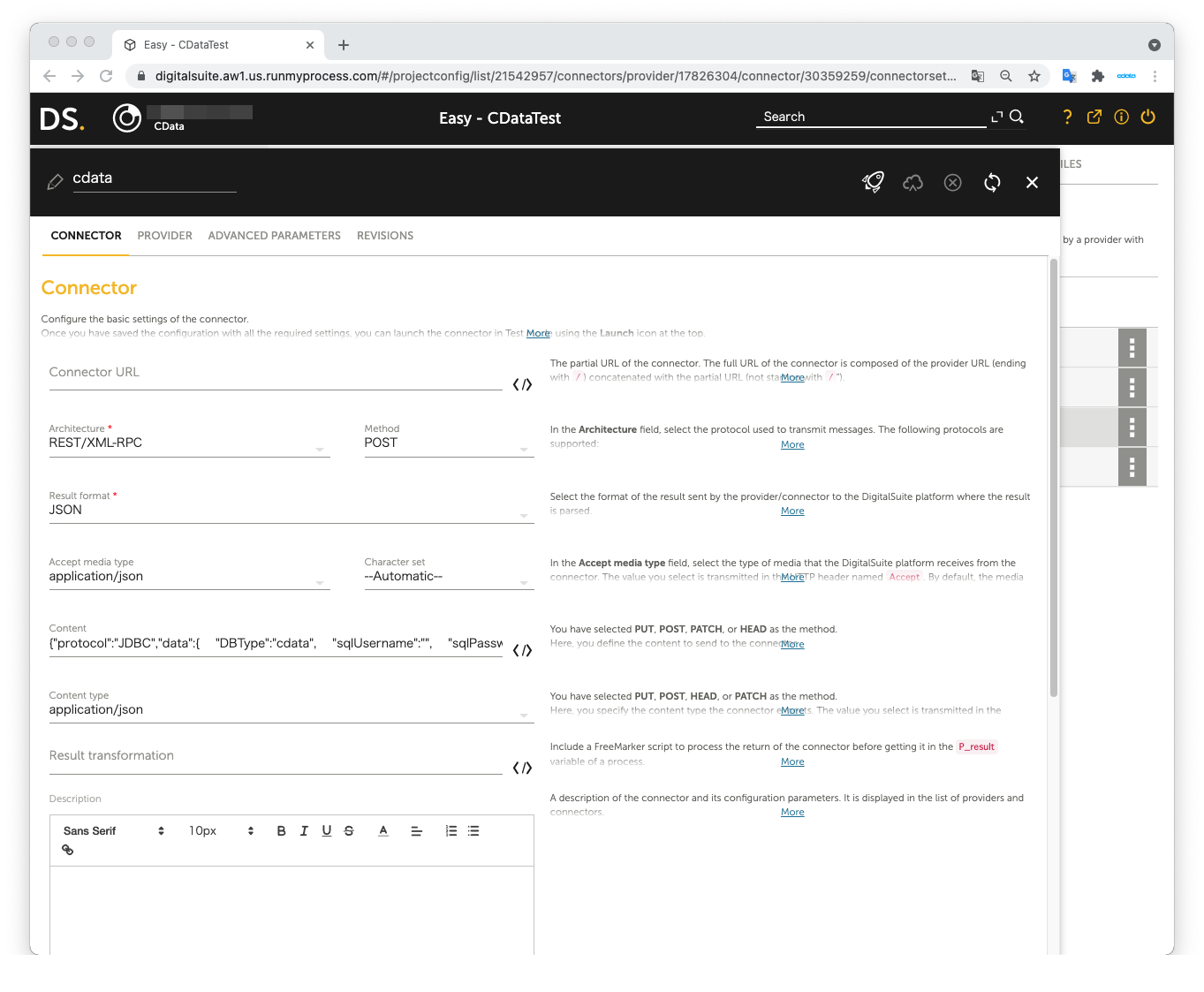
JDBC Adapter で Request body として使用した JSON データ:
{
	"protocol":"JDBC",
	"data":{
		"DBType":"API",
		"sqlUsername":"",
		"sqlPassword":"",
		"sqlStatement":"SELECT * FROM Tags"
	}
}
Launch Test を開いてテストを実行します。右側のペインの Result に Printify のデータ データが表示されれば、テストは成功です。
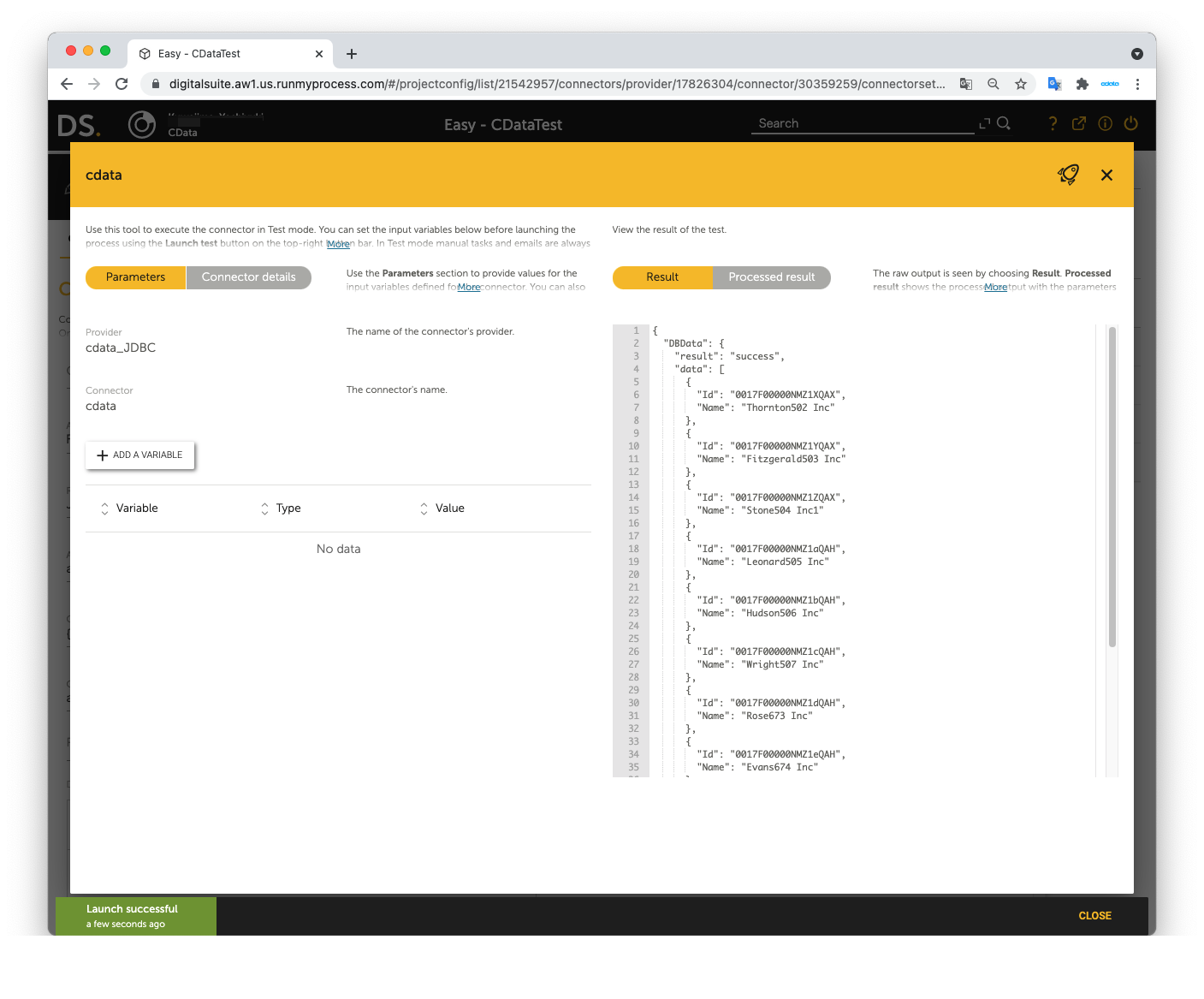
これで、DSEC を介して RunMyProcess DigitalSuite Studio で Printify のデータ を使用できるようになりました。
サポートされる SQL コマンドの詳細については、ヘルプドキュメントの「SQL Compliance」セクションを参照してください。テーブルの詳細については、「Data Model」セクションを参照してください。