






Accessing the Tesla Fleet API
The Tesla Fleet API provides access to detailed vehicle data and allows you to remotely control various functions of your Tesla, such as controlling the air conditioning or checking charge status. Tesla publishes official documentation under the name "Fleet API", available on the Tesla Developer site.
In this article, we show the steps necessary to make a successful API request to the Tesla Fleet API from setting up your environment to using the API in Postman.
Get the environment
To start using the Tesla Fleet API, the first step is setting up your environment, your Tesla vehicle. Your Tesla will act as the server, receiving and responding to API requests. If you do not have a Tesla vehicle but would still like to test the Tesla Fleet API, you can create a mock server to return JSON which will essentially act as a "Mock-Tesla API".
Create a Tesla account
With your environment/Tesla ready, the next step is to set up a Tesla account. This account will be used to register an OAuth application and gather the necessary credentials, which are necessary for making API requests to the Tesla Fleet API. If you already own a Tesla, you likely have an account. If not, you can still create one by selecting the profile icon in the top-right corner of the Tesla website and choosing "Create Account." Simply fill in the required details to complete the registration.
Create an application request
Once you have an account, you can register your app for API access through the Tesla Developer Portal. Once you agree to the terms and conditions, you can proceed with the process of creating a request for your application:
-
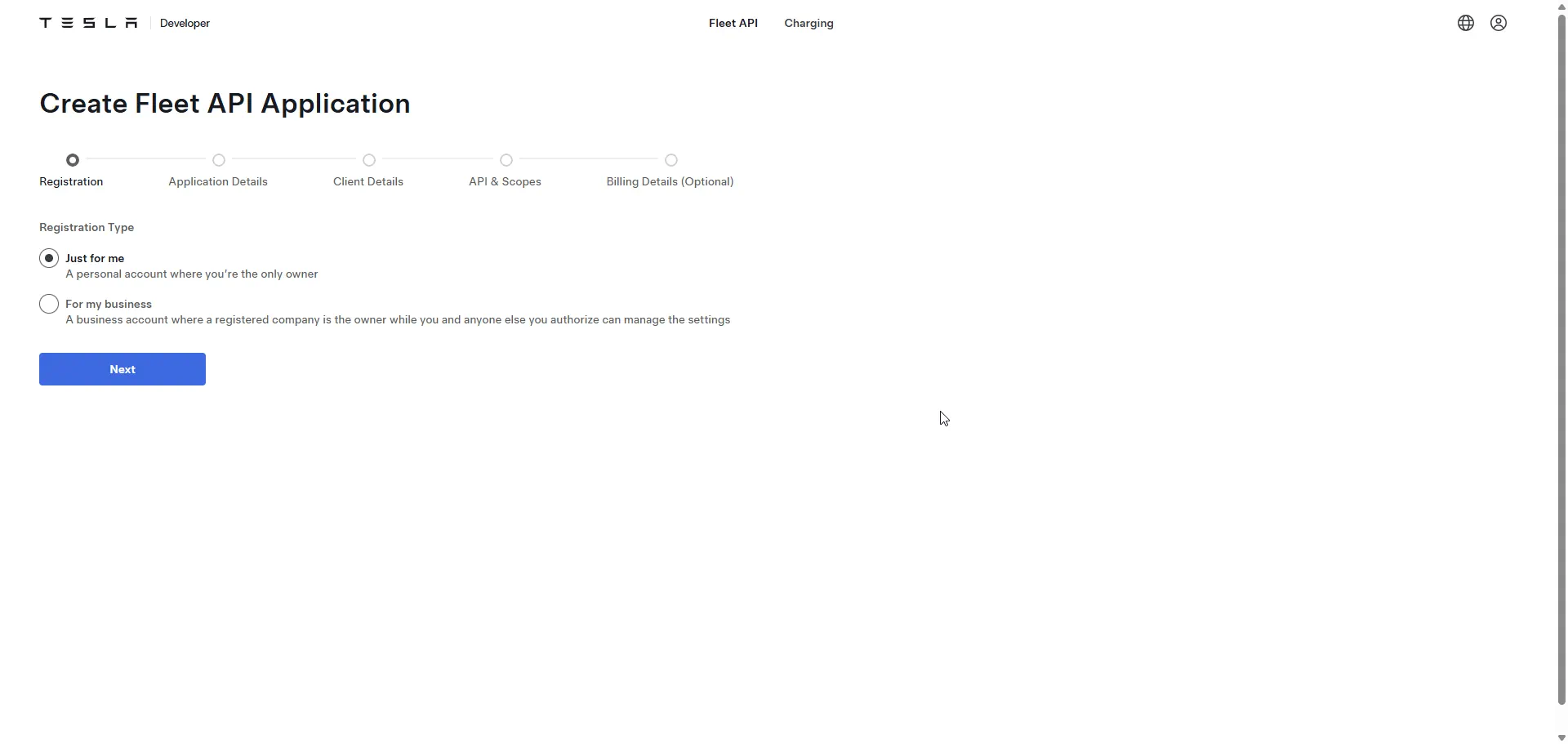
Select your Registration Type
-
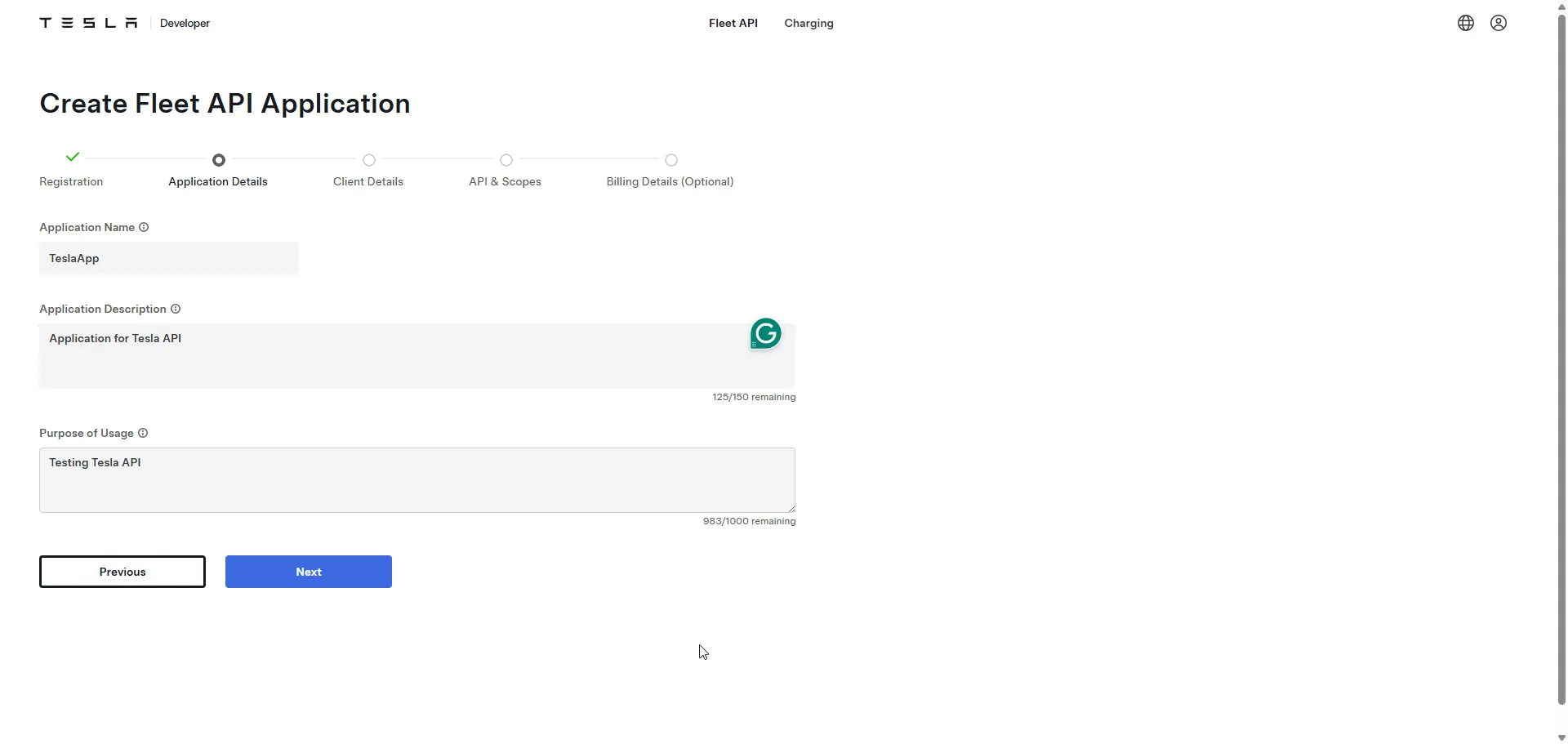
Enter Application Details such as the Application Name, Description, and Purpose of Use
-
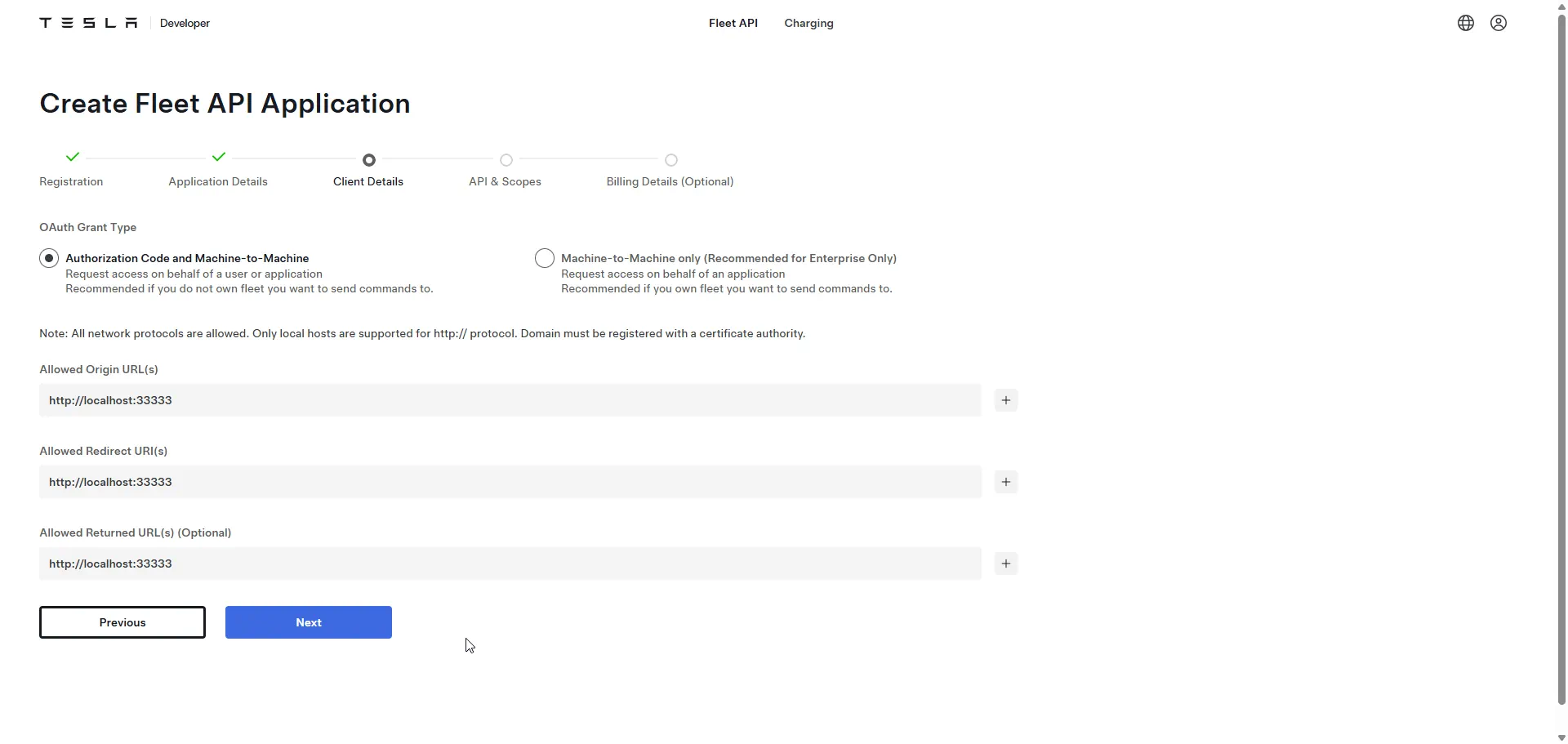
Select an OAuth Grant Type and enter the URLs for your App:
-
Finally, set the scope of the API you want to target.
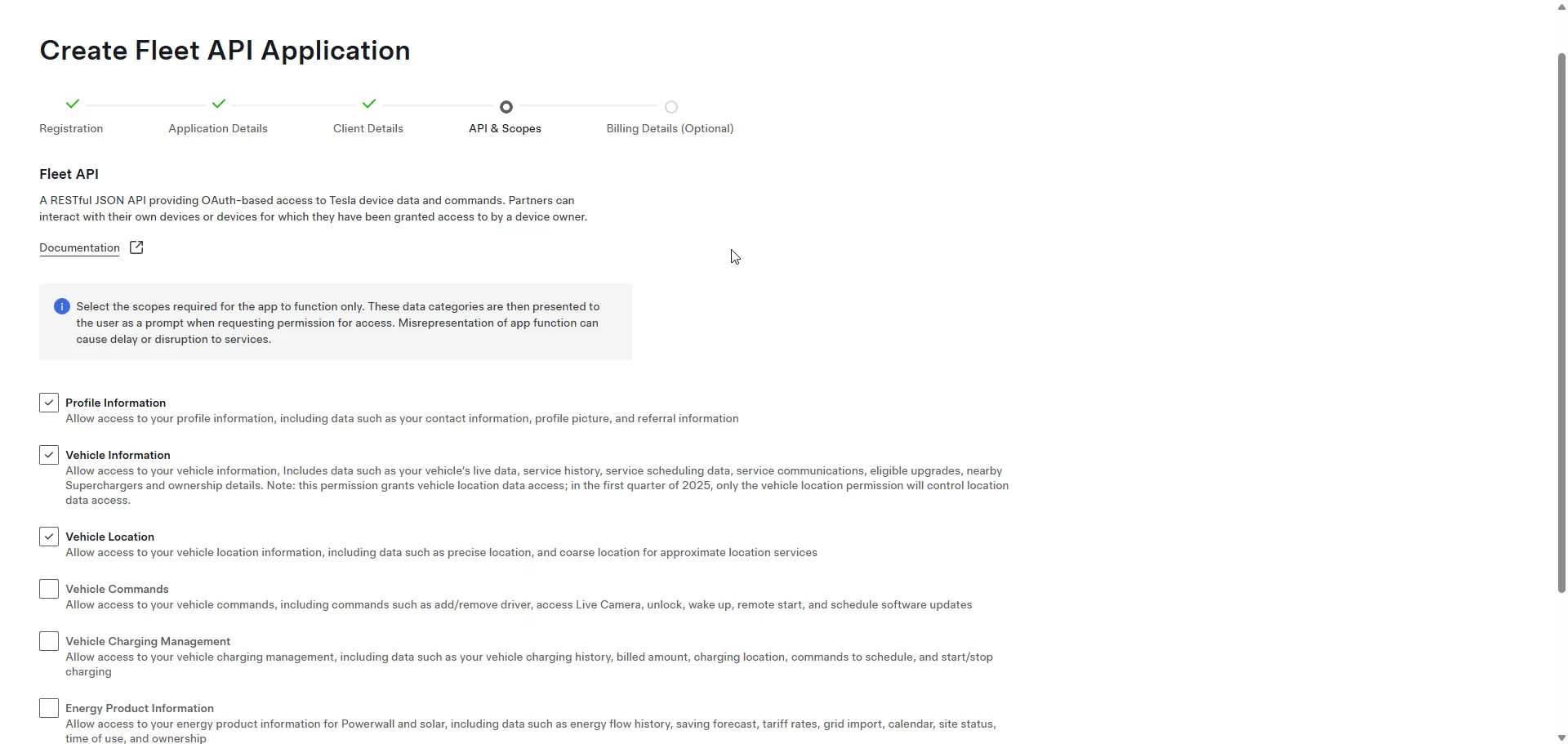
This completes the request process, and your App Request has been submitted. Note that the app request needs to be approved by Tesla, and it should be approved within 5 business days.
After the App Request is authorized, the status will become active, and you can now gather the OAuth Credentials for your App. In the "Credentials and APIs" section for your app, you can find the OAuth Client ID and the OAuth Client Secret.
Create and host a public/private key pair
Now that the app registration is complete, the Tesla API requires using public and private keys to execute Vehicle Commands (such as commands to turn the air conditioner on/off or open and close the door).
To create a private key, run:
openssl ecparam -name prime256v1 -genkey -noout -out private-key.pem
Then, generate the associated public key:
openssl ec -in private-key.pem -pubout -out public-key.pem
Change the public key name to "com.tesla.3p.public-key.pem", and this public key should be available at: "https://your-domain.com/.well-known/appspecific/com.tesla.3p.public-key.pem".
Note: The public key must be accessible via a publicly hosted HTTPS URL, Azure Static Web Apps is a good option for this step.
Generate an access token
We can now go through the OAuth 2.0 authentication and authorization process for the Tesla Fleet API. To do this, we will use the Authorization feature in Postman to generate the token. Below is an example of this:
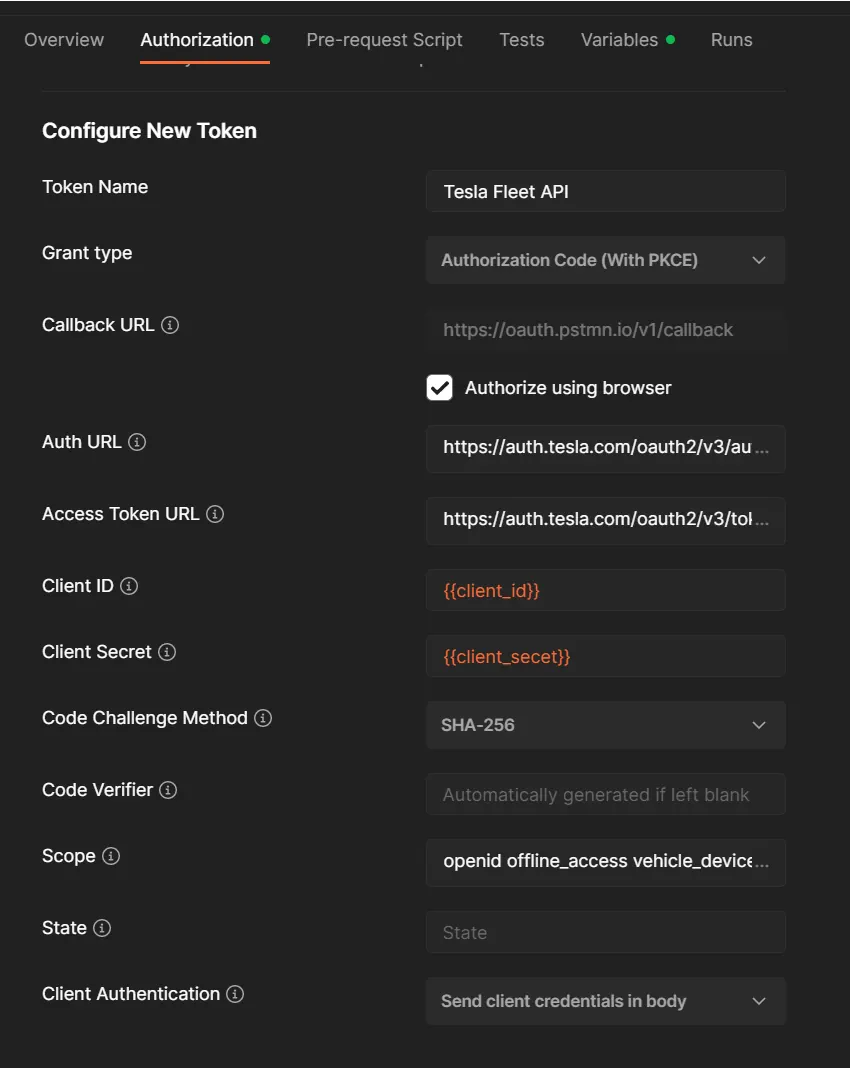
Note: Before running the app, add "https://oauth.pstmn.io/v1/callback" to the "Allowed Redirect URI(s)" of the app you created in the Tesla Developer Portal.
In Postman, fill in the required OAuth details and click "Get New Access Token". This should open a browser window prompting you to sign in to your Tesla account and authorize access. After selecting the appropriate scopes and clicking "Allow", Postman will receive an access token you can now use to make authenticated API requests.
Use the API to get and manipulate vehicle data
Now let's use the API to get vehicle data. First, you can get information about vehicles owned by authorized users using the following "/api/1/vehicles" command:
GET /api/1/vehicles HTTP/1.1
Host: fleet-api.prd.na.vn.cloud.tesla.com
Authorization: Bearer {access token}
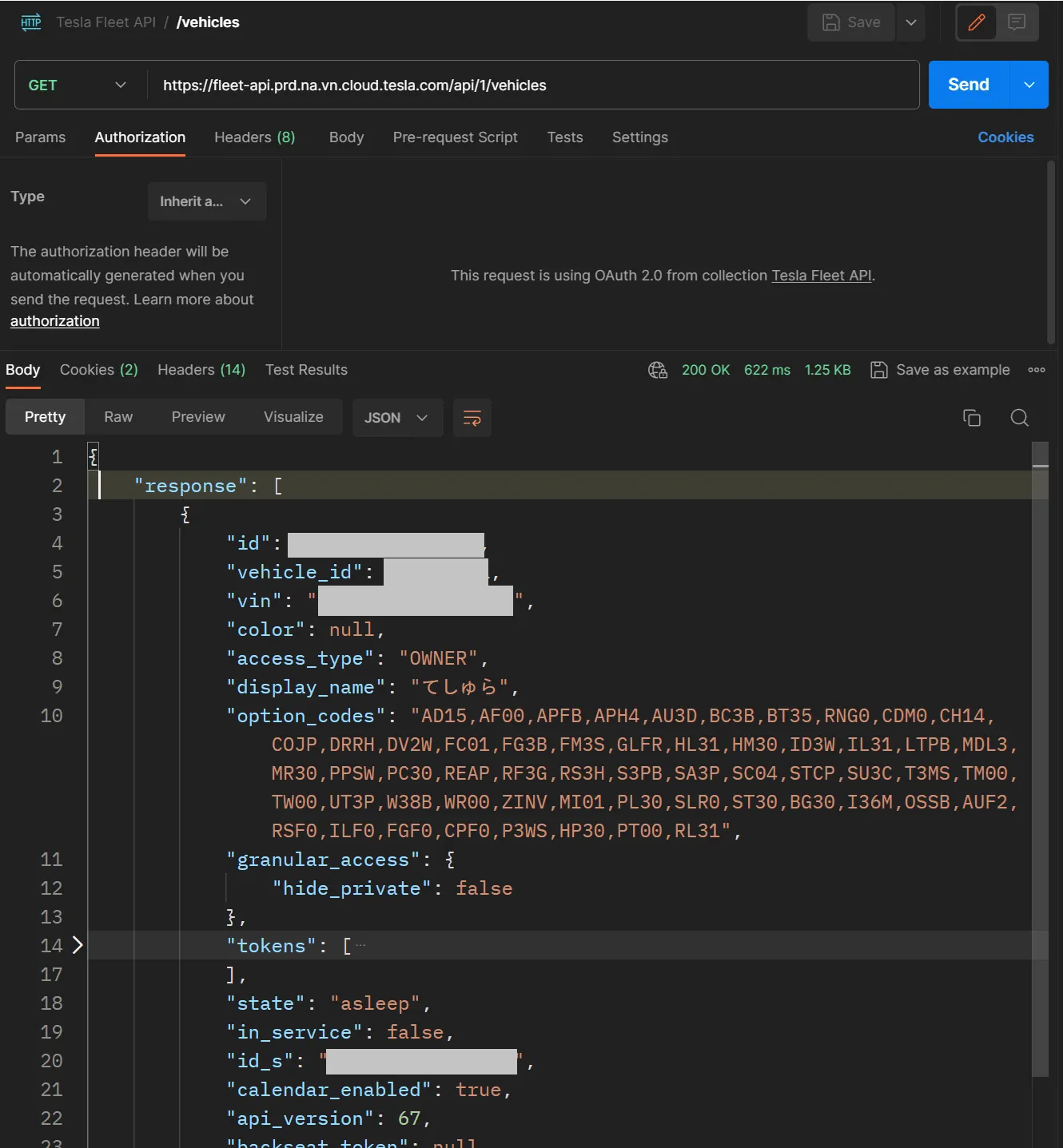
This request will return the information about your vehicles, such as the vehicle ID, VIN, vehicle state, API version, etc.
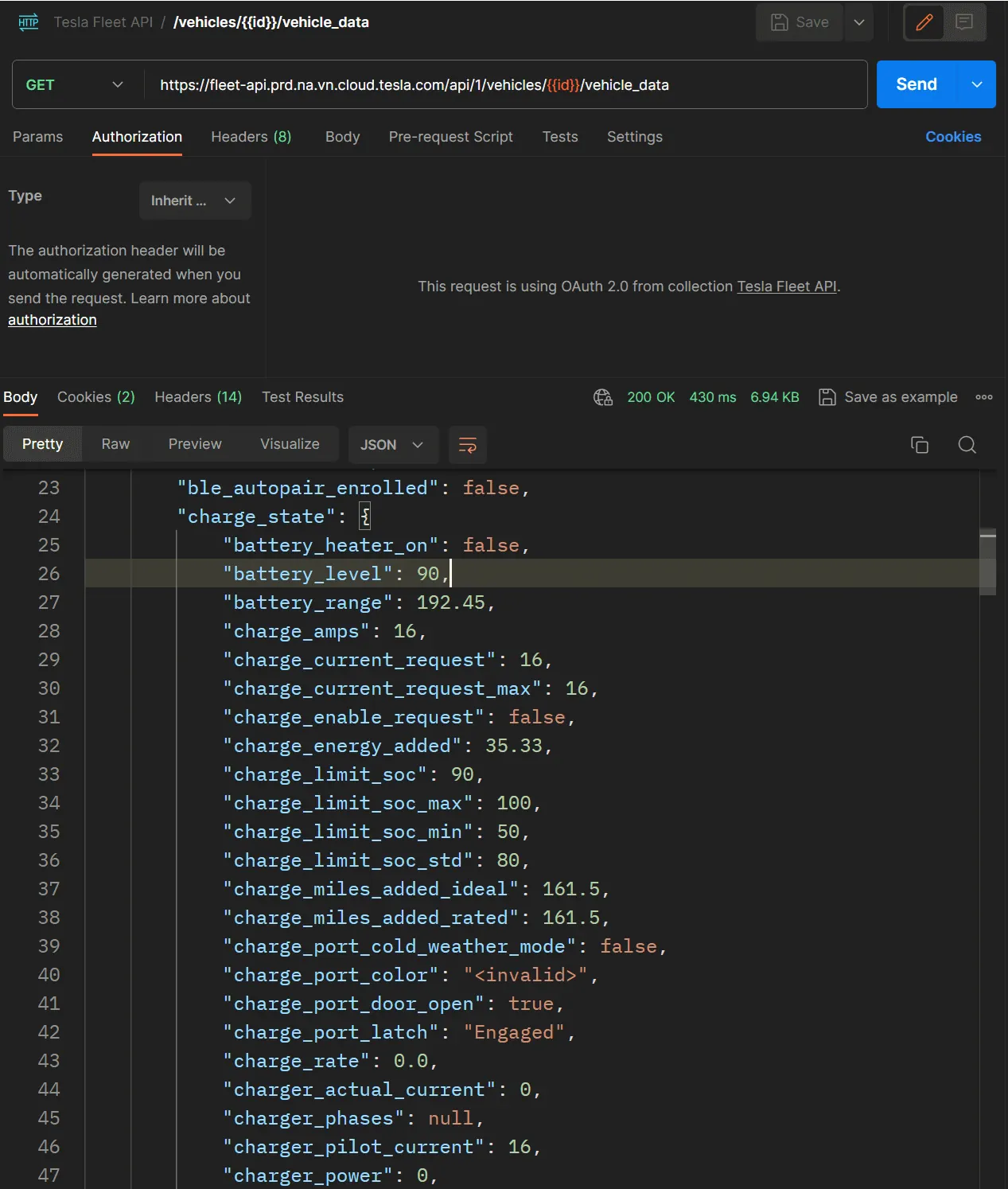
If you want to know more about the vehicle's status, you can send a request to "GET /vehicles/{id}/vehicle_data" using the vehicle ID. However, if the vehicle is offline or in Asleep status, you will need to request "POST /vehicles/{id}/wake_up" once to wake up the vehicle.
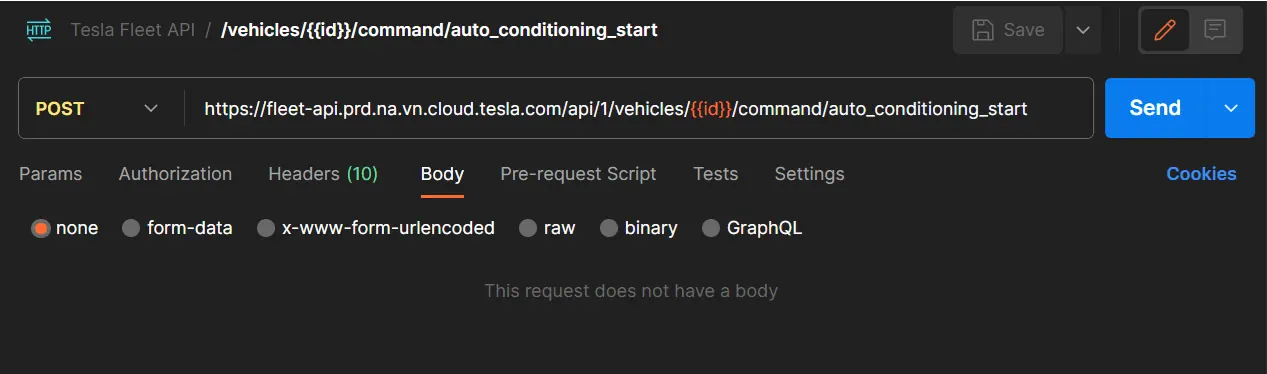
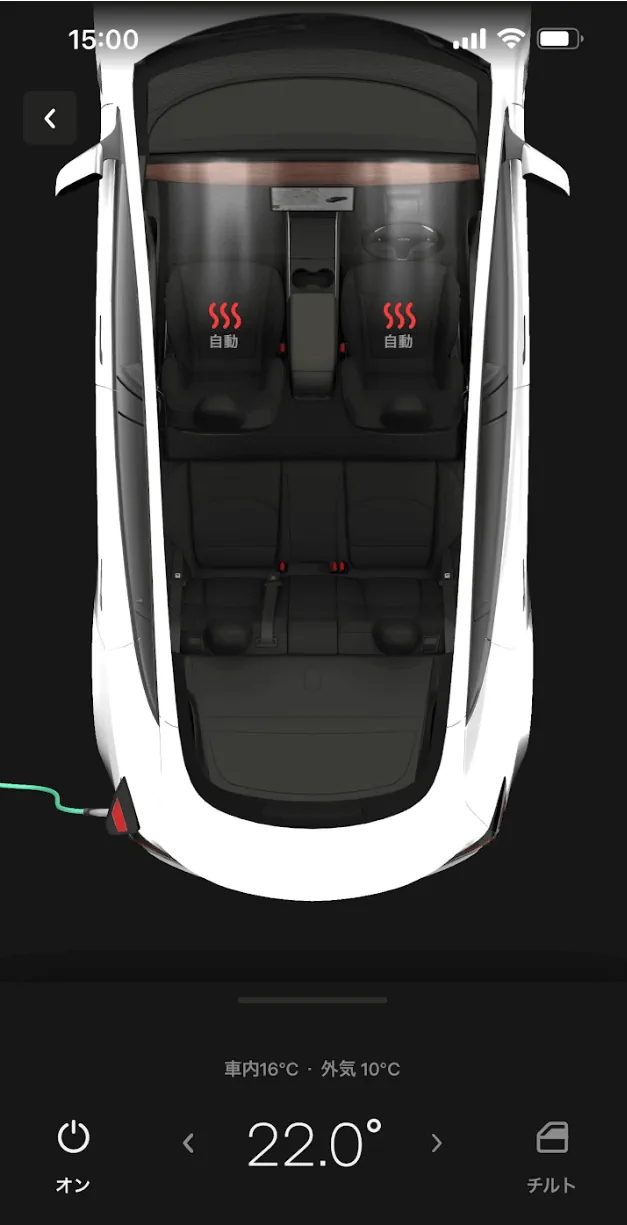
If you want to start the air conditioner, use "POST /vehicles/{id}/command/auto_conditioning_start".
Using the CData Connect AI API Connector
Now let's use the CData Connect AI API Connector to connect to the Tesla Fleet API. Follow the steps below to configure the API source connection:
-
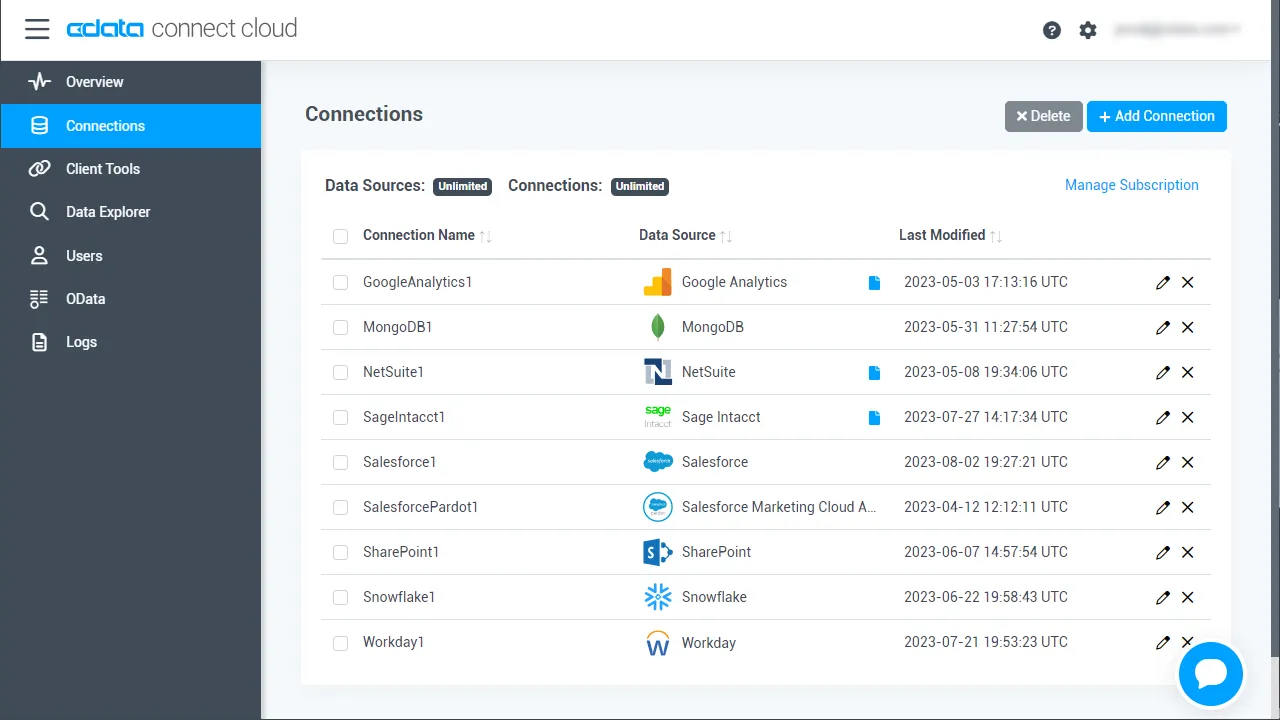
Log into Connect AI, click Sources, and then click Add Connection
-
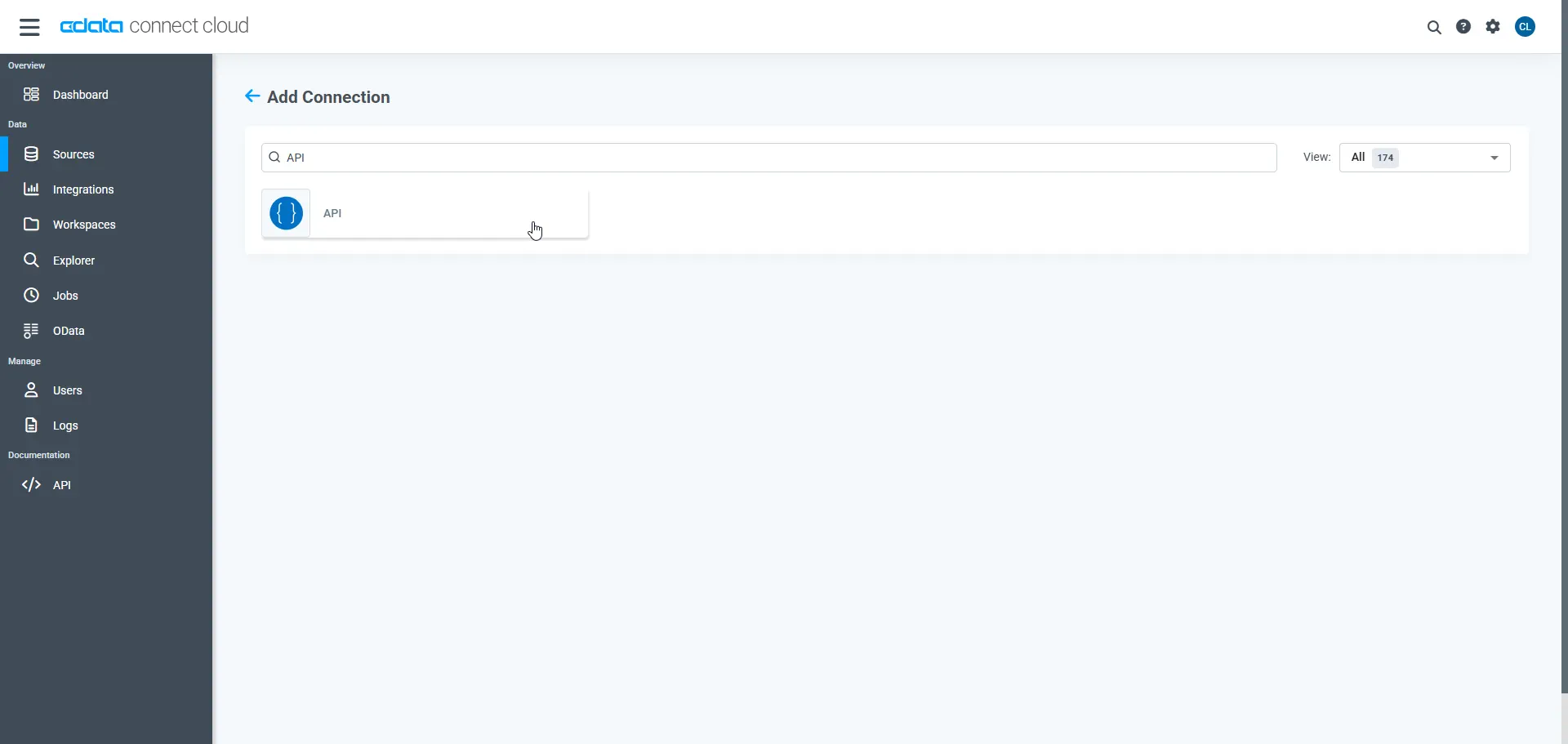
Select API from the Add Connection panel
-
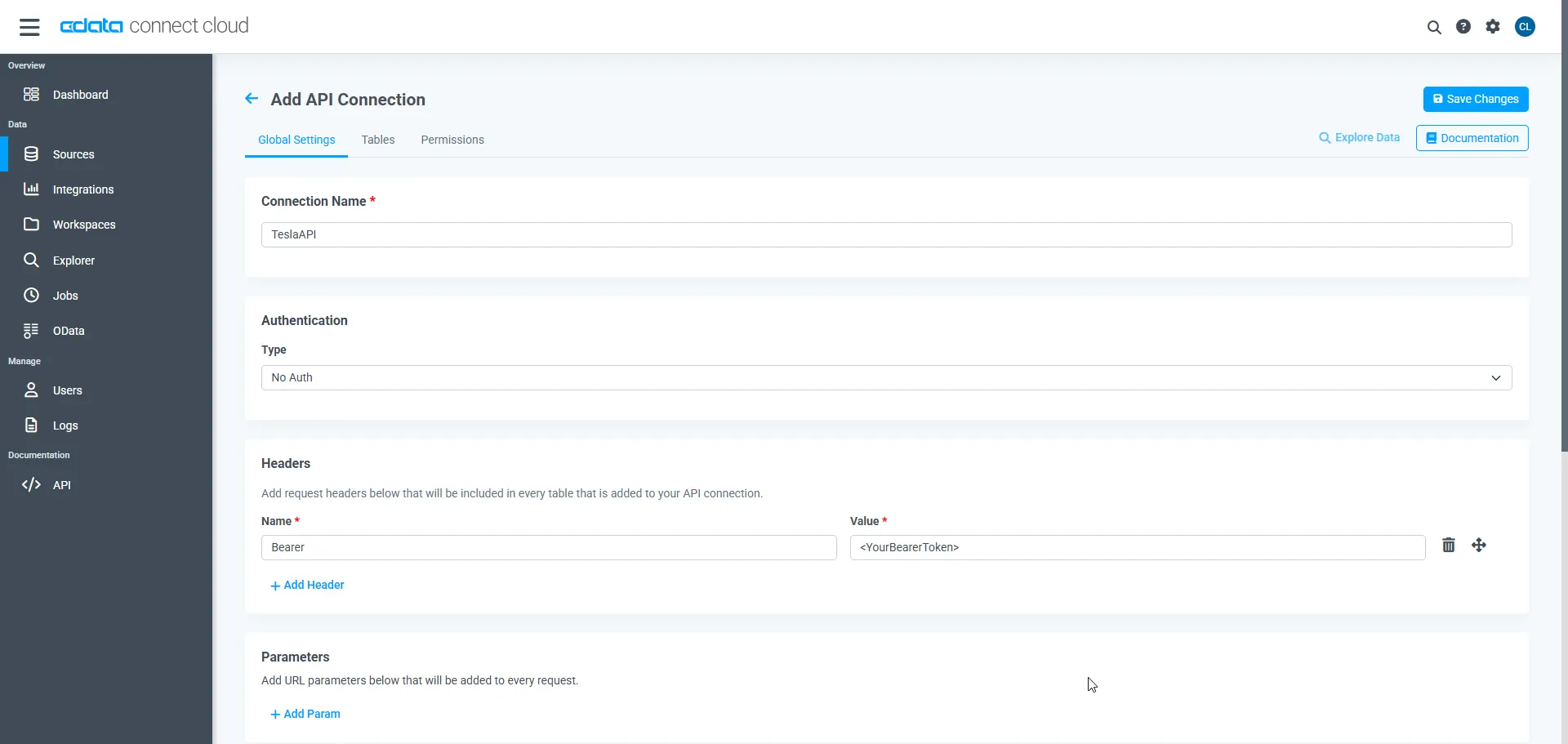
On the Global Settings Tab, name the connection and select the Authentication method. Since we are using an Access Token, set the Authentication Type to No Auth and add a Header for the Access Token, as shown below:
- Click the Create button at the top of the page to save the API connection.
- Now that we have created the API connection, we can create tables for each of the API's endpoints. In your API connection, click Tables to open the Tables tab.
- Click Add to add a new table.
-
Provide a Name for your table and set the Request URL to the API endpoint URL. In this example, we are using "https://fleet-api.prd.na.vn.cloud.tesla.com/api/1/vehicles":
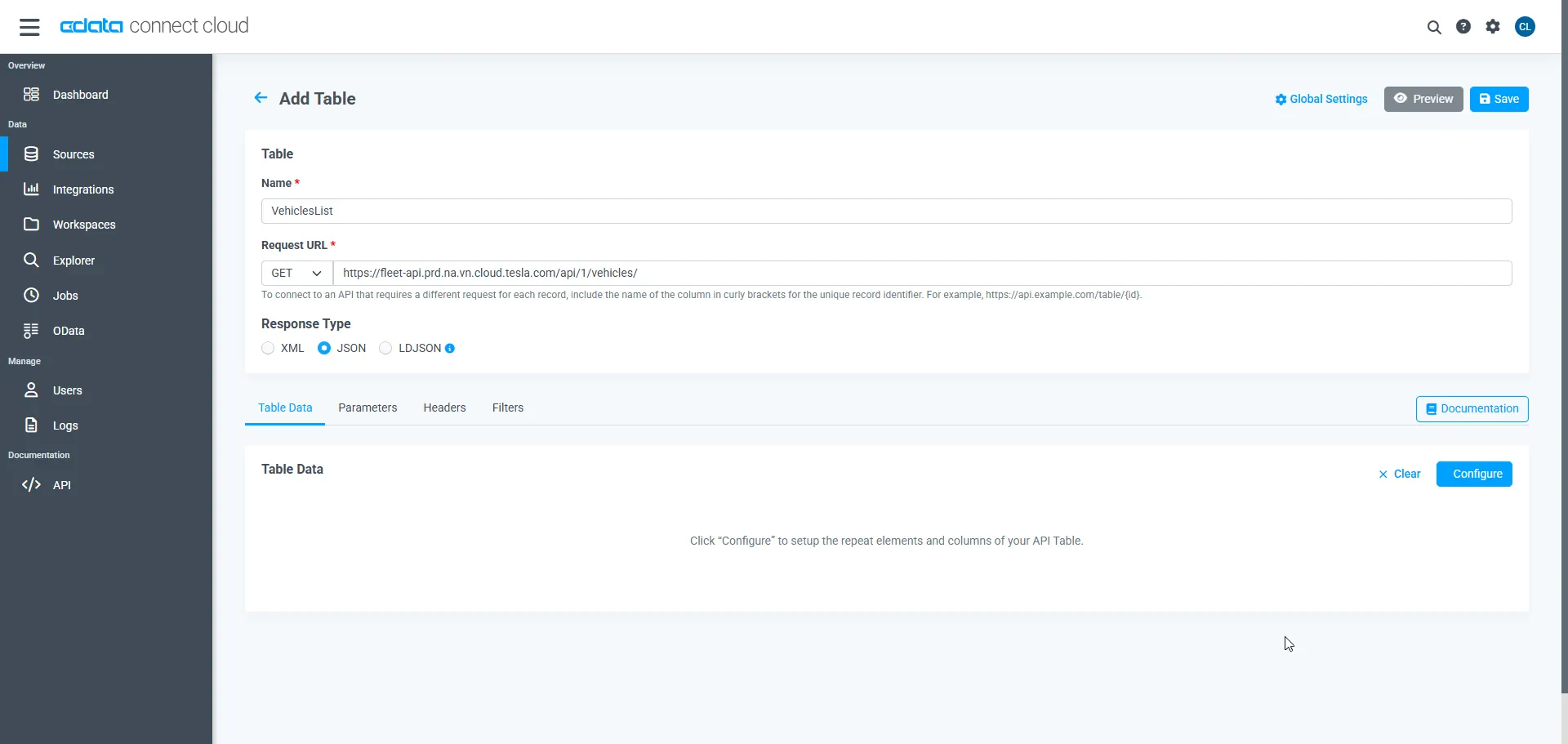
- In the Table Data section, click Configure to automatically fill out the Table Data information.
- Click Next to access the Add Columns menu. Here, you need to select a root path, and any columns to expose.
- Click Next to access the Table Preview. This renders the first 10 rows of the table as currently configured.
- Click Confirm to automatically add your Table Data configuration. The data selected should be reflected in the Root Path and Columns fields in the Table Data section.
- Click Save to save this table.
You have now configured the API Connector in Connect AI to connect to the Tesla Fleet API and extract your vehicle's data.
Free Trial & More Information
CData Connect AI not only offers hundreds of pre-built API connections, but it also offers a universal API connector. The CData API connector can effortlessly model any API as a data table for easy consumption, as well as provide code-free integration to facilitate connecting with public and private (cloud-facing) APIs.
Connect to your Tesla Fleet API data today in CData Connect AI by signing up for a free trial!