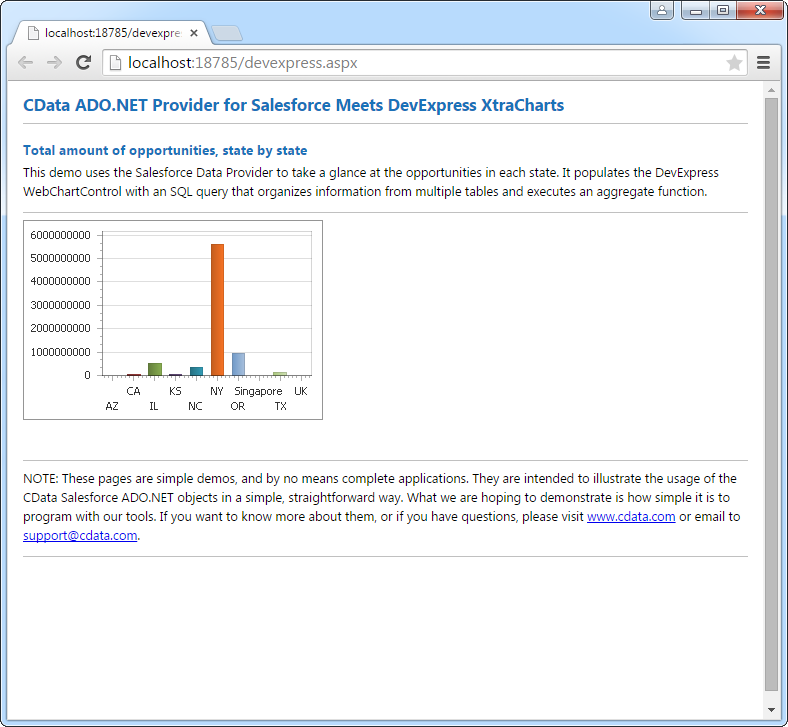
Hugging Face のデータをDevExpress Data Grid にデータバインドする。

CData API Driver for ADO.NET は、サードパーティ製コントロールと組み合わせて使える標準的なADO.NET データアクセスコンポーネントを備えています。通常のADO.NET データバインドの手順に沿って進めるだけで、UI コントロールからリアルタイムデータへの双方向アクセスを実現できます。この記事では、CData のコンポーネントを使って DevExpress UI コントロール(Windows Forms およびWeb コントロール) にデータバインドする方法を紹介します。今回は、リアルタイムのデータを可視化するチャートにデータバインドしていきます。
HuggingFace Hub は、API へのアクセスを可能にするためにトークンベースの認証を使用します。この API では、HuggingFace Hub プラットフォーム上の機械学習モデル、データセット、スペース、論文、その他のリソースにアクセスできます。
API キー認証の設定
HuggingFace Hub への認証には、API Key(アクセストークン)を指定する必要があります。アクセストークンを取得するには、以下のステップで進めます:
- https://huggingface.co で HuggingFace アカウントにログインします
- Settings > Access Tokens に移動します
- 「New token」をクリックして新しいアクセストークンを作成します
- 適切な権限(read または write)を選択します
- トークンの値をコピーします
アクセストークンを取得したら、以下の接続プロパティを設定します:
- AuthScheme:APIKey に設定します。
- APIKey:HuggingFace のアクセストークンに設定します。
接続文字列の例
Profile=C:\profiles\HuggingFace.apip;ProfileSettings='APIKey=hf_xxxxxxxxxxxxxxxxxxxx';
Windows Forms コントロール
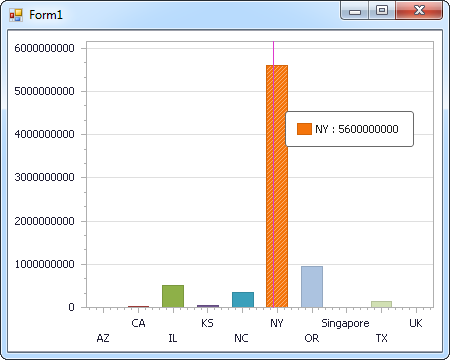
下のコードでは、Hugging Face でDevExpress のチャートに追加する方法を説明します。APIDataAdapter はチャートコントロールのSeries プロパティにバインドします。コントロールのDiagram プロパティはx 軸とy 軸をカラム名として定義します。
using (APIConnection connection = new APIConnection(
"Profile=C:\profiles\HuggingFace.apip;ProfileSettings='APIKey=hf_xxxxxxxxxxxxxxxxxxxx';")) {
  APIDataAdapter dataAdapter = new APIDataAdapter(
  "SELECT ,  FROM Collections WHERE  = ''", connection);

  DataTable table = new DataTable();
  dataAdapter.Fill(table);
  DevExpress.XtraCharts.Series series = new DevExpress.XtraCharts.Series();
  chartControl1.Series.Add(series);
  DataTable table = new DataTable();
  series.ValueDataMembers.AddRange(new string[] { "" });
  series.ArgumentScaleType = DevExpress.XtraCharts.ScaleType.Qualitative;
  series.ArgumentDataMember = "";
  series.ValueScaleType = DevExpress.XtraCharts.ScaleType.Numerical;
  chartControl1.Legend.Visibility = DevExpress.Utils.DefaultBoolean.False;
  ((DevExpress.XtraCharts.SideBySideBarSeriesView)series.View).ColorEach = true;
}
Web コントロール
下のコードではHugging Face でDevExpress Web を操作するための設定方法を説明します。APIDataAdapter はチャートのSeries プロパティにバインドします。Diagram プロパティはx 軸とy 軸をカラム名として定義します。
using DevExpress.XtraCharts;

using (APIConnection connection = new APIConnection(
"Profile=C:\profiles\HuggingFace.apip;ProfileSettings='APIKey=hf_xxxxxxxxxxxxxxxxxxxx';"))
{
  APIDataAdapter APIDataAdapter1 = new APIDataAdapter("SELECT ,  FROM Collections WHERE  = ''", connection);
  DataTable table = new DataTable();
  APIDataAdapter1.Fill(table);
  DevExpress.XtraCharts.Series series = new Series("Series1", ViewType.Bar);
  WebChartControl1.Series.Add(series);
  DataTable table = new DataTable();
  series.ValueDataMembers.AddRange(new string[] { "" });
  series.ArgumentScaleType = ScaleType.Qualitative;
  series.ArgumentDataMember = "";
  series.ValueScaleType = ScaleType.Numerical;
  ((DevExpress.XtraCharts.SideBySideBarSeriesView)series.View).ColorEach = true;
}