SSRS レポートサーバーにADO.NET Provider を配置してMiro 連携

この記事では、CData ADO.NET Provider for API をSSRS レポートサーバーで配布する方法を説明します。また、共有データソースも作成します;共有データソースは、複数の帳票からリアルタイムMiro への接続を可能にします。共有データソースへは、Visual Studio のレポートデザイナーから接続できます。
ADO.NET Provider の配置
ネイティブモードのレポートサーバー、およびSharePoint server farm の一部としてインストールされたレポートサーバーに、同じ手順でプロバイダーを配布できます。プロバイダーに同梱されているInstallProvider.exe ユーティリティを使って、レポートサーバーにプロバイダーを配布します。InstallProvider.exe は、プロバイダーのインストールディレクトリの[lib]ブフォルダ内にあります。SQL サーバーのバージョン用のexe ファイルとSSRS フォルダを、配布するマシンにコピーします。/installssrs flag でexe ファイルを実行します。
.\InstallProvider.exe /installssrs PathToFolderWithSSRSDLL
Miro に共有データソースを作成
レポートサーバーから直接、またはSharePoint サイトから共有データソースを作成できます。あるいは、レポートデザイナーを使って作成することも可能です。
レポートデザイナー
レポートデザイナーを使って、ネイティブモードのレポートサーバーまたはSharePoint server farm のレポートサーバーで、共有データソースを作成できます。
- In a Report Server Project in Visual Studio, right-click Shared Data Sources in Solution Explorer and click Add New Data Source.
- Enter a name for the data source and in the Type menu select CData API Report.
- In the Connection String box, enter the connection string to connect to Miro. A typical connection string is below:
Profile=C:\profiles\Miro.apip;AuthScheme=APIKey;ProfileSettings='APIKey=your_access_token';
API キー認証の設定
Miro は、アクセストークンを使った API キー認証を使用します。アクセストークンを生成するには、以下のステップで進めます:
- Miro アカウントにログインします
- Settings > Your apps に移動します
- 「Create new app」をクリックするか、既存のアプリを選択します
- 必要な権限を設定します(例:boards:read、teams:read)
- アプリをインストールしてアクセストークンを生成します
- 生成されたアクセストークンをコピーします(一度しか表示されません)
アクセストークンを取得したら、以下の接続プロパティを設定します:
- AuthScheme:APIKey に設定します。
- APIKey:アクセストークンに設定します。
Miro への接続
認証を設定すると、Miro に接続して、Boards、Items、Teams、Organizations などの利用可能なテーブルからデータをクエリできます。
When you configure the connection, you may also want to set the Max Rows connection property. This will limit the number of rows returned, which is especially helpful for improving performance when designing reports and visualizations.
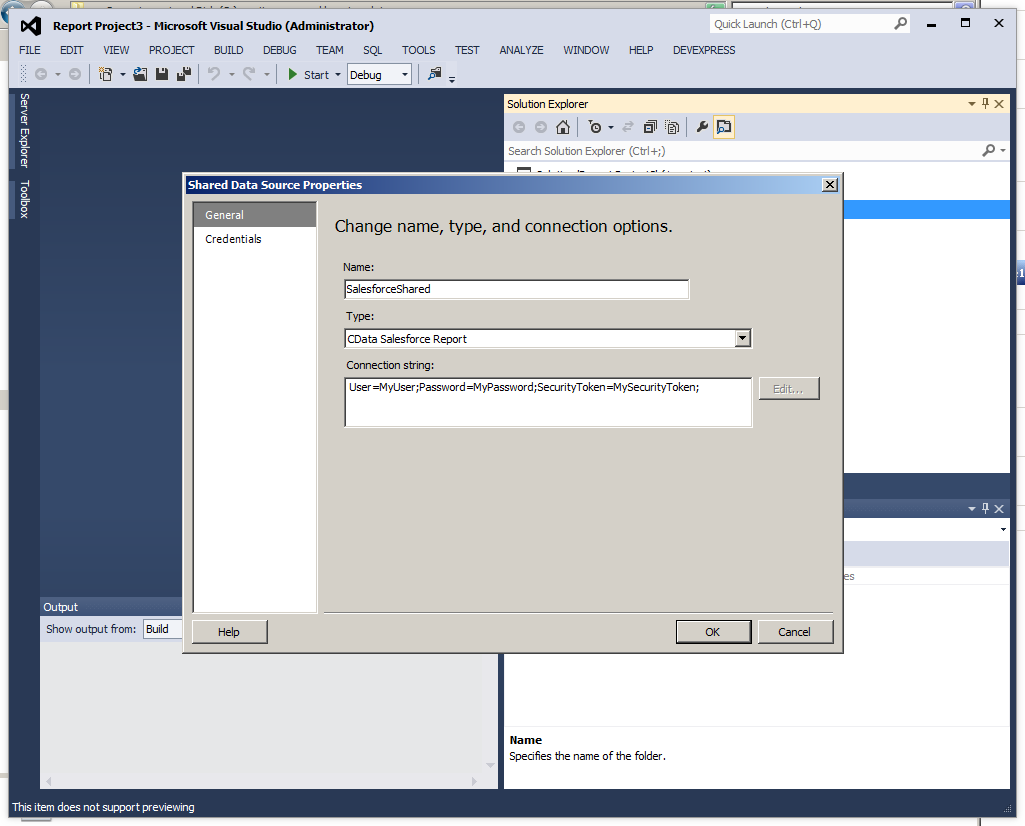
- Set the folder and server URL in your project properties. If you are publishing to SharePoint, the values for all properties must be fully qualified URLs. For example:
- Report Server: http://MyServerName/ReportServer
- SharePoint: http://MyServerName/MySite/MySubsite
- Right-click the shared data source and click Deploy.
レポートサーバー
レポートサーバーのネイティブモードのインストールでは、Report Manager を使って共有データソースを作成できます。レポートサーバーでデータソースを管理する権限が必要です。
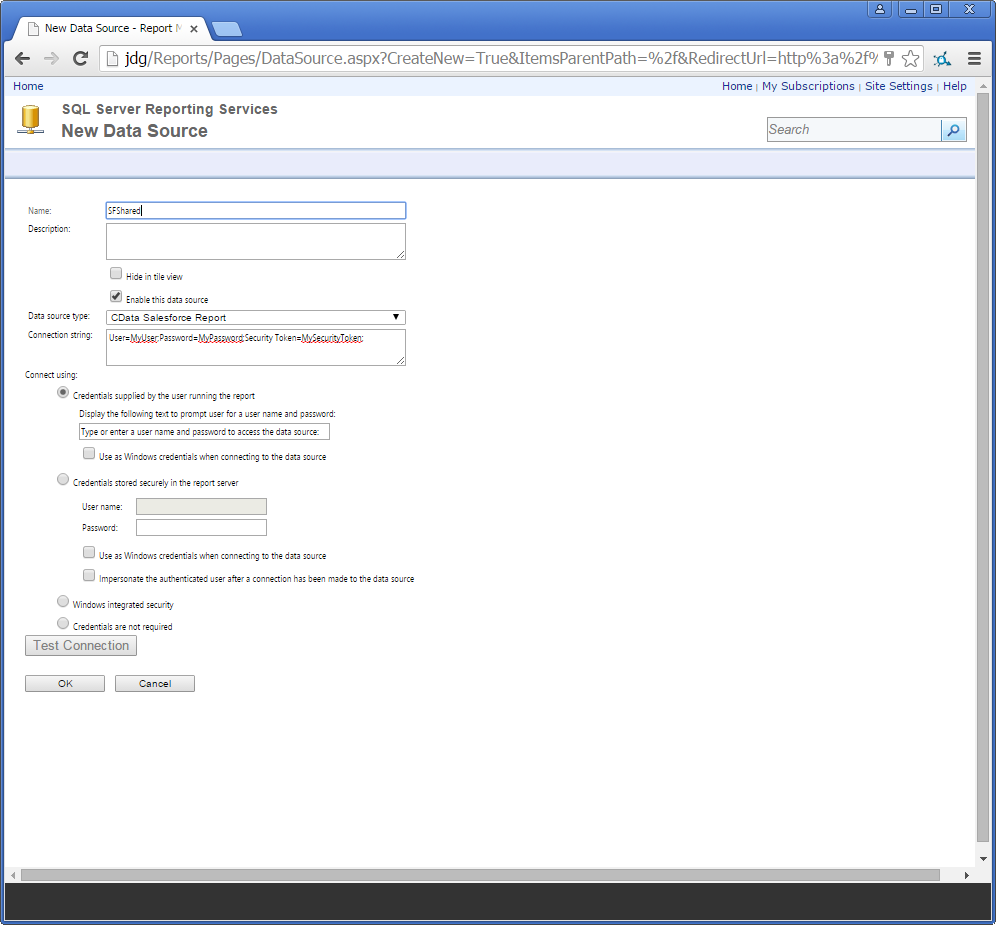
- From the Home page in Report Manager, click New Data Source. The New Data Source page is displayed.
- Enter a name for the data source and in the Data Source Type menu, select CData API Report.
- In the Connection String box, enter the connection string to connect to Miro. A typical connection string is below:
Profile=C:\profiles\Miro.apip;AuthScheme=APIKey;ProfileSettings='APIKey=your_access_token';
API キー認証の設定
Miro は、アクセストークンを使った API キー認証を使用します。アクセストークンを生成するには、以下のステップで進めます:
- Miro アカウントにログインします
- Settings > Your apps に移動します
- 「Create new app」をクリックするか、既存のアプリを選択します
- 必要な権限を設定します(例:boards:read、teams:read)
- アプリをインストールしてアクセストークンを生成します
- 生成されたアクセストークンをコピーします(一度しか表示されません)
アクセストークンを取得したら、以下の接続プロパティを設定します:
- AuthScheme:APIKey に設定します。
- APIKey:アクセストークンに設定します。
Miro への接続
認証を設定すると、Miro に接続して、Boards、Items、Teams、Organizations などの利用可能なテーブルからデータをクエリできます。
SharePoint
SharePoint サイトで共有データソースを作成する方法は、次のとおりです。レポートサーバーcontent タイプをライブラリに追加していない場合は、追加しておく必要があります:
- SharePoint にログインし、.rsds ファイルを保存したいライブラリを開きます。
- [Library Tools]タブで[Settings]リボングループから[Library Settings]をクリックします。
- [General Settings]セクションで[Advanced Settings] をクリックします。
- [Content Types]セクションで[Yes]を選択し、cntent タイプの管理を許可します。[Content Types]セクションは[Library Settings]ページに追加されます。
- 既存のサイトcontent タイプから[Add]をクリックします。
- [Available Site Content Types]リストから[レポートデータソース]を選択し、[Add]をクリックします。
これで、共有データソースを作成できます。Miro への接続情報を含む.rsds ファイルを作成します。
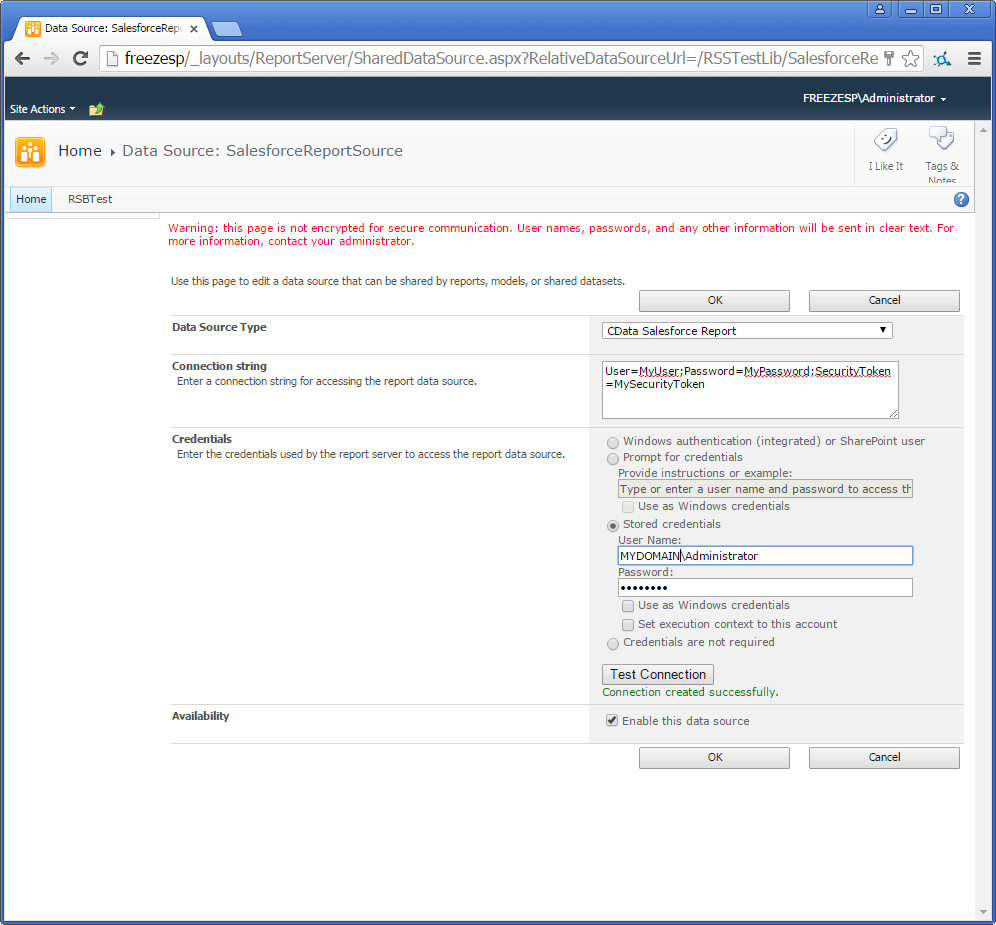
- Log into SharePoint and open the library where you want to save the .rsds file.
- On the ribbon click Documents -> New Document -> Report Data Source.
- Enter a name for the data source.
- In the Data Source Type menu, select CData API Report.
- In the Connection String box, enter the connection string to connect to Miro. A typical connection string is below:
Profile=C:\profiles\Miro.apip;AuthScheme=APIKey;ProfileSettings='APIKey=your_access_token';
API キー認証の設定
Miro は、アクセストークンを使った API キー認証を使用します。アクセストークンを生成するには、以下のステップで進めます:
- Miro アカウントにログインします
- Settings > Your apps に移動します
- 「Create new app」をクリックするか、既存のアプリを選択します
- 必要な権限を設定します(例:boards:read、teams:read)
- アプリをインストールしてアクセストークンを生成します
- 生成されたアクセストークンをコピーします(一度しか表示されません)
アクセストークンを取得したら、以下の接続プロパティを設定します:
- AuthScheme:APIKey に設定します。
- APIKey:アクセストークンに設定します。
Miro への接続
認証を設定すると、Miro に接続して、Boards、Items、Teams、Organizations などの利用可能なテーブルからデータをクエリできます。