






Spring Boot からSharePoint のデータに接続する方法

Spring Boot は、Java Web アプリケーションの開発を容易にするフレームワークです。 最小限の設定でスタンドアロンアプリケーションを作成できるのが特徴です。 CData JDBC Driver for SharePoint と組み合わせることで、Spring Boot からリアルタイムのSharePoint のデータを扱えるようになります。 この記事では、CData JDBC Driver for SharePoint を使用してSpring Boot アプリケーションでデータソースを設定し、データを取得する方法を説明します。
ビルトインの最適化されたデータ処理機能により、CData JDBC Driver は リアルタイムのSharePoint のデータとのやり取りにおいて比類のないパフォーマンスを発揮します。SharePoint に 複雑なSQL クエリを発行すると、ドライバーはフィルタや集計などのサポートされている SQL 操作を直接SharePoint にプッシュし、サポートされていない操作(多くの場合SQL 関数や JOIN 操作)は組み込みのSQL エンジンを利用してクライアント側で処理します。 組み込みの動的メタデータクエリにより、ネイティブのデータ型を使用して SharePoint のデータを操作・分析できます。
SharePoint データ連携について
CData を使用すれば、SharePoint のライブデータへのアクセスと統合がこれまでになく簡単になります。お客様は CData の接続機能を以下の目的で利用しています:
- Windows SharePoint Services 3.0、Microsoft Office SharePoint Server 2007 以降、SharePoint Online を含む、幅広い SharePoint バージョンのデータにアクセスできます。
- 非表示カラムとルックアップカラムのサポートにより、SharePoint のすべてにアクセスできます。
- フォルダを再帰的にスキャンして、すべての SharePoint データのリレーショナルモデルを作成できます。
- SQL ストアドプロシージャを使用して、ドキュメントや添付ファイルをアップロード・ダウンロードできます。
多くのお客様は、SharePoint データをデータベースやデータウェアハウスに統合するために CData ソリューションを活用していますが、Power BI、Tableau、Excel などのお気に入りのデータツールと SharePoint データを統合しているお客様もいます。
お客様が CData の SharePoint ソリューションで問題を解決している方法については、ブログをご覧ください:Drivers in Focus: Collaboration Tools
はじめに
Java でSpring Boot プロジェクトを作成
IDE(このチュートリアルではIntelliJ を使用)で、Maven プロジェクトを選択します:
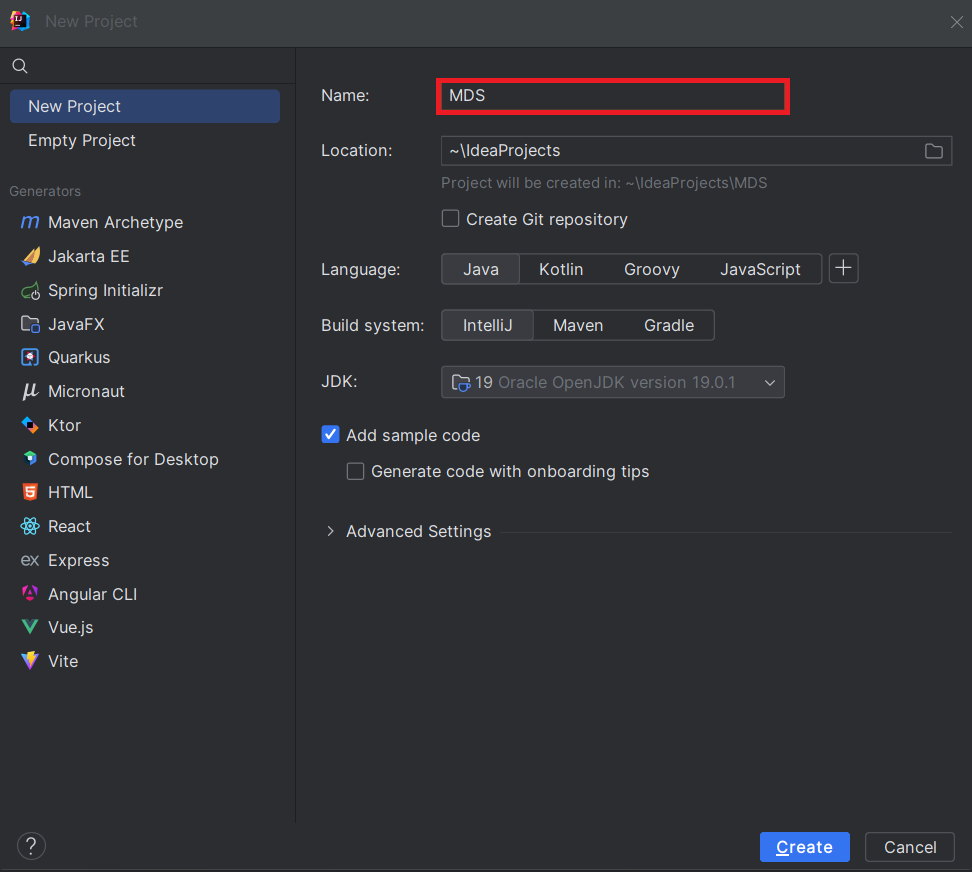 生成されたプロジェクトで、pom.xml ファイルを開き、Spring Boot に必要な依存関係を追加します:
<?xml version="1.0" encoding="UTF-8"?>
<project xmlns="http://maven.apache.org/POM/4.0.0" xmlns:xsi="http://www.w3.org/2001/XMLSchema-instance"
xsi:schemaLocation="http://maven.apache.org/POM/4.0.0 https://maven.apache.org/xsd/maven-4.0.0.xsd">
<modelVersion>4.0.0</modelVersion>
<parent>
<groupId>org.springframework.boot</groupId>
<artifactId>spring-boot-starter-parent</artifactId>
<version>2.7.2</version>
<relativePath/>
</parent>
<groupId>com.example</groupId>
<artifactId>demo</artifactId>
<version>0.0.1-SNAPSHOT</version>
<name>demo</name>
<description>Demo project for Spring Boot</description>
<properties>
<java.version>1.8</java.version>
</properties>
<build>
<plugins>
	<plugin>
		<groupId>org.springframework.boot</groupId>
		<artifactId>spring-boot-maven-plugin</artifactId>
	</plugin>

	<plugin>
		<groupId>org.apache.maven.plugins</groupId>
		<artifactId>maven-install-plugin</artifactId>
		<version>2.5.1</version>
		<executions>
			<execution>
				<id>id.install-file</id>
				<phase>clean</phase>
				<goals>
					<goal>install-file</goal>
				</goals>
				<configuration>
					<file>C:\Program Files\CData[product_name] ####\lib\cdata.jdbc.sharepoint.jar</file>
					<groupId>org.cdata.connectors</groupId>
					<artifactId>cdata-sharepoint-connector</artifactId>
					<version>23</version>
					<packaging>jar</packaging>
				</configuration>
			</execution>
		</executions>
	</plugin>
</plugins>
</build>

<dependencies>
<dependency>
	<groupId>org.springframework.boot</groupId>
	<artifactId>spring-boot-starter-web</artifactId>
</dependency>
<dependency>
	<groupId>org.springframework.boot</groupId>
	<artifactId>spring-boot-starter-jdbc</artifactId>
	<version>2.7.0</version>
</dependency>
<dependency>
	<groupId>org.cdata.connectors</groupId>
	<artifactId>cdata-sharepoint-connector</artifactId>
	<version>23</version>
</dependency>

<dependency>
	<groupId>org.springframework.boot</groupId>
	<artifactId>spring-boot-starter-test</artifactId>
	<scope>test</scope>
</dependency>
</dependencies>


<distributionManagement>
<repository>
	<uniqueVersion>false</uniqueVersion>
	<id>test</id>
	<name>My Repository</name>
	<url>scp://repo/maven2</url>
	<layout>default</layout>
</repository>
</distributionManagement>

</project>
Note: 年(####)とバージョン番号(上記のXML スクリプトに記載)は、使用しているCData JDBC Driver の現在のバージョンに合わせて調整してください。
プロジェクト構造
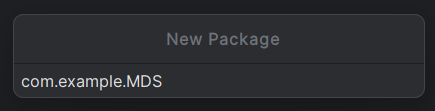
java ディレクトリに新しいパッケージを作成します。通常、パッケージ名はgroupId
(com.example)の後にartifactId(.MDS)を付けたものになります。
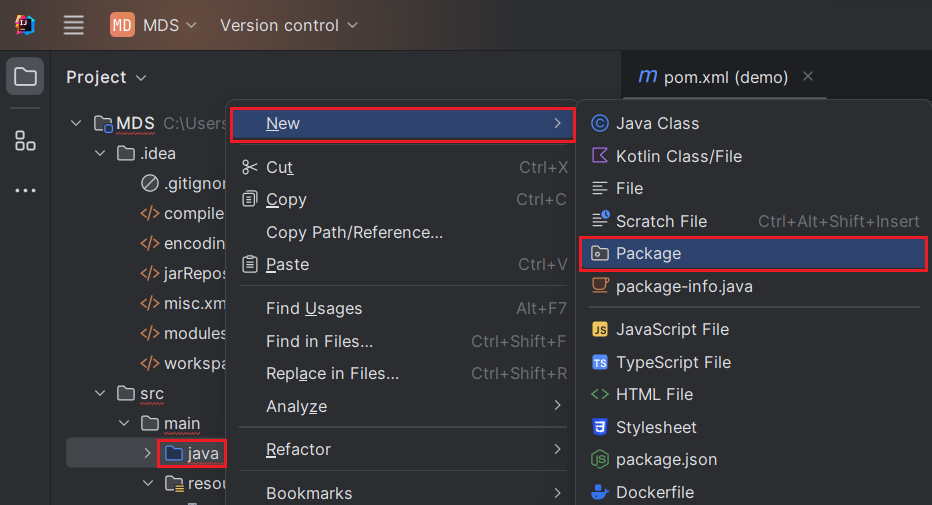
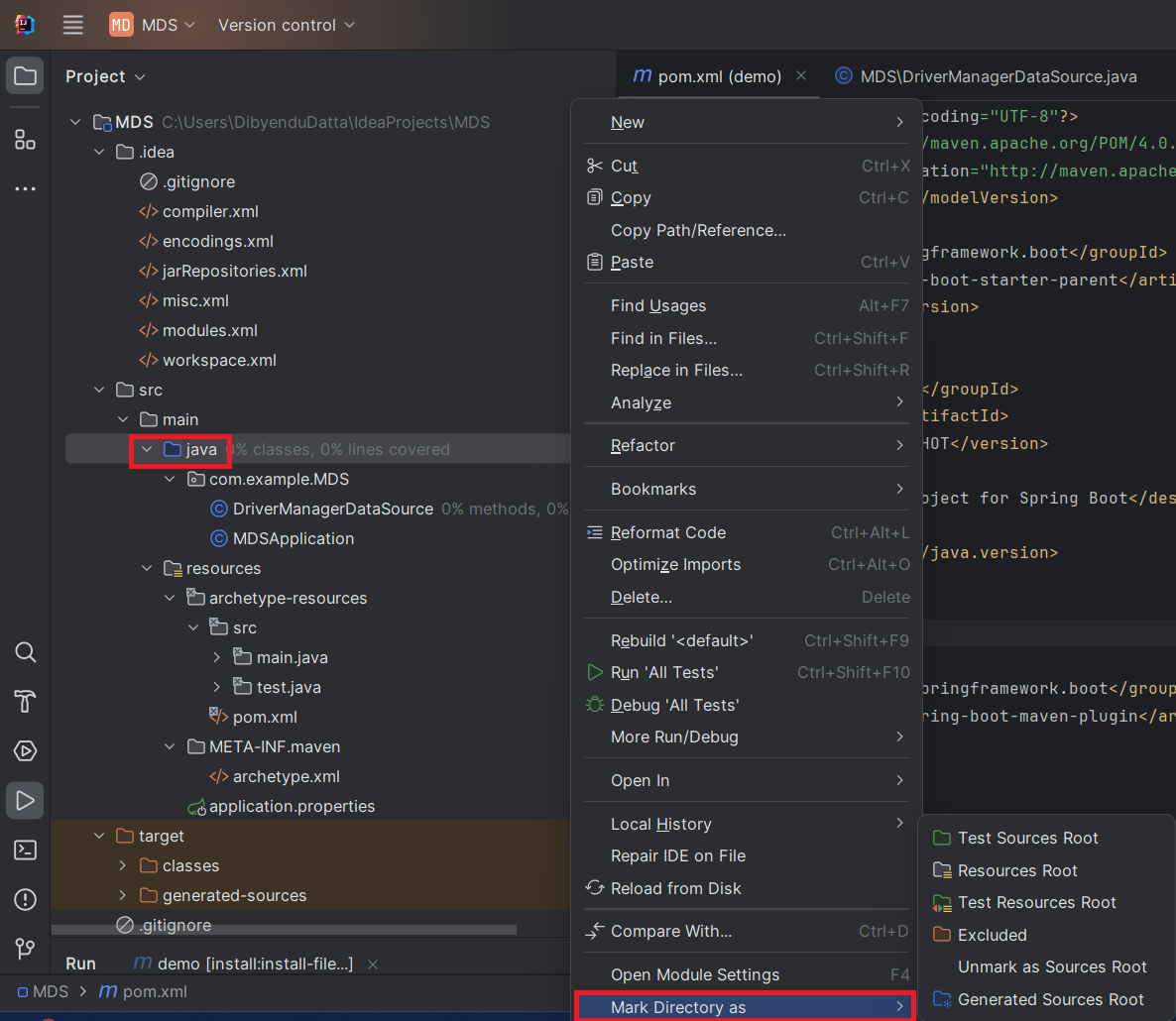
「java」ディレクトリを「Sources Root」としてマーク(青色で表示)します。これを行うには、java ディレクトリを右クリックし、「Mark Directory as」->「Sources Root」を選択します(以下を参照)。また、「resources」ディレクトリを「Resources Root」としてマークします。
データベース接続プロパティの保存
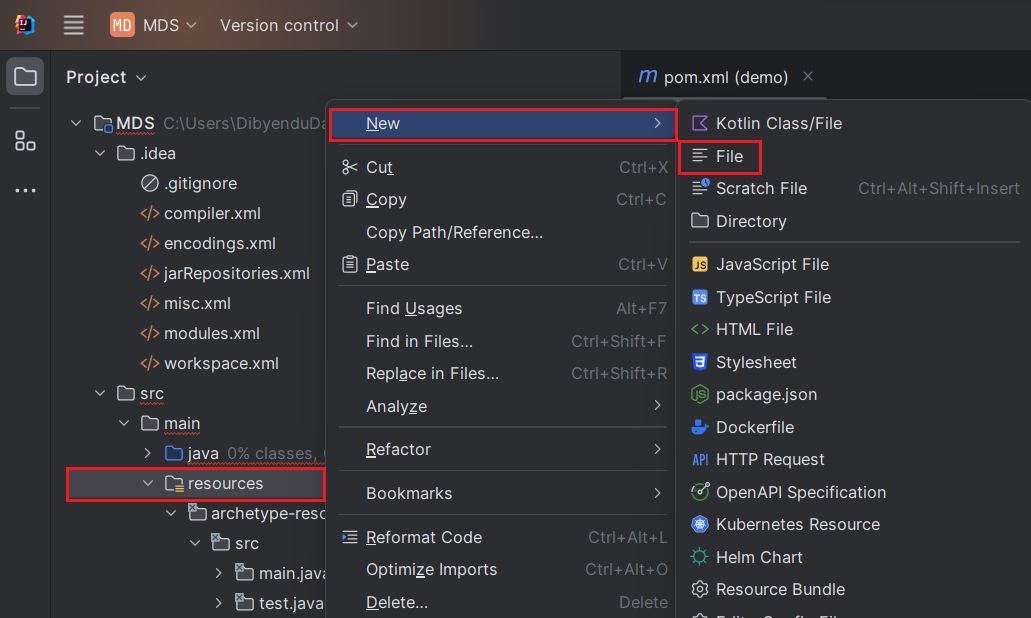
データベース接続プロパティを保存するための「application.properties」ファイルを作成します。これを行うには、「resources」フォルダを右クリックし、「New」->「File」を選択し、ファイル名を「application.properties」と入力してEnter を押します。
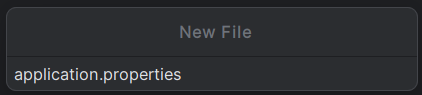
application.properties ファイルで、クラス名とJDBC URL を使用してSharePoint JDBC Driver の設定プロパティを設定します:
	spring.datasource.driver=cdata.jdbc.sharepoint.SharePointDriver
	spring.datasource.url=jdbc:sharepoint:User=myuseraccount;Password=mypassword;Auth Scheme=NTLM;URL=http://sharepointserver/mysite;SharePointEdition=SharePointOnPremise;
組み込みの接続文字列デザイナー
JDBC URL の作成については、SharePoint JDBC Driver に組み込まれている接続文字列デザイナーを使用してください。JAR ファイルをダブルクリックするか、コマンドラインからjar ファイルを実行します。
java -jar cdata.jdbc.sharepoint.jar
Microsoft SharePoint への接続
URL の設定:
Microsoft SharePoint では、2つの範囲でデータを操作できます。グローバルなMicrosoft SharePoint サイト全体を対象にするか、個々のサイトのみを対象にするかを選択できます。
グローバルなMicrosoft SharePoint サイトですべてのリストおよびドキュメントを操作したい場合は、URL 接続プロパティをサイトコレクションURL に設定しましょう。以下のような形式です。
https://teams.contoso.com
個々のサイトのリストおよびドキュメントのみを扱いたい場合は、URL 接続プロパティを個々のサイトURL に設定してください。以下のような形式です。
https://teams.contoso.com/TeamA
続いて、お使いの環境に適した認証プロパティを設定していきましょう。詳細な設定手順については、 href="/kb/help/" target="_blank">ヘルプドキュメントの「はじめに」をご参照ください。
Microsoft SharePoint Online
SharePointEdition を"SharePoint Online" に設定し、User およびPassword にはSharePoint へのログオンで使用するクレデンシャル(例:Microsoft Online Services アカウントのクレデンシャル)を設定します。
Microsoft SharePoint Online は様々なクラウドベースアーキテクチャをサポートしており、それぞれ異なる認証スキームが利用できます。
- Microsoft Entra ID(Azure AD)
- ADFS、Okta、OneLogin、またはPingFederate SSO ID プロバイダーを介したシングルサインオン(SSO)
- Azure MSI
- Azure パスワード
- OAuthJWT
- SharePointOAuth
Microsoft SharePoint オンプレミス
Microsoft SharePoint オンプレミスでは、多くのオンプレミス環境に対応した認証方式をサポートしています。
- Windows(NTLM)
- Kerberos
- ADFS
- 匿名アクセス
まずSharePointEdition を"SharePoint On-Premises" に設定しましょう。
Windows(NTLM)認証
これは最も一般的な認証方式です。そのため、CData 製品ではNTLM をデフォルトとして使用するよう事前設定されています。Windows のUser およびPassword を設定するだけで接続できます。
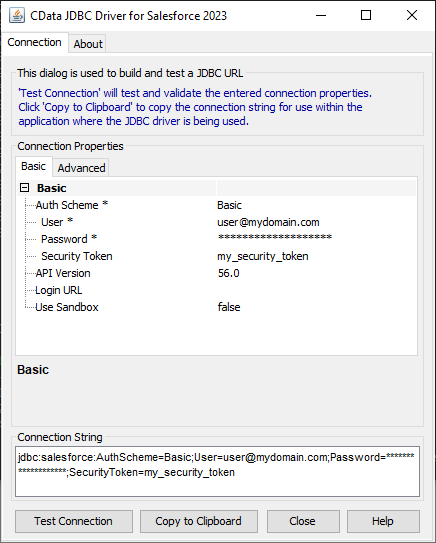
application.properties ファイルでプロパティを設定したら、次にそれらを構成します。
データソースの設定
まず、SharePoint データソースをプライマリデータソースとしてマークします。次に、データソースBean を作成します。
DriverManagerDataSource.java ファイルを作成し、以下のようにBean を作成します。@Bean でエラーが発生する場合、 Spring Boot が正しくロードされていない可能性があります。これを修正するには、「File」->「Invalidate Caches」でキャッシュを無効にして再起動します。 また、Maven がSpring Boot の依存関係を追加していることを確認してください。
データソースBean を作成するには、DriverManagerDataSource クラスを使用します。このクラスを使用すると、
データソースのプロパティを設定できます。このJava クラスを作成するには、「com.example.MDS」パッケージを右クリックし、「New」->「Java Class」を選択します。
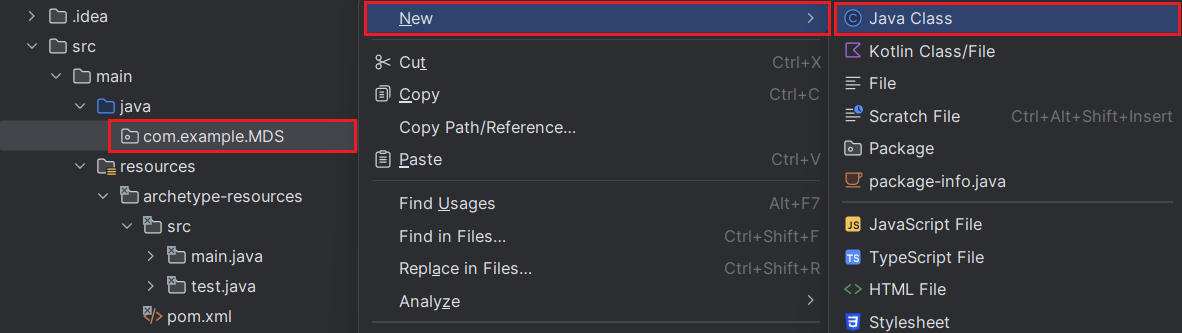
以下のコードは、データソースのBean 定義を示しています。各ドライバーにはBean が必要です。
import org.springframework.beans.factory.annotation.Autowired;
import org.springframework.boot.jdbc.DataSourceBuilder;
import org.springframework.context.annotation.Bean;
import org.springframework.context.annotation.Primary;
import org.springframework.core.env.Environment;
import javax.sql.DataSource;

public class DriverManagerDataSource{
	@Autowired
	private static Environment env;

	@Bean(name ="SharePoint")
	@Primary
	public static DataSource SharePointDataSource()
	{

	DataSourceBuilder<?> dataSourceBuilder = DataSourceBuilder.create();
		dataSourceBuilder.driverClassName("cdata.jdbc.sharepoint.SharePointDriver");
		dataSourceBuilder.url("jdbc:sharepoint:User=myuseraccount;Password=mypassword;Auth Scheme=NTLM;URL=http://sharepointserver/mysite;SharePointEdition=SharePointOnPremise;");
		return dataSourceBuilder.build();
	}

	//@Override
	public void setEnvironment( final Environment environment) {
	env=environment;
	}
}
次に、SharePoint jar ファイルをDocuments フォルダに移動します(以下のコマンドのパスを参照)。jar ファイルのパスにスペースが含まれないようにするためです。次に、
Maven アイコン(IntelliJ の右上隅)をクリックし、「Execute Maven Goal」をクリックします。以下のコマンドを実行します:
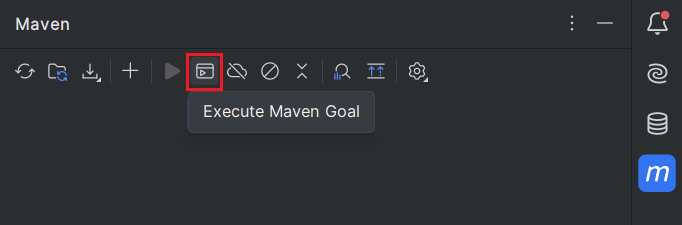
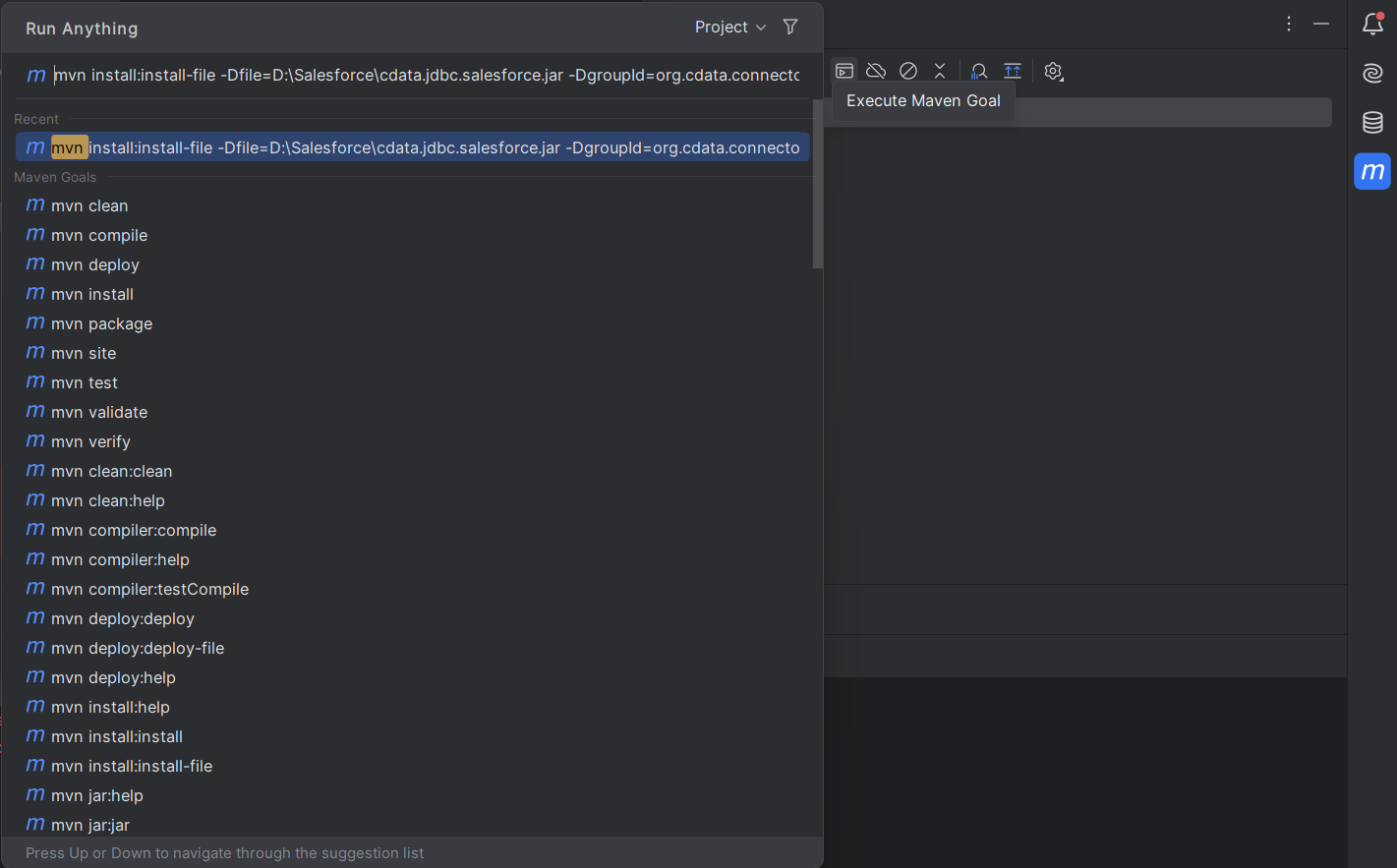
mvn install:install-file "-Dfile=C:\Program Files\CData[product_name] ####\lib\cdata.jdbc.sharepoint.jar" -DgroupId=org.cdata.connectors -DartifactId=cdata-sharepoint-connector -Dversion=23 -Dpackaging=jar
このコマンドを実行するには、以下のいずれかの手順に従ってください:
- 「-Dfile location」はCData JDBC Driver のデフォルトのインストールパスのままにできます。この場合、パスを引用符で囲んでください。また、使用しているドライバーの現在のバージョンに基づいて年と「Dversion」を変更してください。
- 記事の前半で述べたように、
jar ファイルをDocuments フォルダに移動した場合は、提供されたコマンドのパスを変更してください。この場合、Dfile location を引用符で囲まないでください。使用しているドライバーの現在のバージョンに基づいて「Dversion」を編集してください。
Enter を押すと、以下の出力が表示されます:
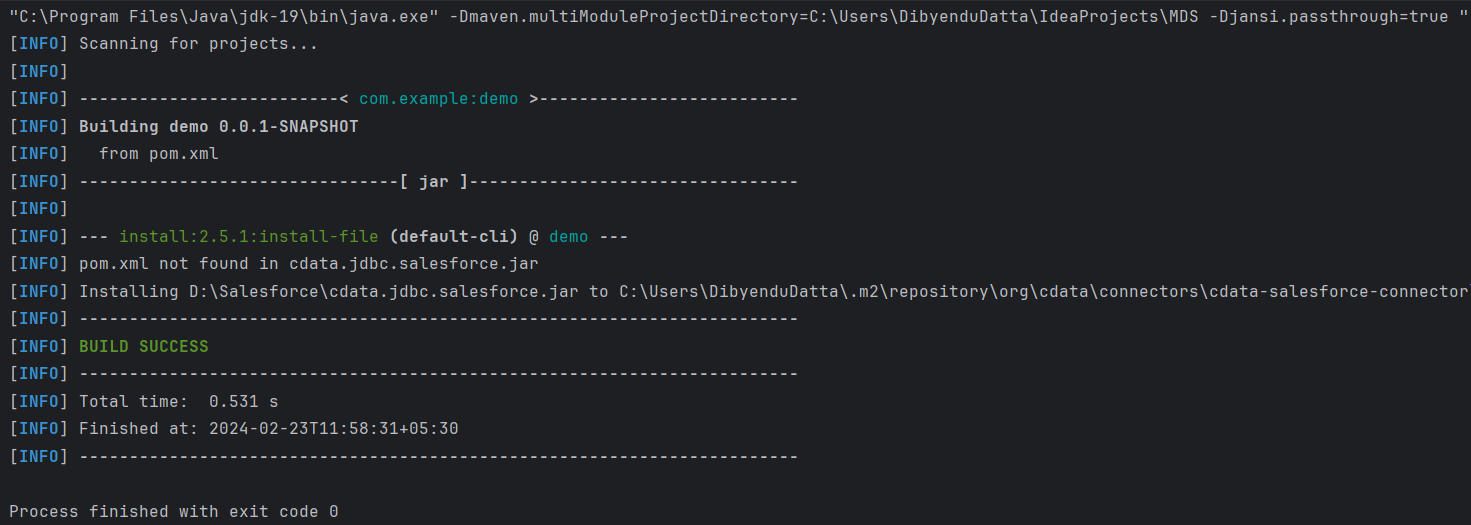
接続のテスト
最後のステップは接続のテストです。
import org.springframework.boot.SpringApplication;
import org.springframework.boot.autoconfigure.SpringBootApplication;
import org.springframework.boot.autoconfigure.jdbc.DataSourceAutoConfiguration;
import java.sql.Connection;
import java.sql.SQLException;
import static com.example.demo.DriverManagerDataSources.SharePointDataSource;


@SpringBootApplication(exclude = {DataSourceAutoConfiguration.class})
	public class MDSApplication {
		//remove the comment on the line below
		public static void main (){
		SpringApplication.run(DemoApplication.class, args);
		Connection conn = SharePointDataSource().getConnection();
		System.out.println("Catalog: "+ conn.getCatalog());
	}
}
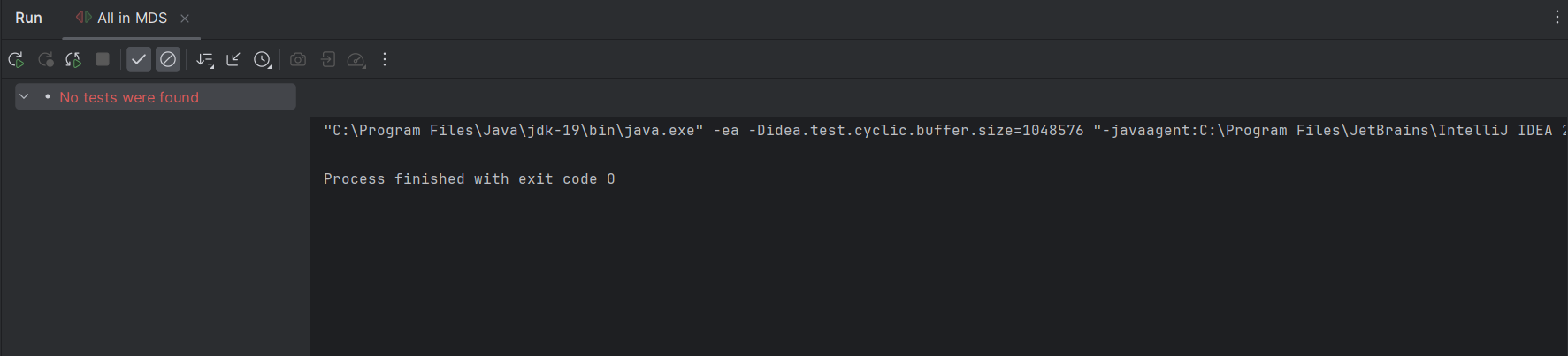
生成される出力は以下のようになります:
無償トライアルと詳細情報
CData JDBC Driver for SharePoint の30日間の無償トライアルをダウンロードして、Spring Boot でリアルタイムのSharePoint データを使い始めましょう。
はじめる準備はできましたか?
SharePoint Driver の無料トライアルをダウンロードしてお試しください:
ダウンロード詳細:
 SharePoint JDBC Driver
お問い合わせ
SharePoint JDBC Driver
お問い合わせ
Java 開発者は、Web、デスクトップ、およびモバイルアプリケーションをSharePoint Server のリスト、連絡先、カレンダー、リンク、タスクなどのデータに簡単に接続できるようになります。