






TIBCO Data Virtualization で Zoho Recruit のデータ にリアルタイムアクセスする方法
TIBCO Data Virtualization(TDV)は、複数の多様なデータソースへのアクセスを一元管理するエンタープライズデータ仮想化ソリューションです。CData TIBCO DV Adapter for Zoho Recruit と組み合わせることで、TIBCO Data Virtualization 内からZoho Recruit のデータに直接フェデレーテッドアクセスが可能になります。この記事では、アダプターのデプロイと Zoho Recruit に基づく新しいデータソースの作成手順を解説します。
CData TIBCO DV Adapter は、最適化されたデータ処理機能が組み込まれており、Zoho Recruit のデータ とのインタラクションにおいて比類のないパフォーマンスを発揮します。Zoho Recruit に対して複雑な SQL クエリを発行すると、アダプターはフィルタや集計などサポートされている SQL 操作を直接 Zoho Recruit にプッシュします。組み込みの動的メタデータクエリにより、ネイティブのデータ型を使用してZoho Recruit のデータを操作・分析できます。
Zoho Recruit TIBCO DV Adapter のデプロイ
コンソールで、TDV Server のインストールディレクトリ内の bin フォルダに移動します。現在のバージョンのアダプターがインストールされている場合は、先にアンデプロイする必要があります。
.\server_util.bat -server localhost -user admin -password ******** -undeploy -version 1 -name API
CData TIBCO DV Adapter をローカルフォルダに解凍し、解凍した場所から JAR ファイル(tdv.api.jar)をサーバーにデプロイします。
.\server_util.bat -server localhost -user admin -password ******** -deploy -package /PATH/TO/tdv.api.jar
新しい JAR ファイルが正しくロードされるように、サーバーの再起動が必要な場合があります。再起動は、C:\Program Files\TIBCO\TDV Server <version>\bin にある composite.bat スクリプトを実行して行えます。サーバーを再起動した後は、TDV Studio への再認証が必要です。
再起動コマンドの例
.\composite.bat monitor restart
OAuth を使用して Zoho Recruit で認証する
Zoho Recruit は OAuth プロトコルを使用して認証を行いますが、TDV Studio は内部でブラウザベースの認証をサポートしていないため、OAuth トークンを取得するための簡単な Java アプリケーションを作成して実行する必要があります。取得したトークンは、アダプターから直接 Zoho Recruit に接続するために使用されます。
Create the Java Application
- Create a new Java file with preferred name for example GenOAuthSettings.java. This Java file leverages the APIOAuth class contained within the TDV Adapter JAR to initiate a test connection and perform the required OAuth authentication flow
- Copy and insert the following code into the .java file:
- Place the .java file in the same directory as the tdv.api.jar file. This is required to prevent classpath resolution errors during compilation and execution
public class GenOAuthSettings {
    public static void main(String[] args) {
        try {
    	    if (args.length != 2) {
    			throw new Exception("Input must have two arguments: 'data source', 'connection string'");
    		}

    		String source = args[0].replace(" ", "").toLowerCase();
    		String connectionString = args[1];
    		String prefix;

    		if (source.equals("api")) {
    			prefix = "jdbc:api:";

    			com.cdata.cis.api.APIOAuth oauth = new com.cdata.cis.api.APIOAuth();

    			if (!connectionString.startsWith(prefix)) connectionString = prefix + connectionString;
    			oauth.generateOAuthSettingsFile(connectionString);
    		}
    		// More sources can be added below using the same format.  You must add the import statement and ensure the jar file resides in the classpath
			//            else if (source.equals("googlebigquery") || source.equals("bigquery")) {
			//                prefix = "jdbc:googlebigquery:";
			//
			//                com.cdata.cis.googlebigquery.GoogleBigQueryOAuth oauth = new com.cdata.cis.googlebigquery.GoogleBigQueryOAuth();
			//
			//                if (!connectionString.startsWith(prefix)) connectionString = prefix + connectionString;
			//                oauth.generateOAuthSettingsFile(connectionString);
			//            }
    		else {
				throw new Exception("Data Source not supported.  Available Data Sources: Zoho Recruit");
			}

			System.out.println("Test Connection Successful!");
		} catch (Exception e) {
			e.printStackTrace();
		}
	}
}
Build and run the Java Application
- Open Console and navigate to the directory containing the .java file and adapter jar
- Compile the Java file using the following command:
- Execute the application using one of the following commands:
javac -cp .;tdv.api.jar GenOAuthSettings.java
java -cp .;tdv.api.jar GenOAuthSettings "API" "connection string"
This command initiates the OAuth authentication flow and generates the OAuth settings file at the location specified in the OAuthSettingsLocation parameter. Once you deploy the adapter and authenticate, you can create a new data source for Zoho Recruit in TDV Studio.
TDV Studio で Zoho Recruit データソースを作成する
CData TIBCO DV Adapter for Zoho Recruit を使用すると、Zoho Recruit 用のデータソースを簡単に作成し、データソースをイントロスペクトしてリソースを TDV に追加できます。
データソースの作成
- データソースを追加するフォルダを右クリックし、New -> New Data Source を選択します。
- アダプター(例:Zoho Recruit)が表示されるまでスクロールし、Next をクリックします。
- データソースに名前を付けます(例:CData Zoho Recruit Source)。
必要な接続プロパティを入力します。
ZohoRecruit への認証では、OAuth 標準を使って自分のデータに接続したり、他のユーザーが各自のデータに接続できるようにしたりできます。
OAuth 認証の設定
まず、ZohoRecruit に OAuth アプリケーションを登録する必要があります。登録するには、Zoho Developer Console に移動して、新しい Client(Server-based application)を追加し、有効な OAuth リダイレクト URL を設定します。OAuth アプリケーションには client id と client secret が割り当てられます。さらに、該当する Domain(.com、.eu、.in、.com.cn、または .jp)を設定する必要があります。デフォルトは .com です。
以下の接続プロパティを設定して接続を確立してください:
- AuthScheme:OAuth に設定します。
- InitiateOAuth:GETANDREFRESH に設定します。InitiateOAuth を使うと、OAuthAccessToken を取得するプロセスを管理できます。
- OAuthClientId:アプリ設定で指定された client_id に設定します。
- OAuthClientSecret:アプリ設定で指定された client_secret に設定します。
- CallbackURL:アプリ設定で指定されたリダイレクト URI に設定します。
- Domain:ProfileSettings に設定して、ZohoRecruit アカウントのドメイン(例:.com、.eu、.in、.com.cn、.jp)を指定します。
接続文字列の例:
Profile=C:\profiles\ZohoRecruit.apip;ProfileSettings='Domain=.com';AuthScheme=OAuth;InitiateOAuth=GETANDREFRESH;OAuthClientId=your_client_id;OAuthClientSecret=your_client_secret;CallbackUrl=your_callback_url;
NOTE:DV Adapter の OAuthSettingsLocation プロパティには、OAuth 認証(上記参照)を実行したときと同じ値を設定してください。
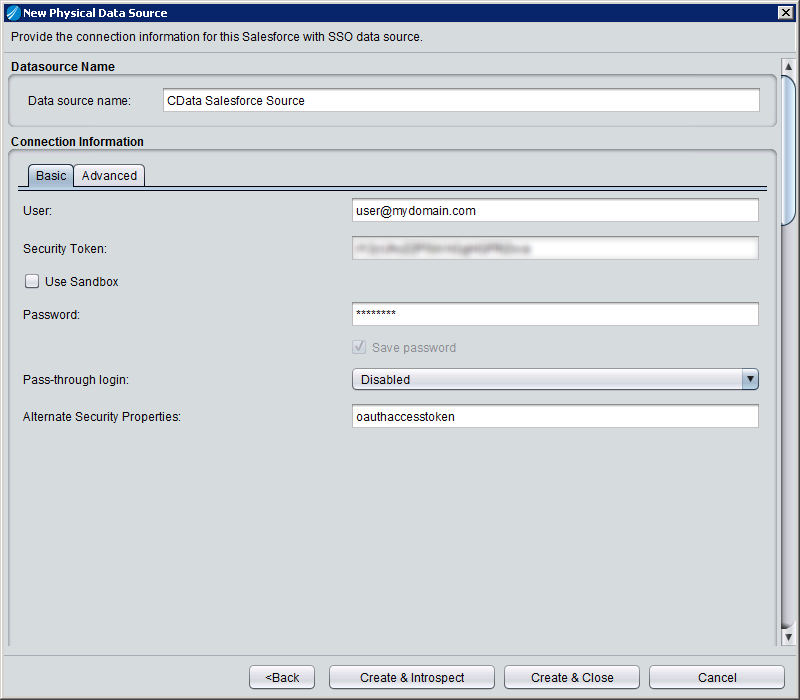
- Create & Close をクリックします。
データソースのイントロスペクト
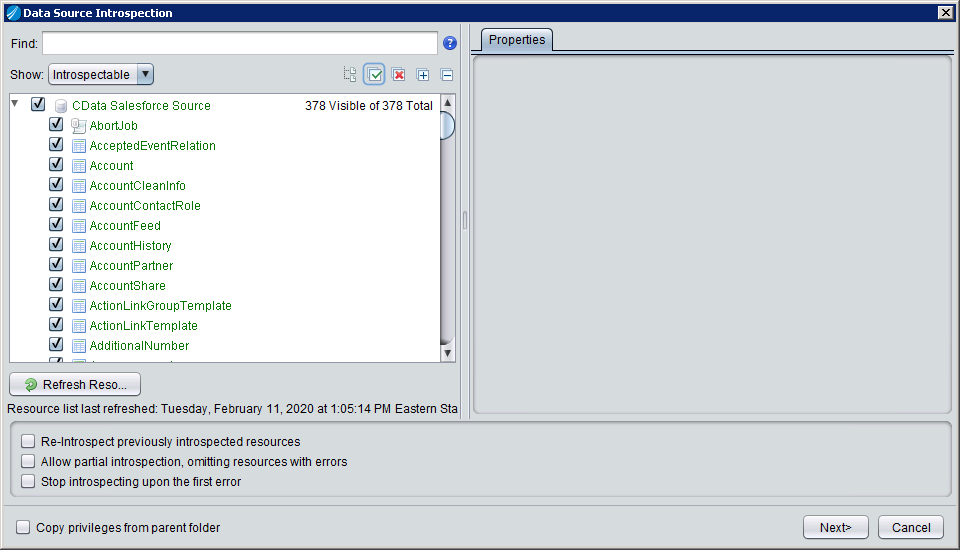
データソースを作成したら、右クリックして Open を選択することでデータソースをイントロスペクトできます。ダッシュボードで Add/Remove Resources をクリックし、データソースの一部として含めるテーブル、ビュー、ストアドプロシージャを選択します。Next をクリックし、Finish をクリックして、選択した Zoho Recruit のテーブル、ビュー、ストアドプロシージャをリソースとして追加します。
After creating and introspecting the data source, you are ready to work with Zoho Recruit のデータ in TIBCO Data Virtualization just like you would any other relational data source. You can create views, query using SQL, publish the data source, and more.
データソースを作成してイントロスペクトしたら、他のリレーショナルデータソースと同様に TIBCO Data Virtualization でZoho Recruit のデータを操作できるようになります。ビューの作成、SQL によるクエリ、データソースの公開など、さまざまな操作が可能です。