SSRS レポートサーバーでBrowse AI と連携する方法

この記事では、CData ADO.NET Provider for API をSSRS レポートサーバーで配布する方法を説明します。また、共有データソースも作成します;共有データソースは、複数の帳票からリアルタイムBrowse AI への接続を可能にします。共有データソースへは、Visual Studio のレポートデザイナーから接続できます。
ADO.NET Provider の配置
ネイティブモードのレポートサーバー、およびSharePoint server farm の一部としてインストールされたレポートサーバーに、同じ手順でプロバイダーを配布できます。プロバイダーに同梱されているInstallProvider.exe ユーティリティを使って、レポートサーバーにプロバイダーを配布します。InstallProvider.exe は、プロバイダーのインストールディレクトリの[lib]ブフォルダ内にあります。SQL サーバーのバージョン用のexe ファイルとSSRS フォルダを、配布するマシンにコピーします。/installssrs flag でexe ファイルを実行します。
.\InstallProvider.exe /installssrs PathToFolderWithSSRSDLL
Browse AI に共有データソースを作成
レポートサーバーから直接、またはSharePoint サイトから共有データソースを作成できます。あるいは、レポートデザイナーを使って作成することも可能です。
レポートデザイナー
レポートデザイナーを使って、ネイティブモードのレポートサーバーまたはSharePoint server farm のレポートサーバーで、共有データソースを作成できます。
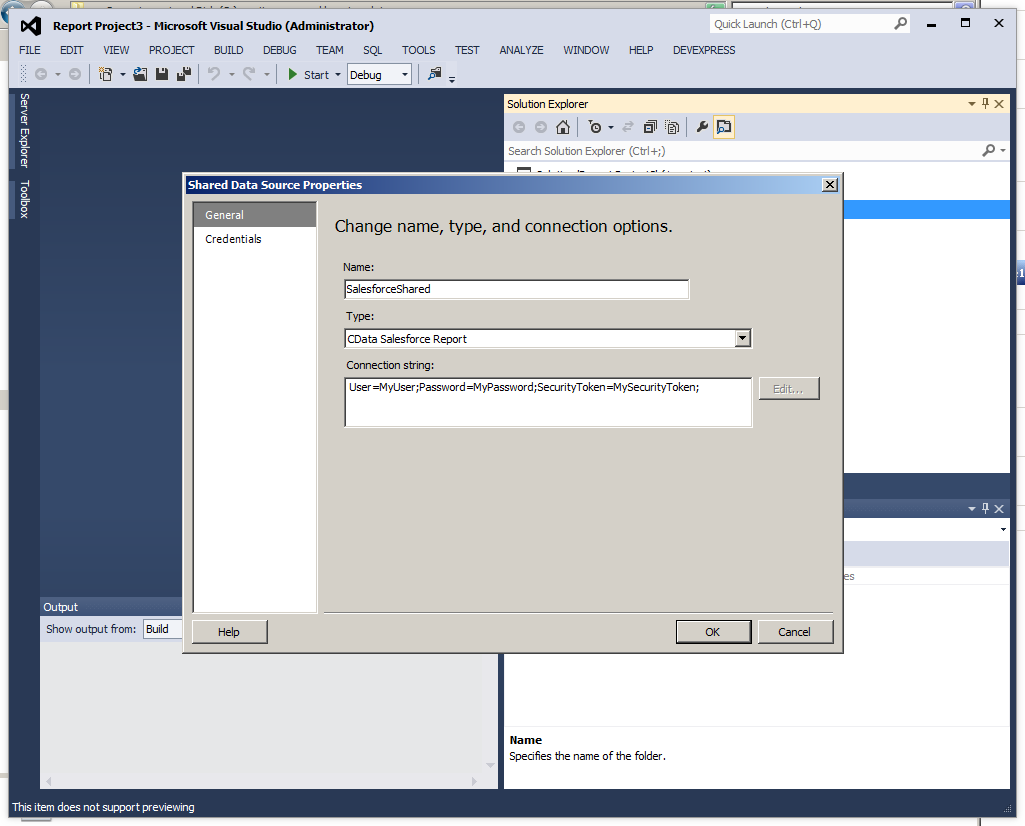
- In a Report Server Project in Visual Studio, right-click Shared Data Sources in Solution Explorer and click Add New Data Source.
- Enter a name for the data source and in the Type menu select CData API Report.
- In the Connection String box, enter the connection string to connect to Browse AI. A typical connection string is below:
Profile=C:\profiles\BrowseAI.apip;AuthScheme=APIKey;ProfileSettings='APIKey=your_user_id:your_api_key';まず、Profile 接続プロパティをディスク上の BrowseAI プロファイルの場所に設定します(例:C:\profiles\BrowseAI.apip)。次に、ProfileSettings 接続プロパティを BrowseAI の接続文字列に設定します(以下を参照)。
BrowseAI API プロファイル設定
BrowseAI は、ロボットをトレーニングして Web サイトからデータを抽出・監視できる Web スクレイピング・自動化プラットフォームです。認証には API キーを使用し、Authorization ヘッダーで Bearer トークンとして送信されます。
BrowseAI の API キーは {userId}:{apiKey} という形式で、コロンで区切られた2つの UUID で構成されています。BrowseAI ダッシュボードでは、この文字列全体が1つの値として提供されます。
API キーは以下の手順で取得できます。
- https://app.browse.ai で BrowseAI アカウントにログインします。
- ダッシュボードの「Settings」に移動します。
- 「API」セクションを探します。
- 表示された API キーの文字列全体をコピーします(形式:userId:apiKey)。
API キーを取得したら、以下の接続プロパティを設定します。
- AuthScheme:APIKey に設定します。
ProfileSettings 接続プロパティには、以下を設定します。
- APIKey:BrowseAI の API キーに設定します(形式:userId:apiKey)。
接続を設定する際は、Max Rows 接続プロパティの設定もおすすめします。返される行数を制限できるため、レポートやビジュアライゼーションを作成する際のパフォーマンス向上に特に役立ちます。
- Set the folder and server URL in your project properties. If you are publishing to SharePoint, the values for all properties must be fully qualified URLs. For example:
- Report Server: http://MyServerName/ReportServer
- SharePoint: http://MyServerName/MySite/MySubsite
- Right-click the shared data source and click Deploy.
レポートサーバー
レポートサーバーのネイティブモードのインストールでは、Report Manager を使って共有データソースを作成できます。レポートサーバーでデータソースを管理する権限が必要です。
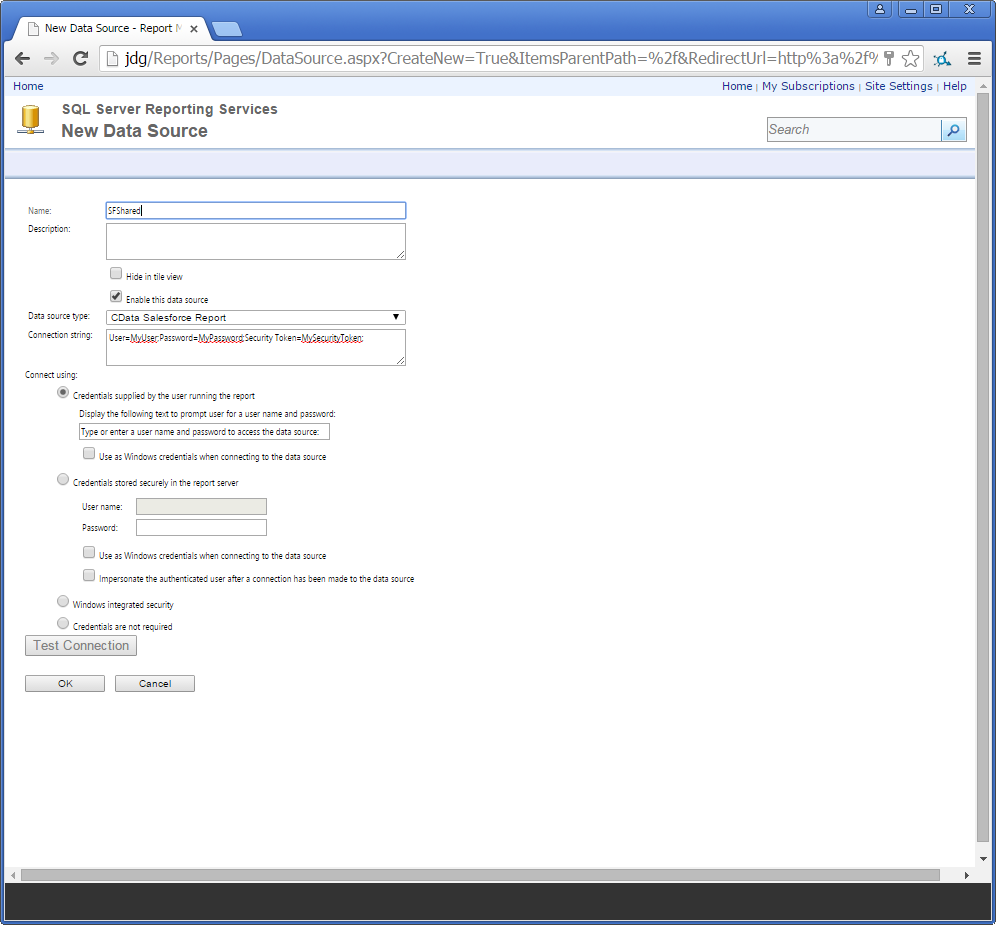
- From the Home page in Report Manager, click New Data Source. The New Data Source page is displayed.
- Enter a name for the data source and in the Data Source Type menu, select CData API Report.
- In the Connection String box, enter the connection string to connect to Browse AI. A typical connection string is below:
Profile=C:\profiles\BrowseAI.apip;AuthScheme=APIKey;ProfileSettings='APIKey=your_user_id:your_api_key';まず、Profile 接続プロパティをディスク上の BrowseAI プロファイルの場所に設定します(例:C:\profiles\BrowseAI.apip)。次に、ProfileSettings 接続プロパティを BrowseAI の接続文字列に設定します(以下を参照)。
BrowseAI API プロファイル設定
BrowseAI は、ロボットをトレーニングして Web サイトからデータを抽出・監視できる Web スクレイピング・自動化プラットフォームです。認証には API キーを使用し、Authorization ヘッダーで Bearer トークンとして送信されます。
BrowseAI の API キーは {userId}:{apiKey} という形式で、コロンで区切られた2つの UUID で構成されています。BrowseAI ダッシュボードでは、この文字列全体が1つの値として提供されます。
API キーは以下の手順で取得できます。
- https://app.browse.ai で BrowseAI アカウントにログインします。
- ダッシュボードの「Settings」に移動します。
- 「API」セクションを探します。
- 表示された API キーの文字列全体をコピーします(形式:userId:apiKey)。
API キーを取得したら、以下の接続プロパティを設定します。
- AuthScheme:APIKey に設定します。
ProfileSettings 接続プロパティには、以下を設定します。
- APIKey:BrowseAI の API キーに設定します(形式:userId:apiKey)。
SharePoint
SharePoint サイトで共有データソースを作成する方法は、次のとおりです。レポートサーバーcontent タイプをライブラリに追加していない場合は、追加しておく必要があります:
- SharePoint にログインし、.rsds ファイルを保存したいライブラリを開きます。
- [Library Tools]タブで[Settings]リボングループから[Library Settings]をクリックします。
- [General Settings]セクションで[Advanced Settings] をクリックします。
- [Content Types]セクションで[Yes]を選択し、cntent タイプの管理を許可します。[Content Types]セクションは[Library Settings]ページに追加されます。
- 既存のサイトcontent タイプから[Add]をクリックします。
- [Available Site Content Types]リストから[レポートデータソース]を選択し、[Add]をクリックします。
これで、共有データソースを作成できます。Browse AI への接続情報を含む.rsds ファイルを作成します。
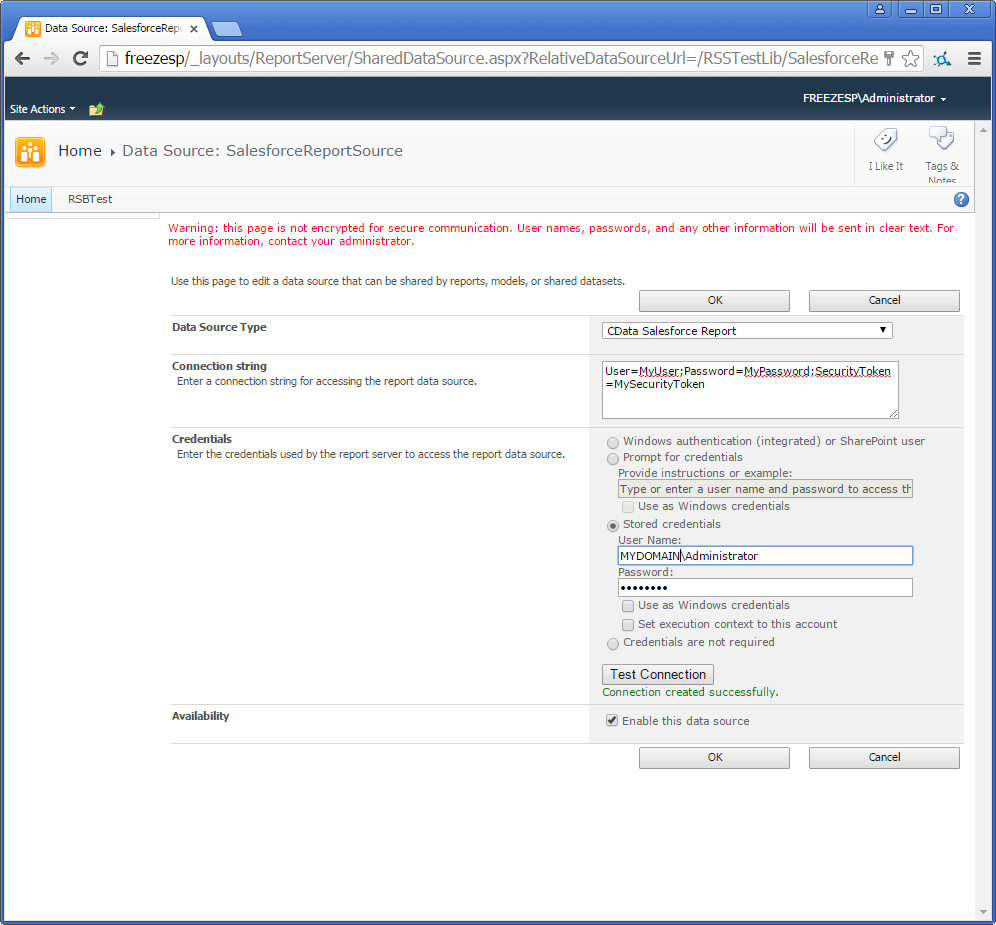
- Log into SharePoint and open the library where you want to save the .rsds file.
- On the ribbon click Documents -> New Document -> Report Data Source.
- Enter a name for the data source.
- In the Data Source Type menu, select CData API Report.
- In the Connection String box, enter the connection string to connect to Browse AI. A typical connection string is below:
Profile=C:\profiles\BrowseAI.apip;AuthScheme=APIKey;ProfileSettings='APIKey=your_user_id:your_api_key';まず、Profile 接続プロパティをディスク上の BrowseAI プロファイルの場所に設定します(例:C:\profiles\BrowseAI.apip)。次に、ProfileSettings 接続プロパティを BrowseAI の接続文字列に設定します(以下を参照)。
BrowseAI API プロファイル設定
BrowseAI は、ロボットをトレーニングして Web サイトからデータを抽出・監視できる Web スクレイピング・自動化プラットフォームです。認証には API キーを使用し、Authorization ヘッダーで Bearer トークンとして送信されます。
BrowseAI の API キーは {userId}:{apiKey} という形式で、コロンで区切られた2つの UUID で構成されています。BrowseAI ダッシュボードでは、この文字列全体が1つの値として提供されます。
API キーは以下の手順で取得できます。
- https://app.browse.ai で BrowseAI アカウントにログインします。
- ダッシュボードの「Settings」に移動します。
- 「API」セクションを探します。
- 表示された API キーの文字列全体をコピーします(形式:userId:apiKey)。
API キーを取得したら、以下の接続プロパティを設定します。
- AuthScheme:APIKey に設定します。
ProfileSettings 接続プロパティには、以下を設定します。
- APIKey:BrowseAI の API キーに設定します(形式:userId:apiKey)。