Google Forms のデータをDevExpress Data Grid にデータバインドする。

CData API Driver for ADO.NET は、サードパーティ製コントロールと組み合わせて使える標準的なADO.NET データアクセスコンポーネントを備えています。通常のADO.NET データバインドの手順に沿って進めるだけで、UI コントロールからリアルタイムデータの取得・表示を実現できます。この記事では、CData のコンポーネントを使って DevExpress UI コントロール(Windows Forms およびWeb コントロール) にデータバインドする方法を紹介します。今回は、リアルタイムのデータを可視化するチャートにデータバインドしていきます。
まず、Profile 接続プロパティをディスク上の Google Forms プロファイルの場所に設定します(例:C:\profiles\GoogleForms.apip)。次に、ProfileSettings 接続プロパティを Google Forms の接続文字列に設定します(以下を参照)。
Google Forms API プロファイル設定
Google Cloud Console でプロジェクトを作成し、Google Forms API を有効化して OAuth 2.0 認証情報を作成し、Client ID と Client Secret を取得します。
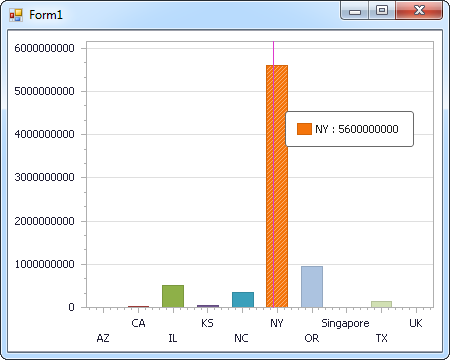
Windows Forms コントロール
下のコードでは、Google Forms でDevExpress のチャートに追加する方法を説明します。APIDataAdapter はチャートコントロールのSeries プロパティにバインドします。コントロールのDiagram プロパティはx 軸とy 軸をカラム名として定義します。
using (APIConnection connection = new APIConnection(
"Profile=C:\profiles\GoogleForms.apip;Authscheme=OAuth;OAuthClientId=your_client_id;OAuthClientSecret=your_client_secret;CallbackUrl=your_callback_url;")) {
  APIDataAdapter dataAdapter = new APIDataAdapter(
  "SELECT FormId, Title FROM Forms WHERE CreationTime = '2026-01-15'", connection);

  DataTable table = new DataTable();
  dataAdapter.Fill(table);
  DevExpress.XtraCharts.Series series = new DevExpress.XtraCharts.Series();
  chartControl1.Series.Add(series);
  DataTable table = new DataTable();
  series.ValueDataMembers.AddRange(new string[] { "Title" });
  series.ArgumentScaleType = DevExpress.XtraCharts.ScaleType.Qualitative;
  series.ArgumentDataMember = "FormId";
  series.ValueScaleType = DevExpress.XtraCharts.ScaleType.Numerical;
  chartControl1.Legend.Visibility = DevExpress.Utils.DefaultBoolean.False;
  ((DevExpress.XtraCharts.SideBySideBarSeriesView)series.View).ColorEach = true;
}
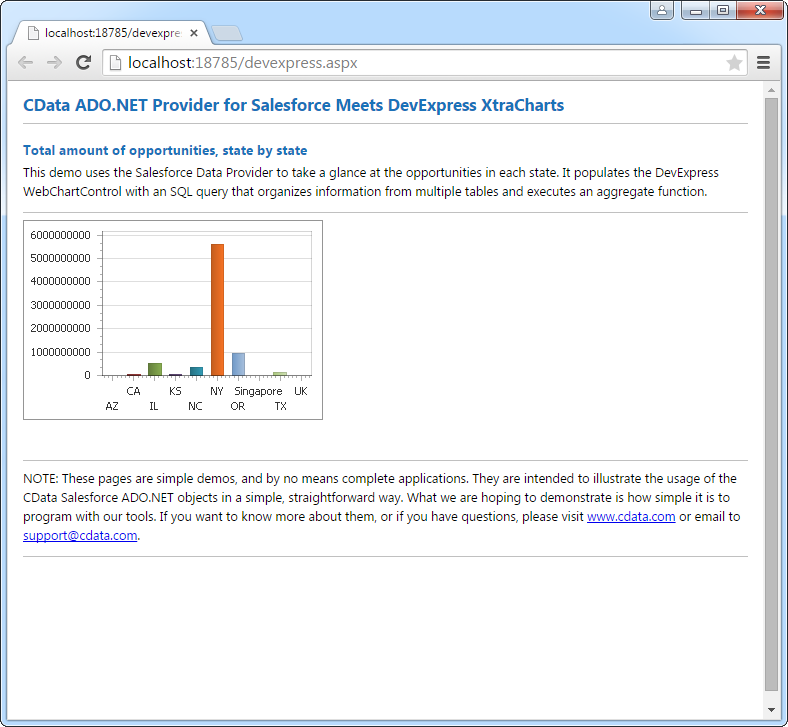
Web コントロール
下のコードではGoogle Forms でDevExpress Web を操作するための設定方法を説明します。APIDataAdapter はチャートのSeries プロパティにバインドします。Diagram プロパティはx 軸とy 軸をカラム名として定義します。
using DevExpress.XtraCharts;

using (APIConnection connection = new APIConnection(
"Profile=C:\profiles\GoogleForms.apip;Authscheme=OAuth;OAuthClientId=your_client_id;OAuthClientSecret=your_client_secret;CallbackUrl=your_callback_url;"))
{
  APIDataAdapter APIDataAdapter1 = new APIDataAdapter("SELECT FormId, Title FROM Forms WHERE CreationTime = '2026-01-15'", connection);
  DataTable table = new DataTable();
  APIDataAdapter1.Fill(table);
  DevExpress.XtraCharts.Series series = new Series("Series1", ViewType.Bar);
  WebChartControl1.Series.Add(series);
  DataTable table = new DataTable();
  series.ValueDataMembers.AddRange(new string[] { "Title" });
  series.ArgumentScaleType = ScaleType.Qualitative;
  series.ArgumentDataMember = "FormId";
  series.ValueScaleType = ScaleType.Numerical;
  ((DevExpress.XtraCharts.SideBySideBarSeriesView)series.View).ColorEach = true;
}